5 Key Maintenance Tasks for Your WordPress Website

maintenance Tasks for your WordPress website featured

Nowadays, as the digital world is evolving like never before, creating a website and leaving it is simply not enough. When it comes to content management systems like WordPress, keeping up with routine tasks is vital. If you are running outdated software on your site, don’t have an optimized database or if you simply don’t care about security questions, sooner or later these maintenance tasks for your WordPress website will catch up to you. Fixing them down the line will be much harder and may even cost extra money.

A better approach is to use the simple tactic of running routine tasks or even automating them in order to streamline this process.

In this post, we’ll discuss the significance of maintenance tasks for your WordPress website and the most important runs to keep your site functioning optimally.

Updates – themes, WordPress, plugins

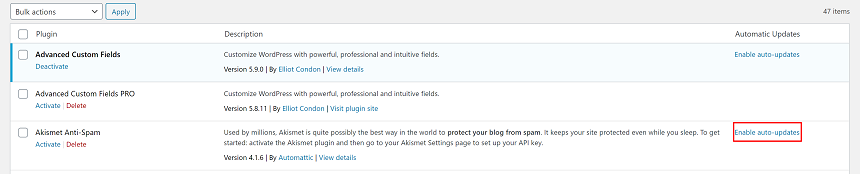
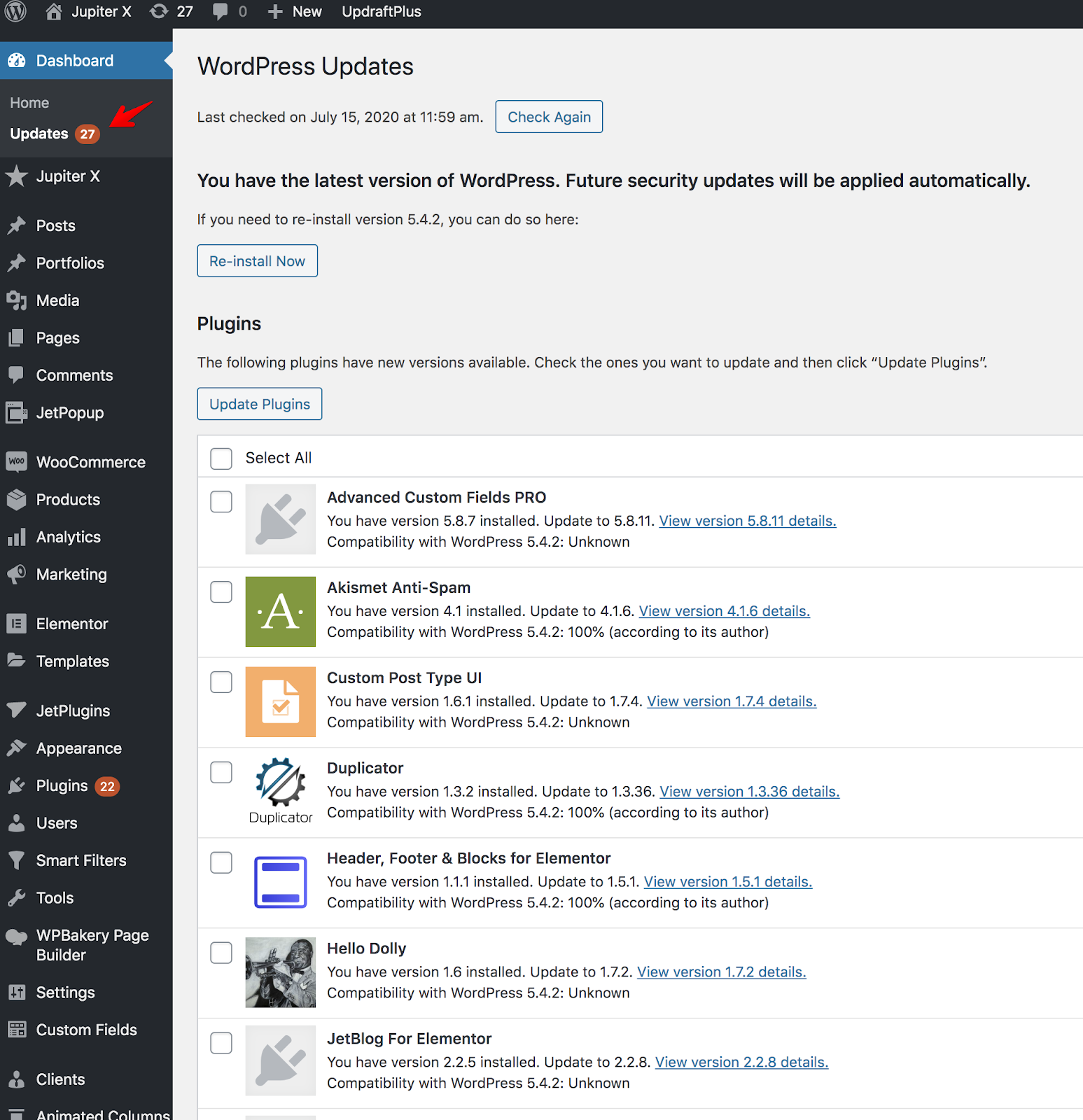
Plugins and themes are barebones of your site. Basically, your project mainly runs on themes and plugins. However, if you don’t update them, you might encounter serious issues with security or performance. Some users are hesitant about updating their themes and plugins as they think that the update will break the site and lead to some unwanted results. But this is the absolute wrong mindset to have. In this case, staging sites are the best option for those who want to test every update before running.WordPress has a system to manage automatic updates for themes and plugin, however, there are some cases when you might miss an update. Luckily, WordPress addressed this problem in its recent 5.5 update, which allows you to set automatic future updates for plugins and themes. To do this, all you have to do is go to the WordPress dashboard > Plugins and on the right side of the plugin list, set it to Automatic update:

The same thing can be said about the WordPress update – which is the most popular content management system as it backups more than one-third of the world’s websites – which always offers the most important performance and security updates. 

The automatic WordPress update can be easily done by using the Easy Update Manager WordPress plugin, or you can manually set it in the wp-config.php file by adding this line of code:

define( 'WP_AUTO_UPDATE_CORE', true );

Now your WordPress core will update automatically without your input.

Maintaining your database 

Maintaining your database is one of the most important maintenance tasks for your WordPress website. The more content you add to your site, the bigger your database becomes. Changes made to your site, post revisions, your site’s content, user settings, comments, and pretty much everything else is stored in the database. 

As the database becomes bigger and heavier over time, it will slow down your site’s loading speed. Furthermore, the larger your backup, the more it might affect the uploading and downloading speed of your backups.

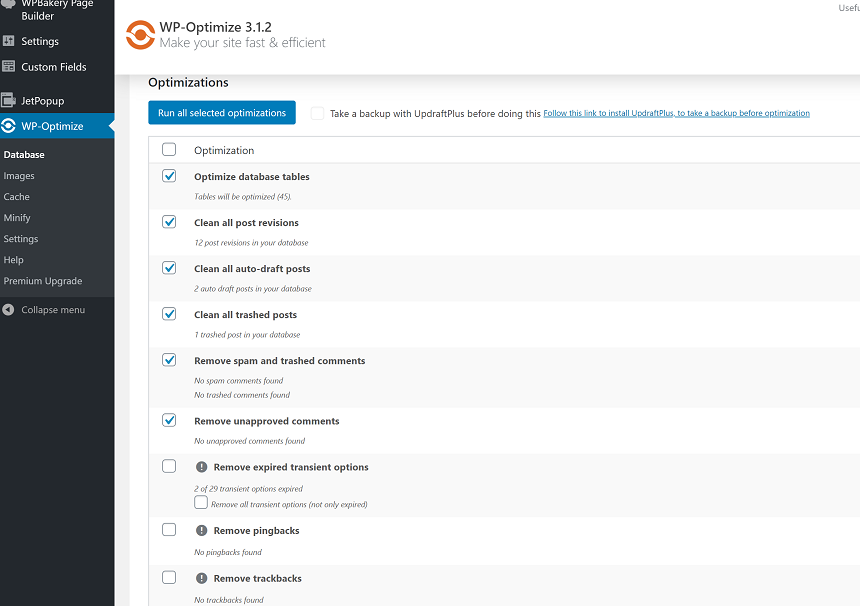
There are many methods to optimize a WordPress database. The WordPress plugin repository offers many plugins that you can use for a particular job. If you want to save time and use tools that have been tested by many users, you might want to consider using Wp-optimize. This plugin contains pretty much everything you need to optimize your database.

This plugin has more than 900,000 installs and was created from the same group as Updraftplus. Once you install and activate the plugin, visit the plugin’s main page and select how you want to optimize your database as seen below.

Please note that when working with a database, it’s always a must to create a backup before doing anything. Wp-optimize has this option on the right side of the Run all selected optimization button. Don’t forget that important step before proceeding.

The plugin also has image, cache and minification settings that you can use for different purposes. 

Regular backups

Backing up your website is another important thing to consider to protect your site against any unexpected surprises. Whether you update your theme or WordPress, instal a new plugin or just optimize your database, you’ll need to create a database.

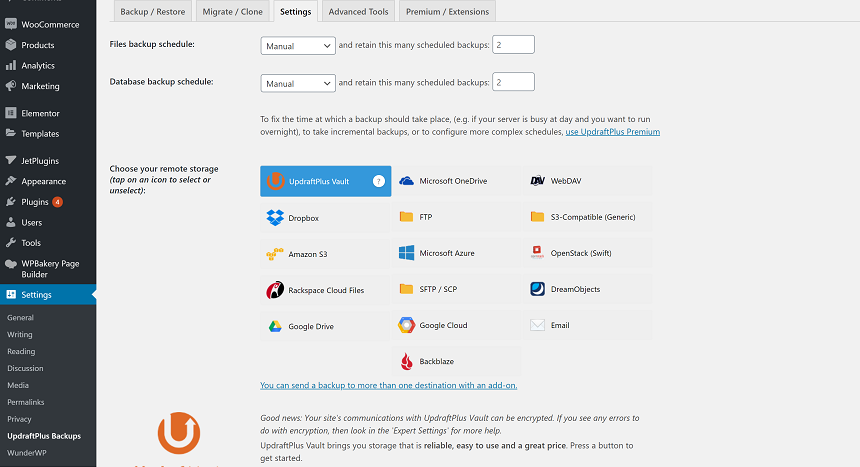
For this, you’ll also have some great options to choose from for backup plugins in WordPress. We went ahead with UpdraftPlus, which is one of the most popular and universal tools for this task:

Maintenance Tasks for your WordPress Website - updraftplus

Once you install and activate the plugin, go to the setup tab and setup the plugin to meet your goals.This plugin offers some amazing features like backing up and restoring the site from the Cloud or migrating from one server to another and etc.

Security scan and logs

Security in WordPress is one of the most important aspects of site management. Keeping your WordPress, themes, and plugins up-to-date or having a good hosting is a must. But sometimes, event updated software is not enough to protect you from newly written malicious code.Hiding your security gaps is a massive question – so big in fact that it might require a different post entirely. Aside from the basic things such as changing the admin password, setting up two-factor authentication, disabling file editing, among others, it’s also vital to run a general security audit on your site.  You might want to consider Wordfence, which is one of the most popular tools out here for this purpose:

Maintenance Tasks for your WordPress Website - wordfence

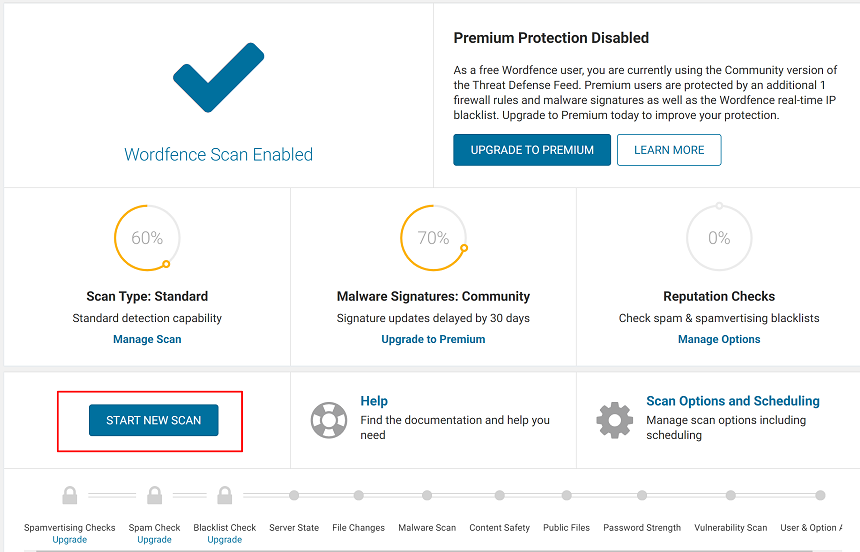
Wordfence can run an audit and security scan of your site. If it detects any malicious code in your files, it’ll provide recommendations to further protect your site. Along with its security functions, Wordfence also can be used as a firewall.After installing and activating the plugin, the next thing you need to do is to run a scan of your site. You can do this by going to Wordfence menu > Scan:

Maintenance Tasks for your WordPress Website - wordfence scan

Once the scan of your site is complete, you can then follow the instructions provided by Wordfence.

As you add more content to your site, you are also adding more articles. You might notice that links in your older articles no longer work. The reasons for this vary such as the link or the URL was changed – or perhaps the website was taken down. The same thing might happen if you’ve added images from other sources.  A scheduled inspection of broken links on your site is important, since they may affect user experience and it could hurt SEO ranking in general. But checking these links manually is time consuming, so it’s better to use a plugin for this. For this, we recommend using the Broken Link Checker plugin.

Maintenance Tasks for your WordPress Website - broken link checker

This plugin will monitor all broken and dead links on your site and inform you either by mail or in the dashboard.

Conclusion 

This post is by no means a comprehensive list of tasks that you’ll need to maintain your online business. There are other important things you’ll need to keep track of such as image optimization, spam comments, abandoned themes or plugins, performance tests, SEO audits, among much more. 

If you have any questions related to WordPress maintenance, let us know in the comments section below!

Automate Marketing for WordPress: How to Choose a Tool in 2020

automate marketing for WordPress featured

Due to the extensive breadth covered by marketing in today’s world, the field is inundated when it comes to touchpoints, channels and ins and outs. Throughout the years, marketing has become increasingly comprehensive to cover more and more aspects of a business – from increasing conversions to ensuring customers are happy, from fostering a loyal customer base to encouraging advocacy for a brand.

In its most traditional form, marketing aimed to appeal to people and sell something to them while you had their attention. However, marketing has transformed since its early days to engage with the customer throughout their entire journey.

The factors already mentioned mean that the marketing world is filled with tools. Today, you can find a number of tools that help with every aspect of the customer journey. This includes tools for advertising and SEO, automating email campaigns, personalizing websites, moderating affiliates and referrals, among much more.

Needless to say, a marketer’s job has become much more complicated over the years. In order to carry out comprehensive marketing campaigns and to eliminate legwork, redundancy and dependency, a typical marketer has to work with at least 5 tools. Eliminating excessive repetition and legwork is reason enough to allow for a new vertical function in the digital marketing realm called marketing automation. However, this is not the biggest hurdle that automation should overcome.  

Within the scope of this blog post, we’ll cover what marketing automation in WordPress looks like today, discover what effective and efficient marketing automation is and take a look at some helpful products that allow you to automate marketing for WordPress.

Personalized marketing is in 

To quote Seth Godin, “Marketing is a contest for people’s attention.” However, this is no longer the name of the marketing game as everyone is constantly hit with marketing ads. In a day and age of millions upon millions of ads, you need something to stand apart from the competition. What you need is relevancy.

automate marketing for WordPress set godin

So what exactly does this mean? The message you convey should be relevant throughout all marketing channels, including your website content, email and marketing campaigns, ads, and so on. Moreover, the aim of marketing automation shouldn’t be simply cutting down on legwork or automating repetition, but to incorporate attributes that personalize automated content.

Tools that personalize automation for WordPress need to be able to send out content customized for each and every visitor based on particular preferences, purchase histories and attributes.

Factors to consider when selecting an automation tool 

With this new type of marketing in mind, it’s crucial to choose a tool that provides the features listed below in order to automate marketing for WordPress.

Omni-channel structure

As we already mentioned, your campaigns should include personalized content on every main marketing channel, including websites, popups and emails. And all these channels should be in tune with one another. Failing to align these campaigns with each other will cause a rupture in the customer journey.

Most of the marketing automation tools – both for WordPress and other platforms – do not have this feature and only deal with one or two aspects such as website content or email campaigns. A tool like Growmatik combines all the tools and channels needed to automate marketing for WordPress.

Segmentation capability

The first step in automate marketing for WordPress is identifying segments that break down a customer base depending on specific characteristics or behavior. Site visitors or potential leads could be segmentations that you use to expand your customer base. To do this, the automation tool we select should have a broad selection of segmentation filters, including behavior, personal and contextual. A vaster range of segmentation criteria will make more capable automations.

Rule creation workflow

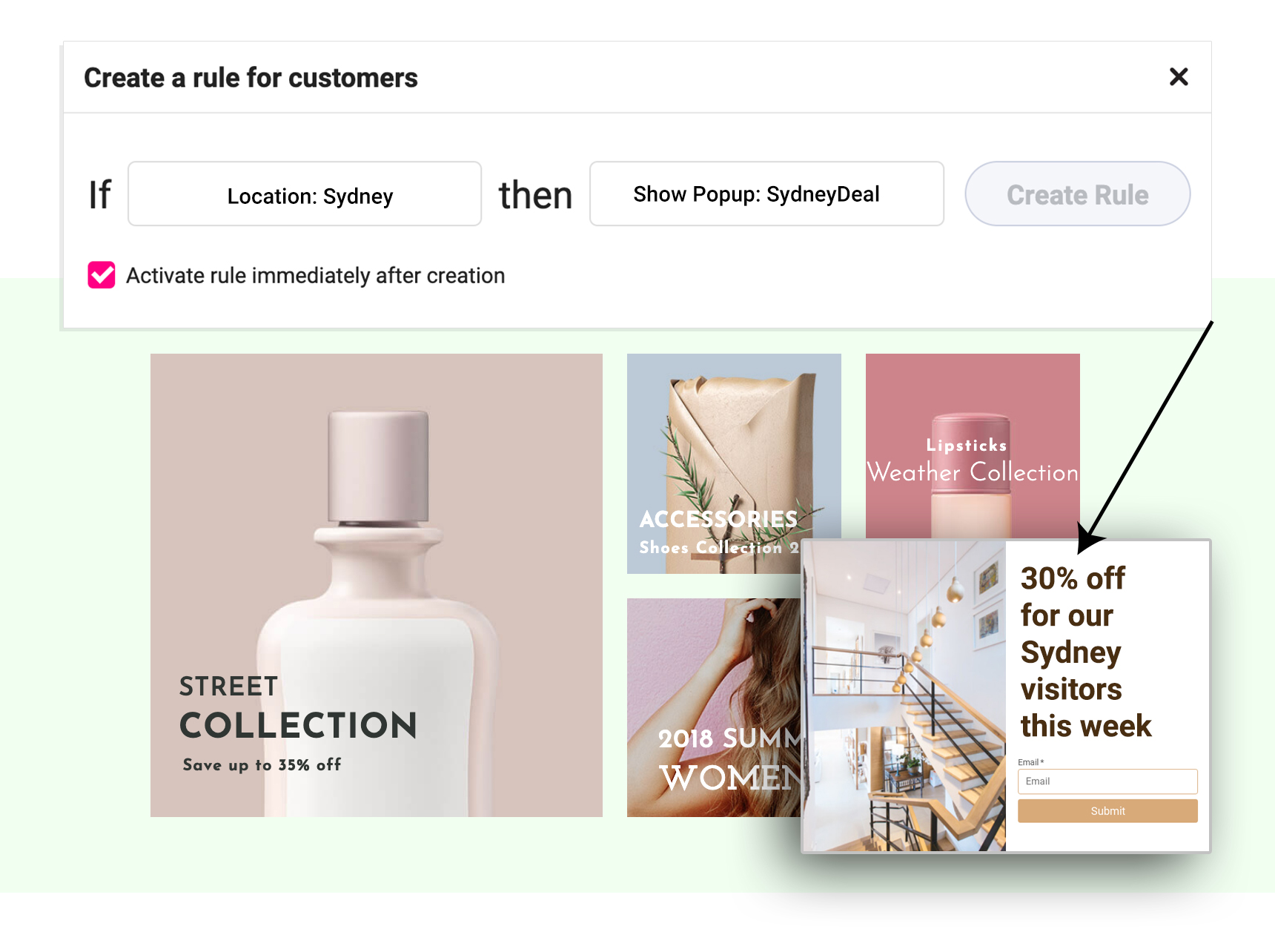
The type of automation tool we’re after needs to be able to trigger automation whenever particular conditions are met. The easiest and best way to do this is with the “IF this THEN that” rule. These rules should be implemented without the need to write code.

UX of builder and personalizer tool

Another thing to take into account is the type of tool you’d like to work with. Would you rather work within a custom user interface and tuned user experience (such as Growmatik) or would you rather create and maintain automations in the native WordPress backend with a customizer, meta options and custom fields at your disposal? (such as If-So and Groundhogg).

Performance consequences

Automation is related to your website speed and performance. Automation rules are set to be triggered when specific events occur. It’s the responsibility of your automation tool to frequently and repetitively (sometimes every hour) check to see if any of these events are triggered for a user so it fires the relevant action. This whole operating and execution requires server resources, and it can become a serious matter when your user base grows. 

If the tool you choose to automate marketing for WordPress is not a service but just a WordPress plugin (such as AutomateWoo, If-So, Groundhogg and Logichop), the server resources required for this operation will be on your server’s shoulders. You should make sure that you have enough server resources to cover these operations, otherwise your website speed and performance will be compromised. However, if your automation tool is a service such as Growmatik and Jilt, your server resources won’t be used to operate and execute the automations, and it will be included in the service you pay for.

Email sending service

When researching different tools, you’ll want to check to see if they include sending emails as part of the plan. Several of the tools on the market  such as AutomateWoo and Groundhogg will require you to link them with a third-party email sender, which incurs an additional fee. Or they might ask you to use your own email server, which also necessitates additional resources and technical know-how. While tools such as Growmatik and Jilt include the email delivery in their service.

Pricing

You’ll want to make sure that the licenses or membership subscription in your paid plan has all the features you need. Some tools such as Jilt might allow you to access their features but limit the extent to which you can use them. Other tools such as Groundhogg and If-So might limit both features and usage. We recommend that your preferred tool allows you to test out the product for free or through a trial plan (ideally with unlimited features such as Growmatik), so you can make an informed decision before purchasing.

Let’s now dig into a handful of the automation tools out there for WordPress and WooCommerce.

automate marketing for WordPress - Growmatik

Growmatik is a unified tool to automate marketing for WordPress and WooCommerce that takes information about user types and behavior and breaks them down into segments. It then further uses this info to tailor a harmonized customer experience across multiple channels: emails, popups and webpage content.

You can create automations in the form of the “IF this THEN that” rule with premade segments, or you can build custom segments with 50 attributes. Growmatik offers both premade templates and powerful native builders for your emails, popups and web page personalizations. With Growmatik, you won’t need a third-party email service to send your emails and your server resources will not be used for automation operations.

Automation ChannelsSegmentation CriteriaAutomation BuildingBuilders/Personalizers
✅ Email
✅ Webpage Content
✅ Popups
50 Attributes in:
✅ Personal details
✅ Referral activity
✅ In-site activity
✅ Email activity
✅ Shopping activity
– IF this THEN that
– Independent interface
– Native email builder
– Native popup builder
– Front-end web page personalizer
Email Delivery ServiceRequired Server resourcesPricingFree Plan
✅ Included✅ Included✅ All features available in all tiers
– Starting from $20/month when annual
✅ All features available
– 2000 subscribers
– 10,000 visits / month
– 15,000 emails / month
Growmatik Features
automate marketing for WordPress - Groundhogg

Groundhogg is an email funnel builder for WordPress and with a wide integration list. It connects the funnels that you build with a third-party email service of your choice and doesn’t send it itself. Although you will need more tools to automate your popups and personalize web page content, Groundhogg offers a decent integration support to connect it to different tools. It uses the native WordPress backend (Customizer, post types, meta options, etc) that makes it a decent email automator for anyone used to the WordPress classic backend experience.

Automation ChannelsSegmentation CriteriaAutomation BuildingBuilders/Personalizers
✅ Email
❌ Webpage Content
❌ Popups
❌ Personal details
❌ Referral activity
✅ In-site activity (very limited: Signup, form entry, link click, tags)
❌ Email activity
❌ Shopping activity
– Building funnels
– WP native interface
– Basic text-based email builder within free plan
– Third-party integration within paid plan
Email Delivery ServiceRequired Server resourcesPricingFree Plan
❌ Not Included❌ Not Included❌ Some features locked in lower tiers
– Starting from $20/month when annual
❌ Some features locked
– Send emails (no integration), create funnels, CRM, Reporting, Rest API.
Groundhogg Features
automate marketing for WordPress - If-So

If-So is a personalization plugin with dynamic content for WordPress, allowing you to add or replace content on your website based on visitors’ profiles or interactions with the site. It uses WordPress backend meta boxes and custom fields. Like Groundhogg, If-So uses the native WordPress backend and is useful for an average WordPress user to personalize the appearance of their WordPress website.

Automation ChannelsSegmentation CriteriaAutomation BuildingBuilders/Personalizers
❌ Email
✅ Webpage Content
❌ Popups
✅ Personal details (Limited)
✅ Referral activity
✅ In-site activity (Very limited)
❌ Email activity
❌ Shopping activity
– Condition & actions
– WP native interface
Personalizing via WordPress backend
Email Delivery ServiceRequired Server resourcesPricingFree Plan
❌ Not Included❌ Not Included❌ Some features locked in lower tiers
– Starting from $139 lifetime for 1 domain and up to 1000 geolocation sessions
❌ Some features locked
– Targeting based on device, logged-in users, date, IP and geolocation (up to 250 session/mo)
If-So Features
automate marketing for WordPress - Logic Hop

Logichop is also a page content personalization for WordPress where you define Logics (which are the conditions) and blocks or bars which are the content to show if the condition is met. To create recipes (rules), you should use backend custom fields in one step and assign those rules to triggers inside your page builder as another step. LogicHop supports a variety of page builders and lead generators, but you need to install a separate plugin for each of them.

Automation ChannelsSegmentation CriteriaAutomation BuildingBuilders/Personalizers
❌ Email
✅ Webpage Content
❌ Popups
40 attributes in:
✅ Personal details (limited)
✅ Referral activity
✅ In-site activity
❌ Email activity
❌ Shopping activity
– Condition & actions
– WP native interface
Personalizing via WordPress backend
Email Delivery ServiceRequired Server resourcesPricingFree Plan
❌ Not Included❌ Not Included❌ Some features locked in lower tiers
– Starting from $199/year
❌ Some features locked
Logic Hop Features
Jilt

Jilt is an email marketing automation tuned for WooCommerce. It offers segmentation, personalization, broadcast and transactional emails. It enjoys wide segmentation criteria, deep integration with many e-commerce platforms including WooCommerce and a powerful native email builder. With Jilt, you won’t need a third-party email service to send your emails.

Automation ChannelsSegmentation CriteriaAutomation BuildingBuilders/Personalizers
✅ Email
❌ Webpage Content
✅ Popups
✅ Personal details
❌ Referral activity
❌ In-site activity
✅ Email activity (limited)
✅ Shopping activity
– Rules for user types
– Independent interface
– Native email editor
– Native Popup Builder
Email Delivery ServiceRequired Server resourcesPricingFree Plan
✅ Included✅ Included✅ All features in all tiers
– Starting from $29/month
❌ Some features locked
– Up to 300 subscribers
– Up to 600 emails/mo
Jilt Features
AutomateWoo

AutomateWoo is an email marketing automation for WooCommerce where you can create workflows for different segments, and emails are rolled out according to the workflow conditions. In order to make sure your emails don’t end up in the spam folder, you will need to connect a third-party email sender service and pay for it separately, but AutomateWoo offers built-in reports and analytics of all your campaigns.

Automation ChannelsSegmentation CriteriaAutomation BuildingBuilders/Personalizers
✅ Email
❌ Webpage
❌ Popups
✅ Personal details
❌ Referral activity
❌ In-site activity
❌ Email activity (limited)
✅ Shopping activity
– Rules for user types
– WP native interface
WordPress-based email editor
Email Delivery ServiceRequired Server resourcesPricingFree Plan
❌ Not Included❌ Not Included– $99/year❌ Not Available
AutomateWoo Features

Epilogue

In this post, we provided an overview of marketing automation in WordPress, discussed how personalization is the best way to automate marketing for WordPress and what to take into consideration when selecting a marketing automation tool for WordPress and WooCommerce. In today’s ever-evolving world, marketing will continue to reinvent itself to retain its relevancy. Undoubtedly, personalization is the first step in this process. To hop on today’s marketing bandwagon, we need to understand how we can personalize our message and offerings to make it relevant for each user type.

5 Things You Can Do with Jupiter X Lite Version

Jupiter X Lite version featured

Earlier in June, we finally released the Jupiter X Lite version in the repository. Jupiter X Lite is totally free and many of the amazing features of Jupiter X theme are available in it. The Jupiter X lite version offers a decent experience of Jupiter X with a group of essential features that are enough to create a powerful WordPress website. In fact more features than what can be found in many free and even paid themes in the WordPress themes repository! Let’s dig deeper!

Why Jupiter X Lite version?

The WordPress community has always asked Artbees to release Jupiter X on the official WordPress theme repository along its lifetime. At every WordCamp we joined, we received more and more requests on releasing Jupiter X on the repository. We have been hard at work on it since late 2018, and we submitted it for review and approval in May 2019. But, shockingly, it took a whole year for the theme to get reviewed and approved by the review theme at the WordPress repository. 

That was definitely because of the complexity of a large theme like Jupiter X that was supposed to be not only in accordance with strict rules of WordPress themes repository but that also aimed to deliver read and useful features of Jupiter X in the Lite version, not just a shallow version of a premium theme that cannot be actually used to create a website unless you pay for the premium features. 

We are so happy we were able to work closely with the folks on the WordPress theme review team to preserve some amazing features (which we’ll cover in this article) to allow the community to create great websites without even needing the locked features. We hope this is a leap forward for the WordPress community who want to use a free but capable theme to create real websites. At the same time, anyone considering a premium theme to create a website can simply get an idea about the product and see if it suits their needs before paying for it.

Let’s have a look at the five amazing things you can do with the totally free version of Jupiter X Lite! 
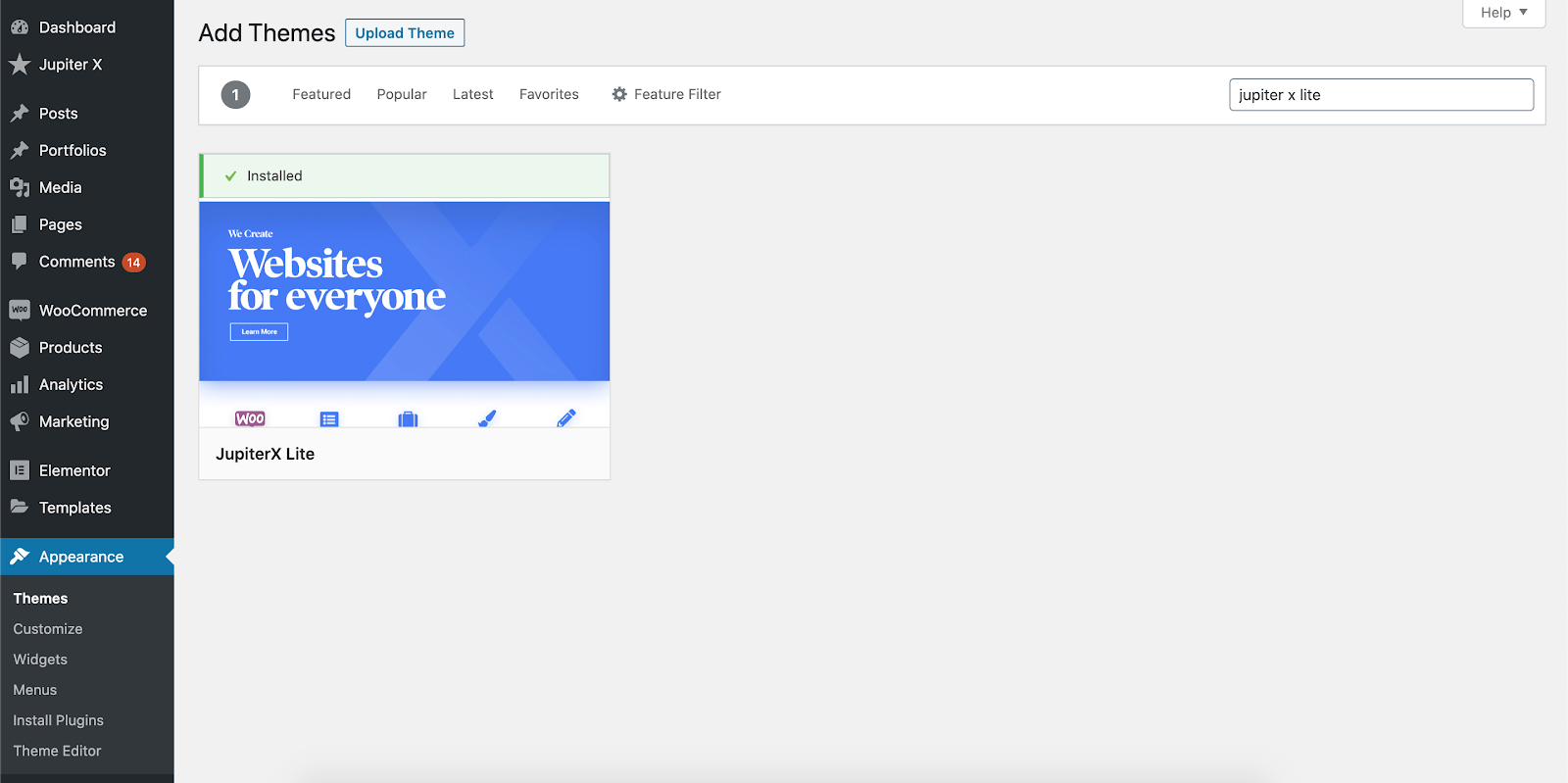
Before anything, download and install the Jupiter X Lite theme from the WordPress themes repository. Simply search for Jupiter X Lite in WordPress -> Appearance -> Themes -> Add New, then install and activate it.

Installing Jupiter X Lite from the WordPress themes repository

1 – Build a blog with decent customization

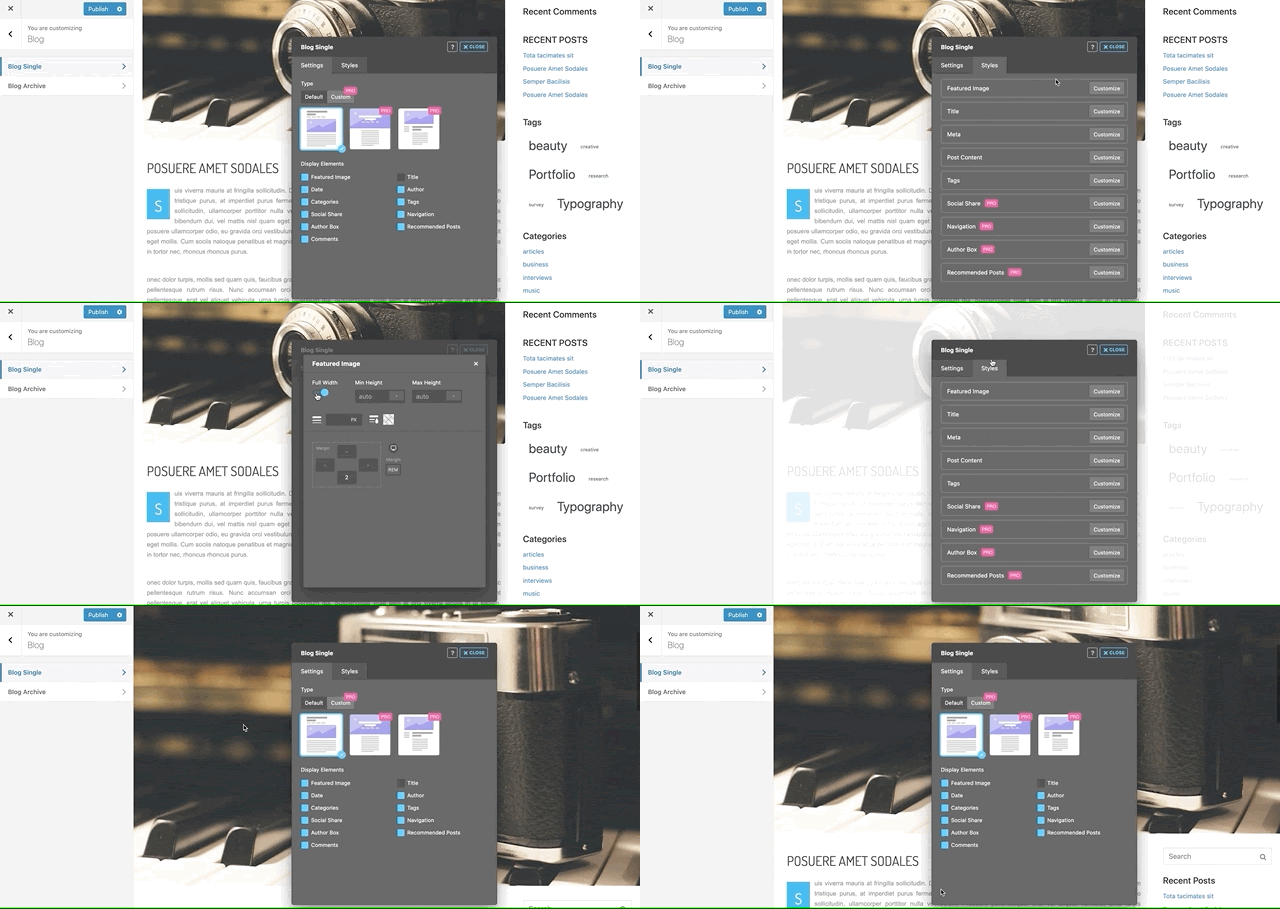
I remember the first days of WordPress when you had almost no option to globally change the blog page stylings unless you got your hands dirty with code. Each theme added one or multiple styles but for further customizations, you had to code again. In Jupiter X Lite, you can customize and style every single element on the blog pages without a single line of code. Every option is provided in the customizer in front of your eyes, and you’ll see the result of whatever changes you make live.

Setting the featured image full width in blog single page using Jupiter X Lite theme

So, if you wish to have an amazing blog and a set of customization options, add your blog posts, choose the default blog page from WordPress -> Settings -> Reading and enjoy customizing the single and archive blog pages using Jupiter X Lite!

2 – Build a shop and customize the single page

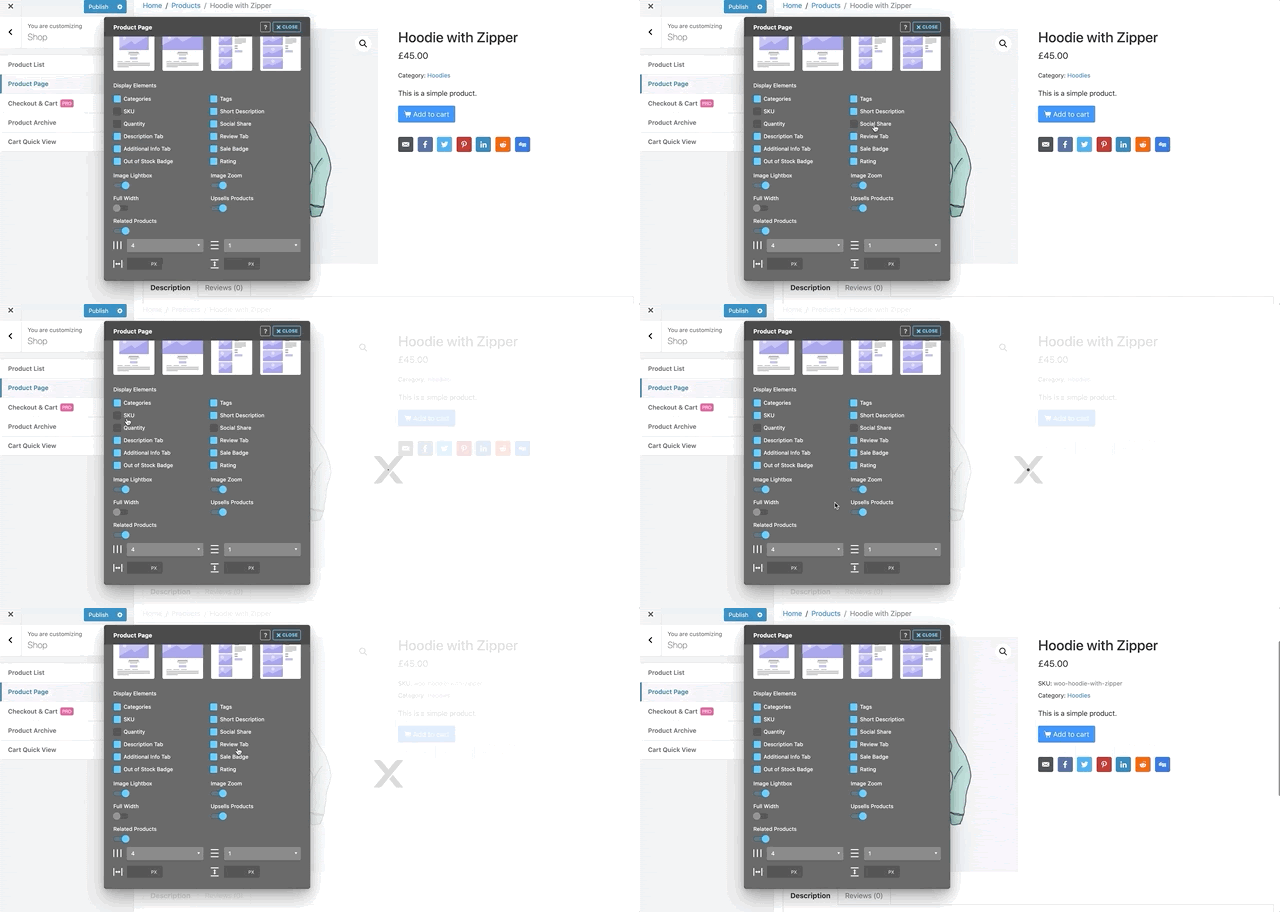
A lot of WordPress users are using it because of WooCommerce. WooCommerce allows you to build your e-commerce website for free. While it offers only a little customization and styling settings, Jupiter X Lite provides a full set of options allowing you to style and customize your shop pages. The Shop Customizer contains a vast variety of options including quick cart view, product page elements customization, load more and pagination behavior for product lists, number of rows and columns on product list pages and much more.

Customizing the shop single page in Jupiter X Lite

The point here is that you can still customize your WooCommerce template files inside a child theme, so from the other point of view, except for the different single page premade templates, every other option is still available to build a great WooCommerce website. 

3 – Build and customize online portfolios

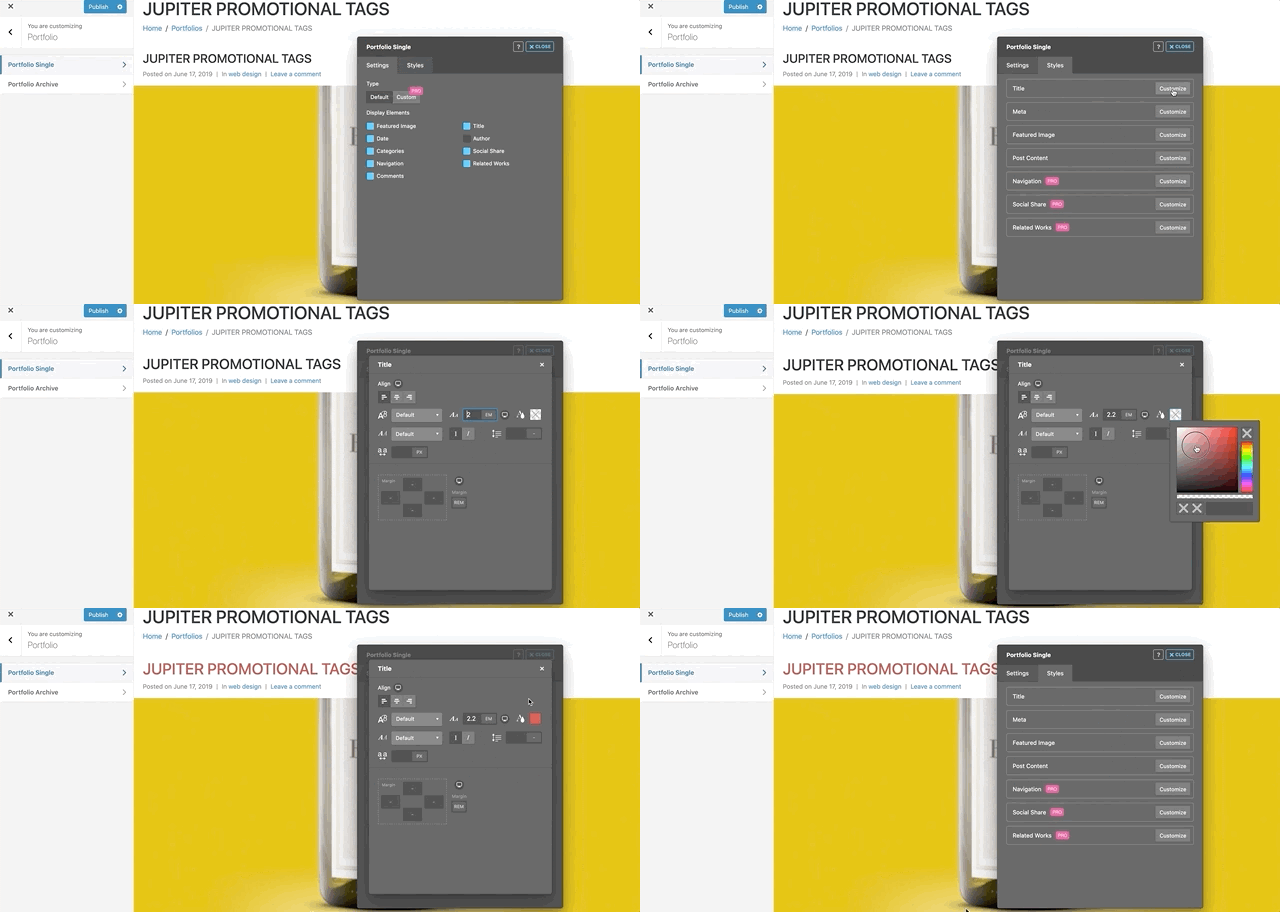
The portfolio post type is bundled with the Jupiter X Lite theme. So, in addition to blog posts, you can also showcase your portfolios. The portfolio section in the customizer allows you to customize and style the portfolio single and archive pages.

Portfolio single page customization and styling

Although the free version of Elementor provides a lot of good features to build portfolios, you can still use free Elementor add-ons. You can search through the WordPress plugins repository for tons of add-on pack plugins that have more or less free elements for portfolio pages. Take a look here

4 – Build stunning headers

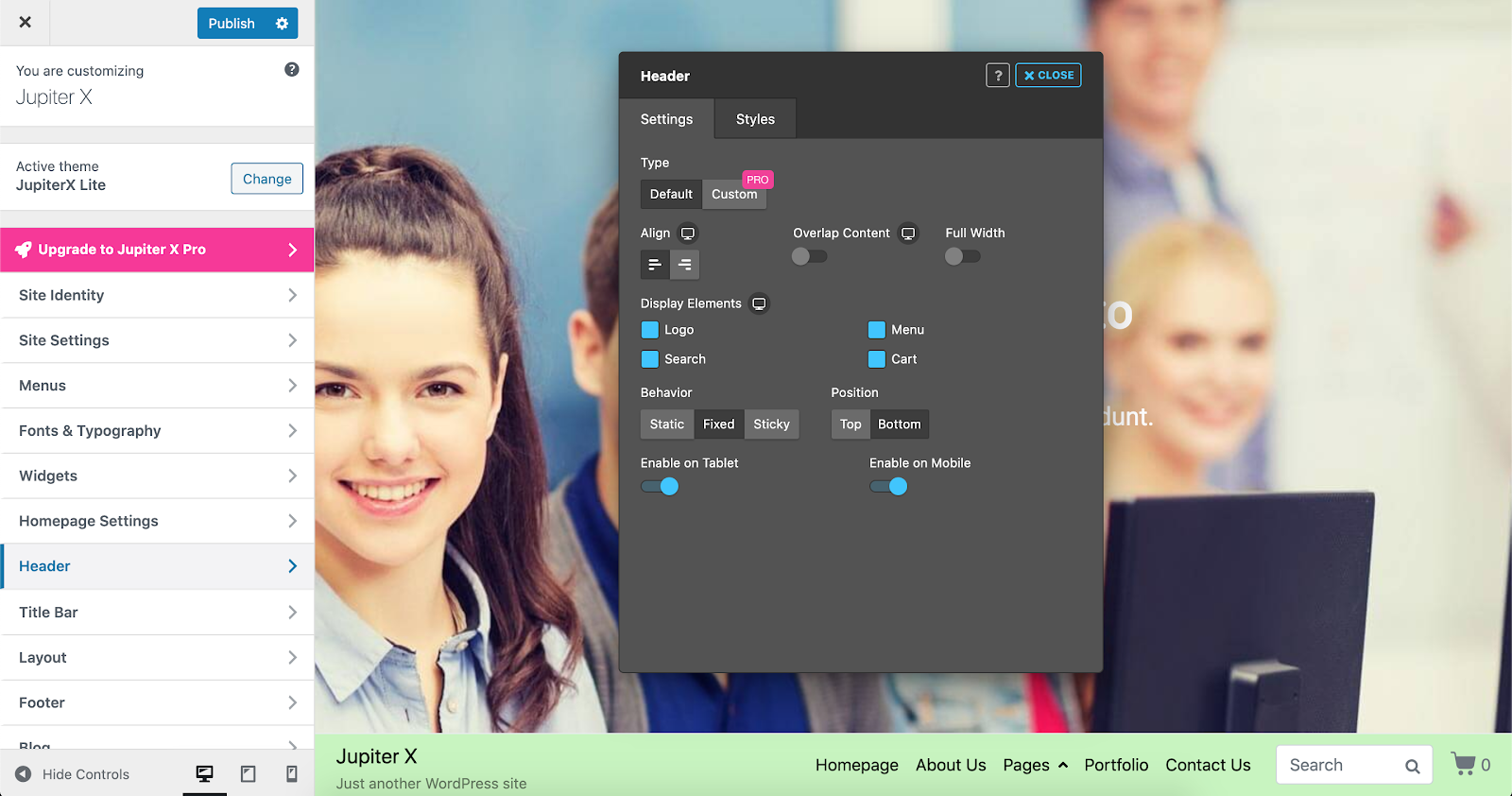
Jupiter X Lite is capable of providing regular header, sticky header and fixed header options. It further provides several options to customize and style your headers. The sheer combination of settings and different layout options allow you to build dozens of header looks. You can find more information about it here in this article.

Header customizer

One of the coolest features in the Jupiter X Lite version is the Fixed Bottom headers. Your header can be sticky at the bottom of the browser all the time. Depending on the type of site you run, this could greatly enhance user experience.

Jupiter X Lite version
Fixed bottom header in Jupiter X Lite

5 – Build amazing sidebars

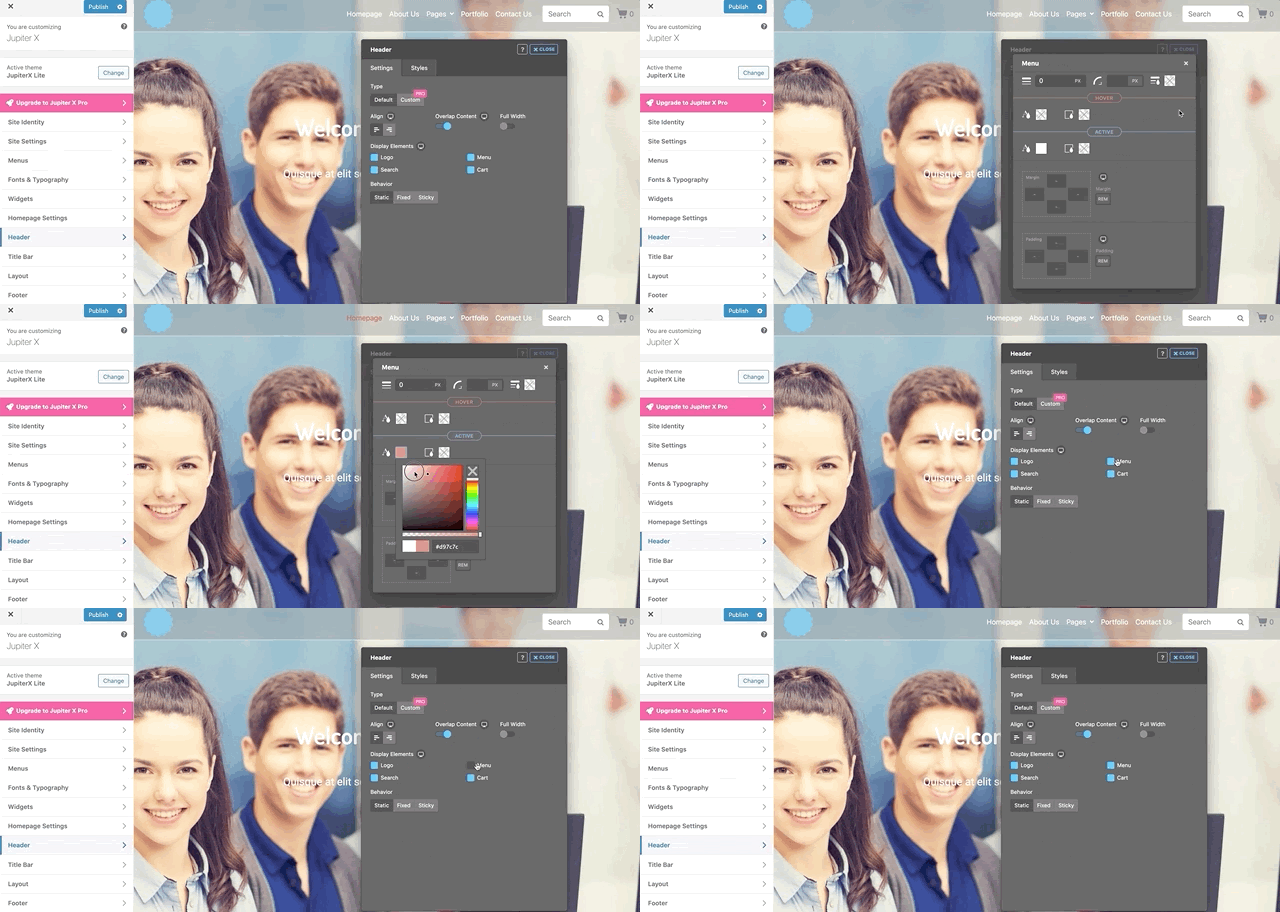
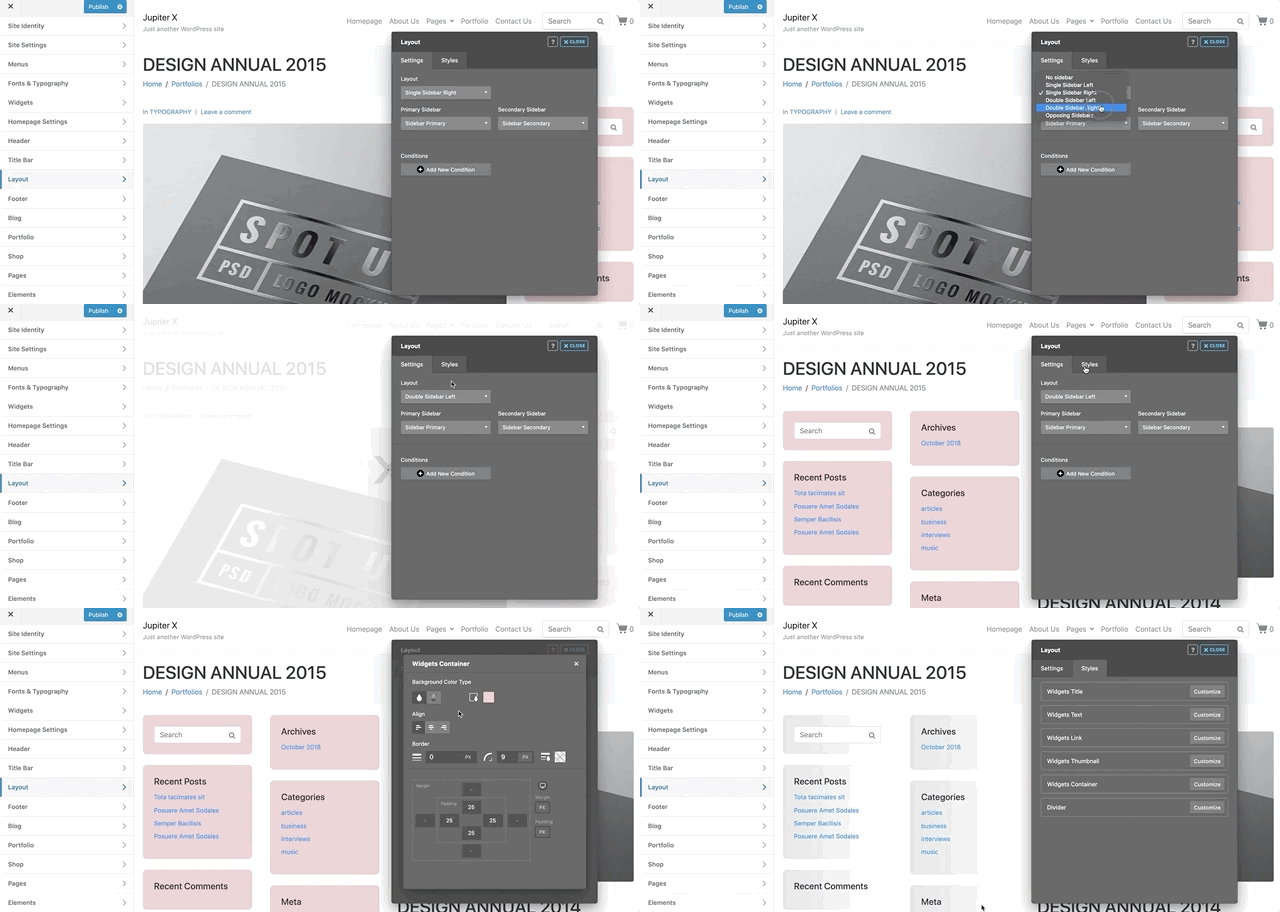
One of the most useful features of the Jupiter X Lite version is the ability to change the page and post layouts and style the widgets inside them. Using the sidebar feature along with the side width options will allow you to make unique web designs even with a free WordPress theme.

Jupiter X Lite version
Layout options in the Customizer in Jupiter X Lite

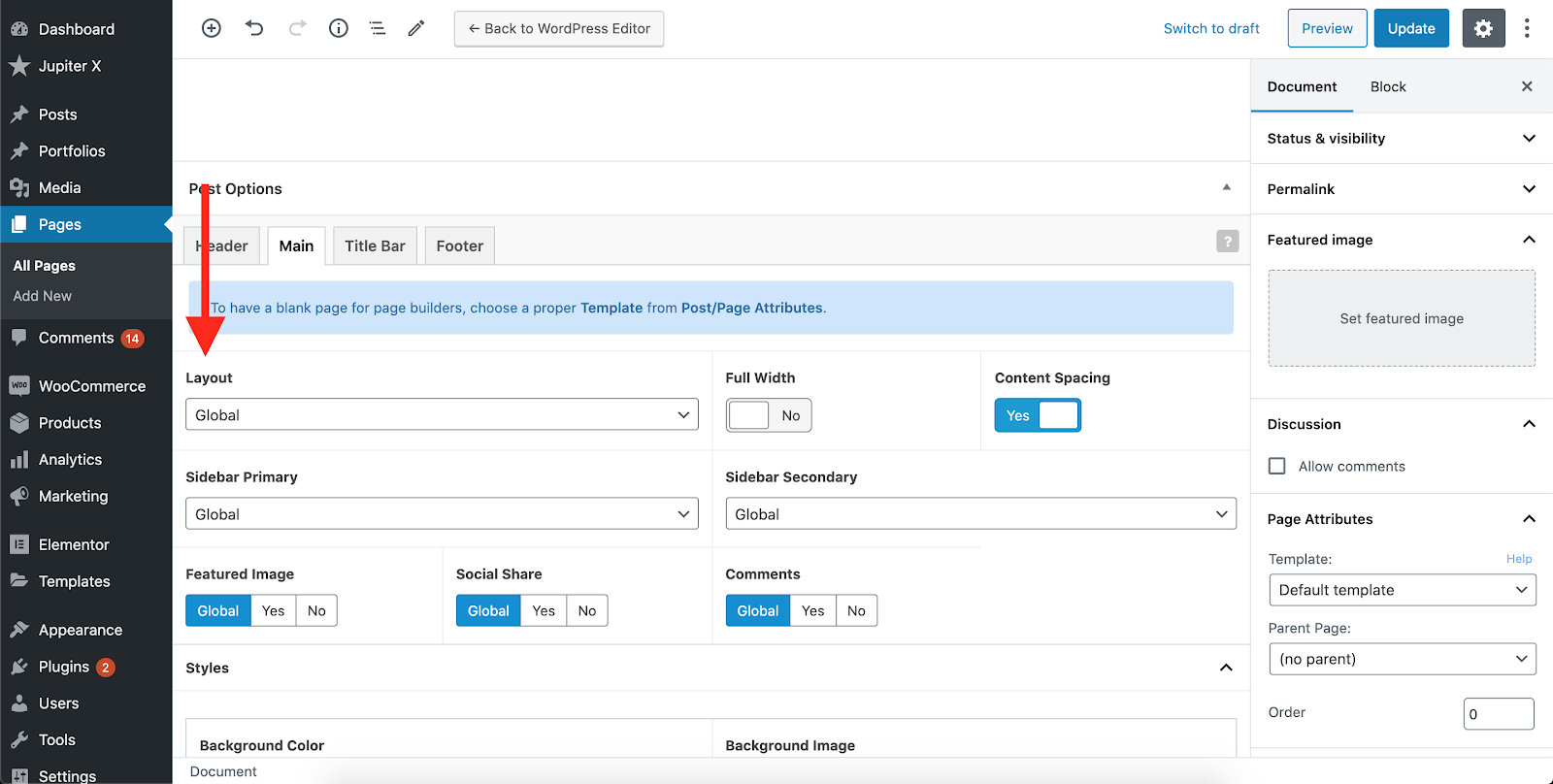
Better to mention that all the layout and sidebar options are possible to override inside the single pages. If you wish to do that, just install and activate the Advanced Custom Fields (free) plugin and change the post options as you wish.

Jupiter X Lite version
Overriding layout and sidebar options on individual pages using the Jupiter X Lite theme.

Conclusion

Although premium themes are highly recommended by pros in the WordPress industry, sometimes some free themes can be great competitors. The Jupiter X Lite version provides not only all the features and ease of access you need from a theme, it also provides you with the experience that you’re using a tool used by professionals.. As it lowers the overall final project cost, Jupiter X Lite is a great tool to use for projects on a tight budget. If you get your hands on the new Jupiter X Lite, please let us know what you think about it and what would be the next step for it to take.

How to Perform a WordPress Security Audit

perform a WordPress security audit featured

WordPress is the most widely used free CMS platform, which makes doing a security audit extremely important. Failing to run these audits will provide hackers with greater opportunity to break into your site. Once they have access, they can add illegal content, steal personal data and engage in many other malicious actions. In other words, performing a security audit will allow you to prevent hackers from taking control of your site. While this might not be an all-in-one solution, updating your website security will help in making your site more secure. In this post, I’ll explain the steps you need to take to perform a WordPress security audit.

What is a WordPress security audit?

A WordPress security audit is the process of checking for security gaps by looking to see if there is any suspicious activity or malicious code on your site. You might be concerned that this process is too complicated and that you’ll need to hire a developer to perform the audit for you – worry not! In fact, the steps are quite simple, and you can perform them manually. 

Take note that online audit services are also available that you can use to check the security of your website. 

Below, I’ll describe the steps you need to take and which automated tools you can use to run the security check automatically.

When to run a security audit

Even if you don’t detect any suspicious activity on your site, it’s prudent to run a security audit every quarter. However, if you notice something odd happening on your site, you should check it immediately.

You should perform a WordPress security audit if you notice any of the following signs: 

  • Your website started loading too slowly 
  • Your website traffic suddenly dropped
  • Some new accounts appeared that you didn’t create, you received forgot password requests or login attempts on your website
  • Some suspicious links were placed on your website 

If you experience all these issues, you should perform a security audit immediately! Let’s move to the section below, so I can show you how easily you can get this done.

How to perform a WordPress security audit 

To evaluate your site from top to bottom, you need to first go through several steps. Here are the most important tasks that need to be done to perform a security audit.

Check username and password

What username do you use to log onto your WordPress site? Is it “Admin”? If so, you must change that username. To do this, you need to create a new user at first that has Administrator rights. Then delete the “Admin” user and assign all content to a new user that you created.

Make sure you’re the only user who has Administrator rights. If there is another user with an Admin account, you should remove it by creating a new user for him/her. If you keep two Admin usernames, please note that your site will definitely be under brute force attack.

As for the password, it must be difficult, so it’s hard to guess. Use not only letters but also symbols and numbers. You can generate a secure password with an online service.

Another tip to secure your WordPress site is to use two-factor authentication. It requires a user to enter not only a password but also a security code which is usually sent to a phone or an email. So if someone guesses your password, he/she won’t be able to log in as they would also need a security code, so they will need access to your phone or email.

Updates

Updates are very important as outdated items are the first cause for security issues. You need to make sure your WordPress plugins and themes all have been updated for their latest versions. Do this easily via Dashboard > Updates and update all software. If you don’t regularly update the items, you’ll then run the risk of getting your website hacked. Read more about why updates are so important in this article.

Remove unused plugins and/or themes

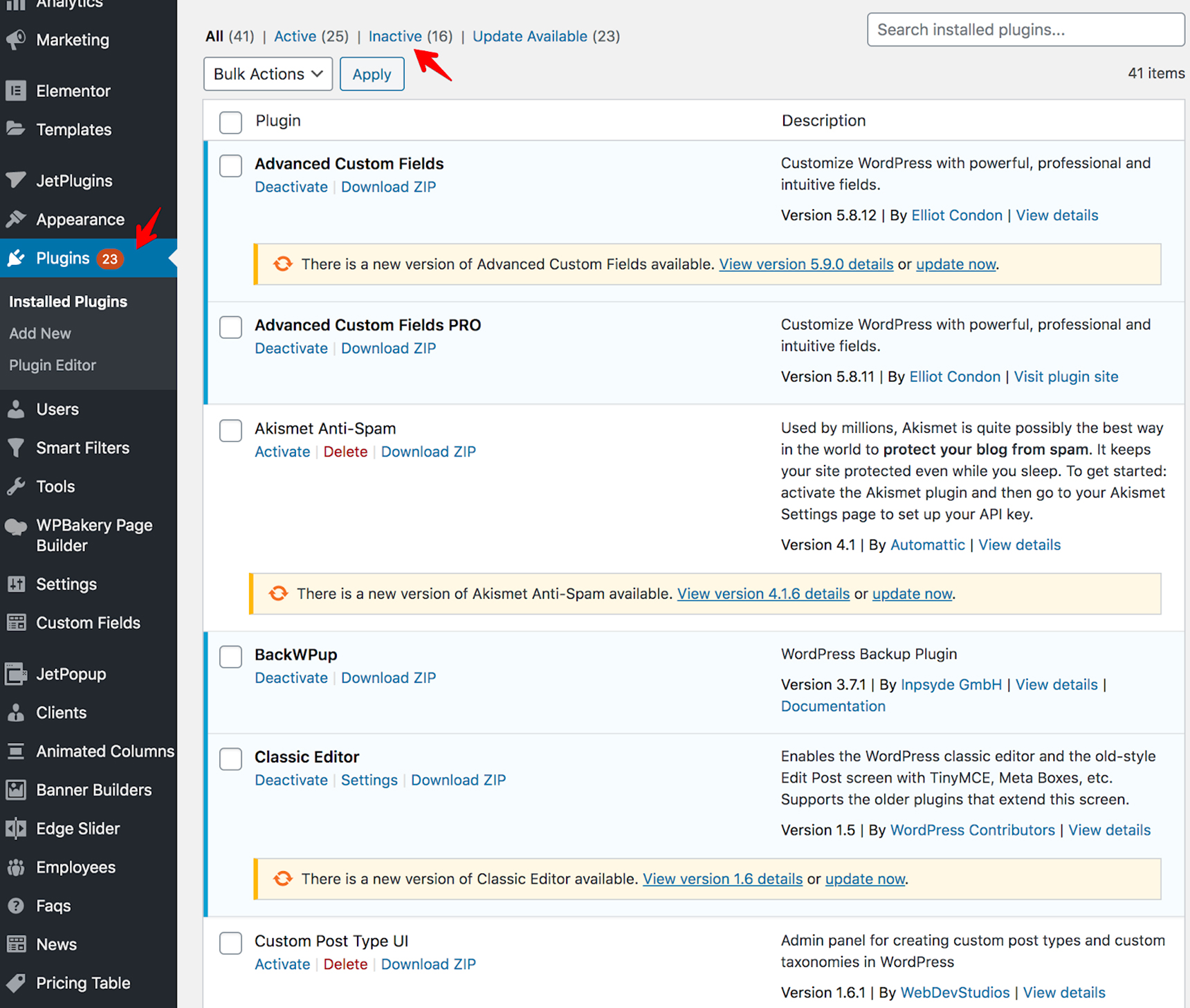
Check the list of the plugins in the Plugins menu of your dashboard. All plugins should be installed only from the trusted sources – avoid installing any pirated or nulled version of plugins and be sure to delete them immediately if you have any. Such plugins will infect your site with malware and open backdoors for hackers. 

If you have some inactive plugins that are not required for your theme anymore, delete them. Use only the ones that are needed for the site.

perform a WordPress security audit

The same goes for themes: keep only the one that you are using. There’s no need to install different themes as they may provide vulnerabilities. Make sure your active theme is up-to-date!

Run backups

Having a backup of your WordPress installation is extremely important and useful. If anything goes wrong (such as your site being hacked or simply broken after an update), you can always restore the site from a backup. We already have some articles regarding backup solutions, so you can find the detailed information about backups here:

How to Perform a WordPress Backup in Jupiter X with BlogVault

How to Backup Your WordPress Database Like a Pro

Restore Your WordPress Website Using a Backup: Here’s How!

Run a security scan

There are many online tools that help you to check your site for vulnerabilities. For example, one of the tools you can use is the Free WordPress Website Security Scanner. Note that such scanners check only public pages of your site. To run a deeper scan, you can use security plugins. When looking for a plugin, check if it has these features:

  • Malware scan
  • Malware cleanup
  • Malware alert
  • Login protection
  • Activity log
  • Firewall

Further down in the article, you’ll find the plugins that you can install.

Check the file/folder permissions

It’s also important to find out what permissions are set for the files and folders in your WordPress installation. The correct permissions should be 755 for folders and 644 for files. You can ask your hosting provider support to help you change permissions. Don’t hesitate to contact them as the permissions are a server-related issue and are not related to the WordPress theme. The detailed description about permissions is in the WordPress Codex.

Check the upload file extensions

Double check the upload file extensions on the forms anywhere on the website as they might be used as backdoors for attackers. Read this doc to find which file types are accepted in WordPress.

Check additional code

Also check every custom code you’ve added to your website because many of the custom codings do not pass any security test. As an example, a JS customization that uses cookies can be used to steal some user information.

Automatically perform a security audit

To keep records of all activities on your site and automate the security audit, it’s better to use a WordPress plugin.

The WordPress Security Audit Log plugin is one of the best tools that will make it easier for you to run security checks – and you’ll have the logs of all user activities. The detailed knowledge base and the documentation of this plugin can be found at this link.
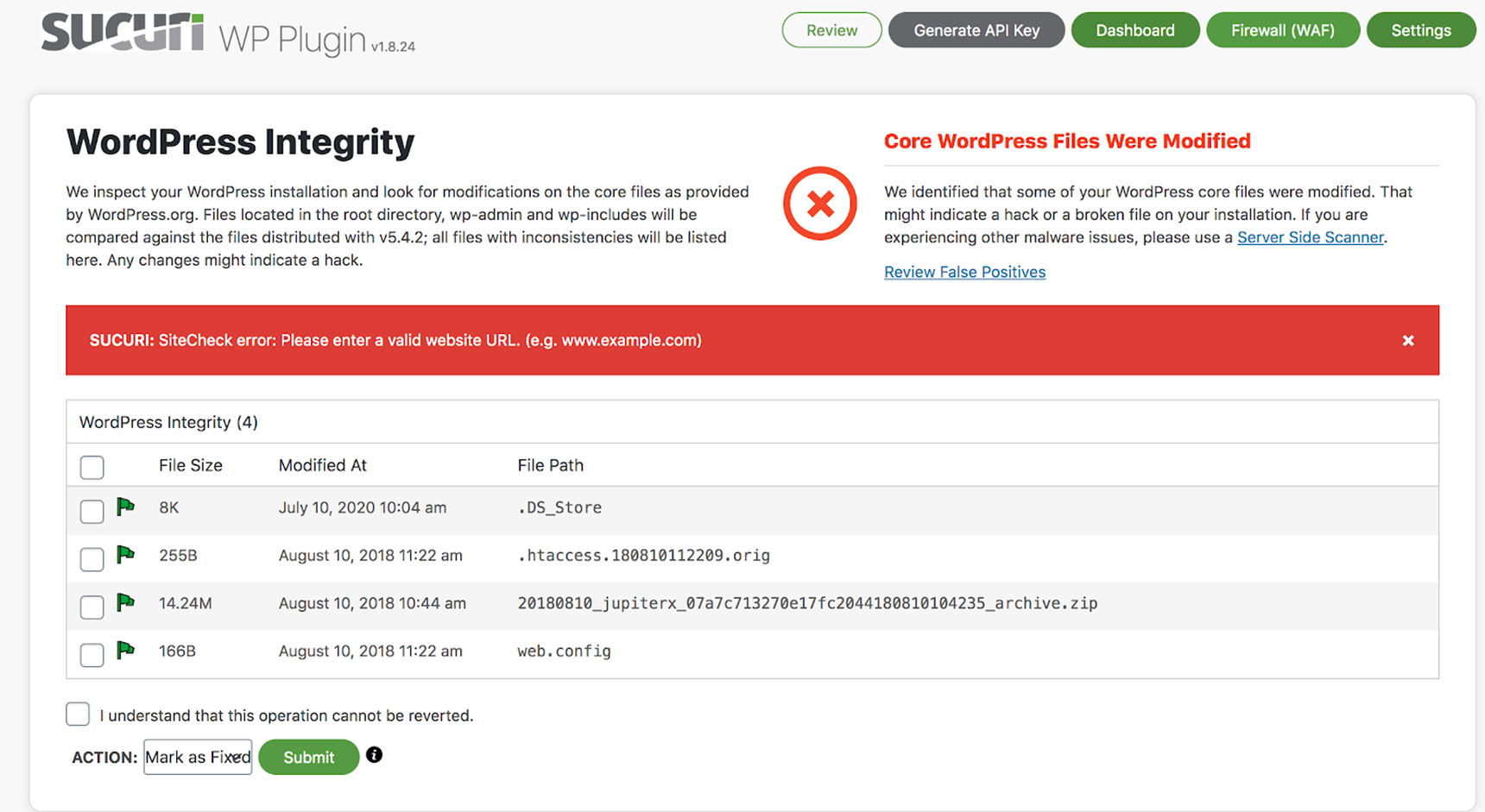
Another great plugin for security audit is Sucuri Security.

perform a WordPress security audit

It provides protection from DDoS attacks, improves your site loading speed, scans your files for suspicious code and has many other features. For more information, check the Sucuri knowledge base.

Using a security plugin, your site will be protected and no one suspicious will be able to attack it. So keep that in mind when installing such a plugin.

Wrapping up

By taking the steps outlined above, you’ll be able to prevent hackers from entering your site. As mentioned earlier, it’s best to perform these tasks frequently so that your site is both up-to-date and secure. Performing a WordPress security audit isn’t too difficult or time-consuming, and you’ll save hours of time if anything happens to your site.

Also the following articles may be interesting for you regarding this topic:

Make Your WordPress Site Safer, Learn to Create Your Own Login URL

Tips for Successfully Taking Over an Existing WordPress Site

How to Add Two-Factor Authentication in WordPress

How to Use WhatsApp with WordPress to Boost Sales and Personalization

use WhatsApp with WordPress featured

This is a guest post contributed to Artbees Themes blog by Thuy Nguyen from Ninja Team.

WhatsApp is not a social network but rather a messaging service. However, if you’re running an online store and you want to boost your customer base, using WhatsApp with WordPress with a click-to-chat functionality can earn a solid spot in your marketing strategy – but only when done correctly.

In this article, I’m going to show you 4 ideas that you can use to take advantage of WhatsApp’s ever-expanding user base with Jupiter X or any other WordPress theme . Two of these ideas rely heavily on the WhatsApp Chat WordPress plugin. With these strategic solutions, we’re looking to help sales, service and support teams engage with online customers on the channel they already prefer.

Let’s hop on the first WhatsApp plugin tactic which is very budget-friendly:

Create a click-to-chat floating widget

One great way to use WhatsApp with WordPress is through adding a click-to-chat widget onto your site. The mission of this WordPress plugin is simply to make it easier for people to contact you via WhatsApp. Its strong points lie in its elegant design and premium features. and you can use it completely for free.

Let’s start off by downloading this WhatsApp plugin from the WordPress repository.

Run a click-to-chat floating button

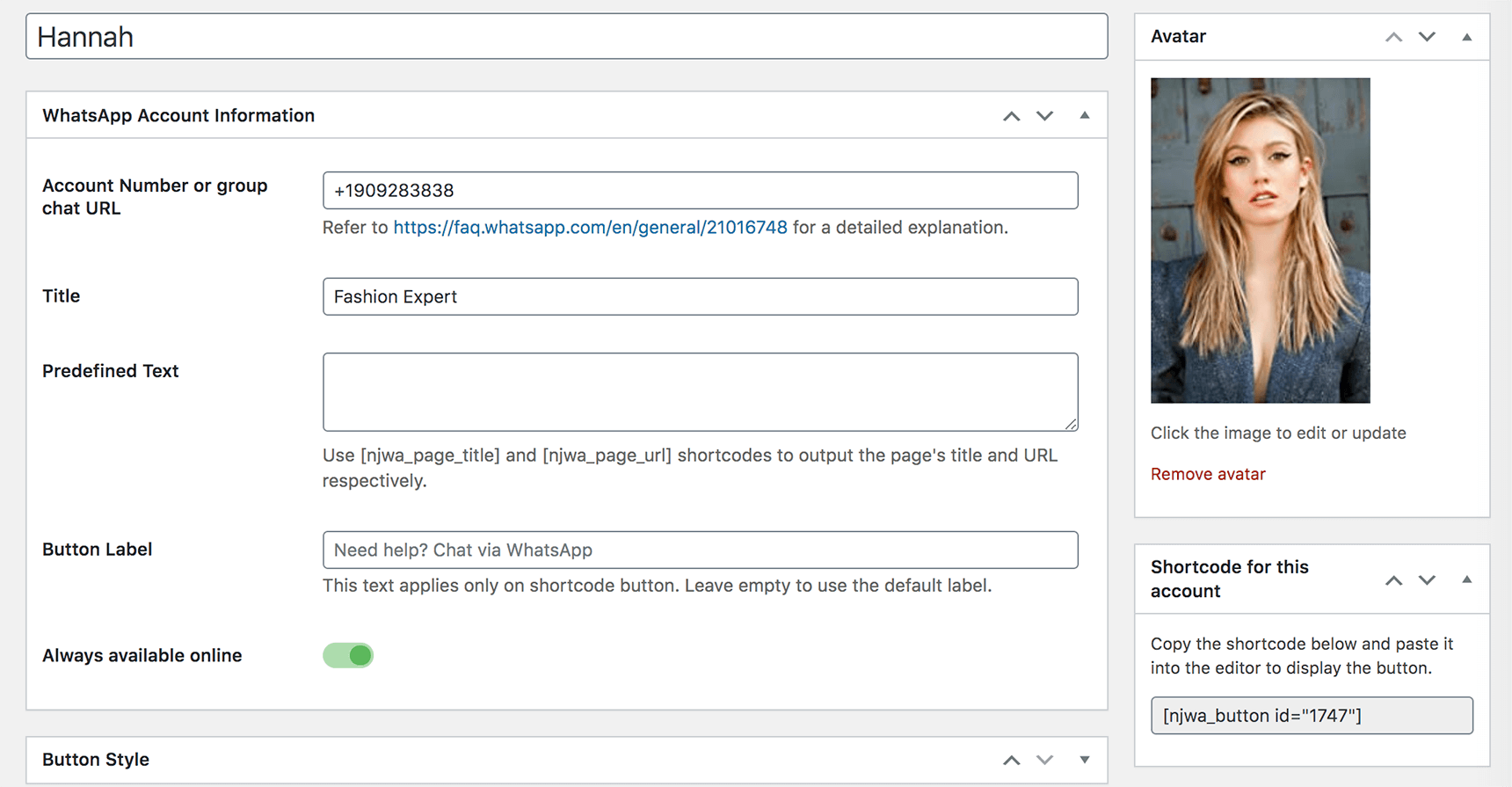
After activating, you can add your WhatsApp number for the floating widget. This widget button can be displayed on every page of your site or only on selected pages. What’s even better is that this plugin allows you to add multiple WhatsApp accounts belonging to  other support agents with his/her own name, title, avatar and greetings.

It’s always better to greet someone by name. Thus, vice versa, it’s much better when your customers know who they’re talking to. This simple personalization hack can create mutual trust through chat communication and build customer loyalty by leaving a good impression from the very first conversation.

Set a pre-defined message using shortcode

For each agent’s WhatsApp account, you can set a different button label and pre-defined text. Here you can insert shortcode like [njwa_page_title] or [njwa_page_url] to output your visitor’s current page title and URL, respectively. For example, when I set this text field just as: 

Hello, I’m interested in [njwa_page_title] at [njwa_page_url] 

Imagine how easy it would be for any WhatsApp user to ask whatever questions they have in mind no matter where they are at that time on your site:

As you can see, predefined text is not only a great personalization tool but also a time saver. This little pre-filled text message will definitely steer your customers toward making a purchase.

Assign customer requests to proper service representatives

If your business provides a wide range of products or services, your support agents might be overwhelmed by customer questions inside of loads of conversations across multiple support channels. So why not enhance your own support funnel by using WhatsApp with WordPress?

Create custom click-to-chat button on landing page/post

Let’s say you’re running a lead-collecting campaign in which people have to message you on WhatsApp to get the coupon codes. 

Instead of placing the regular coupons downright to your prospective customer’s face, you can now combine strategic couponing by building your own WhatsApp contact list and offering exclusive coupons to those who message.

  1. Add a custom button in WordPress

To do that, you need to add a WhatsApp block in Gutenberg editor. There, you can easily find the block settings and customize your text, button color and phone number as you see fit for your campaign.

Once published, your post or page will look like this. This way, your page visitors can get the message directly, and they will be intrigued to tap the button.

  1. Automatically reply to those who message you via that button

Now that people are pinging you on that specific phone number, you can set an automated reply to those messages using the WhatsApp Business App

After downloading the app to your smartphone, enter the very phone number that you want to use in this campaign. Head on over to Settings > Business tools > Away message. Choose Custom schedule and set the private message including the tailored coupon code.

With this simple configuration, everyone contacting you will promptly get their coupons during your campaign. And when the schedule ends, your away message will be automatically toggled off by this WhatsApp Business app.

Segment consumer requests on WooCommerce product pages

Here comes another trick to taking your WooCommerce single product pages to a new level. This WooCommerce button allows you to choose a specific supporter to be there on product pages. This feature is readily built into Ninjateam’s WhatsApp plugin. So all you have to do is go to WhatsApp settings > WooCommerce button. There you can switch it on, adjust the display position and select the agents you want to show.

On the front-end, your support agent account will be displayed in the order you set. If you set the agent account to “Always available,” the button appears in WhatsApp’s green by default or in your chosen color. Otherwise, it turns grey to indicate an unavailable status.

use WhatsApp with WordPress

Hence a stronger relationship can be built between your consumers and your brand!

Add a WhatsApp call-to-action in Facebook Ads

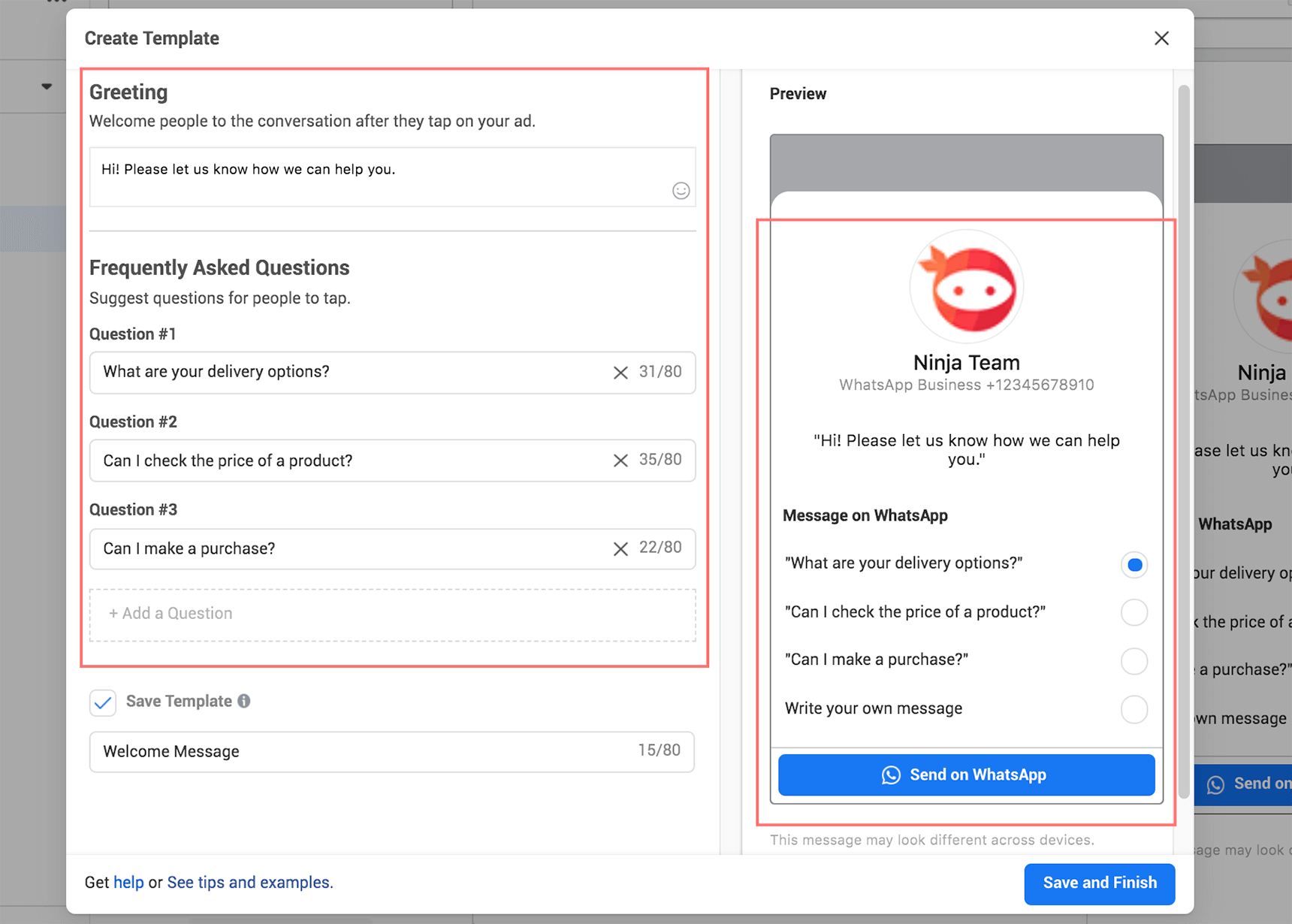
If your consumers are heavy users of WhatsApp, why not give them the option to click on a chat welcome via Facebook ads?

To add this option to your Facebook Ads Manager, you need to link your Facebook fan page to your WhatsApp account first. This can be done easily by going to your Facebook fan page > Page Settings > WhatsApp, then input your business phone number. Once successfully connected, you can now set a new campaign with the call-to-action of “Send message on WhatsApp.”

use WhatsApp with WordPress

You can even suggest multiple options for your audience by clicking Add a question and listing what you want to express to your new customers. With this type of ad, the insights of your customer needs or concerns are just a tap away!

use WhatsApp with WordPress

Improve your WhatsApp Business database

The WhatsApp Business app already includes many useful tools to run your online store.

  • Product Catalog

This feature helps put up a sleek and handy showcase for your products or flagship. Cataloged products here also make it smoother when you want to share it in your WhatsApp groups and other circles.

  • Away Messages and Greeting Messages

As discussed above, those message settings are not only useful to deliver greetings to customers— they can also be very helpful in boosting your coupon marketing strategy! 

  • Quick Replies

These shortcuts for lengthy messages are a big time saver when you have an enormous number of messages during peak seasons or omnichannel marketing campaigns.

  • Labels

With default colorful labels for New customer, New order, Pending payment, Paid and Order complete, this gives you initial ideas in how to organize your most important assets: WhatsApp users and their conversations. Therefore you can take good care of them and find the chat details easily when you need to.

Final thoughts

Given the fact that WhatsApp is being the most widely used instant messaging app, it’s a great way to offer prospective customers with quick access on a platform they’re already comfortable with. 

With WhatsApp expansion into web and mobile apps, you can find plenty of WordPress plugins to help integrate click-to-WhatsApp functionality to your website.

Moreover, your business digitization has been topped with the help of the versatile WhatsApp Business app. Backed by Facebook, the WhatsApp Business app has been built with full-fledged business tools for small to medium-sized stores, while WhatsApp Business API is promising to gear up for bulk messaging, automation, chatbot and other tactics for large to enterprise-level businesses.

Have you set up a WhatsApp click-to-chat? What do you think of its capabilities or do you want other features? Let us know in the comments!

How to Use Location to Personalize Your WordPress Website

use location to personalize your WordPress website featured

More and more online businesses – such as retailers, service providers, restaurants, among others – utilize their visitor’s geolocations for a variety of purposes to tweak their pricing based on region, territorial licensing, to run advertising campaigns based on location, or to make use of SERP (search engine results page). Implementing geolocational marketing into your campaigns will get you one step closer to personalizing the entire user experience for your visitors throughout the world. In this post, we’ll tackle how you can use location to personalize your WordPress website. 

Why use Geo-targeting in reaching out

You might be wondering why you would want to add another factor to take into consideration while ideating your marketing campaigns. Geo-targeting allows you to identify the geographical location of a visitor so you can personalize your marketing activities based on their particular location. And what you do with the content is up to you – it could be translating your site into the language spoken in that area or using cultural symbols or references that are location-specific. 

Anyone working in marketing or advertising is always on the lookout for different avenues in conveying a message that’s as personalized as possible to set themselves apart from everyone else. In other words, standard cookie-cutter messages simply won’t do the job anymore. So if you want to hop onto the personalization bandwagon, using location to personalize your WordPress site is the first step to take.  

How to begin geolocational marketing

Get into the regional mindset

Having a good grasp on the local context and executing that in your marketing campaigns is the key to grabbing a visitor’s attention. Take WordPress, for instance. WordPress has experienced such cross-cultural popularity due to its network of polyglots who have translated the CMS for users around the world. This is the byproduct of “thinking regionally.” To accomplish this, after understanding the local context, think about what role it could play in your overall business strategy. To put this into action, pinpoint your site’s locational funnels, enhance the ones that aren’t working well and improve the ones that are.

Continually expand your regional knowledge  

After you’ve analyzed important locational funnels, ideate the best way of conveying messages about your product to visitors in those locations. At this stage, you might need to get into the thick of it and conduct deep market research – or you can reach out to local professionals who can help with that. Ask yourself these questions: What are some significant cultural markers in this particular location? How can you use these markers to market your product or service? How does your current pricing compare with the currency used in this particular location?

Run geomarketing tests yourself 

Try to imagine your site the way your targeted visitor would. How does it look from their perspective? Would it really make a difference if they saw your site’s personalization or would it seem like you’re trying too hard to make a sale? What impact would it have on your engagement rate?

Now, it’s time to do the work and implement the concepts previously mentioned for localized personalization. We’ll use the Growmatik to do this. Growmatik is a cross-channel marketing automation tool for WordPress that uses user types and behavior to personalize your message across all touchpoints (website content, email and popup). 

Step 1 > Identify the location of your visitors

The first step in using location to personalize your WordPress site is determining your site’s locational funnels. We’ll break this down into two parts:

1- Where is the most traffic coming from? 

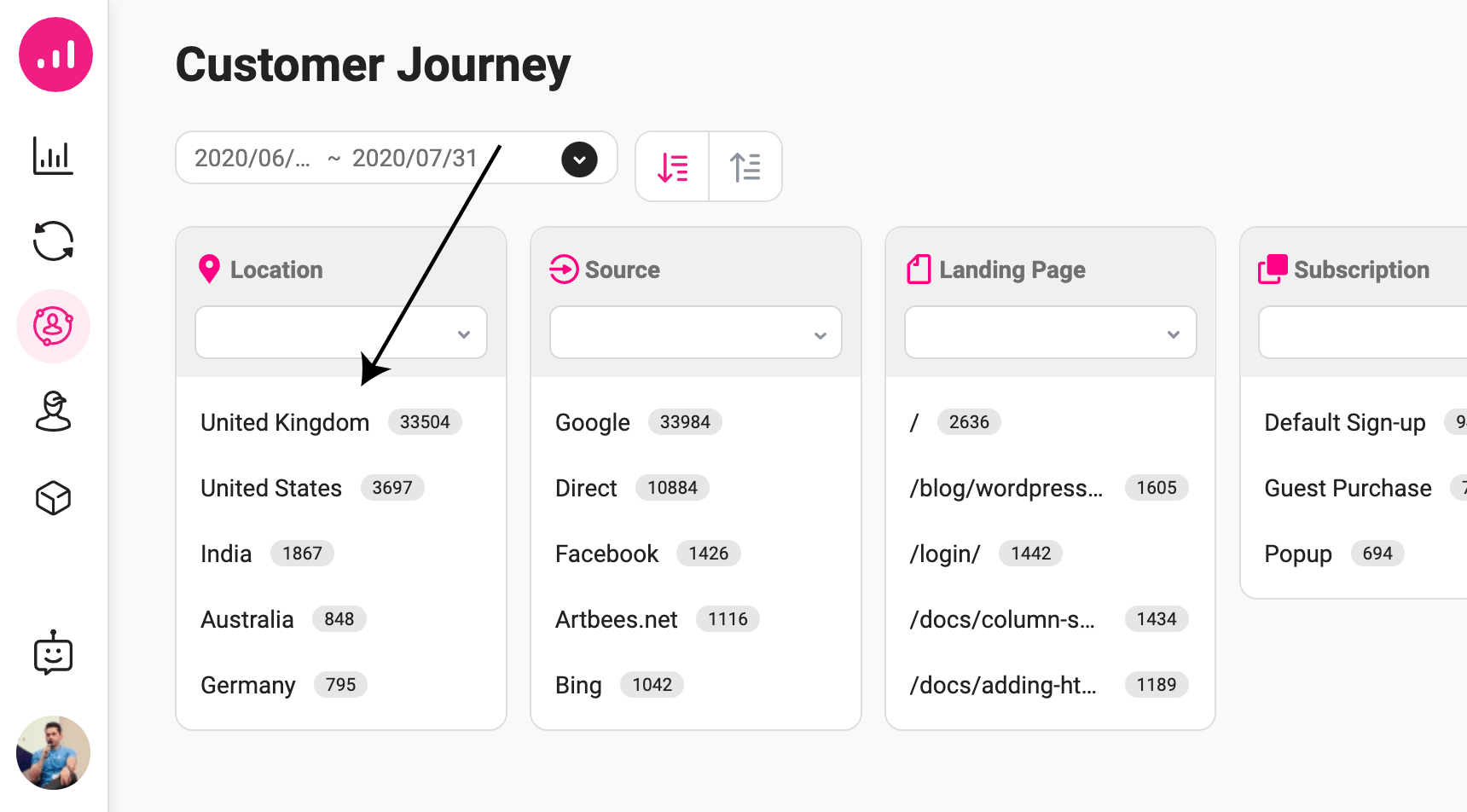
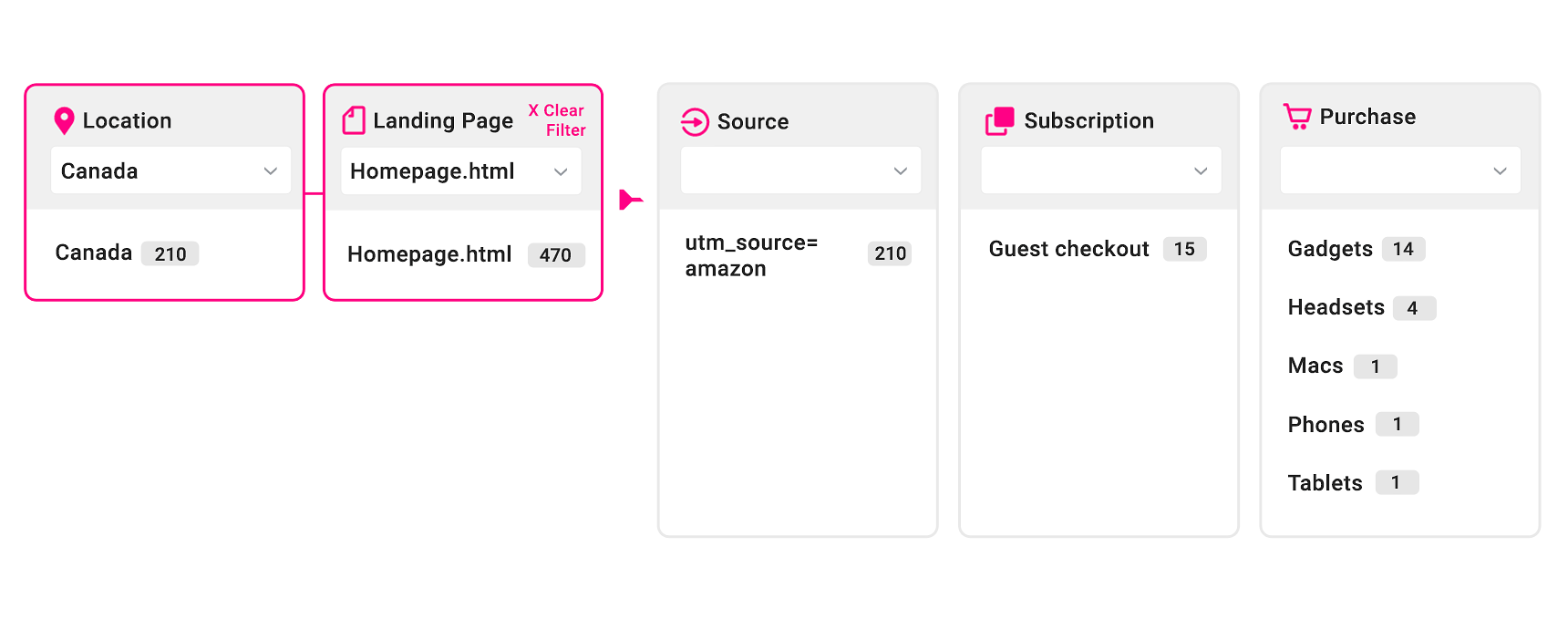
In Growmatik, you can get to the customer journey by going to Sidebar > Customer Journey. On the left, the first column is called Location, which provides a list of the top countries that refer the most traffic.

use location to personalize your WordPress website

2- What actions are these visitors taking on your website after they arrive?

Growmatik’s customer journey feature also allows you to discover what visitors from various locations are doing on your site. Like the last step, find the customer journey by going to Sidebar > Customer Journey. The first column from the left is called Location, which lists the top countries based on the traffic they refer. 

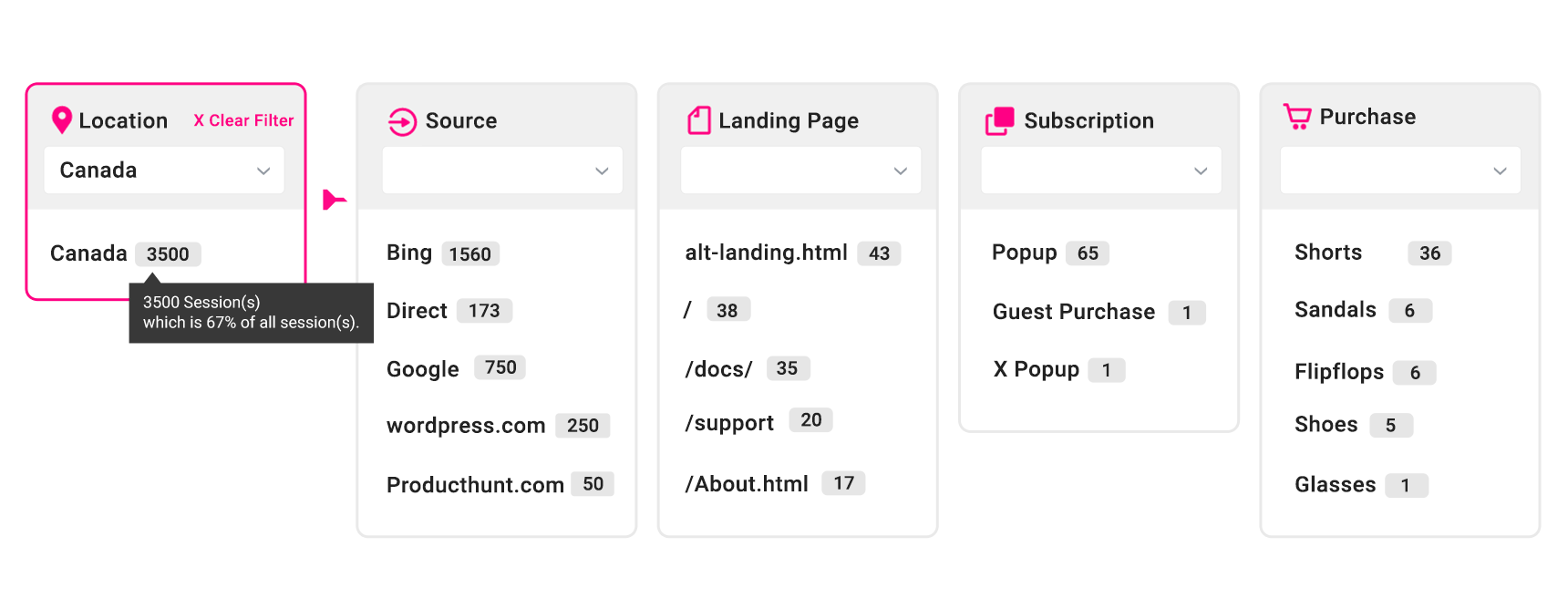
  • From here, you can click on any of the countries listed to gain insight into what users from that location have by navigating through the columns: Source, Landing Page, Subscription and Purchase Product. For instance, if you select Canada, you can find out:
use location to personalize your WordPress website

Canadians
→ were mostly referred by Bing, arrived in alt-landing.html, signed up via the popup form X and purchased shorts

  • You can also narrow your focus to a certain funnel by using filters. For instance, once you’ve chosen a country from the Location column, select a specific landing page, like the following:
use location to personalize your WordPress website

Users from Canada 
+ that landed on homepage.html
→ are mostly referred by Amazon ads and have mostly bought gadgets.

Growmatik helps to uncover all funnels that include visitors from the most popular locations onto your site. On top of this, you can gain deeper insight by using one of several factors. After you’ve gotten a good picture of each location, you can start creating regional personalizations for locations that refer the most visitors to your site.  

Step 2 > Implement geo-targeting onto a WordPress site

Gaining insight and creating a plan is one thing – implementing it is another. You’ll need to be able to automatically implement your desired action as soon as someone from a top location lands on your site. There are various ways of going about this. You can either do the coding yourself or use tools on the market. If you do the latter, make sure the tools allow you to automate your activities.

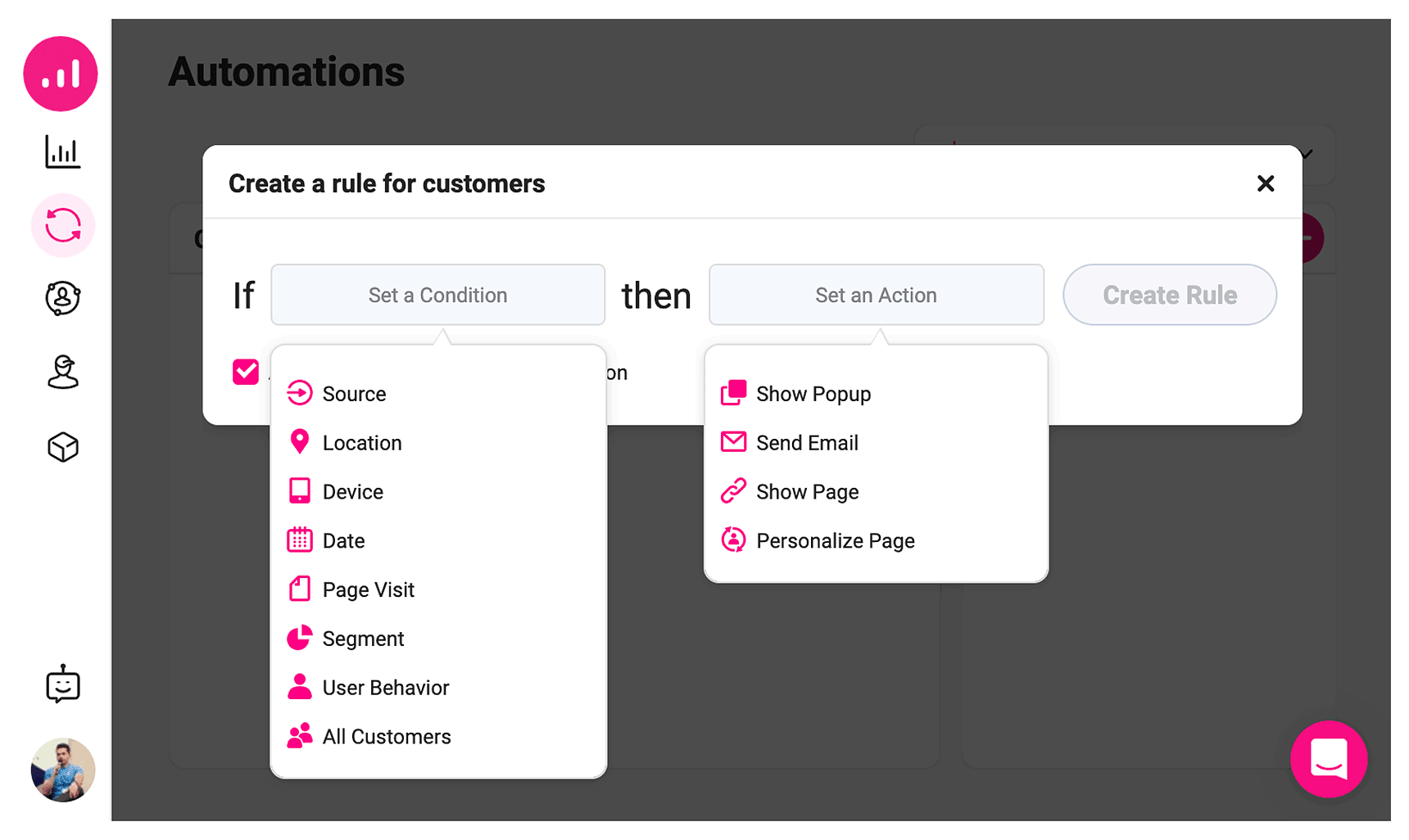
The best type of automation tool will allow you to set simple yet comprehensive rules – by using the “IF this THEN that” rationale – to allow for easy automation. You can assign locational segments and an action that you would like to be triggered for them:

There are two important actions required for your automation:

  • Personalization
    When choosing an automation tool, check to make sure it has in-page personalization capabilities that allow you to customize part of a page without the need to build up a new page.
  • Redirection
    Let’s say that you’d like to redirect visitors from a specific location to a different domain or page. This is when you’d want to use redirection. The automation tool you choose should allow you to redirect in the browser (as opposed to HTTP level redirection). By going about it this way, your page SEO won’t be affected.

In the next section, we’ll take a look at some examples of how to use Growmatik to create locational personalizations for WordPress websites. 

Examples of geolocational personalizations

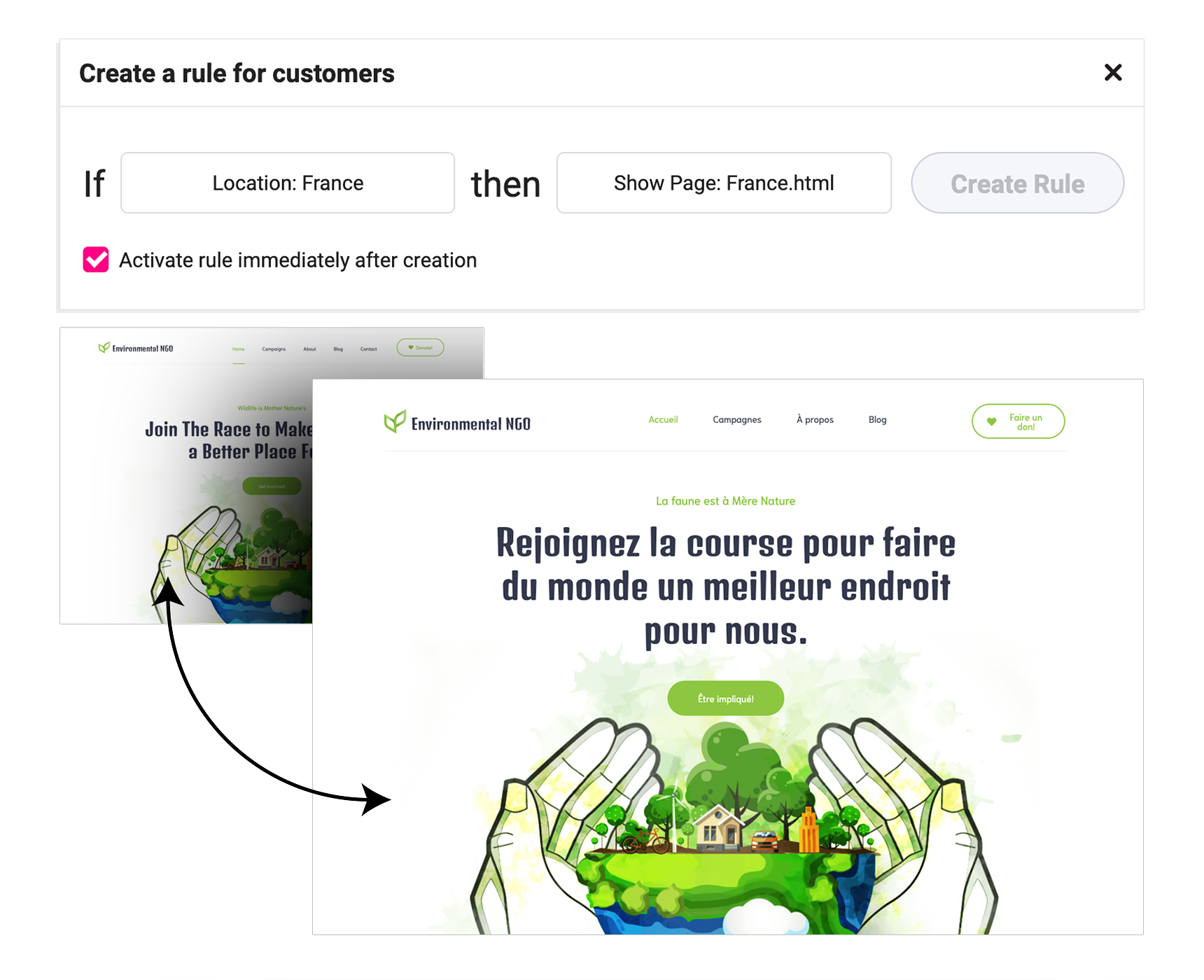
Display a landing page that is geolocal 

As part of using location to personalize your WordPress website, you can build up your site’s landing page to be personalized for visitors from the targeted countries. This might differ from using redirection to an independent domain or websites (that have a URL like yourbrand.de) with specific designs or content related to the region. Or you can even add other personalized content on the same landing page or translate the page’s content and change the design if needed. 

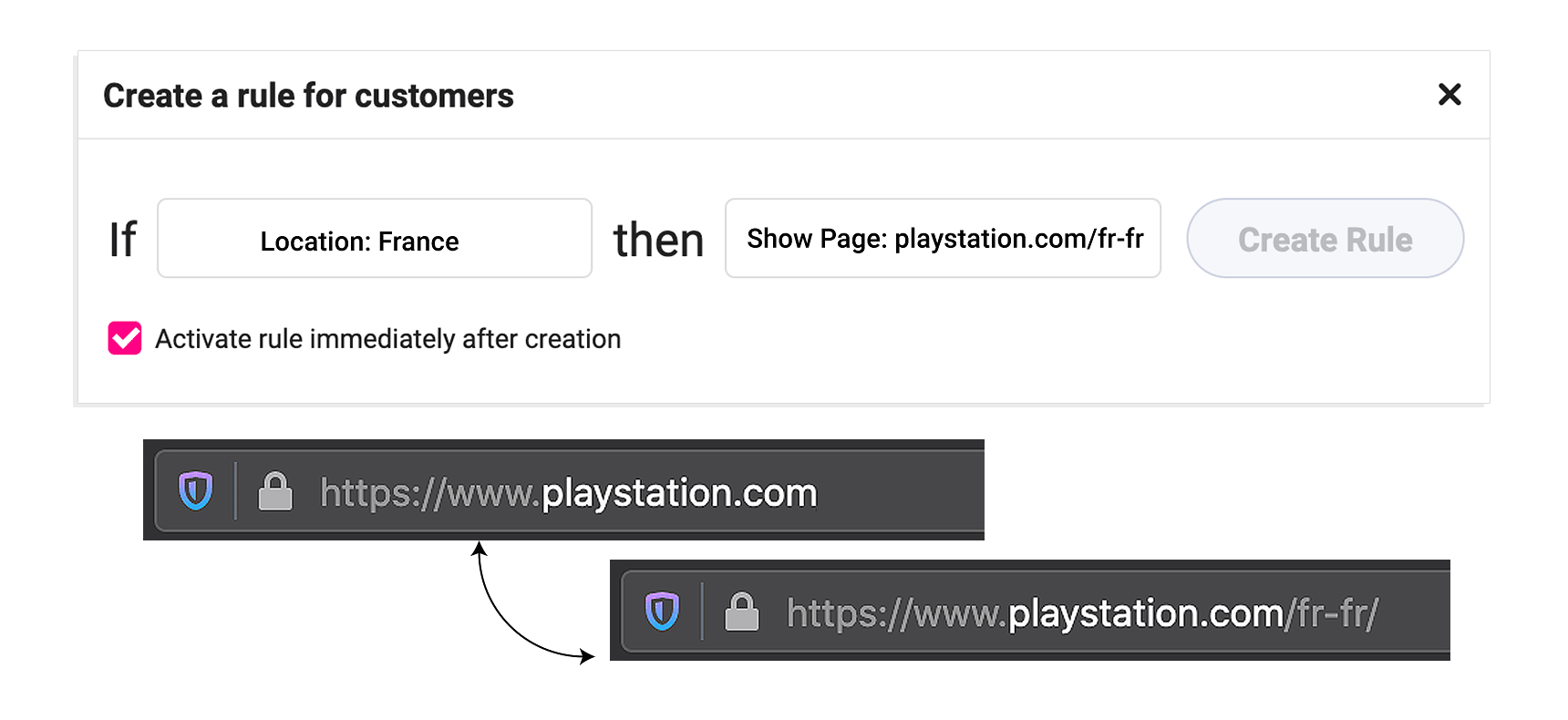
In Growmatik, you can set an action to Show Page to redirect visitors from a specific location to a page that is different from your default homepage. 

Show a welcome message specific to a region 

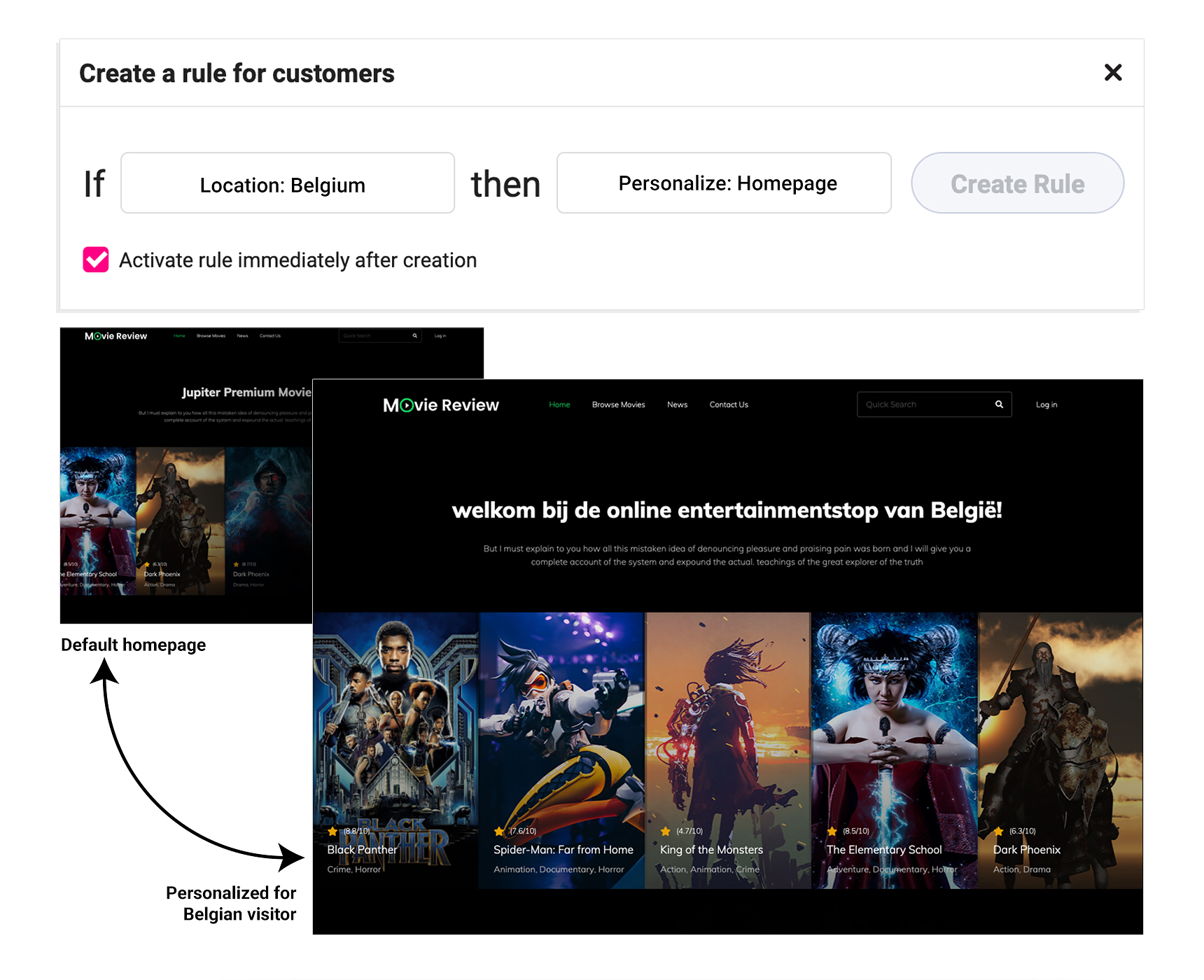
Personalizing the landing hero page and showing a localized welcome message to your user is a surefire way to make a lasting impression. For instance, you can set your greeting message to “welcome to Belgium’s online entertainment stop!” for a belgian visitor or “Fastest food delivery in the Bay Area” to a visitor from the Bay Area.  

To replace your hero section’s header or text and set location-specific automation for it, you can use the Growmatik personalizer. When this action is triggered, your users from that particular location will see that version of the text. 

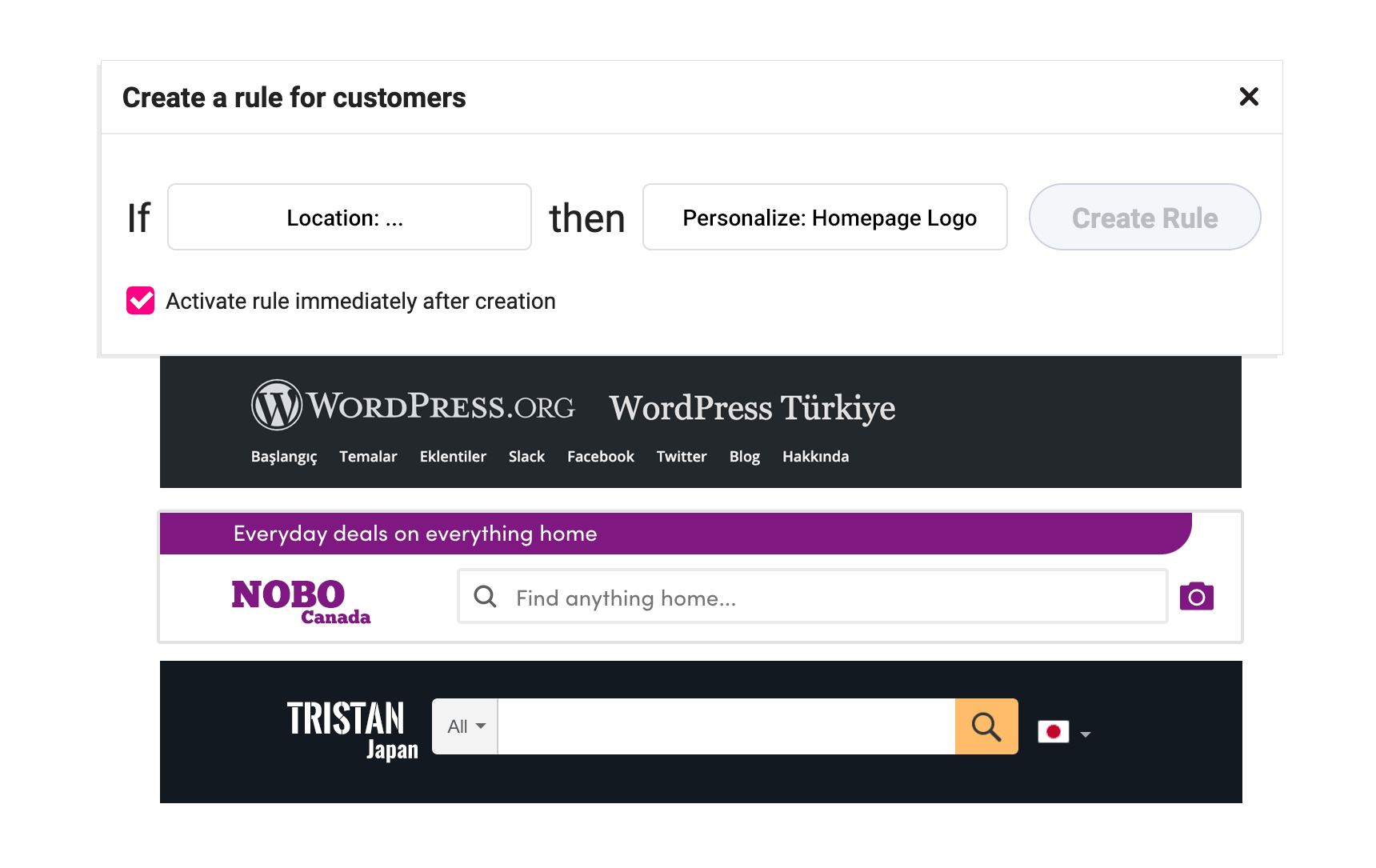
Adding a location-specific logo on your site is a good way to boost visitors’ trust in your brand and business. Great examples of this include Amazon Japan and Samsung France. 

To go about doing this, you can make use of the webpage personalizer in Growmatik, substitute your site’s logo with another image and build an automation to display a customized page to users from the desired location. 

Redirect to a custom domain

If you want to go the distance when it comes to localizing sales in your targeted geographical area, then you can build up a website via a custom domain such as de.band.com to redirect your visitors from this area. This is a great way for your localized website to be visible on search engines.

In order to do this, you’ll need to create an automation rule to redirect users from France to the subdomain. 

Personalize call-to-actions

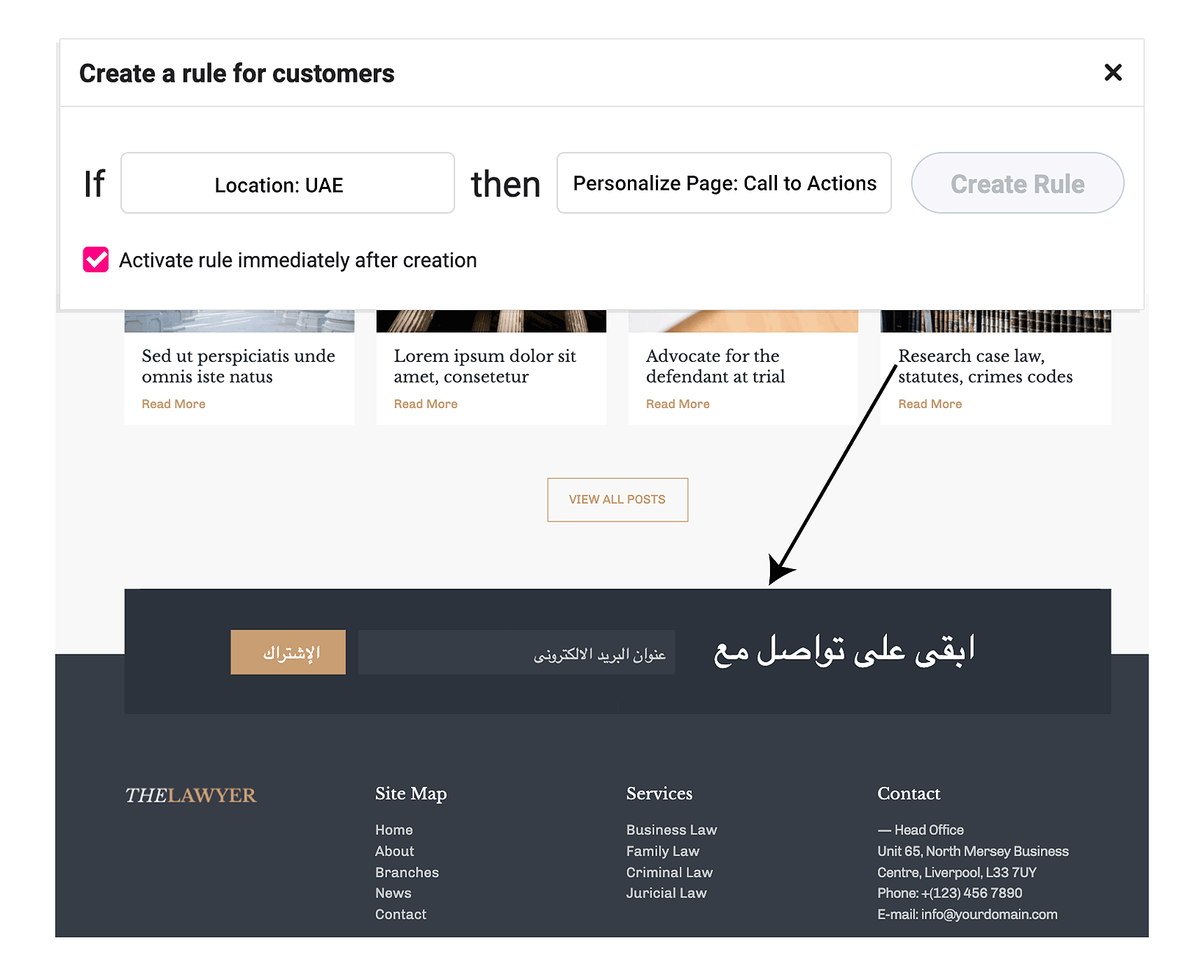
Depending on the landing page, a call-to-action might be the most crucial piece of content. Let’s say that you’re tight on time and resources and are unable to translate and/or localize a whole page on your site. In this case, the best thing to do would be to translate only the call-to-actions. It’s possible that visitors from your targeted location have some knowledge of English, but they would appreciate it if you take the time to translate the call-to-action into their language – and you could even include a deal or coupon specific to that region. 

You can go to Growmatik’s webpage personalizer to tailor call-to-actions and then set it as an automation rule for users from that location. 

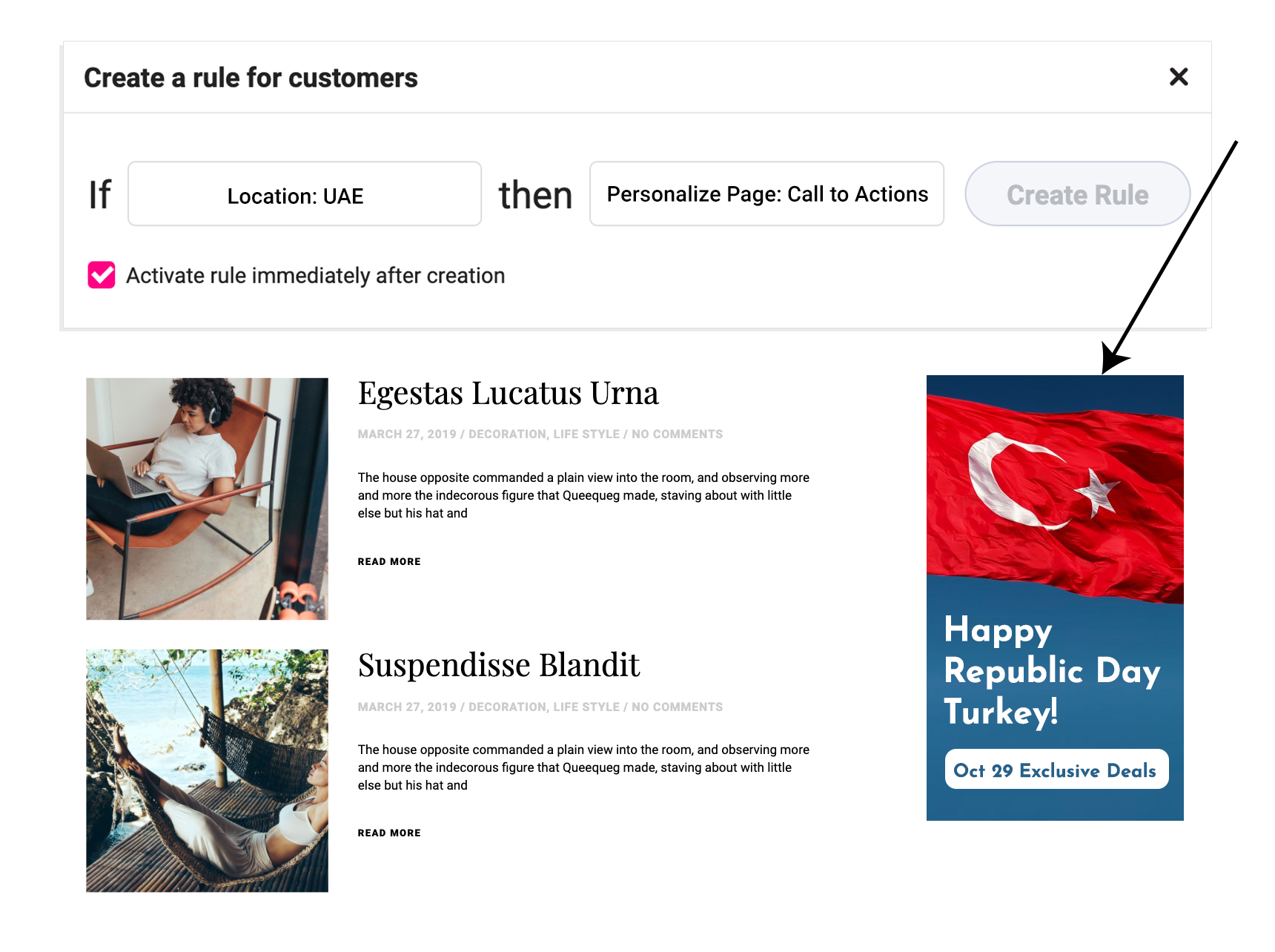
Offer localized seasonal deals 

Providing special pricing or discounts for regions – and showing them in bold – that are important for your business is another great way to use location in personalizing your WordPress website. The best way to schedule these campaigns is by adhering to the local calendar and special occasions. 

Use Growmatik’s personalizer to build a section on your homepage, which should include the region that will only be displayed to visitors from that specific location.

Display localized in-store popups

Show promotional popups that get sent to visitors from a specific area. 

Growmatik’s popup builder allows you to easily make popups or select from one of its templates. Then, all you have to do is connect it with the location condition as an automation rule. 

Wrap up 

And that’s it. In this post, you learned how to find important location segments by analyzing website funnels and then created automated personalizations to personalize your WordPress website based on location. This will drive more engagements, help better relationships and eventually result in a higher lifetime value with your customer. With Growmatik’s free plan, you can create geolocational personalizations and customize your website for 10,000 visits every month.

How to Build a Dropshipping Business Website with Jupiter X

build a dropshipping business website featured

Have you decided to start your dropshipping business but you’re unsure where or how to begin? Uncertain as to whether or not go with WordPress or Shopify – or perhaps another e-commerce platform managed by someone else? If so, you’re in the right place! In this quick guide, I’ll walk you through how to easily build a dropshipping business website with Jupiter X in WordPress in less than 20 minutes. 

What is dropshipping? 

Dropshipping is a business model in which you don’t have any physical products and you don’t manufacture items or manage any inventory. Instead, you simply resell products at a higher price from the actual owner. 

How this works is that you have an e-commerce site and you list products that you don’t actually have. But when someone buys something from you, you purchase that product from the owner at a lower price point. You then transfer the order details to your supplier, and they will pack and ship it to your buyer. You then send the shipping details to your customer. Sounds quite simple, right? Indeed, this is why, in recent years, dropshipping has become such a popular business model. That said, dropshipping has several pros and cons. Let’s quickly review them. First of all, a major factor in this model is that you don’t spend anything on producing, moving, storing and shipping actual products from point A to place B. All of this is managed by your supplier.

As you’re the middle man between the seller and the buyer, you have to manage thousands of orders from customers and then orders from the seller. But the actual process – which is managed by software – is fairly simple. You just need to find a good supplier that has quality products at the lowest price. 

That said, this business model has its downsides such as a relatively long shipping time. Typically, products are shipped from China, which tends to take a long time. This often negatively affects customer satisfaction. Of course, it’s better if you can find a good supplier of the products close to the bury, but this may not always work.

Because of the long shipping times, your customer might request a refund or to return the product, meaning that you need to be ready to  create some small inventory to hold returned products. This might not necessarily be a warehouse, but this is something you must be ready for, particularly as sales increase.

Dropshipping on WordPress vs. DropShipping on other platforms

The popularity of dropshipping first started on Shopify and Oberlo (an extension of Shopify). This combination provided an opportunity to easily resell products from other suppliers. Later on, other platforms hopped on the dropshipping bandwagon and began also offering dropshipping services to their customers. The same thing began happening in WordPress as it’s one of the most popular content management systems in the world. Because of this, many software providers began offering their own dropshipping tools. 

Both platforms – Shopify and WordPress – have both advantages and disadvantages when it comes to building a dropshipping business website. For the scope of this article, we’ll discuss the benefits of WordPress.  

  1. Easy setup
    Are you hesitant about creating a WordPress shop? Particularly if you don’t have any technical background? Well, you might be surprised to learn that in today’s world running such a business doesn’t require much technical know-how. 

    Once you set up WordPress, install WooCommerce and give yourself a pat on the back – more than 70% of your job is already done! With WooCommerce, pages like My Account, Shop, Cart and Checkout are already created. 

    WooCommerce also supports several payment gateways you can’t find on other platforms. It also has a wide range of plugins, so you’ll be able to easily extend the functionality of your shop.
  1. Choice of theme and plugins
    Since WordPress is one of the most popular platforms, it has one of the richest selections of themes and plugins. There are thousands of themes and plugins waiting at your fingertips to meet any kind of customer need. What’s more is that new themes and plugins – both free and premium – are coming out on a daily basis. In other words, there’s a plugin for everything. 

    Most themes are already responsive and are SEO-ready to improve your Google search rankings. You can choose a general theme like Jupiter X or niche-specific themes that are more lightweight and specially designed for one particular business.

    Aside from premium themes – which come with premium support – you can also find free themes. If you’re good at writing code, then you could potentially save a lot.
  1. Power of open source
    WordPress is an open-source software, which means that a community of thousands of enthusiasts develop this platform and its ecosystem of themes and plugins. Being an open-source software gives you the freedom to develop your own tailored features and maximize your customization.

    Managing open source software is way more effective than a hosting application as you can change your host anytime you want, you can implement your security rules and tap in the territory where hosted applications are unable to tap into.

Tools that can be used as for dropshipping in WordPress

Since we’ve already decided to choose WordPress as the platform to build our dropshipping business website, we have to choose the main tools necessary to run the dropshipping business. We can divide these tools into two categories:

Necessary tools

These are plugins that are necessary to run the business. Without them, you cannot  manage orders,  buy or sell anything on the site. In other words, you would be unable to dropship.

WooCommerce – This is your store’s engine. WooCommerce is one of the most popular, open-source shop plugins that can be used to sell anything from physical to digital products on your site. Setting up this plugin is fairly easy and does not require advanced knowledge of website development.

A dropshipping plugin – This type of plugin will do the majority of managing your dropshipping business. The main things a dropshipping plugin does includes: 

  1. Importing products from the supplier website, which could be a marketplace like AliExpress or a dedicated site of a brand
  2. Listing products on your site and managing all product details like price, inventory, description, etc..
  3. After a product is purchased, the plugin will place the order on the supplier site with the order details
  4. Managing tracking information. Once the supplier sends the product, the plugin will automatically update the order on your site with the tracking number.

That’s it, these are the minimum requirements for a dropshipping plugin. However, due to high demand for similar plugins, you might want to search for the right plugin that offers features particular to your dropshipping business. 

For the purposes of this article, we’ll use the Ali2Woo plugin, which is free and can be found here.

Tools that are nice to have

Other plugins might not play a direct role in the function of dropshipping, but they could greatly extend the functionality of your website. For instance, there are plugins for newsletters (to send updates on orders), abandoned carts, payment gateways, as well as after-sales automation, among others., This list of tools depends on the particular project and may vary depending on the store owner’s needs.

Now, let’s jump in and learn how to create a simple and functional store by using Jupiter X and the Ali2Woo plugin.

Setting up a dropshipping store using Jupiter X and the Ali2Woo plugin

The setup of a basic dropshipping store is fairly easy and can take up to 30 minutes. And by this, I mean you can make the first sale and accept your first payment in this time period. Let’s dive in.

  1. Set up the Jupiter theme and template
    For our purposes, we’ll use the Clothing Shop template, which you can find here. This template is good for shopping for clothes, but you can use it for other purposes if you like the style. 
    I used the template installation and, in just two minutes, the template was successfully deployed onto my test site:

    build a dropshipping business website

  2. Plugin installation and setup
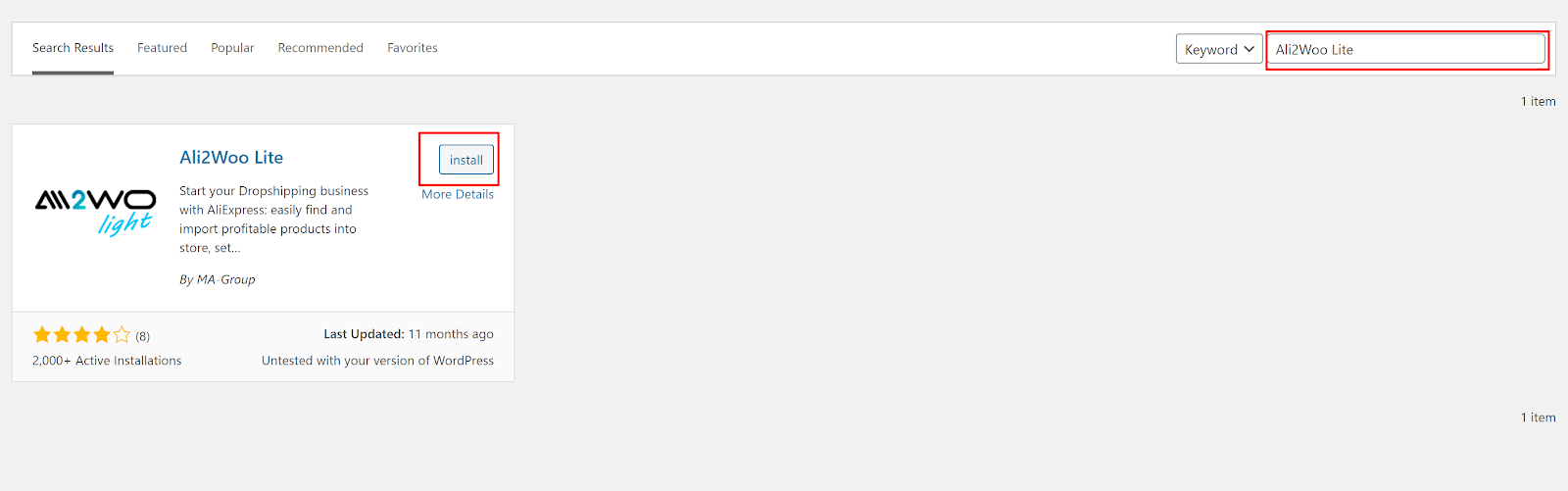
    After we installed the desired template, we’re ready to install the dropshipping plugin. To do this, head to WordPress Dashboard > Plugins > Add New, type Ali2Woo Lite, and install it.

    build a dropshipping business website

    While this plugin has a premium version, the free version will do the job. 

    During the plugin installation, it will ask you to install a Chrome extension, which is necessary for normal functionality, so please follow the instructions and install the extension.

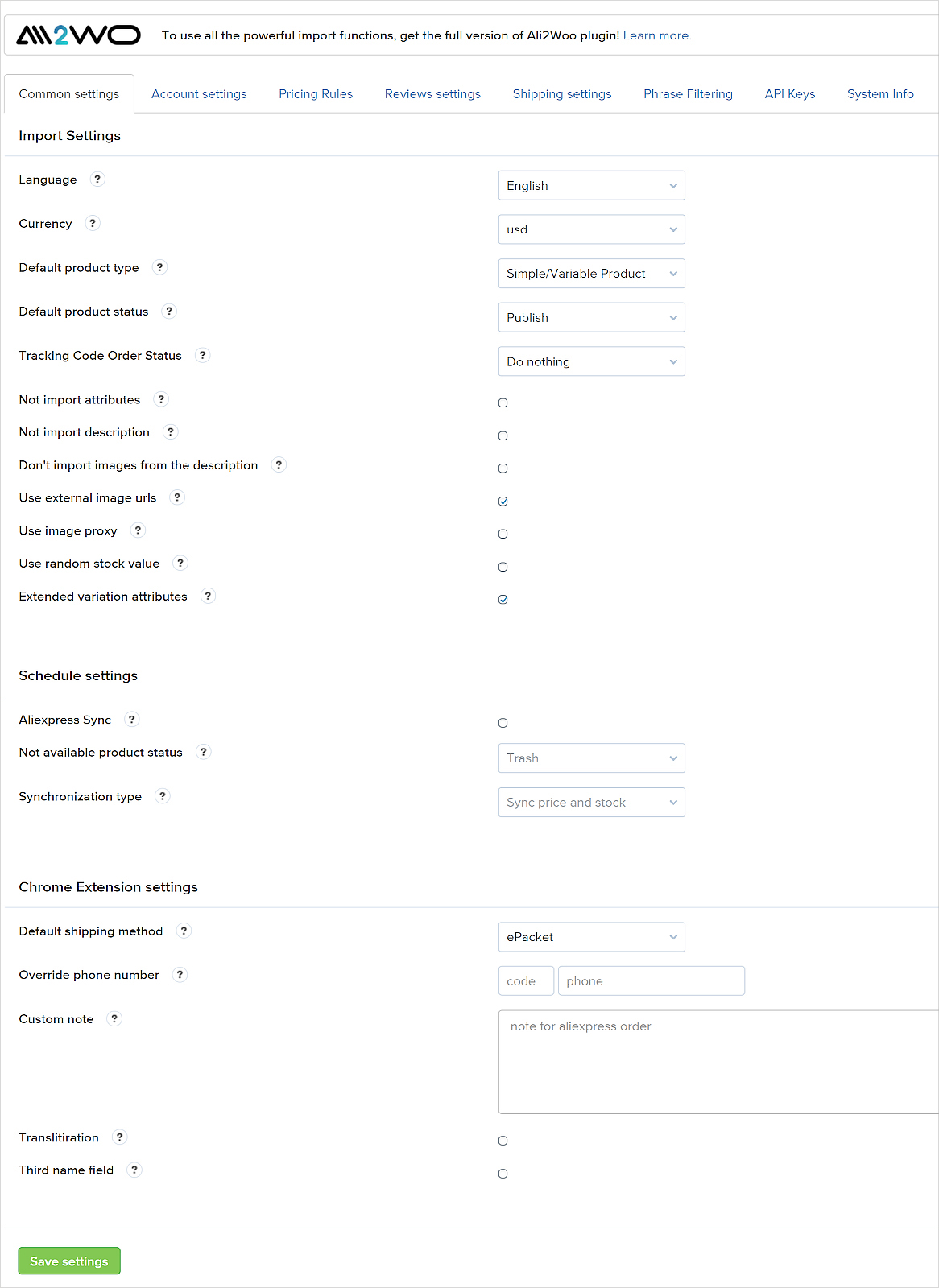
    Once you install and activate the plugin, head to the settings and set up the basic aspects of your website. From this page, you can set up rules for the dropshipping plugin such as language, currency, pricing rules for imported products, reviews of the product, shipping details, product description, images, words filtering and nearly everything you need from the plugin. This is how it will look:

    build a dropshipping business website

    3. Searching and preparing products for import
    Once you’ve set up the plugin, you’re ready to import products. Ali2Woo works with AliExpress, since the latter is one of the main sources of cheap products from China. 

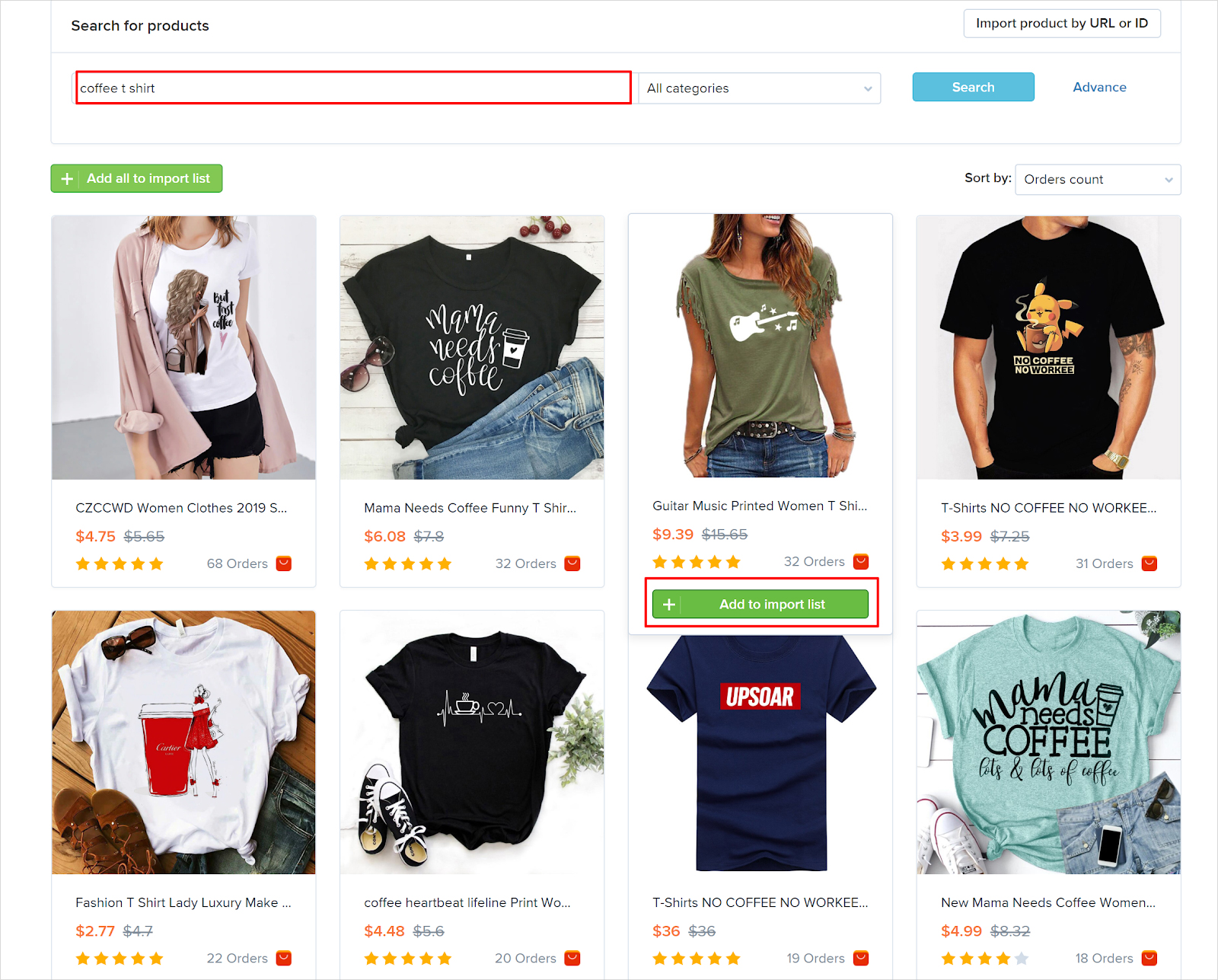
    Head to the Search Products page and start searching for products you want to dropship. It will look like the following:


    You can search for a nearly unlimited variety of the products you’d like to sell on your site. Once you’ve selected what you’d like to sell, click on the Add Import list. Repeat this step as many times is necessary.

    Once you finish searching and adding products to the list, you can then move onto the next step. 

    4. Products review and import
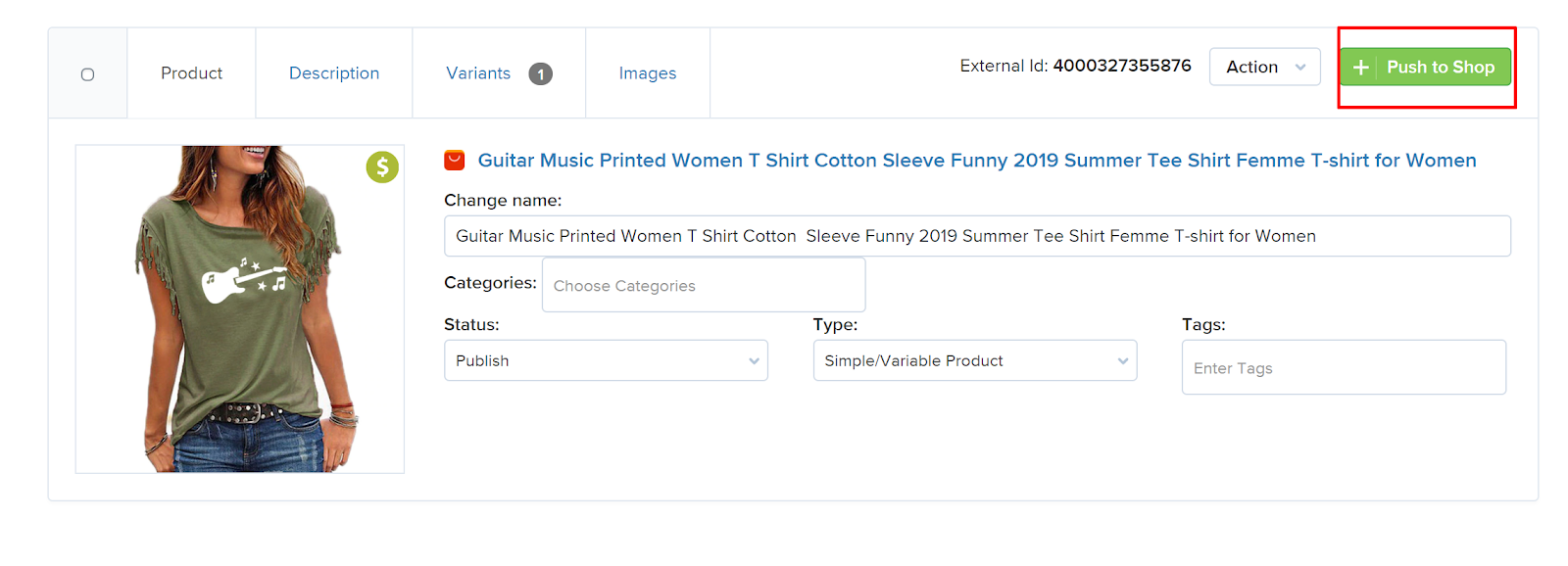
    In this step, you have to review products by adjusting the name, fixing broken description text or images, adding it to the appropriate category and adding tags to the product. Or perhaps you want to add something extra to the name or description – or simply want to change the price – all these tasks happen on this page. 

    Once you’re finished with this step, click on the Push to shop button, and this will appear in Products on your WooCommerce site.

That’s it! Now you’re ready to accept your first order and get paid for your job. Once someone places their order, the plugin will place similar orders to the supplier with the order details – and all of this is automatically done by the plugin.

Wrapping Up

Essentially, in this post, we covered how you can build a dropshipping business website with Jupiter X. However, there’s more to it than that. In real life, you’ll definitely want to extend  the functionality of your store by adding extra features, analytics, optimizing SEO, implementing security measures, among other things. The good thing is that if you choose Jupiter X as your theme, you’ll be covered since it already has all the above mentioned points. 

The dropshipping business model is still on the rise, so, don’t waste any time and set up your million-dollar store as soon as you can! 🙂

Tips for Successfully Taking Over an Existing WordPress Site

taking over an existing wordress site featured

You might be thinking that taking over an existing website is a good deal to make. After all, you don’t need to create anything new as everything is already done, right? All you need to do is ask for login credentials, and you’re well on your way. 

Unfortunately, it’s not as easy as that. If there’s something you’ve missed or overlooked, you won’t be able to administrate the site fully, and the previous admin will still have access and may do harm to your website or ruin the changes you’ve already made. You also might be unaware that the site you took on has some malicious code, which could make your site vulnerable to getting hacked. That’s why it’s so important to follow all the steps below when inheriting a website. Here’s a list of what you need to check and remember for successfully taking over an existing WordPress site.

Get All Login Credentials 

When inheriting a website, the first thing you need to do is to get all login credentials. It doesn’t mean you only need the username and password for your WP Dashboard. Here’s everything you need to get: 

  • Access to WordPress dashboard (make sure you have an Admin role so you can manage the dashboard freely)
  • Hosting account (you need this to be able to change certain settings, for example, PHP version or to edit the files to troubleshoot)
  • Domain registrar (usually domains come together with hosting, however, it may be separate. You need to check that you have access to the domain management to be able to update its registration or change DNS)
  • CPanel (some hosting providers have management panels like CPanel or ISP Manager, so you should make sure to get access to that panel where you can manage your site easily: change PHP version, create backup, edit files via File Manager, etc.)
  • CDN (make sure you have access to this as well. A great tool to speed up WordPress, it may be Cloudflare)
  • Email accounts – there are email accounts that may be connected to your site. You need to have access to all of them for administration.

Change All Passwords And Emails

Another step in taking over an existing WordPress site is to change all the passwords after receiving the login details. You don’t know who else has them, so to secure the website, change all the passwords immediately after you’ve received that information. As you already know, your passwords should be strong. You can use this password generator tool to generate robust passwords.

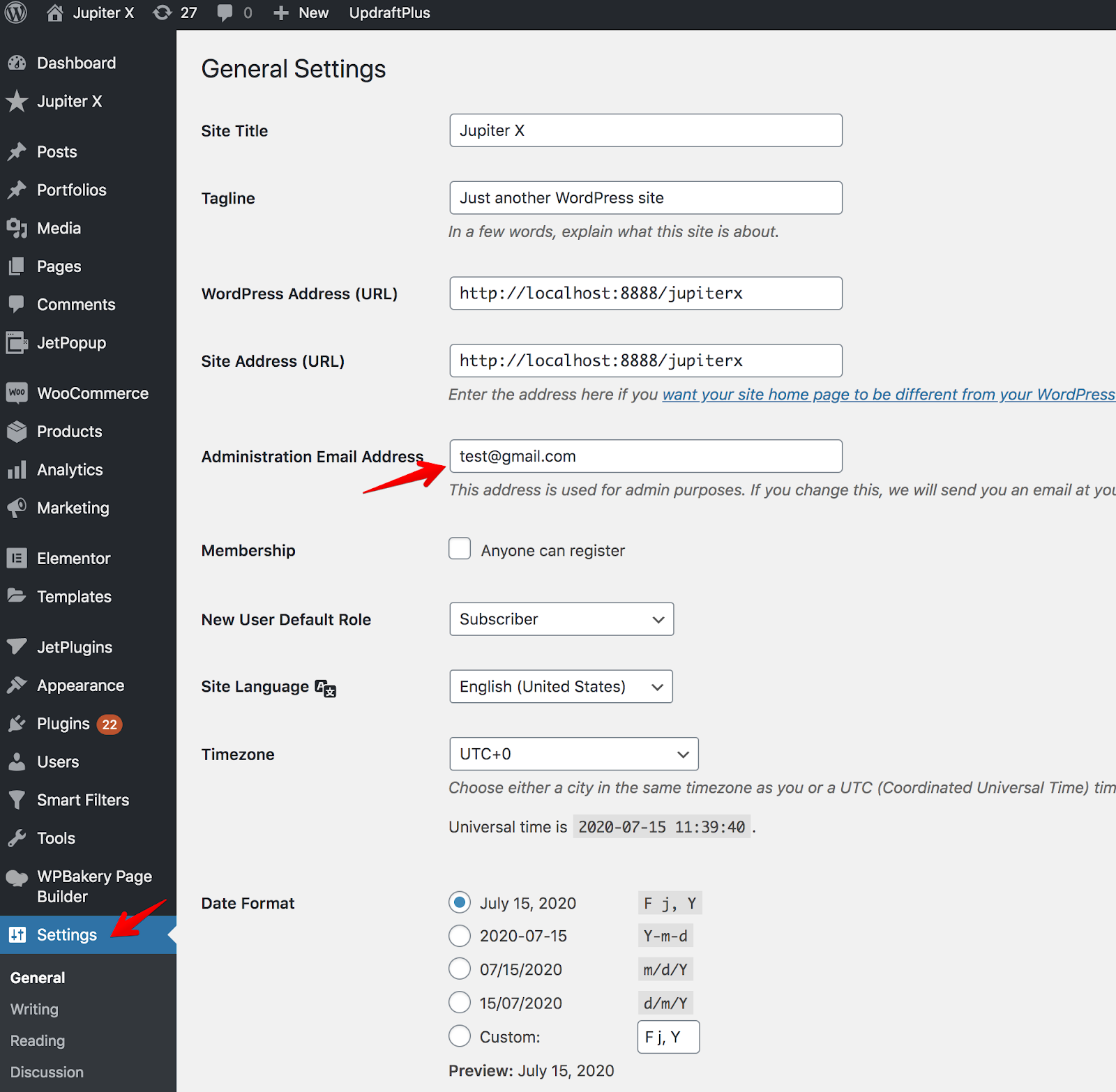
Another thing you need to do is to change the email address to yours: go to Settings > General and replace the email address there so you can get any notifications.

taking over an existing WordPress site

Set up Automatic Backups

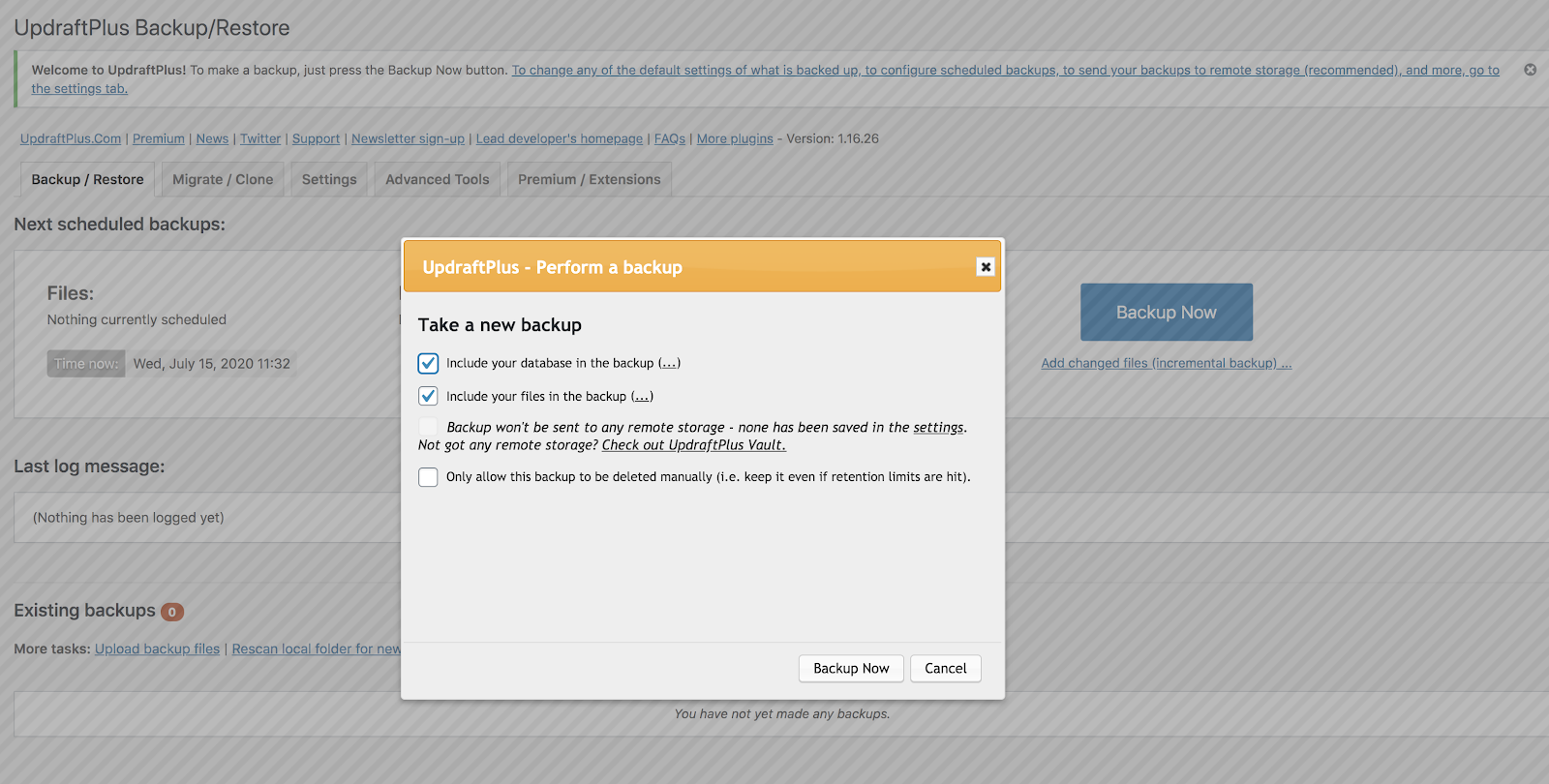
It’s necessary to make regular backups so you are able to restore the data if something goes wrong. You can create a full backup via CPanel or use a WP plugin like UpdraftPlus.

taking over an existing WordPress site

The following articles will be helpful for you to get more information regarding backups:

How to Backup Your WordPress Database Like a Pro

Restore Your WordPress Website Using a Backup: Here’s How!

How to Perform a WordPress Backup in Jupiter X with BlogVault

As an admin, you need to be sure that you have solutions to restore the site data if something is corrupted.

Update User Roles

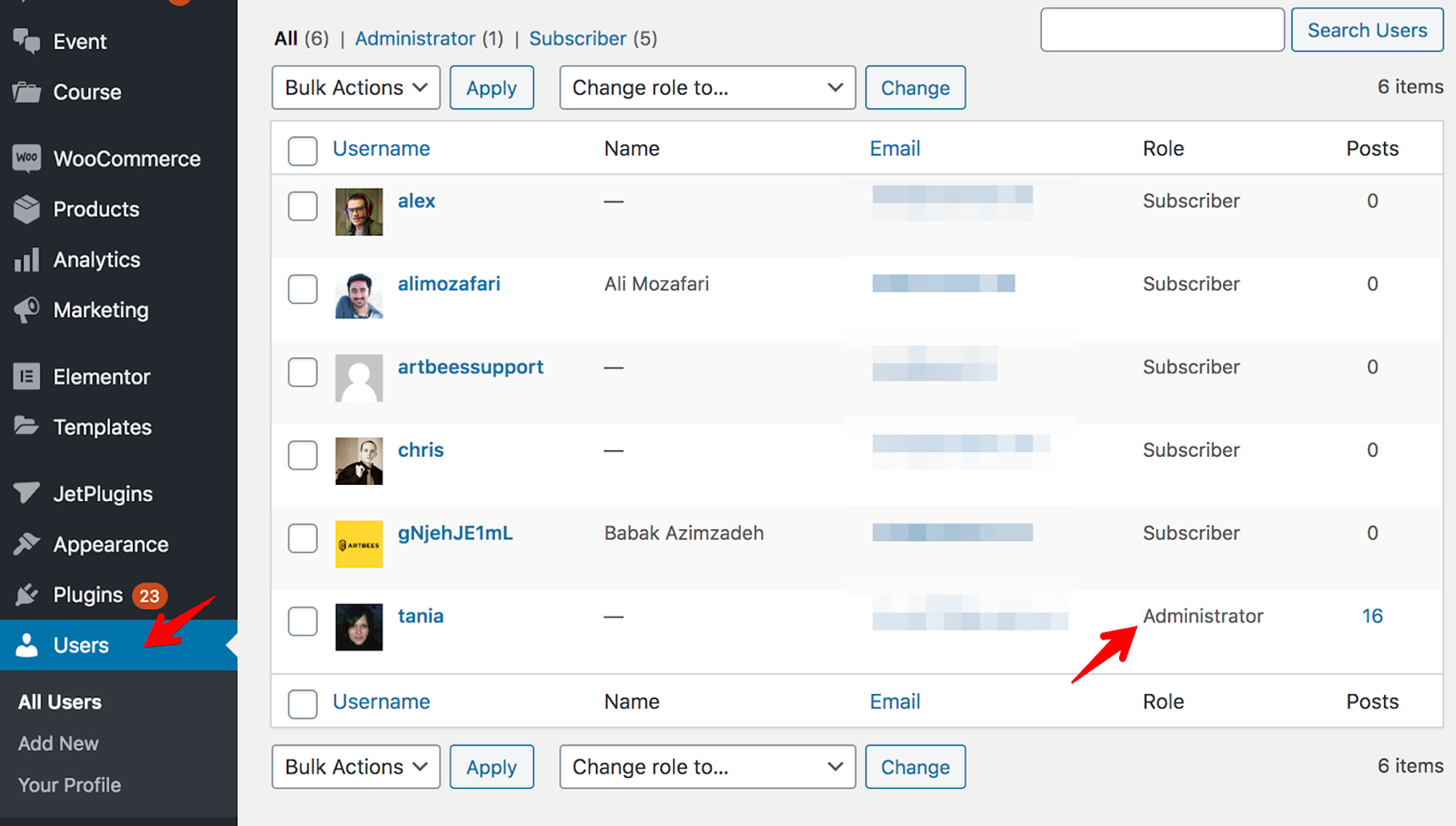
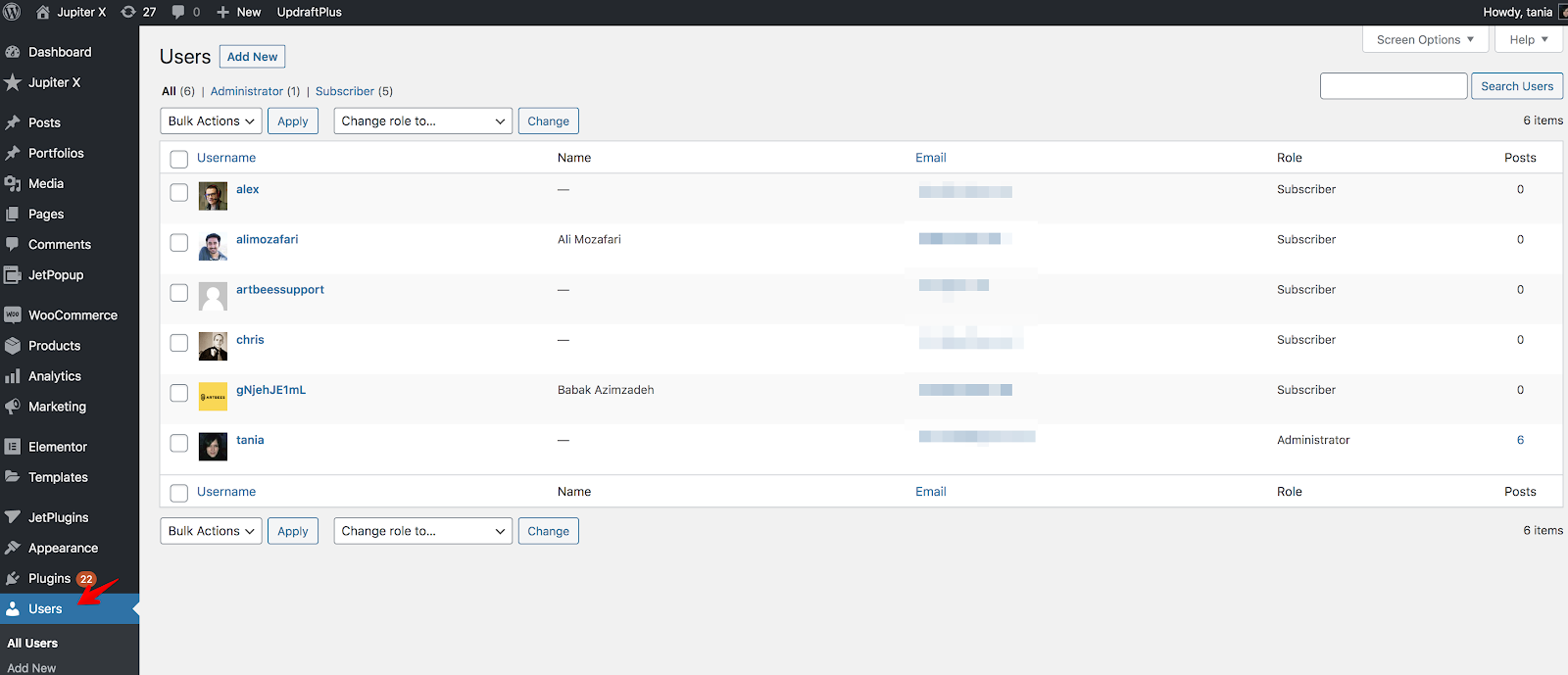
Another important point in taking over an existing WordPress site is checking the user list. Go to the Users menu on the dashboard, find the person who managed the site before you. It’s better if you remove his/her access or downgrade the role so he/she can’t administrate the site.
If you see other users with Administrator roles in the list, but you are supposed to be the only one, be sure to delete those users.

taking over an existing WordPress site

Update Outdated Items

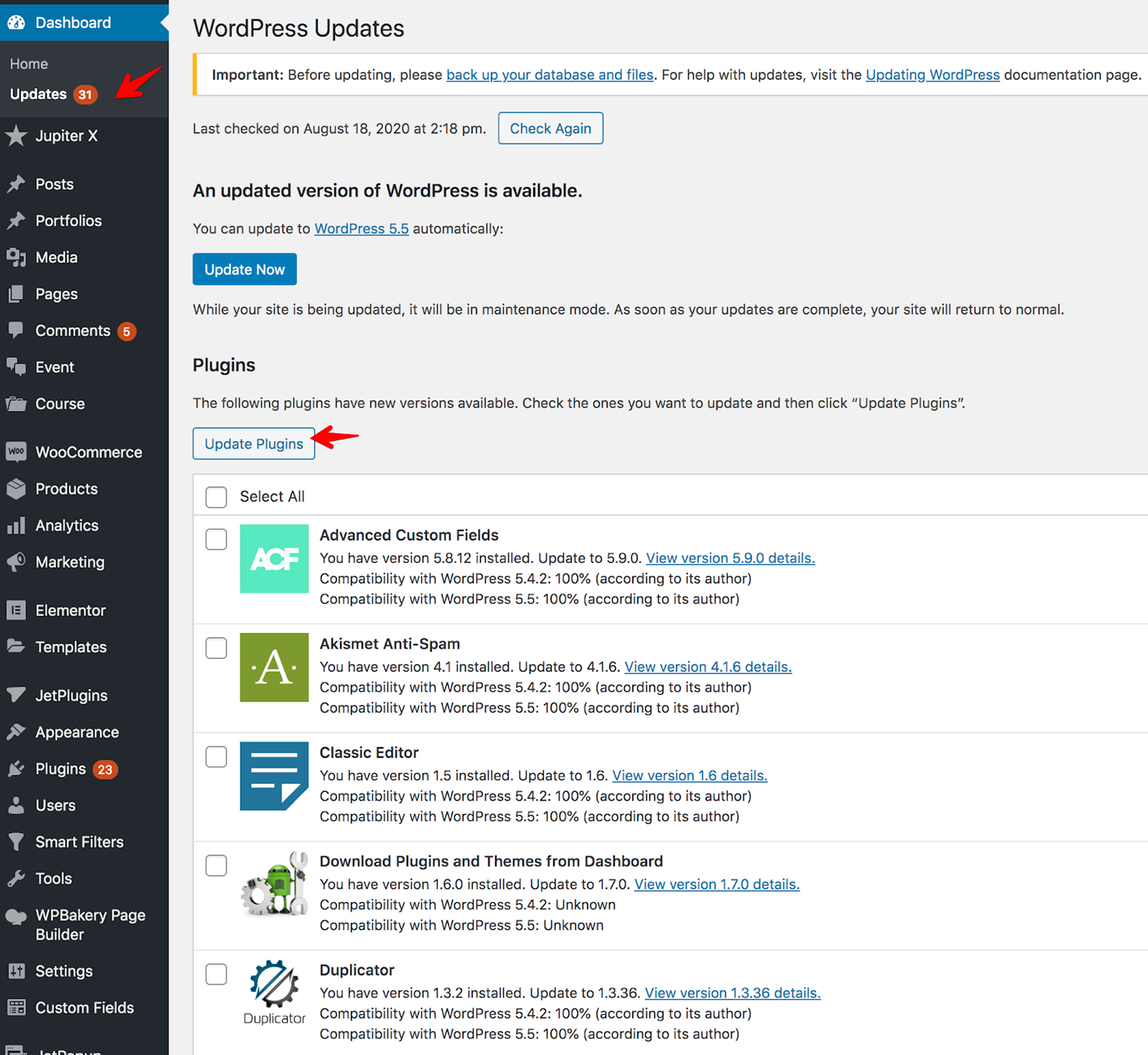
Now it’s time to update the site. When taking over, you’ll definitely get some plugins or themes that are out of date. If not, then you’re lucky! So, before starting an update process, you need to create a backup to be able to restore the site if something is broken during the update. Don’t proceed with a bulk update, do it one by one, especially when it comes to plugins. You’ll want to update plugins one after the other and then check the site after each update. This way you’ll know which plugin caused the issue if your site got broken after the update.

Another recommendation is to do this maintenance work on the local or staging environment, so the live site is safe and visitors don’t see a broken layout.

By the way, there’s a great tool that helps in managing all your WordPress websites at once – ManageWP. You can run all updates with one click and automate the backups. It’s very handy and helpful if you have many WordPress websites which you can manage from one place. 

Scan a Website for Security

The next step while taking over an existing WordPress site is checking if your website is secure and that there is no malicious code. You can find free online tools for a security scan, such as Sucuri SiteCheck. Also I’d recommend that you install a security plugin (if you don’t already have one) like WordFence, Sucuri or iThemes.

If your site doesn’t have an SSL certificate, it’s better to install it. Your hosting provider should help you with this. Also check your site for performance: you can use online speed test tools like  GTMetrix and Pingdom. And if you need to enhance your site’s performance, you can use a caching plugin such as WP Rocket, WP Fastest Cache, etc. Refer to this article for more detailed information.

Check Premium Features

It’s likely that the previous site owner used premium themes or plugins. Check to see if you’re able to receive automatic updates for those items. You’ll need a purchase code or API key to gain premium access. If possible, contact the previous admin and switch all licenses to your account. If needed, make a purchase under your account and re-register the theme or plugin, and you’ll definitely get premium support and automatic updates.

Delete Unnecessary Items

It’s good if you get rid of the unnecessary things on the site: uninstall the themes and plugins that you don’t use and delete user accounts that you don’t need. It’ll make the site more secure, and because using too many plugins slows down site loading time, your site’s performance will be enhanced. Also, you’ll want to make sure to optimize the database as some plugins may keep their tables in the database even after uninstalling them. The WP Optimize plugin will help you with this.

Wrapping Up

All the steps we’ve mentioned in this article are important to successfully taking over an existing WordPress website. And the responsibility falls on your shoulders – now that you’re the site owner, you’re the only one who can ensure that the site is functioning properly. As we’ve mentioned in the post, don’t forget to regularly update the site after gaining full access – in other words, keep improving it! The more work you put into your site, the better the outcome will be.

Create a Virtual Tour on Your Own WordPress Website with This Technique

create virtual tour featured

As the world suffers from the Covid-19 pandemic, many have lost the opportunity to follow through with their vacation plans this summer. As a travel enthusiast, I haven’t completely lost out and was able to spend time with family visiting places I had never had the chance to see before via Google Street View and a couple of virtual tour websites. For the first time, the Louvre museum provided a way to virtually visit its exquisite treasure of artwork that I’m sure only few people would have had a chance to see, even if this pandemic had not overwhelmed the world. This article will provide an overview of the fundamentals of virtual tours and will show you how you can create a virtual tour for your own website.

What is a virtual tour?

A virtual tour gives the audience the feeling that he/she is visiting a place – whether it’s a catalog, video, game, audio – or even listening to someone explaining something to you can be classified as a virtual tour. a. However, the most popular meaning of a virtual tour is a combination of panoramic images that are linked together and provide extra information on them, such as a map, tour guides, hotspot tips, videos, music, etc.

A good virtual tour will give you a good sense of the atmosphere of that place. Check out this Forbes article and enjoy visiting the top-15 ranked virtual tours around the globe.

How can I make a virtual tour?

To create a virtual tour on your website, you’ll need a camera, a tripod, an image stitcher and a virtual tour maker software. You’ll also need to take a 360° image by shooting the area around you using the tripod and camera, stitching them all together into one panoramic image and then putting it on a tour maker app. After adding your hotspots (among other things), you’ll need to build the output. In order to make a good panoramic image, you should understand projections. Imagine you want to project a sphere into a rectangle. There are multiple ways of doing that. Cartographers are already familiar with projection concepts, because they have to draw the map of a sphere on a surface.

Image from gisgeography,com

More information about different projections can be found here

We’re first going to use an image stitcher to create a panoramic image. There are tons of image stitchers out there. One of the best free image stitchers is “Image Composite Editor” from Microsoft. Since it’s only available for Windows, if you’re using a Mac, you may give some other software a try here

So, we’ll start by installing the Image Composite Editor app from here. After installing, click on New Panorama button on at the top.

Creating a new Panorama using the Microsoft Image Composite Editor

Here, you should select all the images that you shoot on a tripod, which should encompass the entire area around you. Depending on your camera’s wide-angle lens, the number of images might vary. Read this article to find out more about how to shoot a good panorama image. 

After selecting all the images, click on the Next button.

Reviewing the images. Better to shoot and import the images in clockwise order.

Let the app find the overlaps on each image and stitch them all into one.

Aligning and compositing the images

If you’re with the results, click on the Next button. But make sure the image dimension is 360×180 degrees, otherwise you’ll have issues with some virtual tour viewers.

Review the un-rendered image and set the horizon. 

Here, you can resize the merged image and crop it, how you want. If you’re satisfied with it, click on the Next button.

Resize and crop the final panorama image

It’s time to export the image to get one panorama file.

Export the result into one panoramic image.

Save the file and build more panoramic images for the place you’re going to create the tour. The more nodes you make, the more details you can cover on your virtual tour. 

Now it’s time to create the virtual tour using the Pano2VR app. Download and install it from here. After installation, right click on the Tour browser pane and import your panorama images.

Import the panorama images into Garden Gnome Pano2VR app

Add the hotspots, effects, skin, map, tour guide and anything else you want here. I added a hotspot to be able to move to the next panorama in my tour. You can find the documentation of this software here. Follow it to make an amazing tour.

Add a hotspot and allow users to move to the next panorama by clicking on that hotspot.

Now, click on the output icon and add the HTML5 output on the right panel.

Add the output type and settings.

Set the proper output settings, click on the gear icon and wait for it to be finished.

Build the output and wait for it to be finished.

After completing the process, you’ll find the output folder like this. You’ll need all the files and folders here.

create a virtual tour
Output result. The tour is ready.

In the next step, we’re going to embed this tour onto a WordPress website.

How do I show it on my website?

In order to embed the tour onto your website, you’ll need all the files on your output to be uploaded first. Simply make a zip package out of it first.

create a virtual tour
Make a zip package of all the tour files and folders.

Using a File Manager plugin, create a folder on wp-content/uploads/ named “vt” to better organize your tour.

create a virtual tour
Create a folder named “vt” in the uploads folder.

Now upload the zip file into this directory.

create a virtual tour
Upload the zip file into the vt directory.

Right click on the zip file and extract it here.

create a virtual tour
Extract the tour package

You can remove the zip file. Now, you’ll need to embed the index.html file into your page using an iframe.

create a virtual tour
The tour index.html file

Since I was using a local machine to make this sample, the URL of the tour file will be like this:

http://localhost/jupiter/wp-content/uploads/VT/index.html

Now, you can embed this URL into your page. Simply create a page.

create a virtual tour
Add a new page to embed the tour on it.

Using Gutenberg, add a Custom HTML block.

create a virtual tour
Use the Custom HTML block to embed the tour

Put this iFrame code into the code block:

<iframe src="http://localhost/jupiter/wp-content/uploads/VT/index.html" height="500" width="90%"  frameborder="no" /></iframe>

You can use the same method to add the tour in Elementor tour. While editing the page via Elementor, add the Custom HTML widget to your page and put the same code on it.

The results will be like this:

Final Words

Tip: Alternatively you can use tools like WP VR to create virtual tours on a WordPress website.

In this post, we learned how to create and embed a virtual tour onto a WordPress website. However, there are dozens of different methods to go about doing this. But the method mentioned above means that you won’t be restricted or limited in building a virtual tour. Although, it’s worth mentioning that other plugins might have fewer steps to take in embedding the panoramas onto a WordPress. However, they have their own limitations and you may need to look for a way to be able to bypass those limits. This method can work on any other website as well, not necessarily a WordPress website.