How to Use FileBird to Organize WordPress Media Library

organize WordPress media library featured

This is a guest post contributed to Artbees Themes blog by Thuy Nguyen from Ninja Team.

Why to organize WordPress media library?

WordPress media library is where you can find all of your documents and media uploads. It comes with a sort feature by file type and a month and year-based filter function. This is quite sufficient for personal bloggers.

However, if your blog is media heavy and it has to hold thousands of media files, it will take some time to find the files you are looking for. Or when you want to do a post revamp and delete the old files, the decluttering process is hard with this categorization way by default.

Therefore, organizing WordPress media library requires a category management of files. That is where FileBird comes in to help.

What is FileBird – WordPress Media Library Folders?

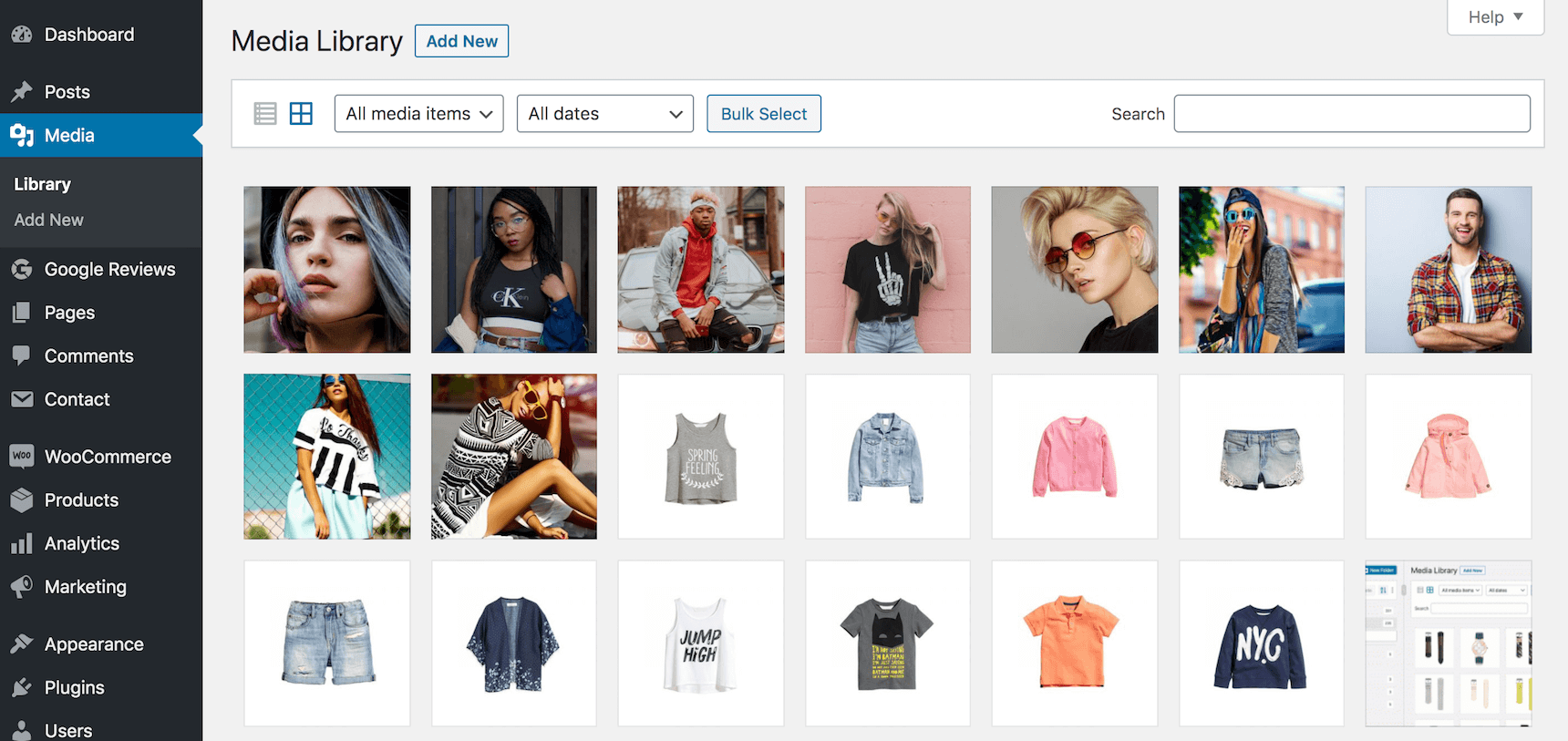
FileBird is a file manager plugin dedicated to WordPress media library. It adds an integrated folder tree on the left sidebar to help you drag and drop files into the folders easily.

This WP media folder plugin is loved by many photographers, fashion designers, and food bloggers, who are extensively using media content in their WordPress pages and posts. It works magic on WooCommerce, Elementor and all popular themes including Jupiter X.

In this article, I am going to show you how to organize WordPress media library with FileBird, keeping track of all those media uploads and displaying them in an impressive fashion blog in the shortest amount of time.

Create folders in WordPress media library

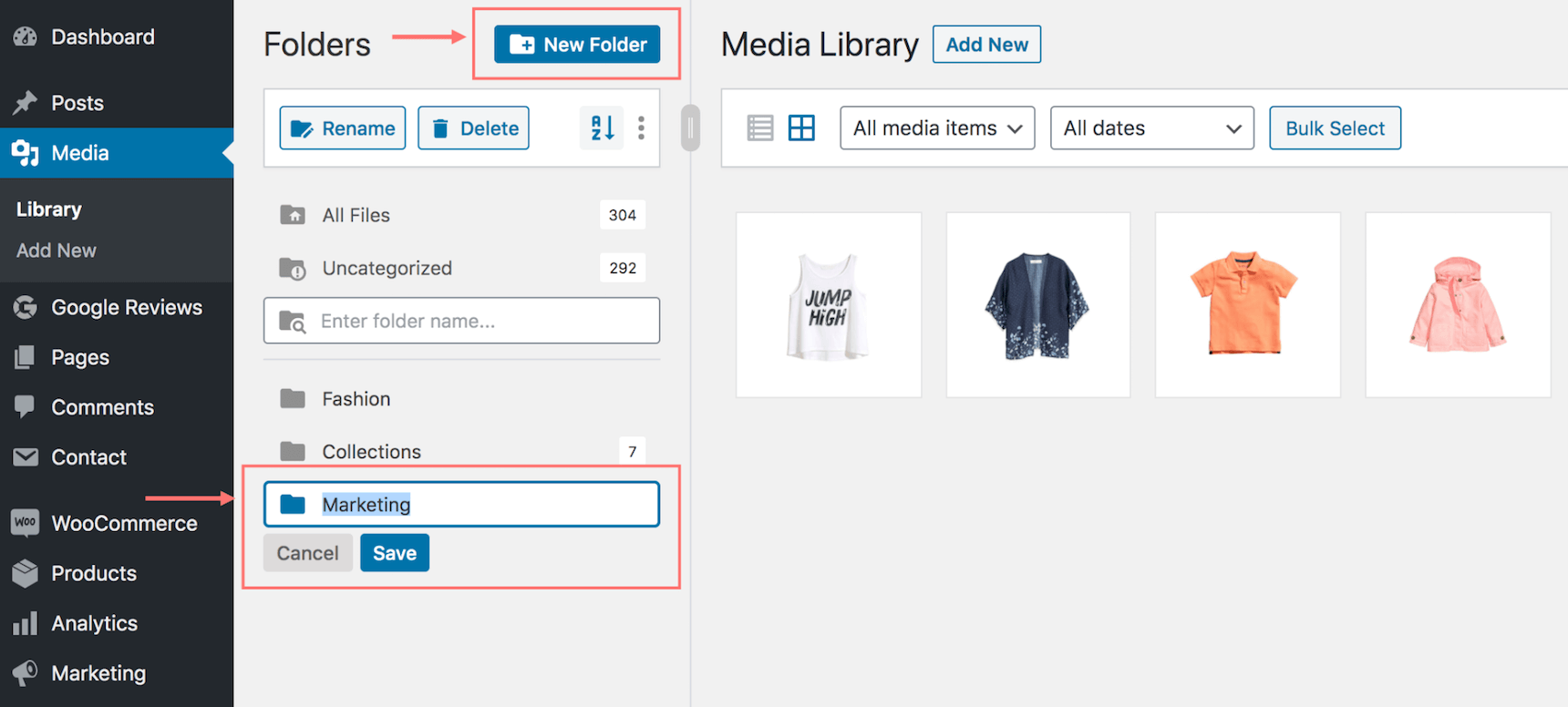
FileBird is a plug and play plugin, meaning it’s ready to use right after activating. Take a look at the FileBird folder tree and you will see everything is intuitive and easy to navigate, just like what you do on your computer.

It offers one-click to create a folder. So go ahead and click that button to create several main categories/parent folders such as Fashion, Collections, and Marketing.

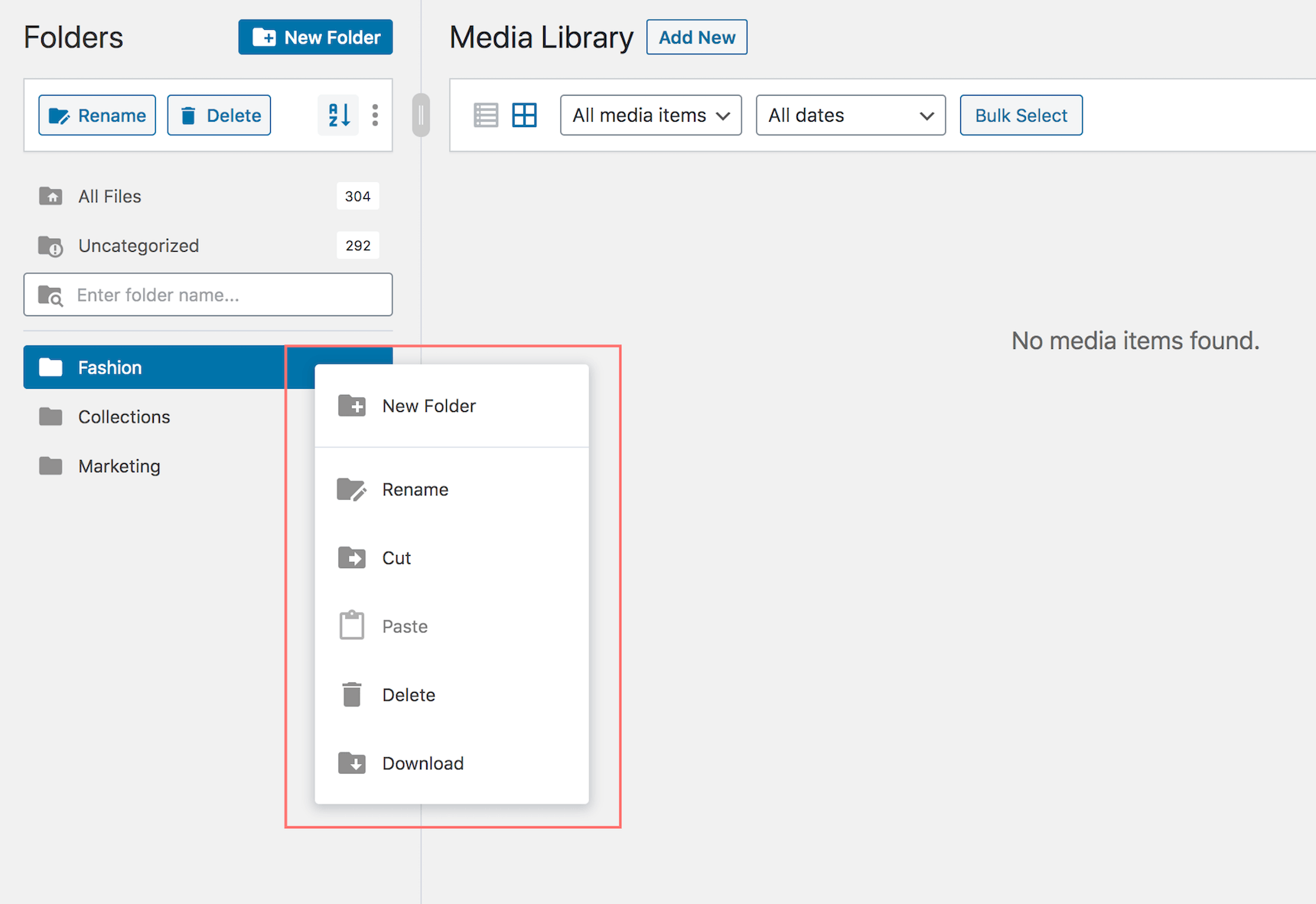
This media folder area comes with a smart context menu, meaning you can right-click to interact with the folders. For instance, if you right-click on the folder Fashion, you have various options including:

  • New folder: to create a nested folder inside Fashion
  • Rename: to change the folder name
  • Cut and paste: to easily arrange folders
  • Delete: to delete a folder while keeping all those files in the All Files location
  • Download: to download a full folder with its files and folder structure in a ZIP file

Please note that the Download full folder feature is currently available only in FileBird premium version. It helps you download the original versions of media files, not bunky with different auto-generated image dimensions when you download them via FTP or Filester file manager plugin.

You can quickly try all of these options risk-free because it causes no loss at all. Even when you move files to a wrong folder, you can easily fix it by dragging and dropping it again to the destination folder. 

On top of that, FileBird does not change the permalinks to your media files so they won’t break or get damaged when you move the files around.

Upload files and folders to your media library

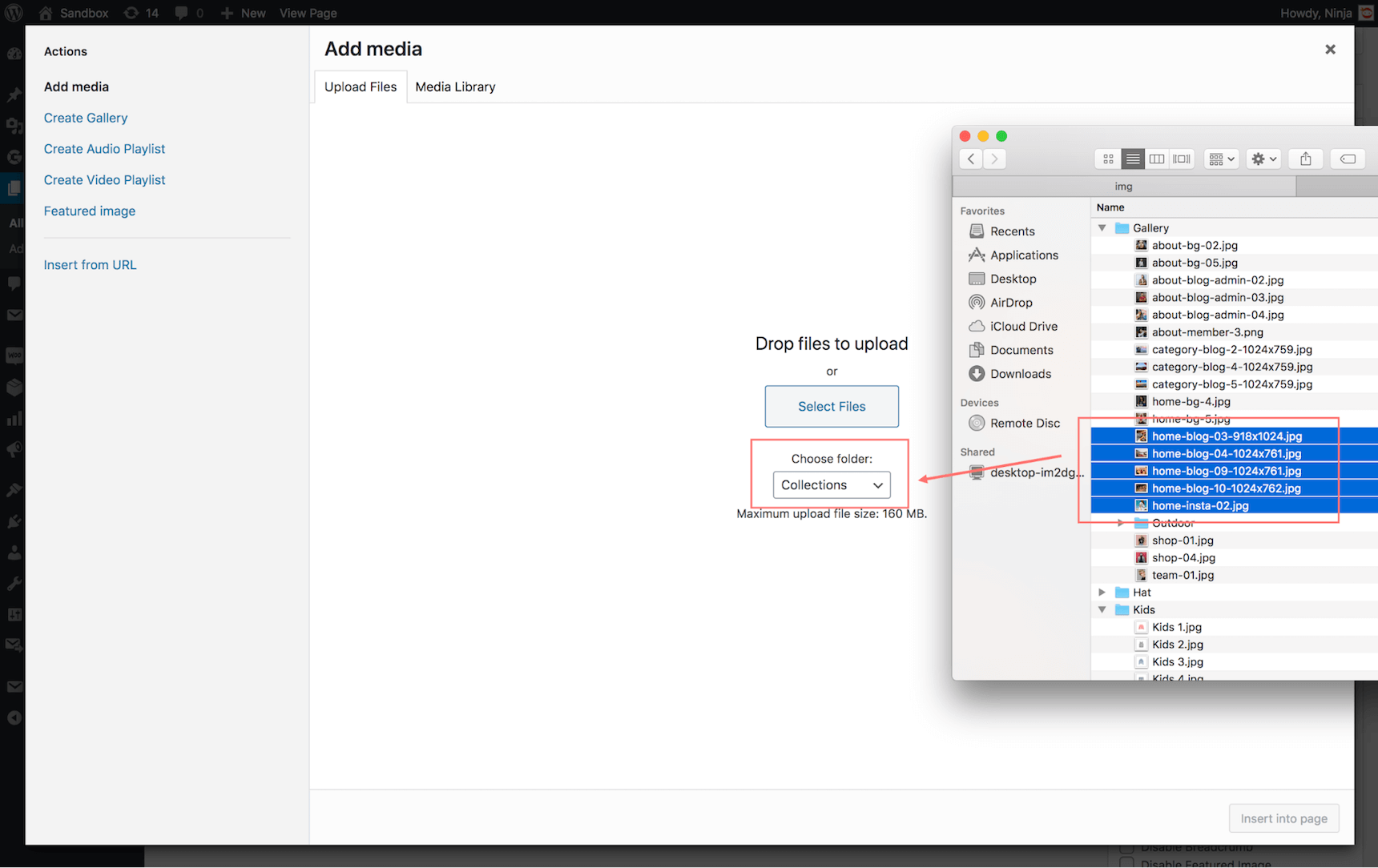
When editing pages or posts, you can also choose the specific folder to upload multiple files. This folder list drop-down in Add media makes it quick when you want to upload and categorize those files at the same time and with only one action. 

Small as it may seem, it is a big time saver when you have to manage multiple websites and publish a bunch of posts on a daily basis.

As for uploading folders, FileBird also keeps it down to the minimum effort. When you need to upload multiple folders with their contained files, you can bulk select those folders then drag and drop them into WordPress media library in a single blade. This action also keeps the same folder order and structure respectively, meaning you literally transfer the categorization system from your hard disk to WordPress.

If you have come this far, you might be already familiar with how FileBird drag and drop works. Depending on the requirements of your website, you may need to create 20+ folders for your media library. Keep in mind that the FileBird free version allows up to 10 folders. If you need more folders/categories, upgrading to the paid version is recommended.

Add image gallery and document gallery in Gutenberg

In this step, I will be showing you how to create an eye-catching gallery using Gutenberg block.

Create a smart image gallery

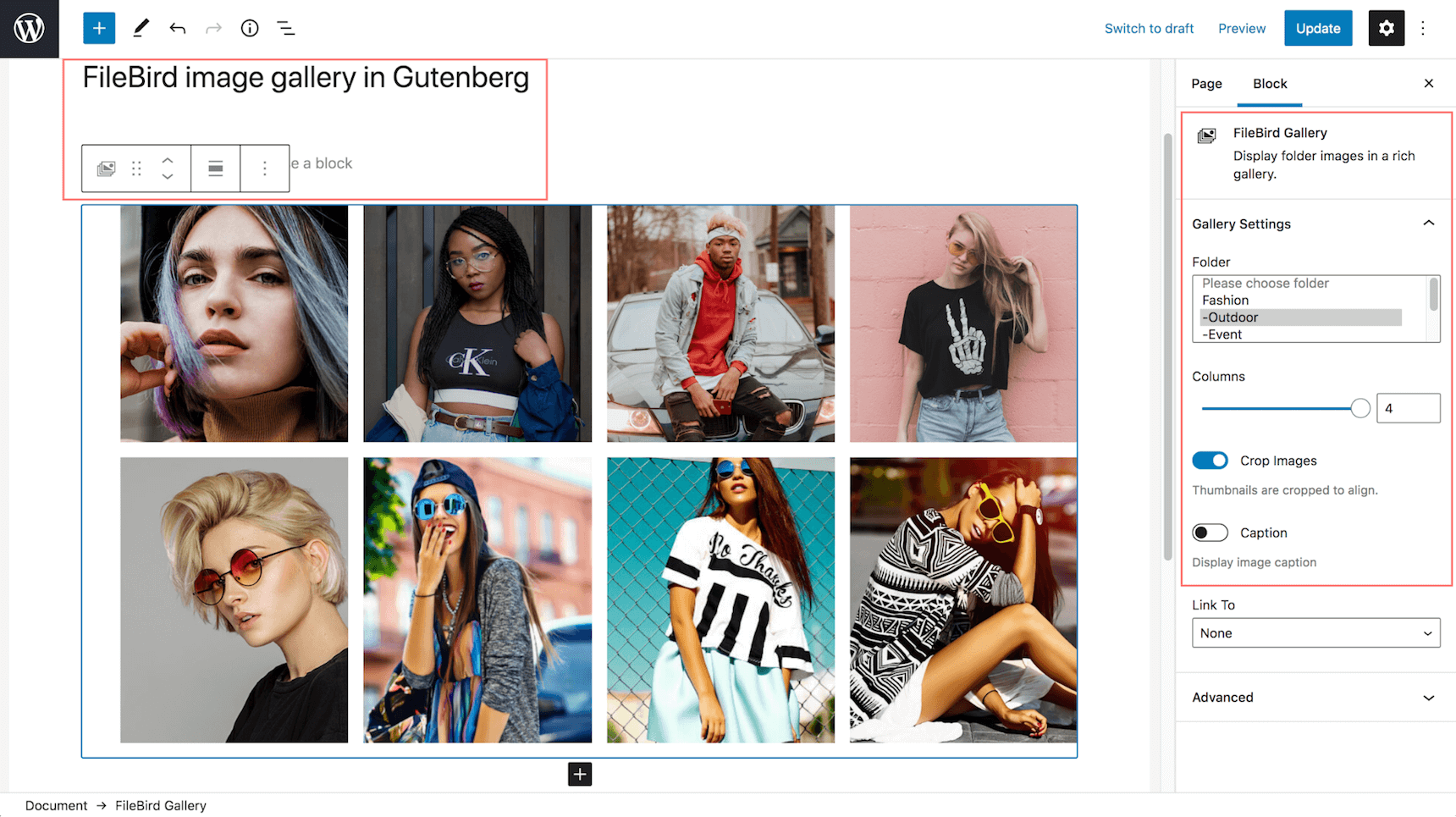
In order to showcase a collection of your fashion blog, you can easily find FileBird Gallery block > Select the collection folder from the folder list.

After choosing the desired folder, you can go ahead and tweak your gallery appearance with these options:

  • Column number: choose to show your gallery in 1-4 columns
  • Crop images: enable it to get your gallery well-aligned
  • Caption: display caption below each image
  • Delete: dismiss specific images that you don’t want to show in this gallery
organize WordPress media library - gutenberg image gallery

Create a document gallery

Sometimes you may want to share advanced files other than basic image formats. If so, you have reached the right place.

With the help of FileBird and a document gallery plugin, you can showcase your SVG, ZIP or other document files with good-looking auto-generated thumbnails.

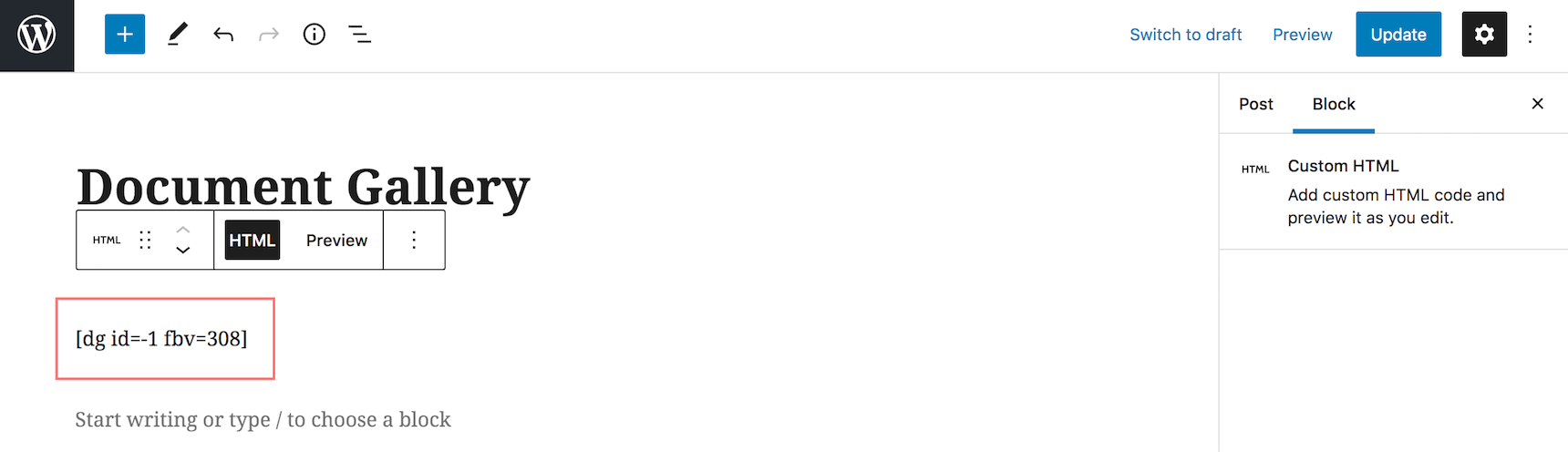
FileBird supports Document gallery plugin’s shortcode to help you display a list of document files. You only need to fill the folder ID in the shortcode and embed it in any page or post.

organize WordPress media library - document gallery with shortcode

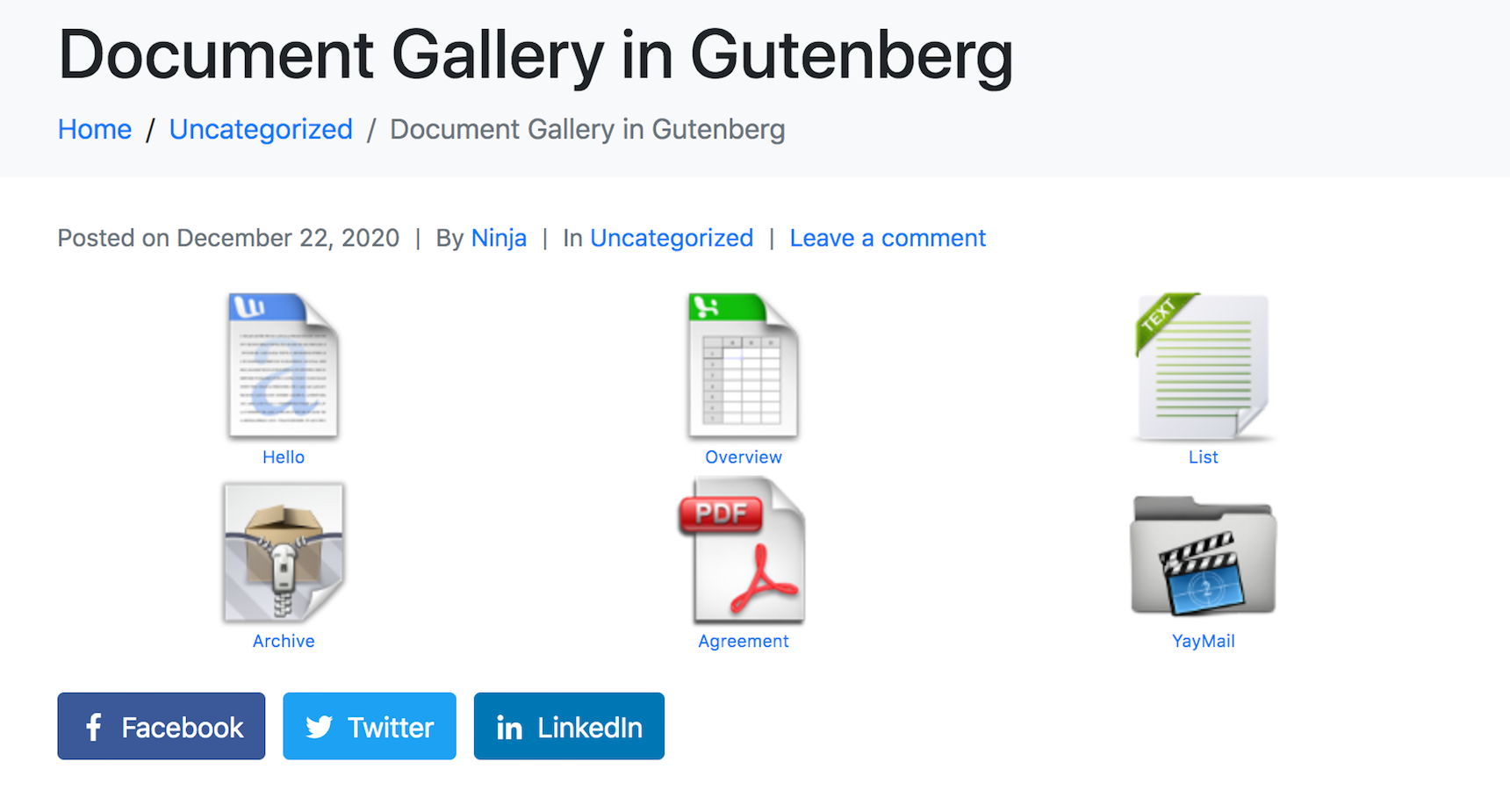
With user-friendly file thumbnails, your gallery will be much more appealing to your visitors. On the front-end, your new document icons look like this. Here’s the outcome of my blog post on JupiterX theme.

organize WordPress media library - Jupiter X document gallery

Best practices when using FileBird media manager

There are some hidden features of FileBird that you will find useful:

  • Collapse the folder tree sidebar to easily hide it
  • Resize the folder tree sidebar to get an overview of all folders with their full names
  • Press ESC to exit the bulk select mode (applicable to both files and folders)
  • Use advanced sort features to clean up the outdated files
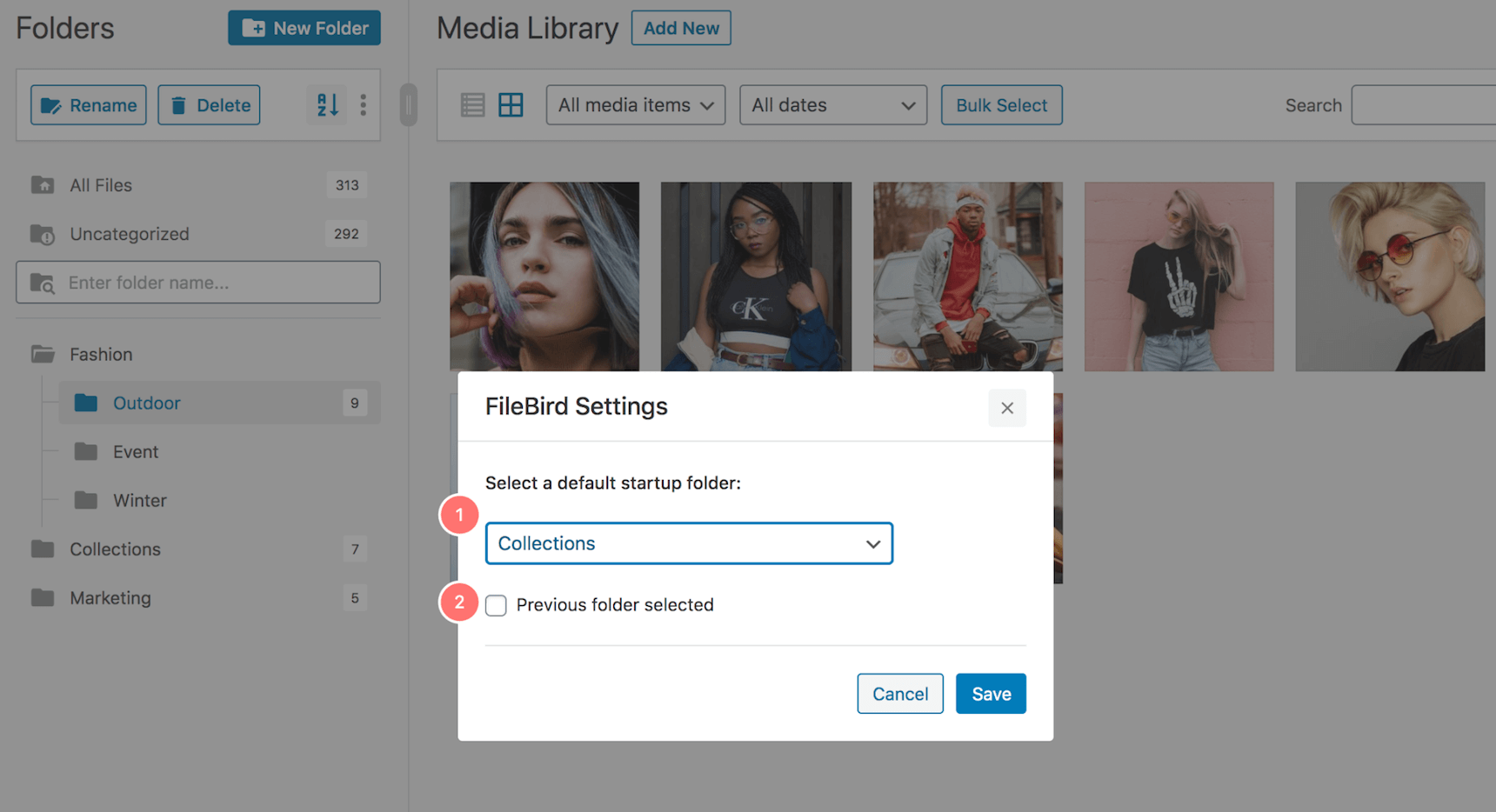
  • Set startup folder

For the start-up folder, you have two options to choose from. 

  1. Select a specific folder: this is fixed and you will reach this folder first whenever you access WordPress media library
  2. Select previous folder: this is dynamic and, as a result, you can come back to the most recently opened folder to quickly continue the task you have been on
organize WordPress media library - set startup folder

FileBird is an easy-to-use plugin for all bloggers using WordPress as their favorite platform. I hope this tutorial has helped you learn how to use FileBird to organize your WordPress media library and make the most out of it.

Choosing FileBird – WordPress media library folders helps extend the functionality of your blog back-end so that it can handle thousands of media files.

How do you navigate images and media on your website? Don’t forget to share your thoughts and experience in the comment box below.

5 WordPress Best Practices Every Developer Should Follow

WordPress best practices featured

As one of the most popular open source CMS in the world, WordPress really makes it easy for us to create stunning websites. However, this advantage can easily become a problem if developers of themes and plugins don’t follow certain standards when developing new products. Most of the WordPress best practices are already covered in the Codex, but I think it contains so much information that it can be difficult to understand where and how to start. To make things easier, I decided to refine these recommendations for you.

You have probably seen hundreds of WordPress tutorials, standards and guidelines covering WordPress development practices. In this article, I’m going to cover the 5 most important WordPress best practices when developing WordPress themes or WordPress plugins. The main focus will be writing better code, managing and testing it, and delivering best practices.

WordPress coding standards

This section is directly relevant for the developers of WordPress themes and plugins. When we talk about best practices of writing code, we need to jump in at the deep end and cover details like programming language specific tools for managing code. First, let’s discuss methods of delivering better coding practices

Readability – When you write any code in any programming language, always remember that you are not only one who will use that code. Your code must be clear and readable for any developer to use.

Your code must always include thorough notes, which will help you and other developers to understand and tweak it if necessary in the future. These notes will help outline details such as the code’s function, why it was coded in a certain way, who wrote it or where you got it from.

You can read about this in WordPress’s coding standards. Remember the Golden Rule: “When in doubt, space it out.”

Reliability – It’s likely that you already know how to write the code that it runs without any problem on several hosting environments. However, this is not always the case for everyone, and your code may fail for hundreds of reasons in different environments and with different users. As a result, you should always use tested WordPress APIs as much as possible. Even if you’re a professional coder, it’s impossible to test that code for millions of users and thousands of different server configurations.

To prevent naming conflict with other themes and plugins, always prefix your function names, class names, post types and taxonomy names.

Flexibility – The greatest benefit of WordPress is flexibility. If the code for your plugin or theme is properly written, you can take it and implement it into your project without causing a single issue. Unfortunately, errors can always happen, and the main cause of error is not following best practices.

It’s probable that your code will be reviewed in the future for tweaking or adding new functionality. Make sure your code is flexible enough to be edited in the future. For example, use relative URL paths whenever possible so that if your URL changes, you won’t have to edit all your codes depending on the URL used.

Reusability – If you think copying and pasting will make your code reusable, you’re unfortunately mistaken– copy-pasting code is a terrible idea when coding. Just imagine what happens when you want to make small changes to a code that you have already copied 15 times to different places and files? Always make sure you are not repeating yourself. If you discover that you are repeating yourself again and again, stop for a second and think about it. In a coding standard, instead of copying, you can create and pack such functions in a separate plugin. This will allow you to use it in other places and easily maintain it.

Managing code 

Writing code using the best practices and standards is one thing, but managing this code is a different matter entirely. It’s important to ensure that managing the code is easy and doesn’t involve repeating steps.

Version control is an option that makes the cowboy style of writing codes and managing versions of that code a thing of the past. Version control allows you to easily track all of the changes to your code, from start to finish. This allows you to restore your project to any specific day, divide your project into several branches to test new functions and add new features without affecting the main body of the code.

Git is the most popular version control system used for this. However, WordPress uses Subversion as a code management tool for themes and plugins. The main benefit of Subversion is that it allows you to work with others and manage different versions of your code. It’s also specifically optimized for WordPress’s needs.

Version control is the best problem-solving option out there, not only for working as a team but also for individuals. I think it’s the first thing you need to learn before starting to code anything. Another benefit of version control is that you can save your code to your local machine and host it online, using services like GitHub or BitBucket to host your codes in the cloud. This is also a great way to publish open source code and projects for others to use.

Testing code

Even if you are creating a premium product for free, it’s important to test your code in many different environments. In our case, when we develop a WordPress product, we have to test it in different hosting environments and with different versions of PHP as the main programming language.

One of the best tools you can use to test your code in many different environments is Vagrant.

WordPress best practices - vagrant

Many developers don’t spend a lot of time testing their code. Some may not even put in much work to debug it. One basic way to test your code is to enable WP_DEBUG to be true in wp-config.php. This action will show you if your code has any warnings, notifications or critical errors. However, if you are a serious developer, you will definitely want to use one of the best IDE and debuggers, such as XDebug.

Deploying code

WordPress best practices - deploying code

Put simply, every time you click “Update” for a theme or plugin, or even install a plugin or theme,you are deploying the code. This process is very important, as installing untested code might even break your project. For this reason, some hosts create a workflow of deployment for their code so as to prevent issues related to the installation of untested code. This is where the testing or staging environment comes into play. In order to keep user’s projects, this environment offers a stage copy of the site where you can install and update anything without breaking the main site. Once you make sure everything is working properly, you will be able to implement changes to the live environment. If something is not working, it happens only on staging and not on your site.
The main idea in code deployment is to have a flexible workflow that reduces the chances of breaking something. Errors or other issues can always happen, so you should have easy steps to roll back or restore the previous working environment.

There are several different paths you can take to deploy your code smoothly. You may use the version control system we talked about above or use deployment tools like Capistranorb or Ansible.

Code Comments and documentation

WordPress best practices - documentation

Comments and documentation are a developer’s best friends. Whenever you write code, think about whether that particular line is easy to understand and make sure you don’t need any comments to explain why you did what you did. But, trust me–when you come back to that line in the future you may not remember why you did what you did in the past. Even easy-to-understand code snippets can become a headache if you don’t leave comments related to them.

The issues with cowboy style coding are even more evident when your code must be reviewed by someone else, or when you work with a team. As we mentioned before, WordPress is an open source project, so your code might be reviewed by others at any point, and without proper documentation of the code, it might be very difficult for other users to understand it.

Comments are always welcome when writing code, not just in PHP but in HTML and CSS as well.

Conclusion

I hope you found this article useful! The WordPress Codex covers the WordPress best practices mentioned in this article in greater detail, so before starting to create new themes or plugins, make sure to familiarize yourself with the standards of creating user-oriented products.

15 Marketing Automation Recipes to Turn your WooCommerce Customers into Evangelists

marketing automation recipes featured

Whether we like it or not, our lives are becoming more fast-paced each day. Automation helps us keep up, but it never seems to be enough, so we are always searching for new ways to save time. This applies to the world of marketing, too. Better and faster automation methods emerge on an almost daily basis, and one of the newest methods is something known as “automation recipes.” Just like food recipes, marketing automation recipes are sets of instructions, or rather formulas. Unlike food recipes, automation recipes are used to design campaigns to acquire, activate, and engage customers.  

What are marketing automation recipes?    

The Cambridge dictionary defines a recipe as “a set of instructions telling you how to prepare and cook a particular food.” In marketing, recipes instruct you on how to implement meaningful automation rules to achieve tangible results .

For example, when using email automation software, you typically have to decide to whom and when an email should be sent. Planning and implementing this can take a fair amount of time. Picking a pre-constructed recipe and following its instructions could save you that time.

How to get marketing automation recipes

Googling “marketing automation recipes” can help you find a number of tools. Some are quite interesting. Choose a recipe that fits your business needs and follow the instructions to design a campaign using your automation software.

In this article we will use Growmatik to practice different marketing automation recipes. Growmatik is a Cross-channel Marketing platform for WordPress & WooCommerce. It gives you recipes to choose from AND does the cooking for you too! Just pick a recipe, and Growmatik does all the heavy lifting. 

Let’s take a look at some essential marketing automation recipes that suit most businesses in driving engagement and customer conversion. All of these recipes are part of the Growmatik database and are just a click away.

1- Scroll behavior popup

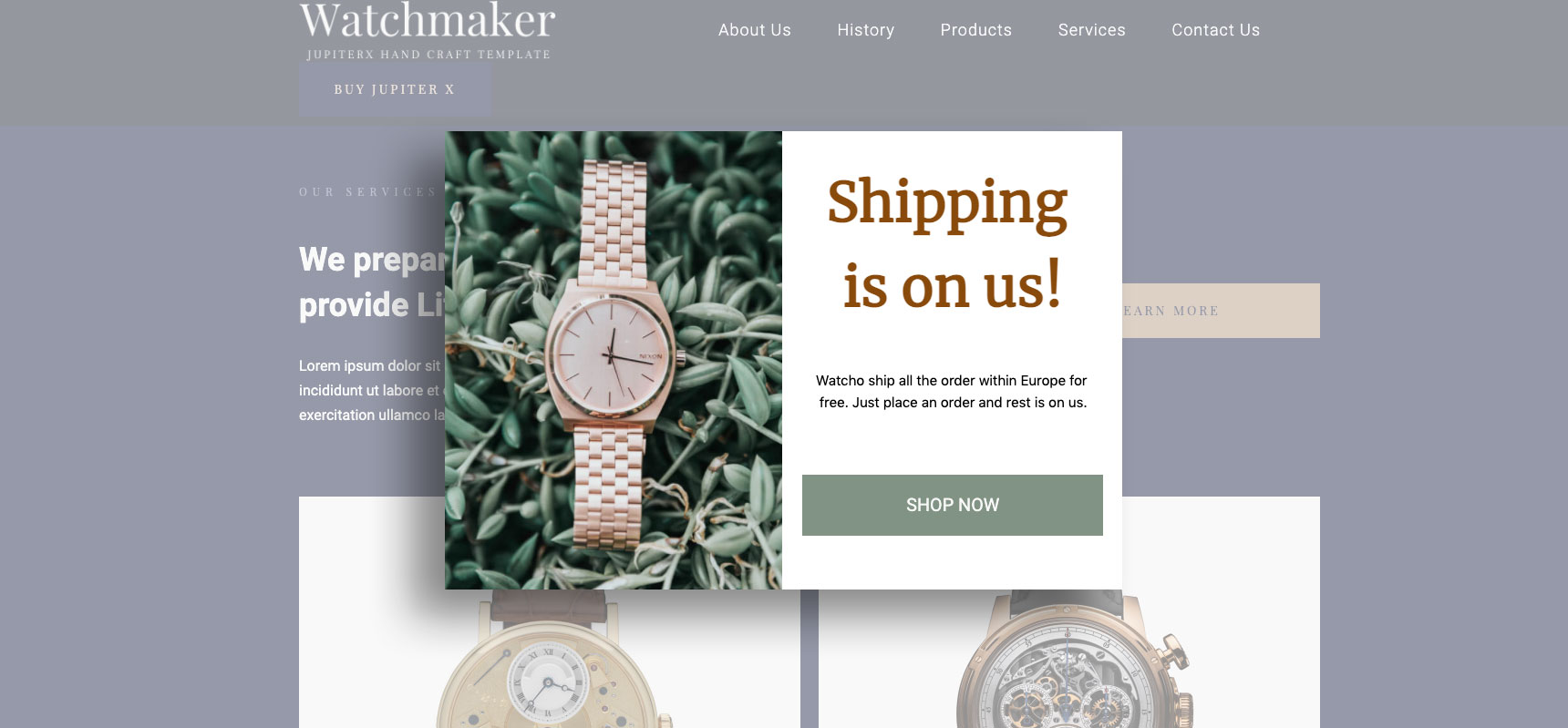
If your customer keeps scrolling down the page, pique their interest with this pop-up and offer an incentive to keep them engaged.

2- On-exit popup

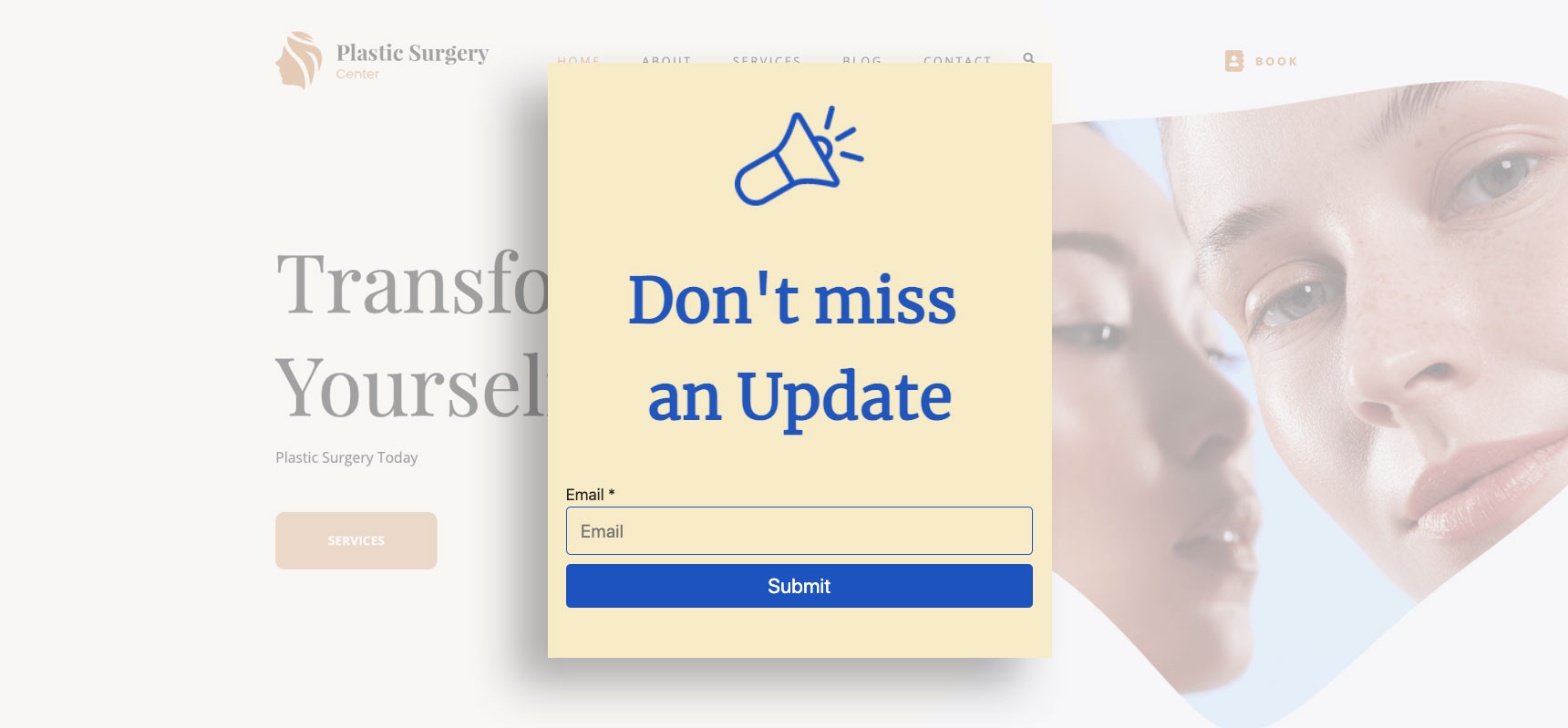
Offer your site visitors a deal they can’t refuse by displaying this pop-up when they attempt to navigate away from your website.

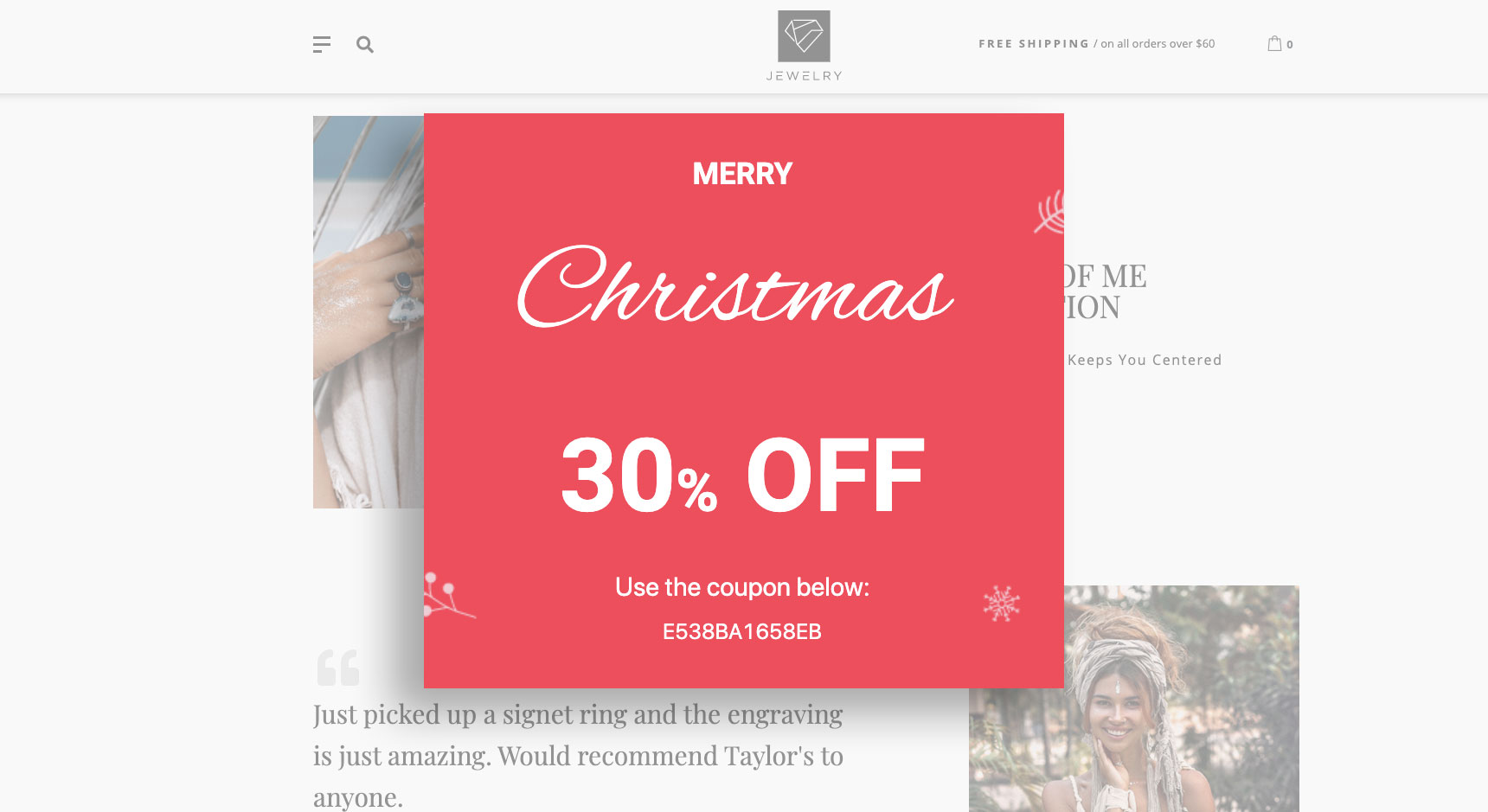
3- Christmas discount popup 

Offer coupons to your site visitors via this pop-up promoting a calendar occasion such as Black Friday, Christmas, Easter and so forth.

4- Page personalization for mobile traffic

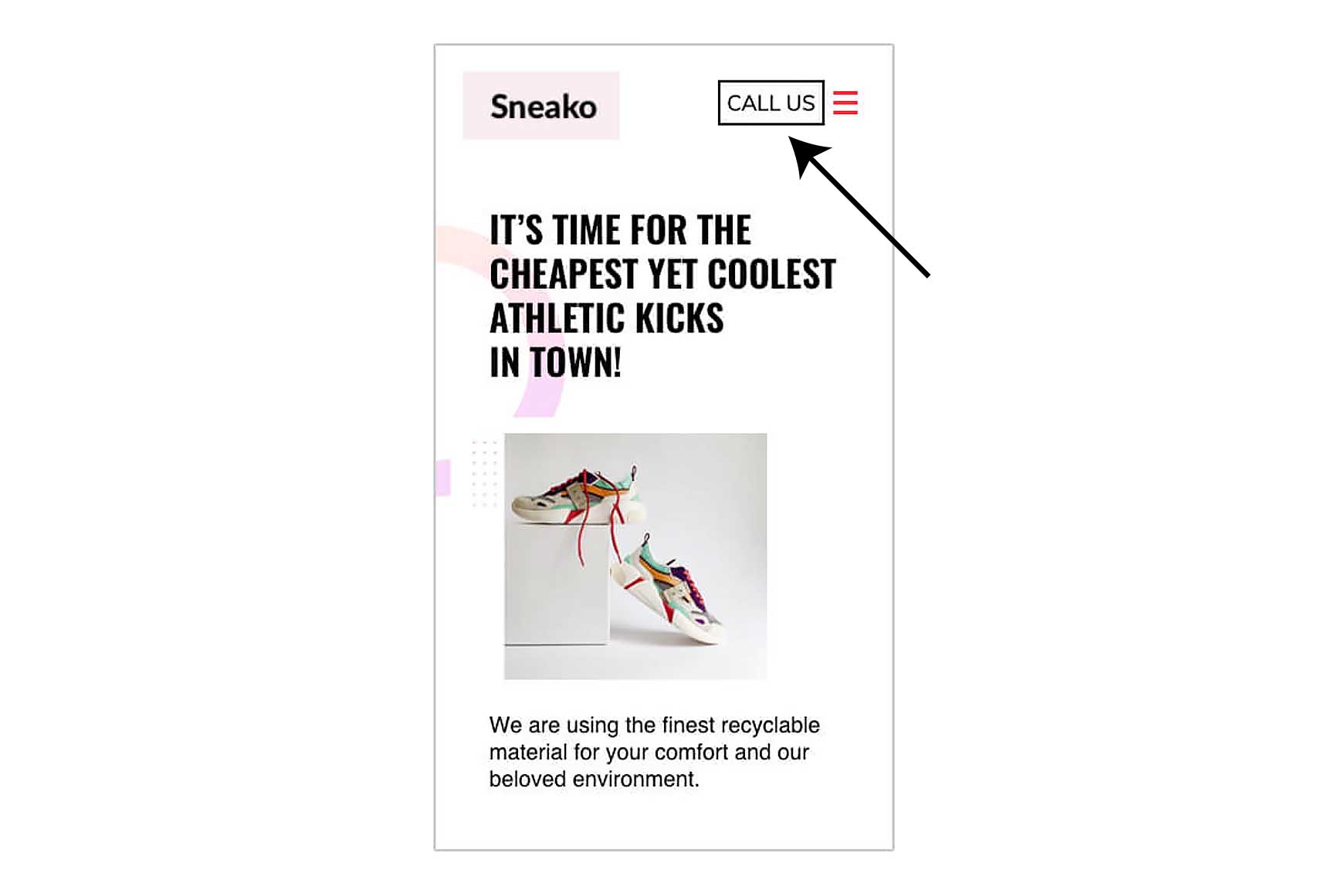
Engage your mobile audience with responsive and relevant content, like adding a WhatsApp link to your homepage banner.

5- Geolocational page personalization 

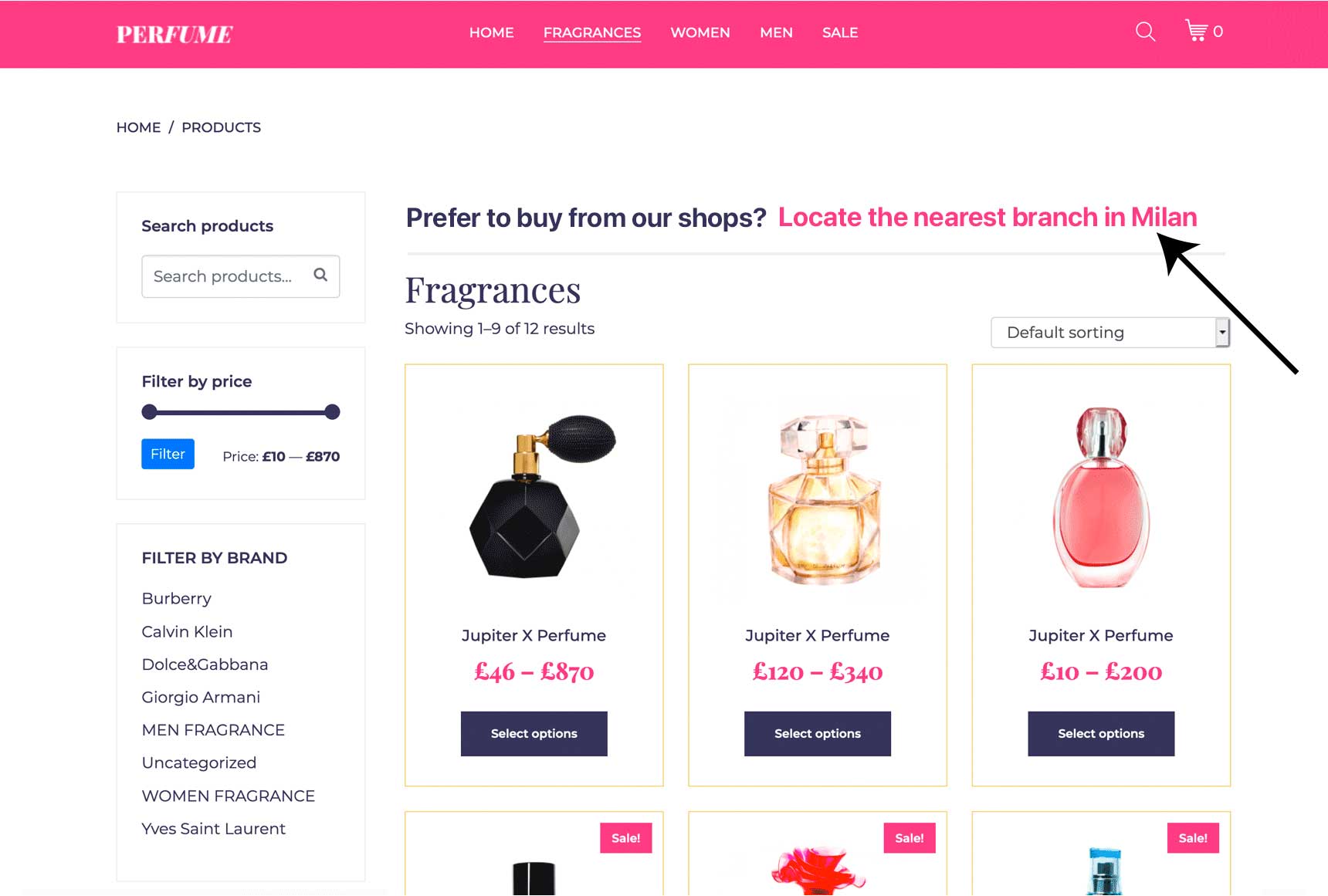
Cater to your audience by offering localized services specific to their region on your landing page.

6- Page personalization based on time of the day 

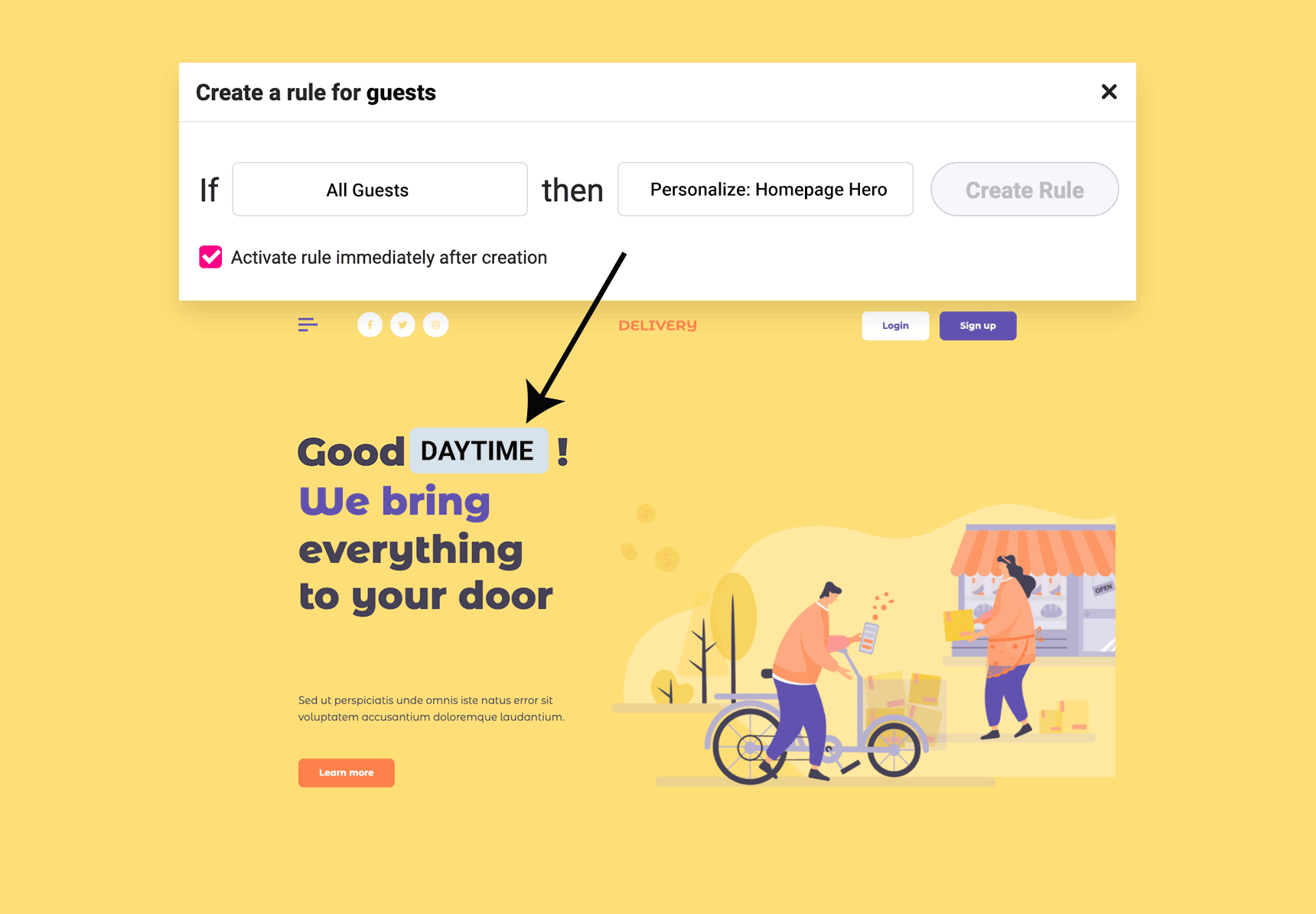
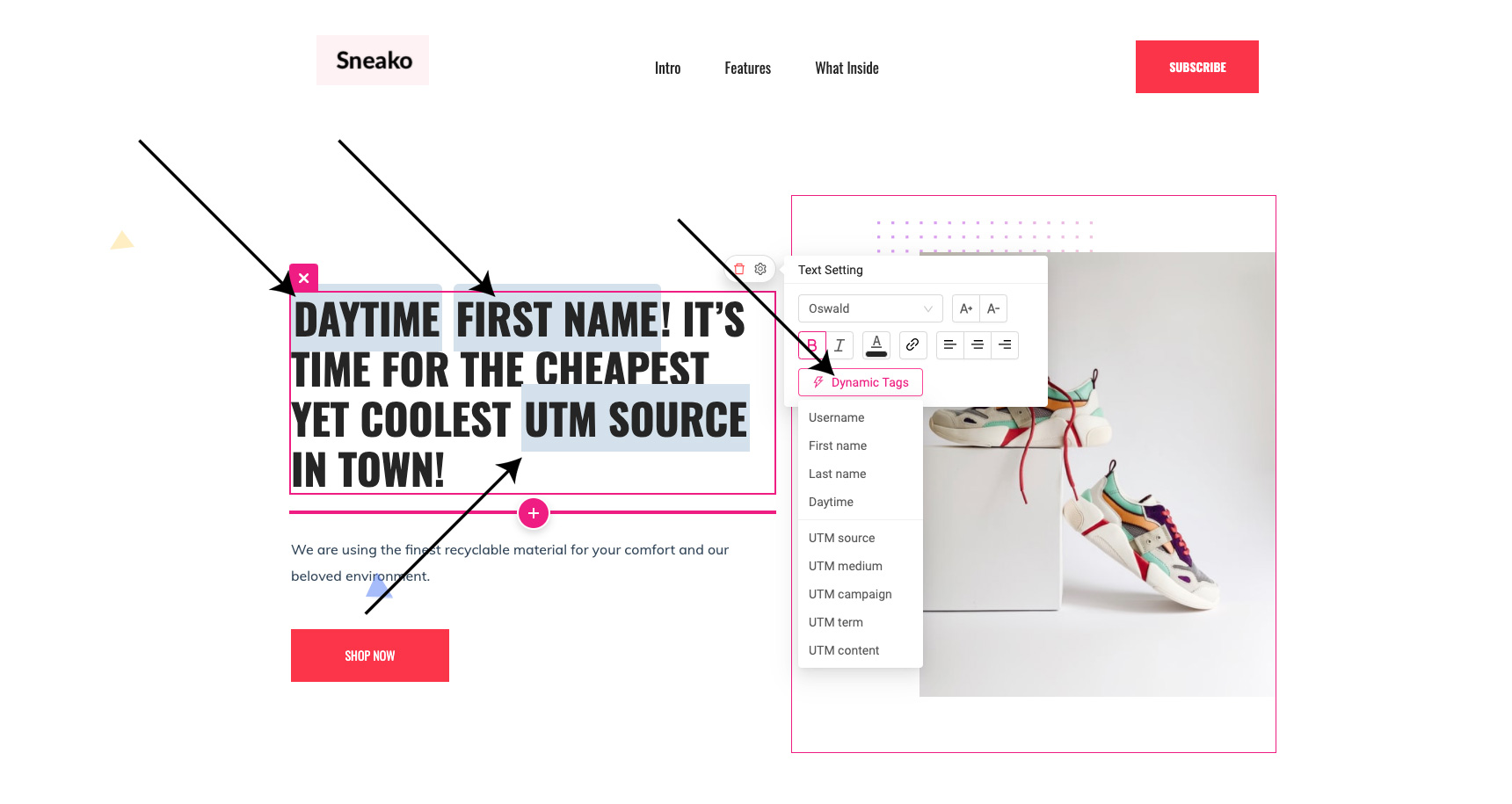
Personalize your landing page content to match the time of day. For example, a food delivery service could greet customers with a “good morning” and a peek at the breakfast menu.

7- Page personalization based on purchase history 

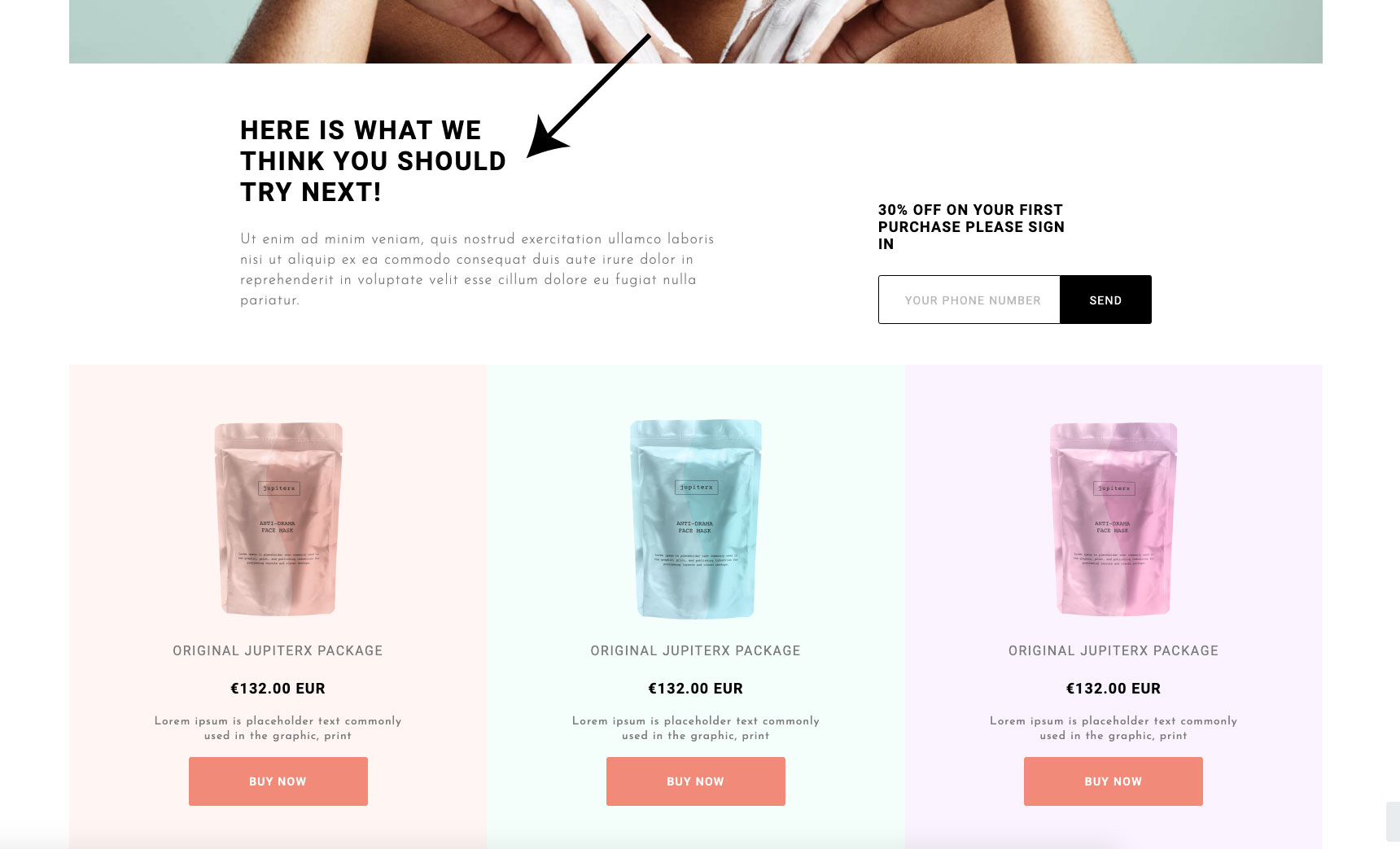
Help your online store match customer needs by using their record of purchases to personalize your landing page with the content and products they’re looking for.

8- Personalized greeting on the homepage 

Address your audience by name with this personalized welcome on your homepage.

9- New customer welcome email

Use a cheerful, personalized email to welcome new subscribers.

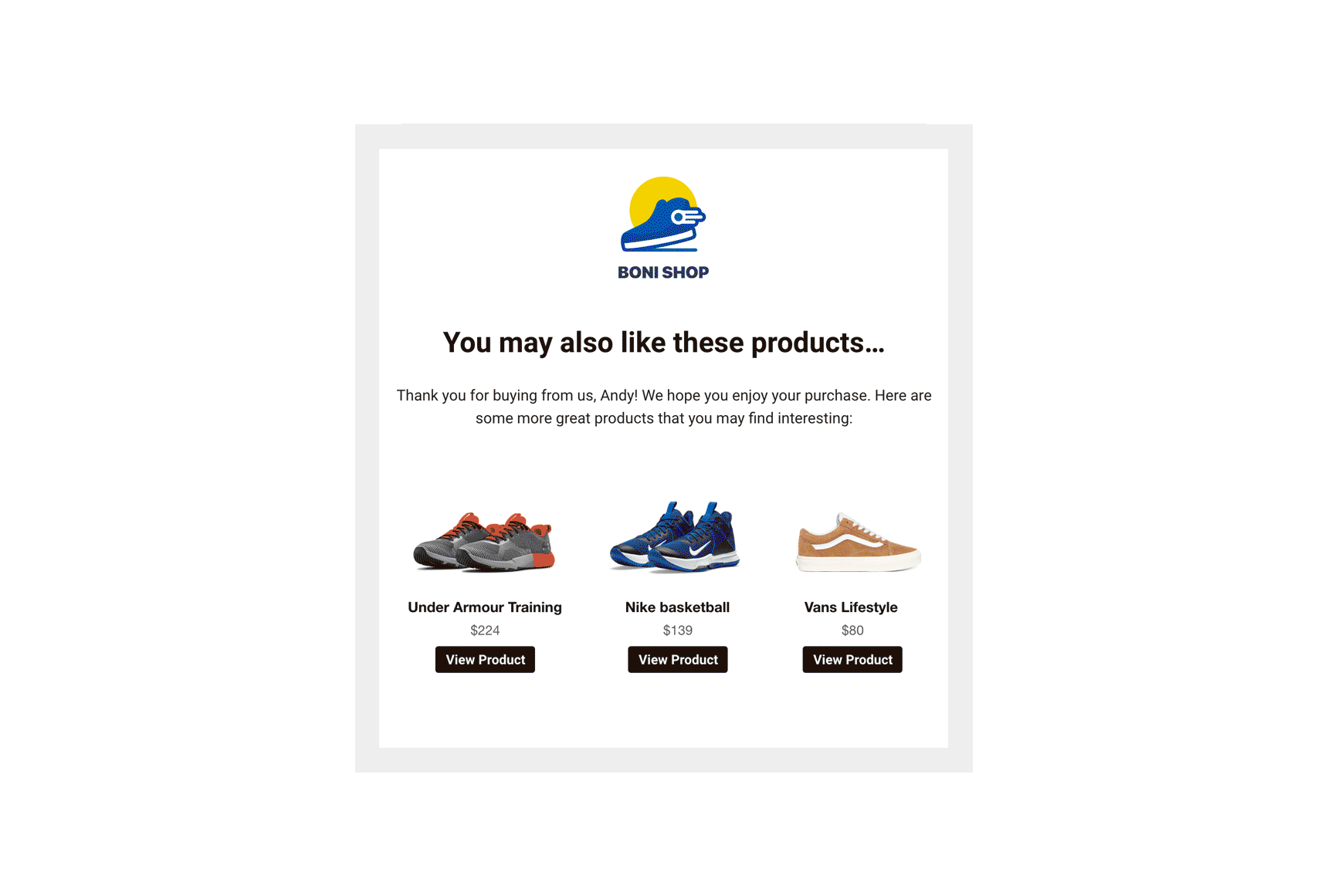
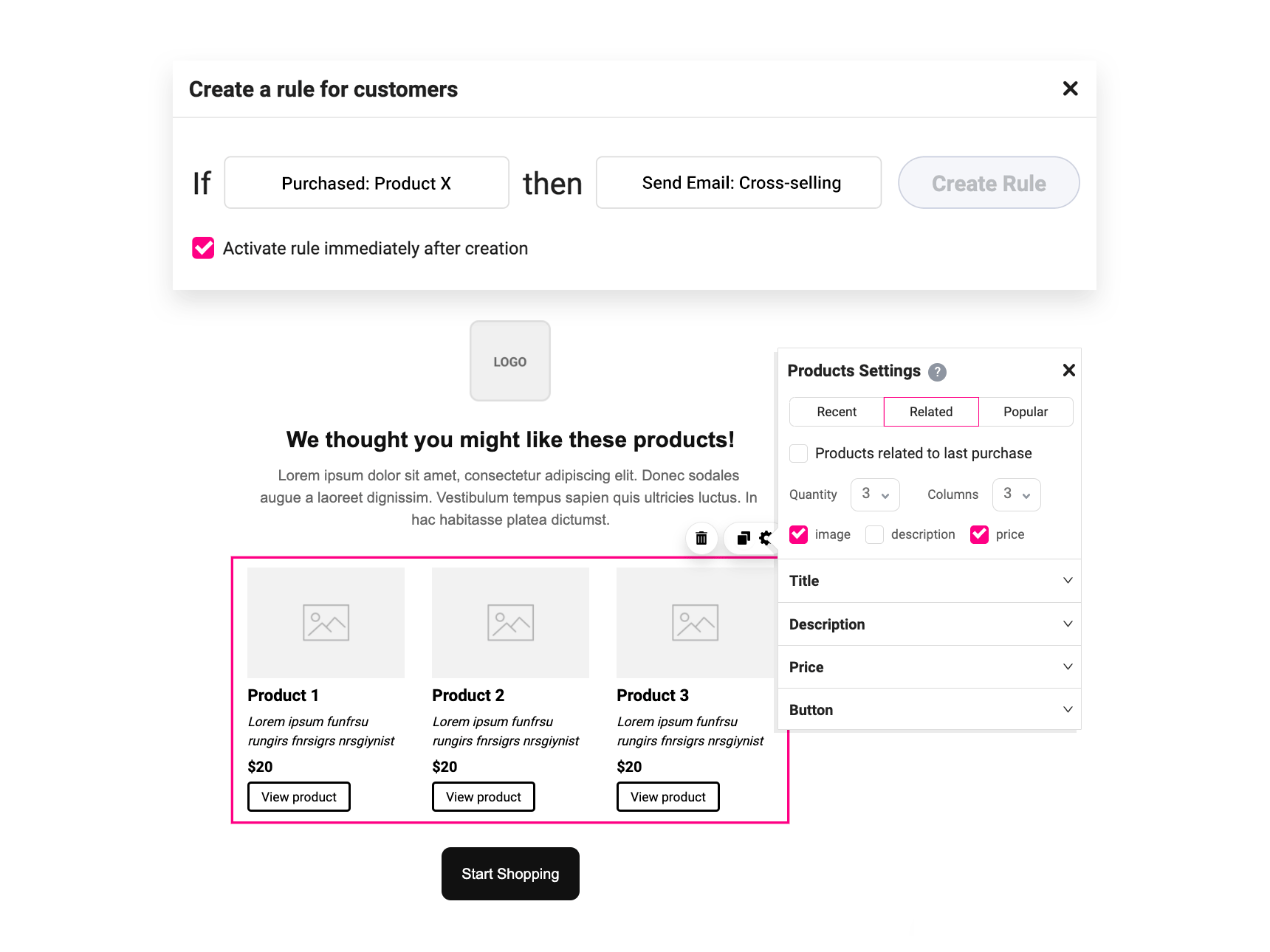
10- Cross-sell items email

Send customers a personalized email that includes listings of products similar to those they’ve viewed to encourage them to buy more from you.

marketing automation recipes - cross selling

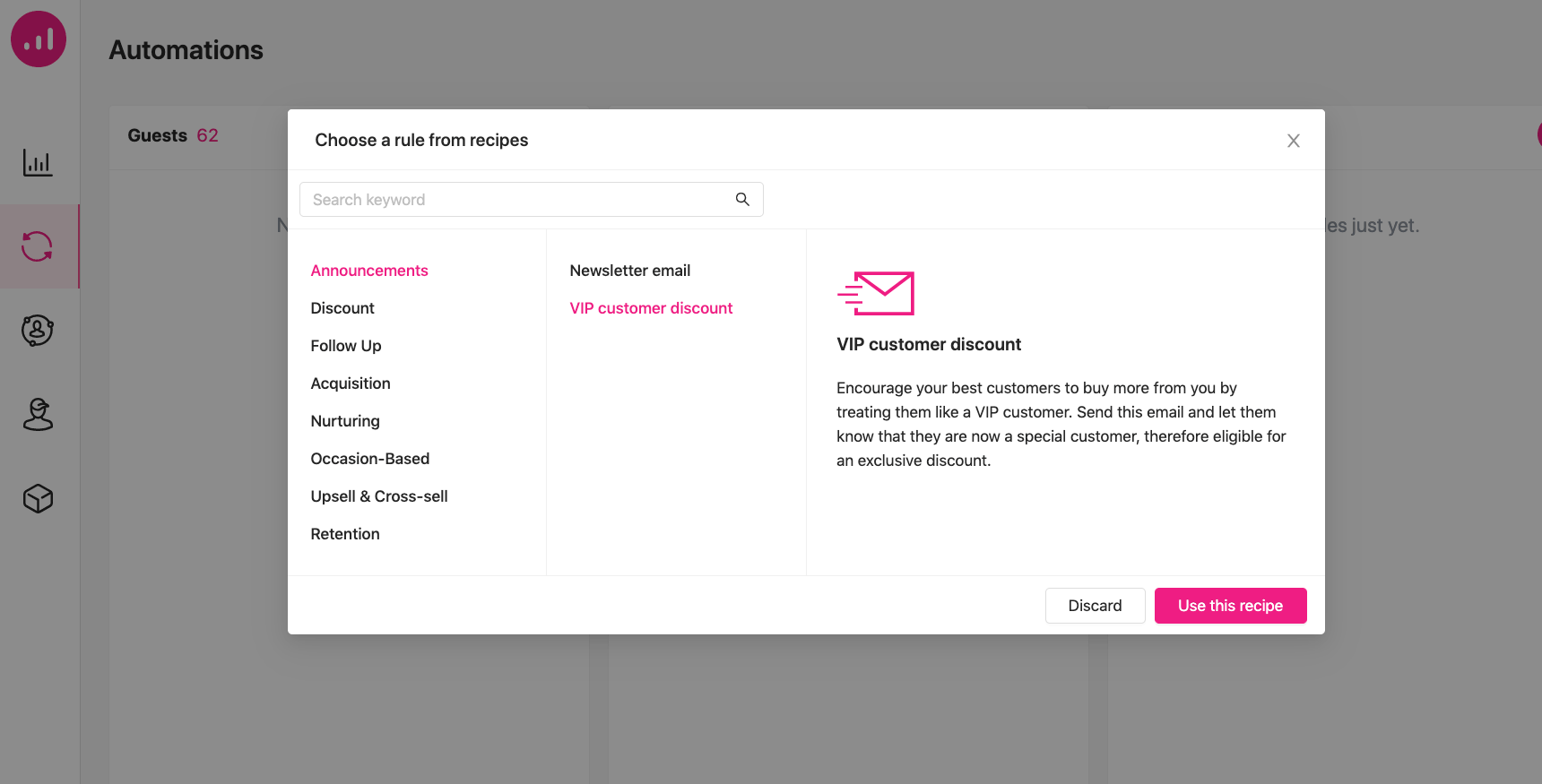
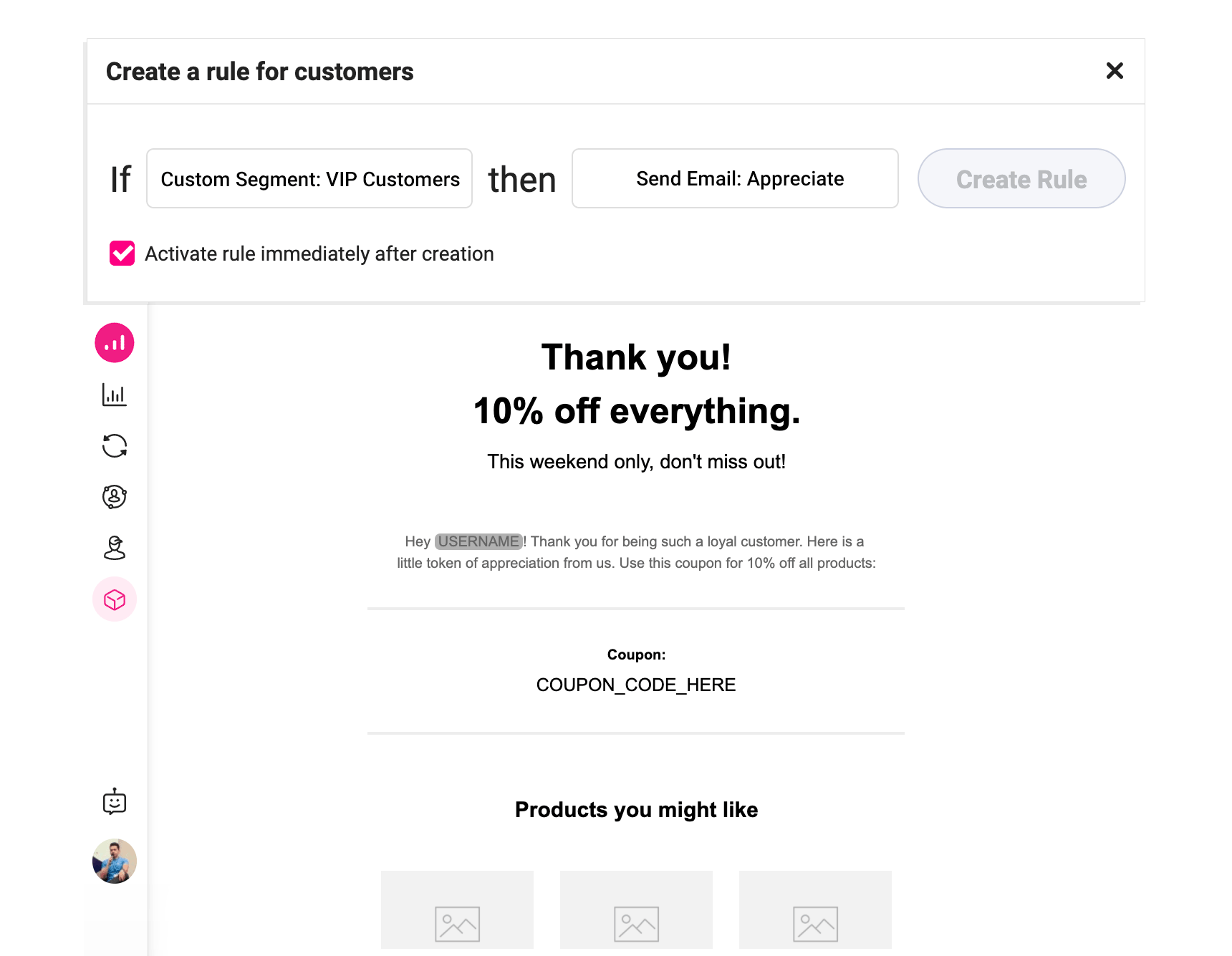
11- VIP customer appreciation email

Send a personalized email to your most loyal customers, complete with a discount coupon to encourage them to keep buying from you!

marketing automation recipes - vip appreciation

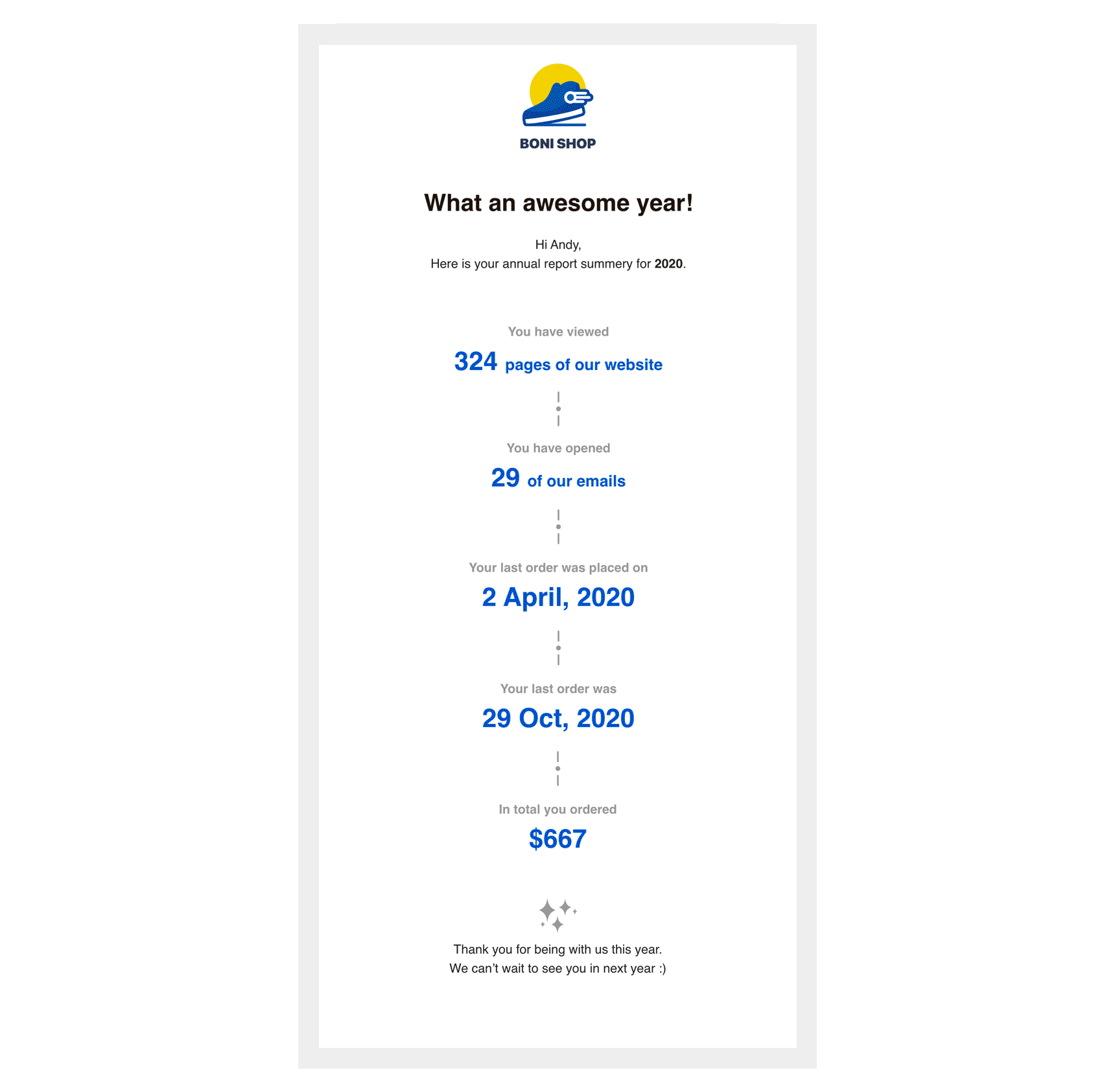
12- Annual report email

A great opportunity to remind customers of their relationship with your brand! These highly personalized report emails summarize how the customer has interacted with your business over the past year.

marketing automation recipes - annual report

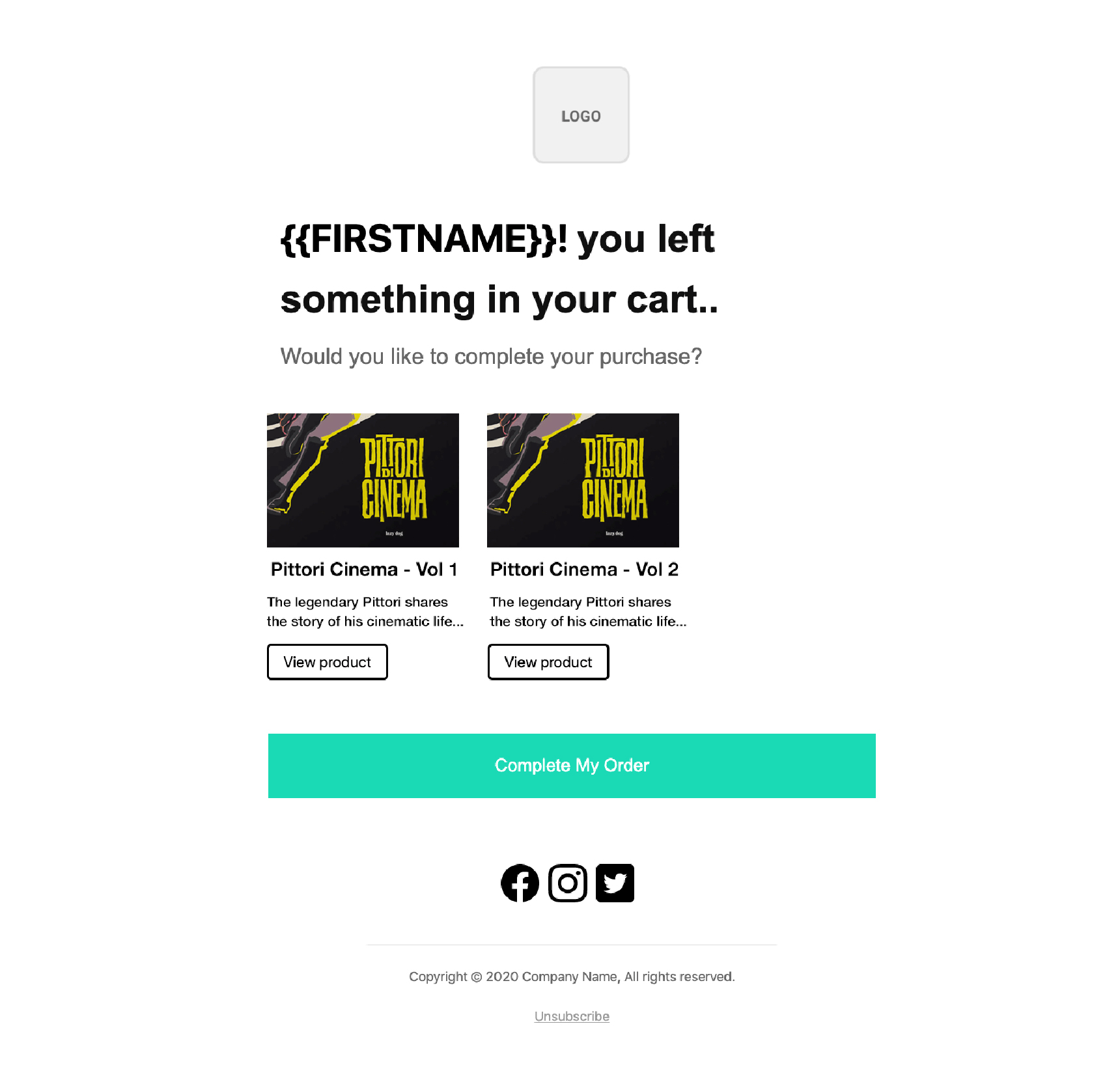
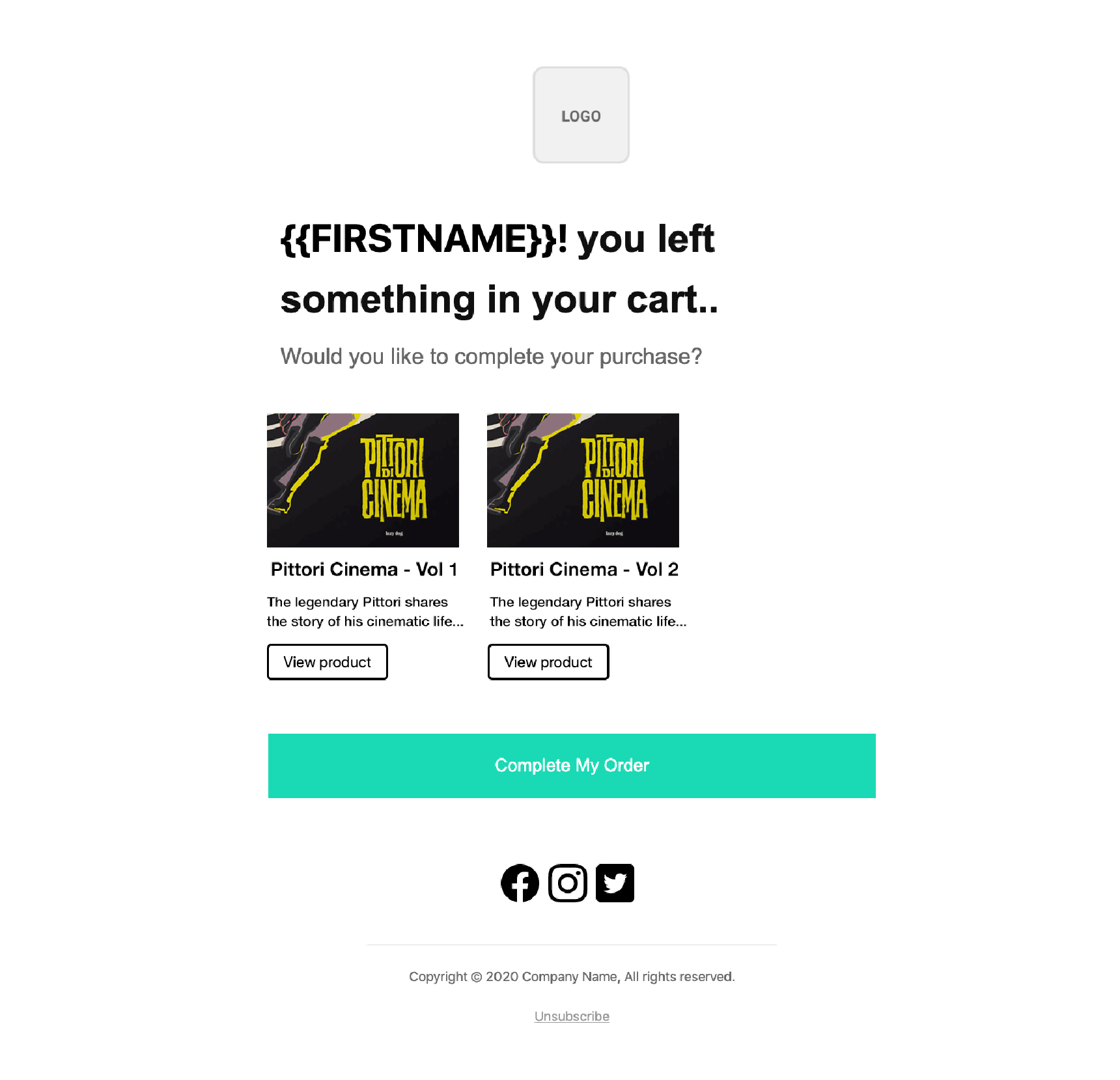
13- Cart abandoner follow up emails 

Do you have customers leaving the site with unpurchased items in their shopping carts? Send them a reminder email encouraging them to come back.

marketing automation recipes - cart abandoners email

14- Reactivation email

Re-engage customers that have been away for a while with this follow-up email. Choose exciting content to encourage them to revisit your website.
marketing automation recipes - reengage with away customers

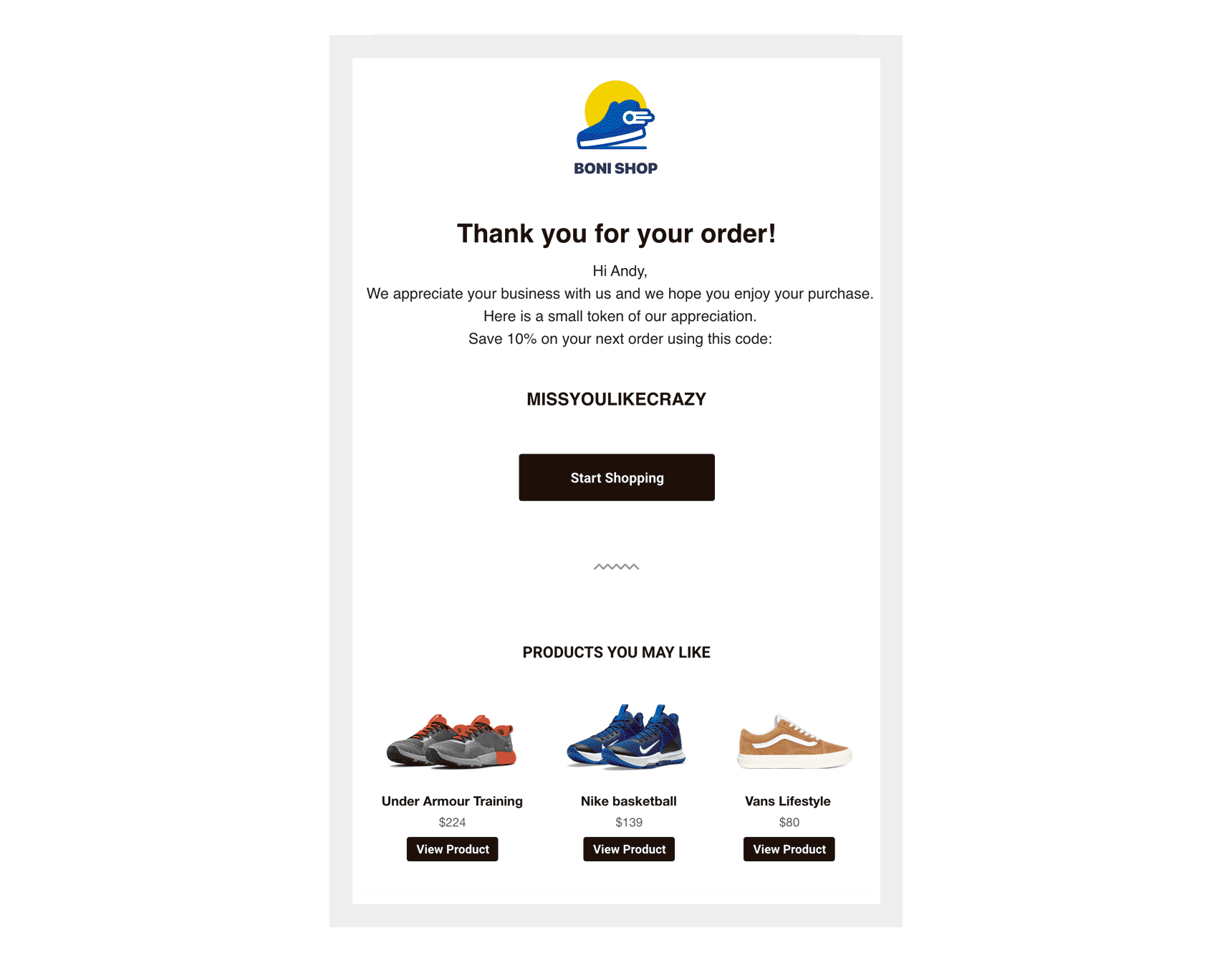
15- New customer appreciation email

Show your appreciation to first-time customers with this personalized email, recommend related products and offer a discount coupon to encourage future purchases.

marketing automation recipes - thank you email

Wrap up

As you can see, marketing automation recipes can save you hours of work. However, remember that these are merely templates that can be made more effective by customizing them to match your own brand and business criteria. They’ll save you plenty of time with brainstorming and implementation, but it’s up to you to make them your own!

With Growmatik, a single click can activate any of the above 15 marketing automations, plus so much more. Pre-built email and popup designs are just a few of our other time-saving offerings.
Good luck cooking up successful marketing campaigns 🙂

How to Fix the Issue of WordPress Not Sending Emails

WordPress not sending emails featured

One of the most common and important issues for sites is WordPress not sending emails. This is due to a number of reasons – usually, the issue is server-side or your email settings are incorrect. If you don’t pay attention to these issues, you could lose your customer’s trust. For example, if you run an online store, such as a WooCommerce website, this issue could prevent your customers from getting a receipt. If you don’t fix the issue, many customers may leave your site.

In this article, we’ll discuss how to identify the reasons for WordPress not sending emails to you or your clients, and how to fix it. 

What Kind of Emails Does WordPress Send?

Before investigating this issue, you need to know what kinds of emails WordPress sends from your site. This could depend on the plugins you use. For example, WooCommerce creates its own transactional emails for orders, new accounts, refunds, and more.

Here are the main emails that your WordPress site may send:

  • Password reset emails – a user receives this email upon requesting a new password.
  • New user email – when a new user is registered, a notification email will be sent to the site admin.
  • Activate account – this is a verification email sent to a user who has signed up for an account.
  • WooCommerce emails – these  include a number of different emails: new order notifications, order update emails (order received, shipped, etc) and others. 
  • Newsletter emails – if you use a newsletter plugin and opt to send via your host, your email newsletters could be affected by WordPress email sending issues.
  • Contact form emails – this is the entire submission. An email should be delivered when information is submitted  via a contact form.

Why WordPress Isn’t Sending Emails

The main reason for WordPress not sending emails is that the PHP Mail function is disabled on the hosting provider’s server. When WordPress wants to send emails, it calls on your hosting provider’s email server using the PHP Mail function, but if this function is disabled, your requests to send emails will not even get to the mail server. If this is the case, you need to contact your web host support and ask them to check if the mail function is enabled on the server.

Another reason may be bad server reputation. If your site is located on shared hosting, you use the same set of mailing IPs to send emails as every other user on the same server. All these emails may be recognized as spam emails and will end up being blacklisted, so your WordPress emails won’t be sent.

How to Test your Mail Server

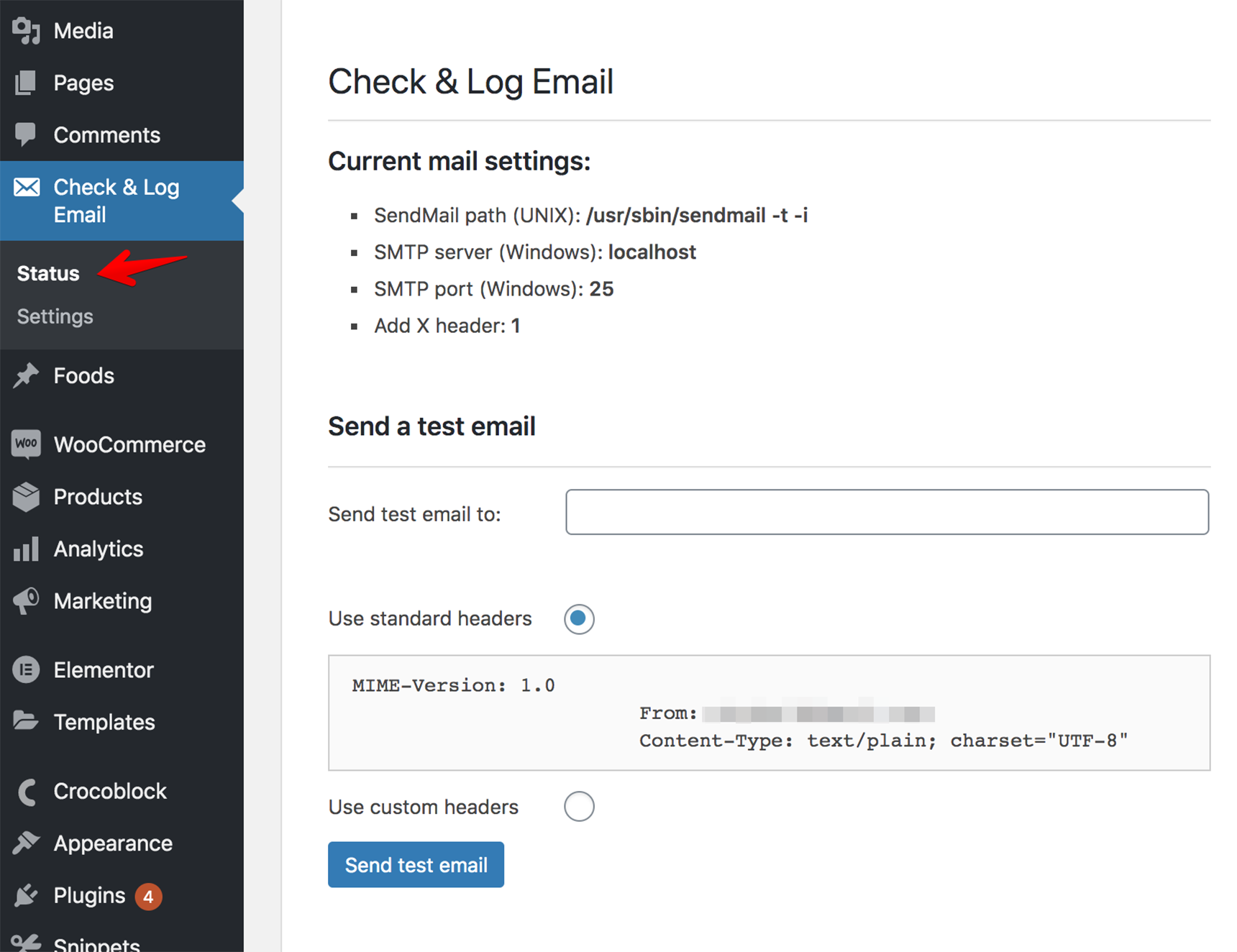
To be able to fix this problem, the best way is to test your mail server. How can you do this? Here is a simple “Check Email” plugin that can help you.After downloading, installing and activating, go to the “Check & Log Email” menu and click on “Status”. Input your email address in the “send a test email” field and click the “Send test email” button.

After sending the test email you will see the following message:

Once you receive this message, check your email. Don’t forget to check the “Spam” folder as well. 

Once you have checked your mail server and are sure that your WordPress can send an email, you can investigate the issue further and check your contact form settings. If you use a custom plugin for the contact form, it’s better to contact the support team for this plugin.

How to Stop WordPress Emails Going to Spam

If the emails are delivered but appear in the Spam folder instead of Inbox, this Artbees article will be helpful for you, as it provides 10 tips to avoid the spam filter.

How to Configure the Form to Correctly Send Emails

If you tested the mail server and it’s configured properly but you still are having problems with WordPress not sending emails, it could mean you need to check the settings for the form.

Let’s take a look at the most usable contact plugin – Contact Form 7

If the emails can’t be delivered with this plugin, the best solution is to change the address that emails are being sent from.

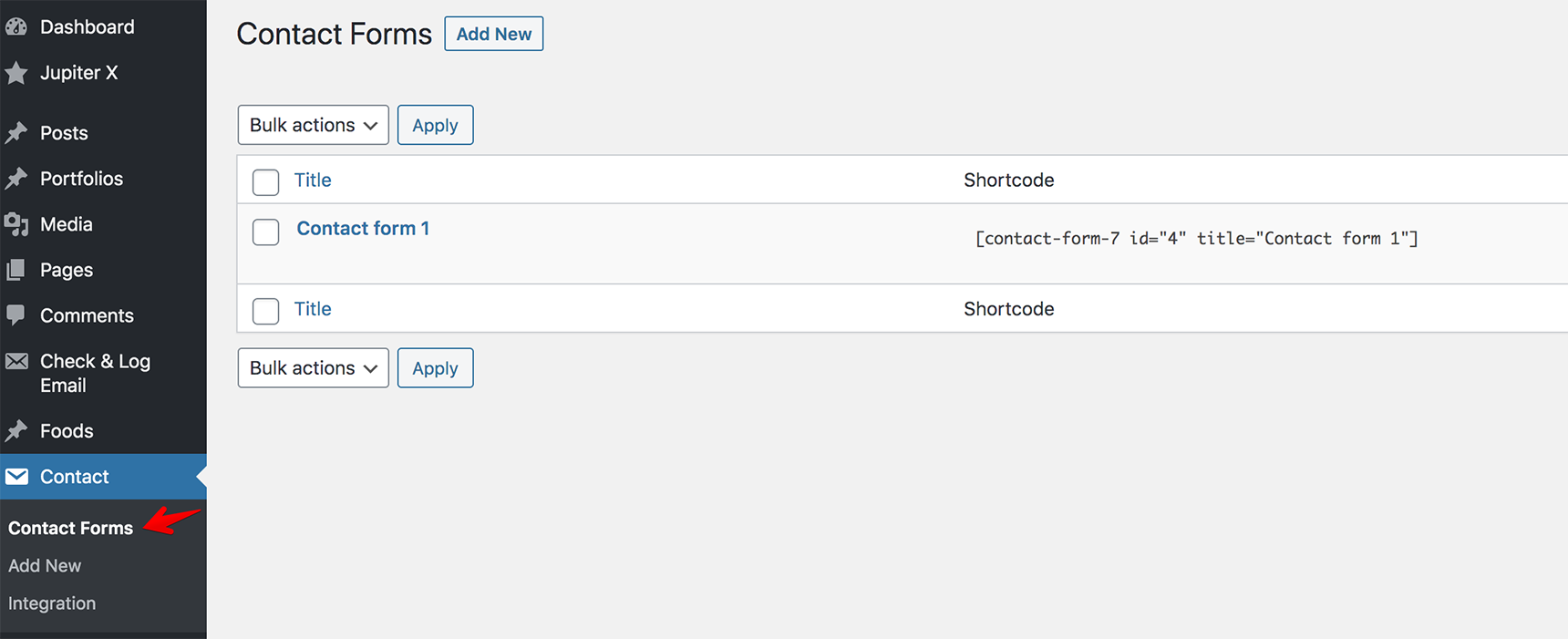
In your WordPress admin, go to Contact > Contact Forms.

WordPress not sending emails - contact forms

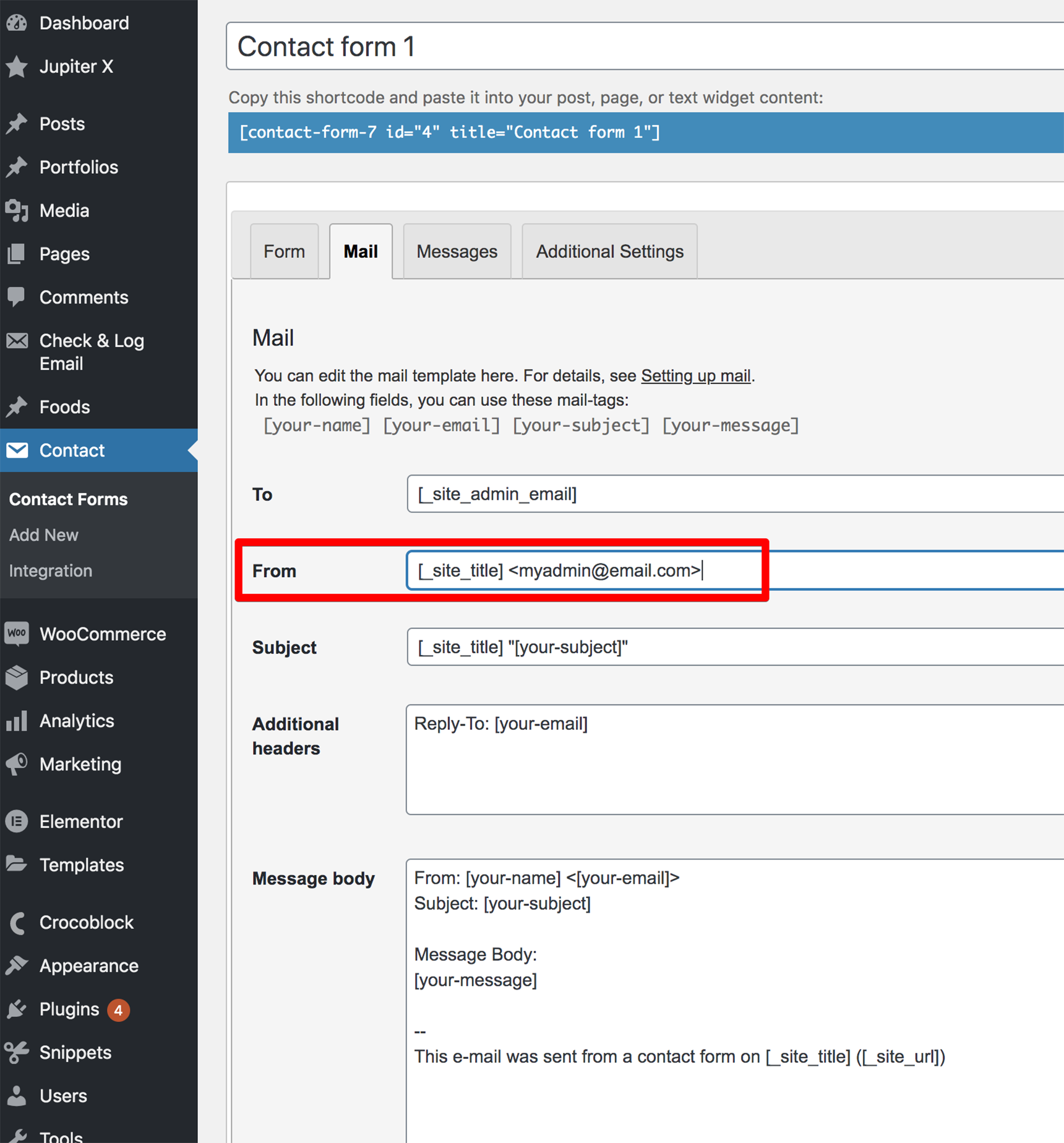
Select the form you’ve created and open the “Mail” tab.

Note that the From field should have the admin email address of your site, not the email address input in the form.

WordPress not sending emails - contact form 7

You can use it in the Reply to field but not the From field.

Make sure the From and To fields use different email addresses. 

Don’t forget to save your changes. Then, test the contact form by submitting it yourself.

If you use the Jupiter X theme, you might create the form using the JX Form element in the Elementor editor. We’ve already covered how to configure it so that emails are sent successfully in this article.

How to Set Up SMTP to Send Emails

If you tested the mail server with the “Check Email” plugin and emails aren’t being sent from your site at all, then you need to use a third-party SMTP provider and link it with your site.

SMTP stands for Simple Mail Transfer Protocol. SMTP uses proper authentication allowing for  high email deliverability. If your server isn’t configured to send emails, SMTP will make it possible.

There are different SMTP providers you can choose from. Some are free, so you don’t need to spend any money; you’ll just need some time for configuration.

To set it up, take a look at our article on how to configure SMTP plugin with WordPress and check out this one on how to register for an SMTP service.

Wrapping Up

Sometimes, you may encounter the issue of WordPress not sending emails to you or your customers, and it may be tricky to find out why. But you already know that the most common reasons for this can be because emails are going to spam, because your server isn’t configured correctly to send emails, or because the settings in your contact form need modification.

Once you follow the instructions above to identify the reason, you’ll be able to get your email system working properly in no time!

Meet 5 New Free Jupiter X Lite Templates

New Jupiter X Lite Templates featured

It was around June 2020 that Jupiter X Lite, the free version of our Jupiter X theme, was finally approved and released to the WordPress repository for public use. The reason behind all the effort we put into preparing and releasing the Lite version was to let everyone enjoy a glimpse of Jupiter X experience without having to pay for it. Jupiter X Lite has all the essential features of Jupiter X, plus a good level of customizability, making it more than enough to build a professional website. 

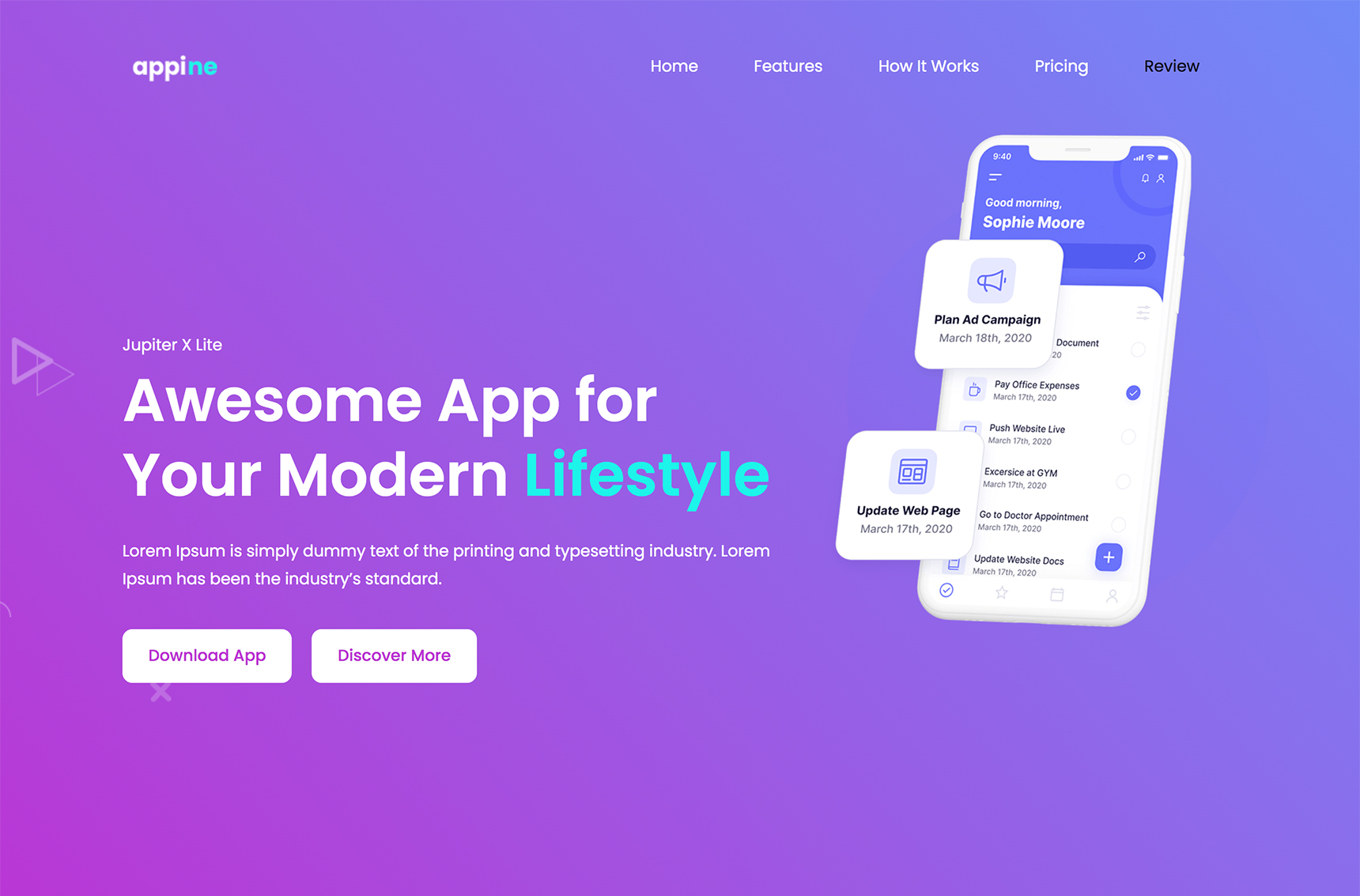
From the beginning our intention was, unlike many free WordPress themes available on the market, to make Jupiter X Lite as practical and customizable as possible so that building a decent website is not dependent on paying for the premium version at some point. One exciting feature we added to make this happen was the readymade templates. Recently we have added 5 new free Jupiter X Lite templates to our theme to make the process of building websites even easier. 

Meet the newly added free templates for Jupiter X Lite

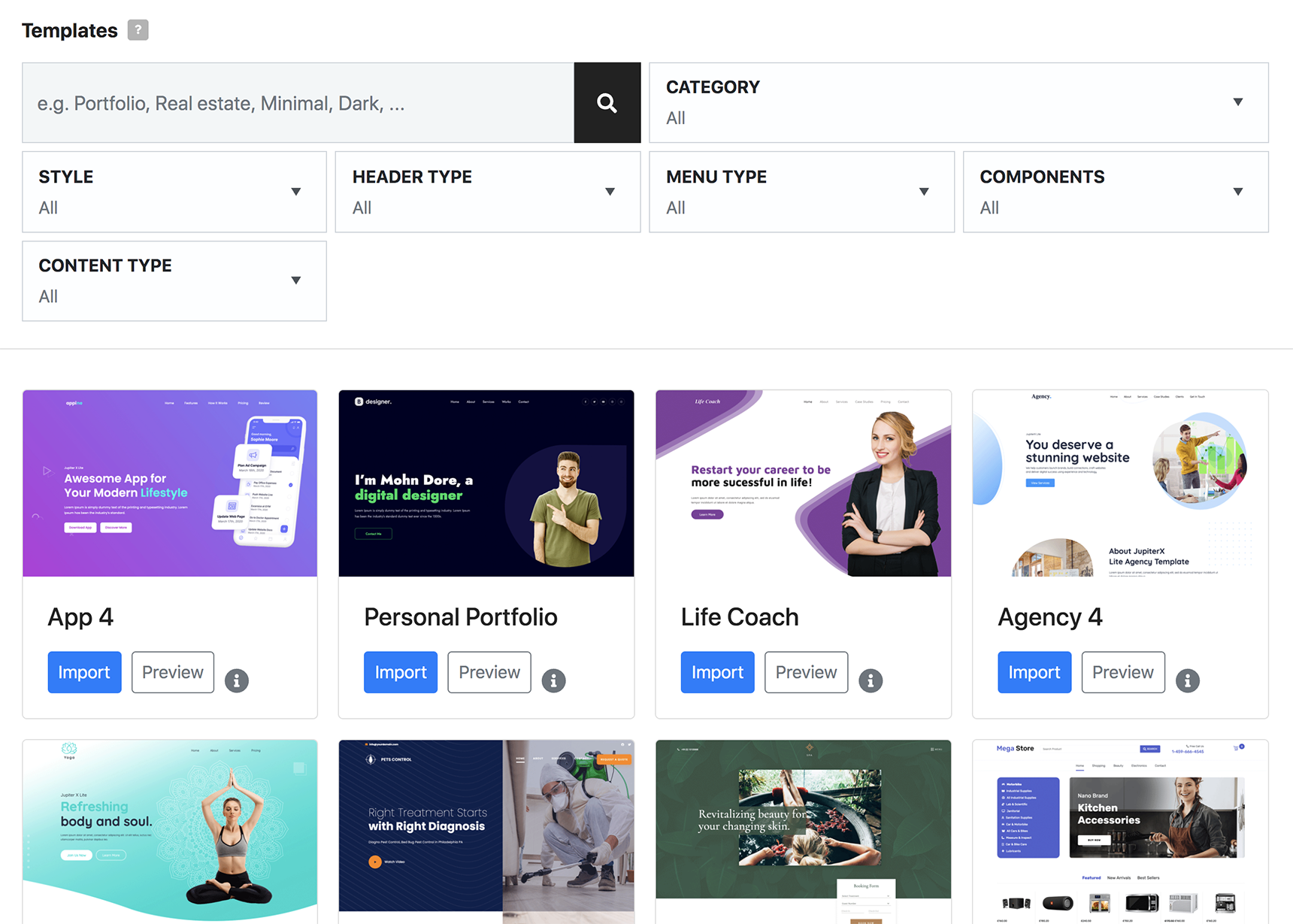
Let’s take a look at the 5 new Jupiter X Lite templates that will help Lite users get started on their dream website without wasting too much time and energy on the details.

Yoga

The one-page Yoga website template, as its name suggests, is perfect for yoga instructors, fitness coaches and personal trainers who want to create a solid web presence and promote their skills online. The combination of soft and soothing colors and the uncluttered, simple layout perfectly matches what yoga intends to teach: finding peace within and helping spread it to others!

Using elements such as image boxes, testimonials, image galleries and icon lists you can showcase your various pricing options, introduce your trainers, share relaxing images of your yoga sessions and much more.

Agency

For agency owners looking for a simple, functional and elegant website, the one-page Agency website template is the right choice. Designed with the needs of agencies in mind, this template promotes your projects and services in the most concise and professional way.

Life Coach

new Jupiter X Lite templates - life coach template

Here is another one-page template that will ensure that your consulting and life coaching services stand out among the crowd. The Life Coach website template, with its eye-catching hero section, tailored page elements and easy to navigate layout, makes sure you are always accessible to your clients and are ready to change their lives!

Personal Portfolio

new Jupiter X Lite templates - personal portfolio template

Nowadays nobody can dispute the importance of a personal portfolio website for freelancers looking to grab business opportunities. If you want clients to find you in the vast and competitive sea of information on the internet, a simple resume won’t do the trick. You have to tell your story in the form of a modern, visually appealing and descriptive website.

The one-page Personal Portfolio website template will give you a hand with setting up your online portfolio and highlighting your skills and expertise. The dark background color, contrasting white and green color text elements and the clean customer testimonials and gallery section will have clients flocking to you in no time!

App

new Jupiter X Lite templates - App template

If you have an app or a software that you would like to showcase to the public, it’s a great idea to have a landing page that does just that. Take a simple yet powerful approach with the one-page App website template and highlight your app or any product’s features, perks and lifeline in the best possible way!

What does the future look like for Jupiter X Lite?

Surely this is just the beginning! We won’t stop with these 5 new Jupiter X Lite templates, plus the older Callisto template! More new Jupiter X Lite templates are on the way in the near future to cover more businesses and personal interests and help our free users get started on their dream website faster and easier.

Wrapping up

We just summarized our 5 new Jupiter X Lite templates. Are you a Jupiter X Lite user? Have you used any of the templates mentioned above? What did you like the most about them? Please share in the comments what other businesses we should prioritize while adding more templates to the Lite version.

Implementing a Multi-Channel Approach to Recover Abandoned WooCommerce Carts

recover abandoned WooCommerce carts featured

It’s no secret that one of the biggest hassles for e-commerce shops and marketers is the issue of abandoned carts. In fact, nearly 70% of all shoppers online will abandon their carts without purchasing anything. This is frustrating considering that you spent resources (namely time and money) coming up with strategies and campaigns to grab onto and maintain new leads for them to abandon their carts. And what’s more is that even when they’ve been interested enough to look at your website and add your products to their cart, there’s still more to be done!

There are a couple of reasons as to why a potential customer would abandon their cart and never return. These are:

There are too many competitors.
It could be the case that numerous products similar to yours can be found online. Keep in mind that once your lead Googles a product, a competitor could be tracking that lead to send them ads along their customer journey. In other words, your potential customer could easily become sidetracked with another viable option. And the crazy part is that this can happen seconds before they were about to buy something from you.

People have short attention spans.
These days, it’s often quite difficult to hold people’s attention for long online. While they may need to have quite a few reasons to reach a decision, it doesn’t take much for them to change their mind. They could leave their cart abandoned with the intention of coming back later or to look into alternatives.

In this post, we’ll take a close look at why traditional ways to recover abandoned WooCommerce carts are no longer effective and how you can recapture their attention.

Reasons your follow-up attempts are ineffective

There might be several reasons as to why your campaign to follow up with cart abandoners in WooCommerce fails – however, by far, the most vital factors are reach and engagement. What does this mean? Simply that your campaign hasn’t reached your cart abandoner or it’s not engaging enough for them to return to your site to complete their purchase. Let’s look at why this might be.

Your campaign is not all-encompassing

One vital aspect missed by many campaigns to recover abandoned WooCommerce carts is the fact that online shoppers are unable to pay attention for very long. In other words, they get easily distracted. Just think about it: they are inundated with similar emails that you’re sending out and visit multiple sites and online shops on a daily basis. Simply sending one follow-up email upon exiting your store is not enough.

What we mean to say by this is: your campaign to follow-up with them should include their email as well as through main touchpoints in their customer journey, including your website, popups and social media.

Your campaign is not customized

By far, the most cost-efficient and effective way to capture someone’s attention is through personalization. When people see a personalized message conveyed to them, they feel acknowledged, which increases the chance that they’ll take action or respond.

But let’s first get one thing straight: personalization is much more than simply displaying the customer’s name in your message. It’s also about showing them offers and incentives tailored to their preferences.

What this means is that a cart abandoner is more likely to pass over a generic campaign and pay attention to personalized outreach.

Let’s take a closer look into some methods that you can use to tackle the obstacles in follow-up campaigns to recover abandoned WooCommerce carts.

1-   Use a comprehensive, multi-channel approach

As mentioned earlier, your follow-up campaign should not be something you do only once but should be an ongoing effort as part of a wider multi-channel campaign. Doing so will create a seamless, tailored customer journey, which will boost your reach probability and appeal to your target audience. So what does this look like? Your cart abandoner will get both a follow-up email as well as see the items that they abandoned in their cart while on your homepage (or any other major touchpoint such as the products page).

To take it one step further, you can show them relevant pop-ups with exclusive deals as they navigate your website so that they’ll be incentivized to finalize their transaction. On top of this, you can make use of remarketing ads on Google or social media to serve as a reminder of their abandoned carts.

To go about doing this, your best bet is to find a cross-channeling marketing tool such as  Growmatik. This will enable you to link all your segments from various touchpoints and provide consistent marketing messages on multiple channels, including your website and email. Let’s now go into more detail about each aspect of building up your multi-channel follow-up campaign.

Sending emails 

By far, emails are the most prevalent way of reaching out to follow up with cart abandoners. It’s also a crucial part of our multi-channel campaign. In Growmatik:

  • Navigate to the Automation page.
  • If you’d like to reach new users who have not yet bought anything, then make a rule in the Leads column. If you’d like to reach out to existing customers, then make a rule in the Customers column.
  • Assign the condition as User Behavior > Abandoned Cart and the action as Send Email. Click on the Create Email button.
  • In the window that pops up, select the Abandoned Cart template. Enter a name of your choice and click on Customize.
  • When you get to the email builder, tailor your template to your preferences. You can make use of features such as dynamic keywords, product elements (like abandoned items) and coupons to customize your email.
  • Hit Save & Exit.
  • In the Automation page, hit the Create Rule button.

And this is the first aspect of your follow-up campaign. After doing this, every WooCommerce cart abandoner will receive this follow-up email after abandoning a cart on your site.

Customizing the homepage

As you might have guessed, the next touchpoint that should be addressed is your website. This means that we’ll need to personalize that cart abandoner’s experience on your site. To go about this in Growmatik:

  • Head to the Automation page and in the Leads or Customers column, make the following rule.
  • Assign the condition as User Behavior > Abandoned Cart and the action as Personalize Page. Choose a webpage and hit the Save button. You can then select the homepage or any other page that you think is important (such as the products page)
  • In the personalizer window that pops up, you can personalize the page by editing the content or creating new content by hitting the + button. After you’re finished, hit Save & Exit.
  • When on the Automation page, hit the Create Rule button.

And, with this, concludes the second part of our follow-up campaign. This means that every person who abandons their cart on your site will be able to see a tailor-made version of your page.

Displaying a popup

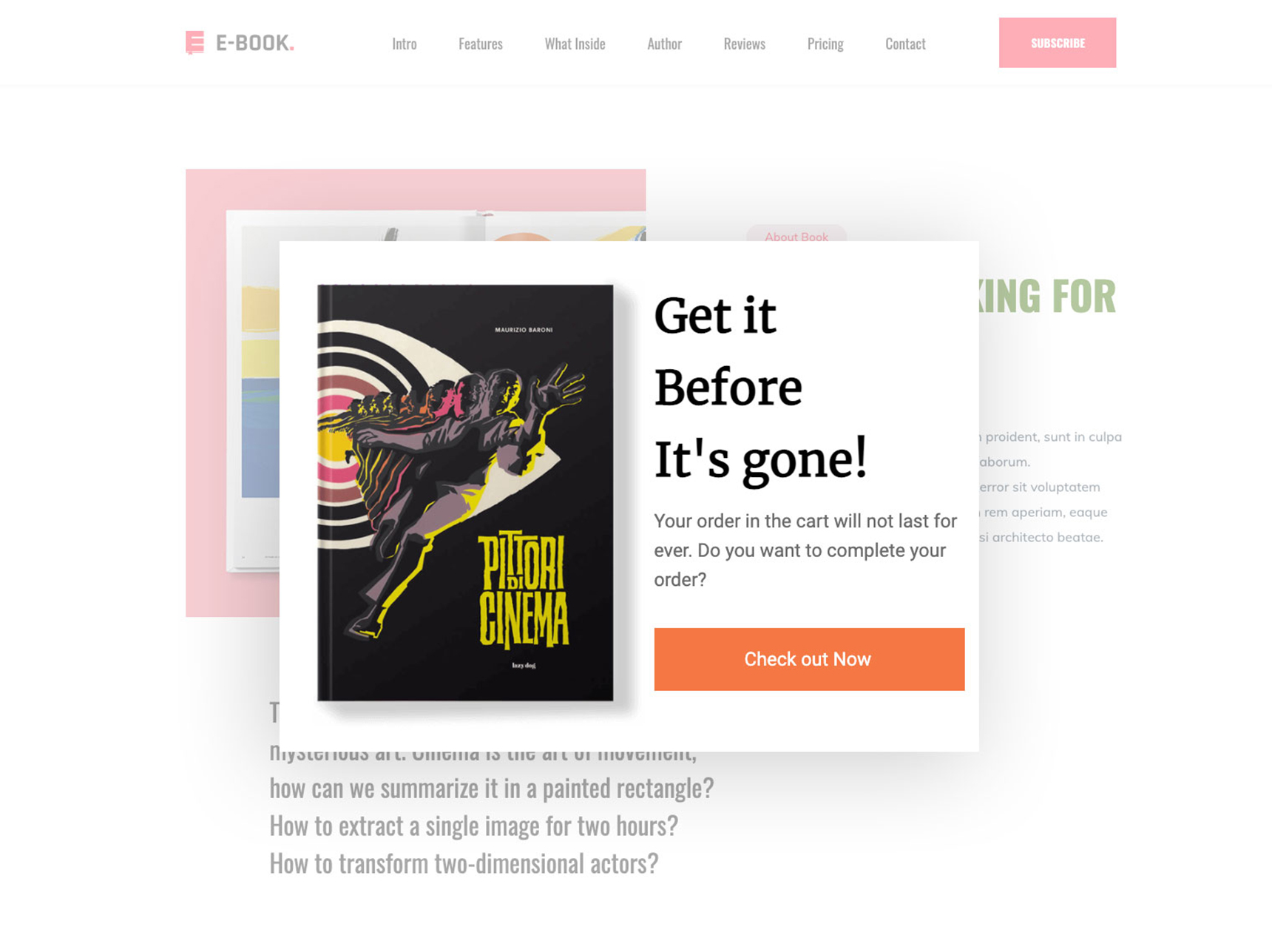
Another way to help recover abandoned WooCommerce carts is through showing popups on or throughout our website. Doing this is two-fold: to remind visitors they’ve abandoned their cart and to encourage them to complete their purchase. To get this done in Growmatik:

  • Navigate to the Automation page, and in the Leads or Customers column, make the following rule.
  • Assign the condition as User Behavior > Abandoned Cart and the action as Show Popup. Choose the amount of time that you want to have passed before showing the popup. Then hit the Create Popup button.
  • In the window that comes up, select the Cart Abandonment template. Enter a name of your choice and hit Customize.
  • When in the email builder, tailor your template to your liking. You can make use of certain features like dynamic keywords, product elements (such as abandoned items) and coupons, which will allow you to personalize your popup even more.
  • Hit Save & Exit.
  • Once on the Automation page, hit the Create Rule button.
recover abandoned WooCommerce carts - display popup

Once you’re finished, everyone who abandons their cart on your site will be able to see a popup personalized to them.

Retargeting ads outside your site

After the follow-up email and personalizing your website, the next and third touchpoint is external websites as well as social media (such as Instagram and Facebook). This is something that’s overlooked by tons of e-commerce sites when it comes to recovering abandoned WooCommerce carts. By integrating your site with Facebook Pixel and Google ads, you’ll be able to follow your cart abandoners and target personalized ads on other websites as well as on Instagram and Facebook. The articles listed below offers some excellent tips to get this done:

(Growmatik is slated to add social media automations soon in 2021).

2- Customize your follow-up message

So far in this article we covered the technical aspects of crafting a follow-up campaign that can be sent through multiple channels to recover abandoned WooCommerce carts. However, we haven’t yet covered the personalized content of such marketing messages.

We want to go beyond the simple ‘Hey [first name] Have you forgotten something?!’ message. Adding more personalization will make the cart abandoner feel special and unique.

Keep in mind that you might be limited as to what you can personalize depending on your marketing automation tool of choice. In Growmatik, we’re going to include three items to our campaign to reach out to cart abandoners.

Add abandoned items to marketing messages

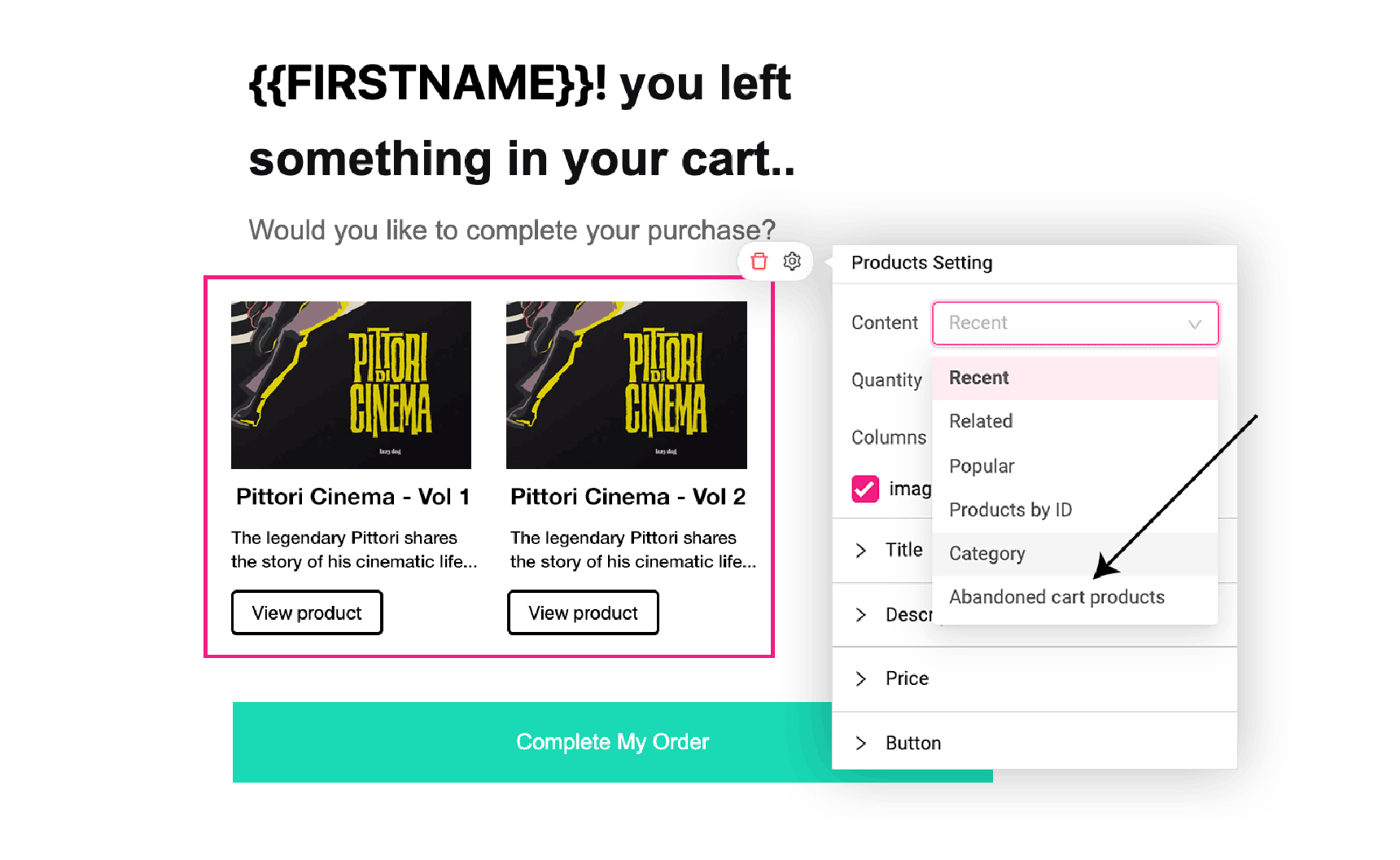
When you’re composing email templates and page content for the cart abandoner, you should include the items that the user has in their cart. While you might not think this is important, it can have quite the impact in assisting the abandoner to remember which products they left behind. This is because online shoppers are likely to have visited several sites and get similar emails all the time.

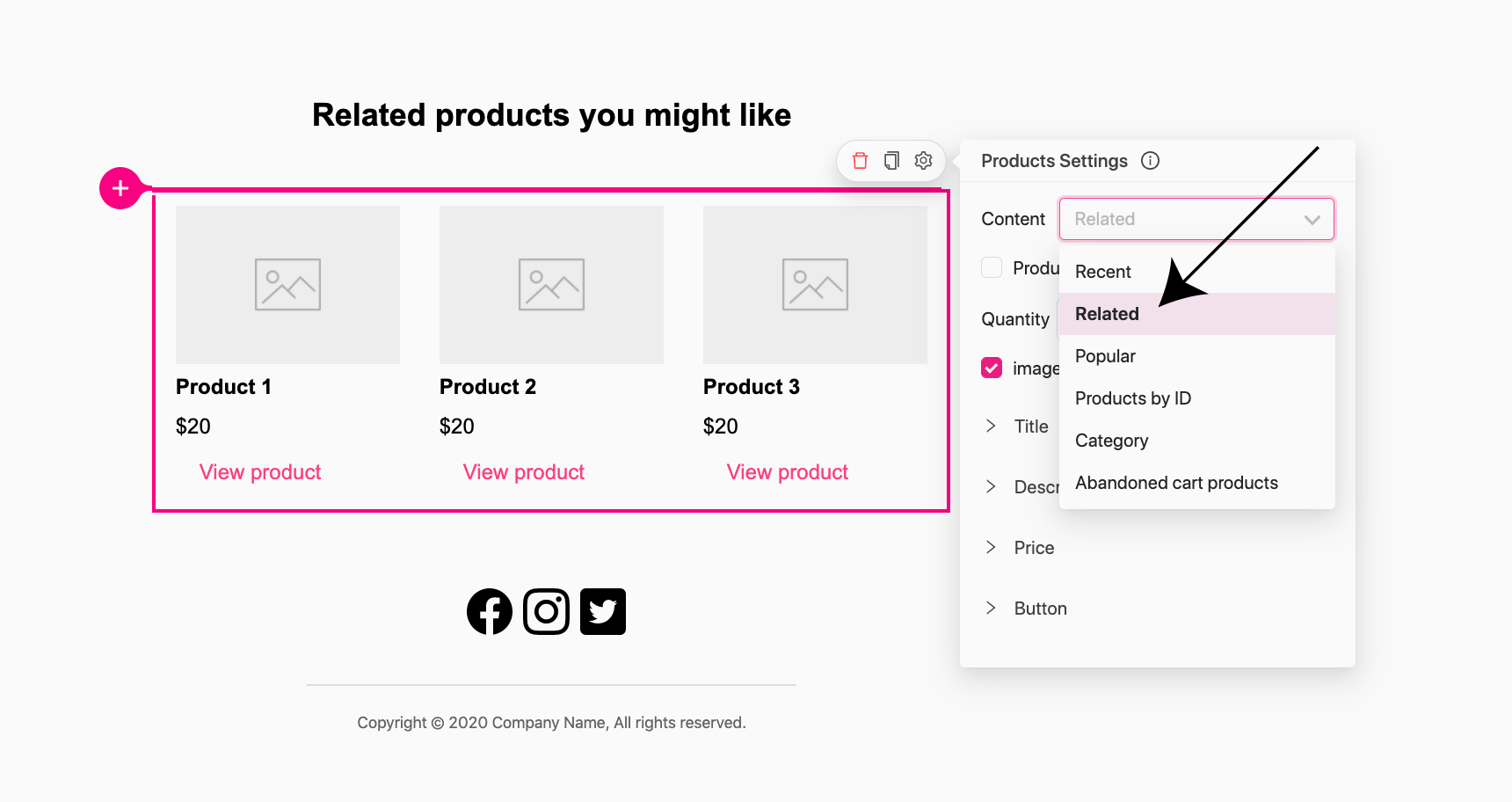
recover abandoned WooCommerce carts - abandoned items

While in the Growmatik email builder and page personalizer tools, add the Product element, which you’ll see in the toolbox. Then go to the product settings panel and assign the content as Abandoned Cart Products. By doing this, Growmatik will show the abandoned items to the cart abandoner.

Use an exclusive coupon to incentive the abandoner

It’s often the case that users who abandon their carts haven’t forgotten they’ve done so – meaning that a “did you forget” message will not resonate with them. It could be that they found something better (finger’s crossed that’s not the case!) or they’re uncertain about which business to buy from. The competition between you and someone else might be quite close that you don’t need to do much to get ahead.

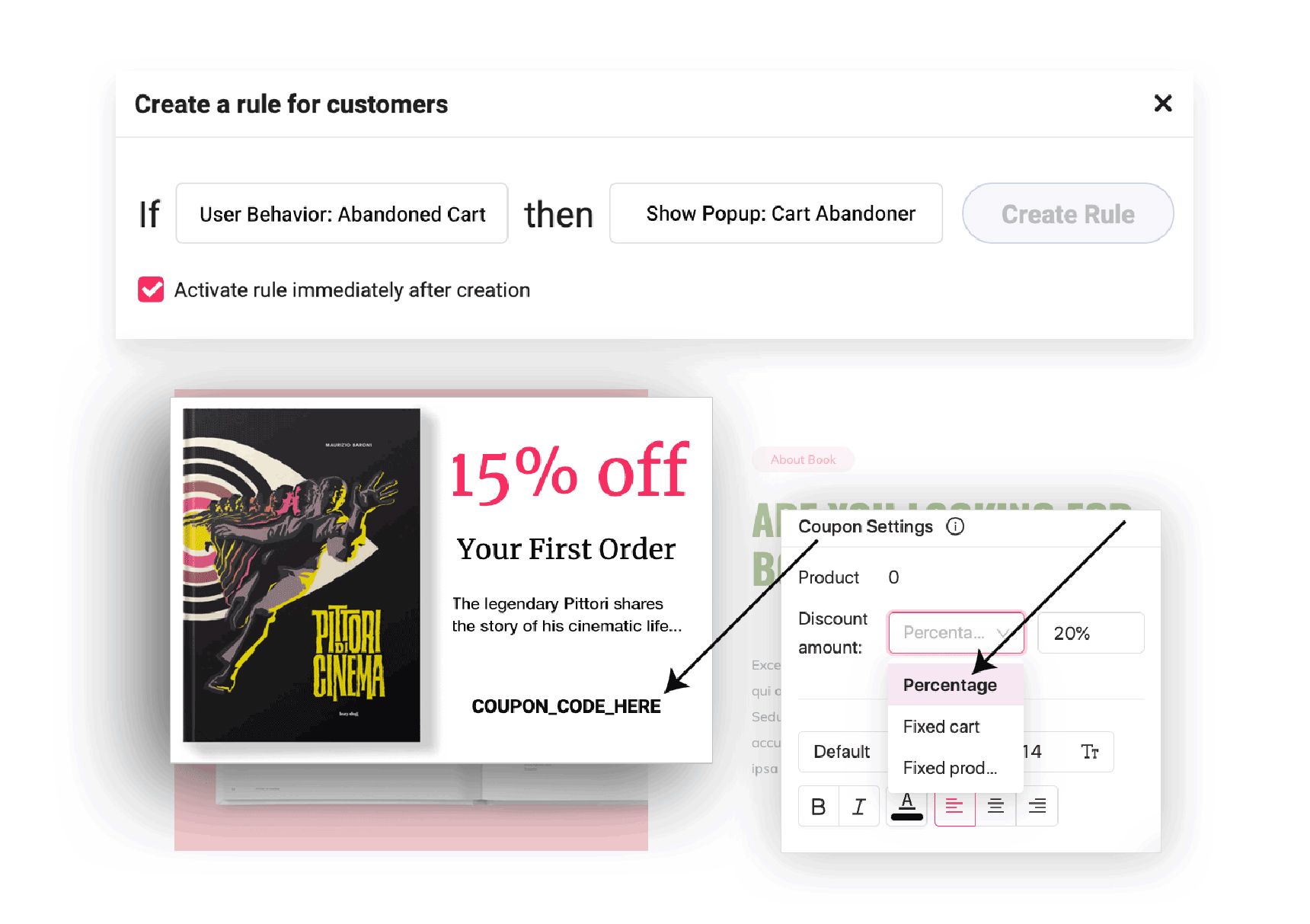
One great proven solution is through exclusive offers. This can be a great way to sway users to make a last-minute decision. This is because a discount coupon plays into cognitive biases like FOMO, hyperbolic discounting, loss aversion and reciprocity. All these biases could help persuade a cart abandoner to finalize their purchase.

To make sure that this is effective, it’s important to state inside your pitch that the coupon on offer is exclusive to that particular user.

Growmatik allows you to include such coupons in not only emails but also popups. To do this, all you have to do is add the Coupon element to your template and input your discount preferences like the amount of the discount. Growmatik will then do its job and automatically show the coupons to the cart abandoner.

Add social proof

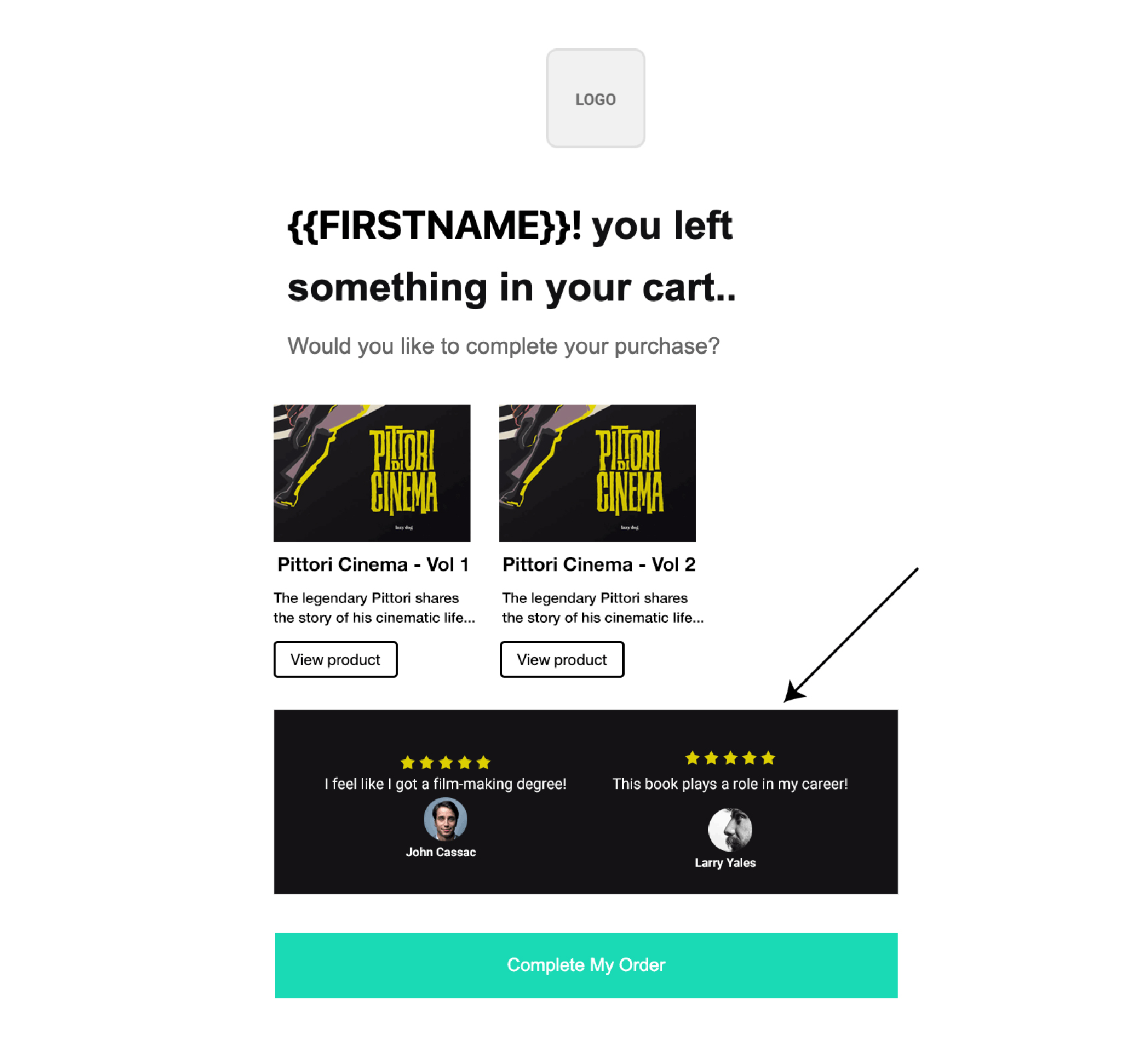
An important factor that might make a user hesitant in the customer journey is when they question whether or not the product they are considering is quality. More often than not, they’ll need something more than simply a flashy presentation or slick sales pitch. Instead, they’ll need to see proof of what others have thought about after buying and using your product. We call this social proof.

Your campaign to follow up with cart abandoners will likely necessitate social proof to ease any concerns about your product. What this looks like in reality could range be a couple of excellent reviews from previous customers or testimonials from influencers. To boost the review’s authenticity, you could even include the name and picture of the reviews (with permission, of course).

recover abandoned WooCommerce carts - social proof

You can include even more info on your website so that you can boost user confidence, such as real-time data about when exactly a product was sold, how many items are left in stock as well as how many people are looking at a particular product. You can easily do all this with plugins like WPFomify.

Wrapping up

The communication you establish with a user throughout their customer journey can either be simplistic or sophisticated. The methods mentioned in this article can go a long way in helping you recover abandoned WooCommerce carts. However, keep in mind that these techniques might vary depending on your particular business, the market as well as your target audience. We recommend that you focus on your goals and set up the type of campaigns that will have the maximum reach and engagement. And this campaign should be both cross-channel and personalized.

How to Optimize a WooCommerce Business Website

optimizewoocommerce business website featured

The dramatic rise in activity for e-commerce and online retail in 2020 has forced many retailers to shift focus to their digital stores to survive. Today’s technologies allow for nearly anyone to start an online business in just a couple of hours. However, launching an online shop is the first step, keeping it optimized for the best results is another story. In this article, we’ll discuss several ways to optimize a WooCommerce business website to boost your sales and improve your website’s user experience.

Speed 

The first thing your visitor notices when entering your website is how fast it is and how it responds to user commands, website performance and speed. In today’s world, speed is critical for good user experience, so you’ll need to ensure that you’re constantly maintaining it.  

Running a page speed test is a task you have to perform at least once a month, and you have to run it through not only a one-page speed test site but through at least three major speed measurement sites. Here they are:

GTmetrix

Recently, the GTmetrix speed test site got a major update. It can measure your site performance from different points of view.

Google PageSpeed Insights

Google PageSpeed Insights provides detailed information about your site page speed and compatibility to the latest standards of Google SEO. It goes a step further and shows you ways to address any problematic areas.

WebpageTest

In addition to performance measurement and overall page speed results, WebpageTest provides a site security score and ways on how to improve it.

These sites are great not only in providing results but also very detailed instructions on how to fix your website’s problems.

There are several points you have to consider during page speed optimization. The most important are the following: 

  1. Always optimize images.
  2. Use videos from external sources. 
  3. Minify page resources: HTML, CSS, JavaScript.
  4. Minify HTTPS requests.
  5. Deactivate and remove extra plugins. 
  6. Enable browser caching.
  7. Choose a better hosting and CDN service.

Optimization for mobile

If your website is not mobile-friendly and you don’t have a good user experience on small screen devices, you’re driving your customers away from your website. Today when mobile devices are the most important device for nearly everyone, it’s important to make your website mobile-friendly.

To make sure your website is fully mobile-friendly you have to check it in at least two main operating systems: Android and IOS. Make sure your website usability is not restricted, your menu is working without any problem and most importantly, you have to check every step from the product add to cart till the order submission. Don’t forget to optimize your newsletters and confirmation emails sent to your customers.

SEO-friendly URLs 

Before reading or opening any product (or page or post) on your website, users will always read the title. This is the first interaction with your customer, and if this first touch is not attractive enough you may lose their attention. 

Always use SEO-friendly titles for your products, pages, posts, or anything you publish on your site, it’s necessary to have unique titles for search engines, it will boost your ranking and your store will be easy to discover and easy to use for any user.

Some of the best practices of using the right titles

  1. Create unique titles.
  2. Use the right length, not more than 60-70 characters.
  3. Use the right keywords in your title.
  4. Often use the brand name in the title.
  5. Use action words like “Buy” “Free” “Online” in the title.

The simple structure of the site

Site structure defines how easy it is to use your site and how good a user experience you may offer to your customer. It also helps search engines and users to find relevant information on your site and spend less time searching. Keep your site structure as simple as possible, it’s not a good idea to create 3 or 4 levels of the menus on the site. Make it more simple, use a maximum of 2 levels.

Besides the proper structure of the site, you may also need to consider internal linking to related products and posts on the site, it will improve SEO score and you will be able to properly display upsells and related products on the product page.

Major factors to consider at this point is:

  1. URL structure that follows your navigation.
  2. Make your hierarchy logical
  3. Number of categories

Don’t forget, a properly structured website is easy to crawl by search engines and it’s easy for visitors to navigate as well.

HTTPS

HTTPS is another way to optimize a WooCommerce business website. Based on the latest Google announcements, sites with HTTPS protocols will receive minor SEO benefits compared to the sites without it. HTPPS is a must-have protocol for an e-commerce site, (no matter if it’s WooCommerce, Shopify or any other e-commerce solution). This holds particularly true for the checkout and the payment pages. Without it, anyone who added a product in the cart will abandon it if you don’t support the HTTPS protocol.

What HTTPS does is that it secures the connection between the user and web server, which means that all the data sent and received during this process is fully secure and you may trust to send your credit card or any other private information, so, make sure you always have that green padlock on the left side of your website URL in the browser.

A quick list of the benefits of HTTPS enabled sites:

  1. You are more reliable for your users, they trust you
  2. HTTPS protects the integrity of your website
  3. HTTPS is great for SEO and search rankings
  4. Your users will be notified by the browser if you don’t have a green padlock
  5. HTTPS is essential for Google accelerated pages

To get your site HTTPS ready, you need to install an SSL certificate. Many website hostings include this feature for free as part of their hosting plans. You can also consider buying from third-party resellers such as SSL2BUY.

Image optimization

Image optimization also plays a key role in optimizing a WooCommerce business website. Images and mainly product images on your site are probably one of the biggest reasons why your users will decide to visit your site or buy anything from you. Good quality images are crucial for your website but aside from its benefits, it may be a problem if you don’t optimize them.

To put it briefly, if you’re running an online store, you have to master image optimization at a high level. Your goal is to reduce the image size as much as possible without sacrificing quality. In other words, the primary goal is to keep the best balance between the lowest file size and best image quality.

There are many benefits of image optimization but let’s list the most important ones here:

  1. Name them properly, use a good description and leave out the unnecessary parts.
  2. Optimize alt tags with proper and relevant text.
  3. Reduce the file size as much as possible however don’t forget about quality.
  4. Be aware of the file types. JPG is traditionally acceptable but the latest image formats like .webp are better.
  5. Optimize thumbnails as well.

Remove extra plugins

WordPress plugins are one of the main features of the content management system, and it’s the main reason why they are so popular and widely used. Today almost any task can be solved by the plugins, and with the right plugins, you can add any functionality to your website, from social sharing solutions to advanced user tracking and behavior learning plugins.

Unfortunately, solving lots of problems by using multiple plugins also has its problems. Using too many plugins will definitely reduce your website’s performance.

There are many reasons why you need to remove extra plugins from your website. Take a closer look and ask the following questions to yourself: Do I really need them? Is the added feature mandatory for my business? Can I survive without it? If the answer to these questions is not an emphatic “yes,” then you might want to consider deactivating and deleting some plugins. 

It’s important that after deactivating and deleting plugins from your site that you remember to run a clean-up and database optimization plugin. This will delete all the data left behind by any unused and/or deleted plugins. In my personal opinion, the Advanced Database Cleaner is excellent.

optimize a WooCommerce business website - advanced database cleaner

Personalize your store

The last point in our list when optimizing a WooCommerce business website is personalization. Personalization will optimize user experience. So when a visitor exits your site without purchasing anything, you’ll probably want to track them and offer discounts to win them back. Our latest project Growmatik can help you do just this and more based on user behavior. Growmatik is an all-in-one marketing automation and personalization tool for WordPress and WooCommerce websites. 

In Growmatik, you can create different types of actions based on user behavior and provide the best user experience for your site visitors. The most important features of Growmatik are:  

  1. Segmenting users based on behavior and interests
  2. Automating your entire marketing stack on one screen
  3. Personalizing experiences as unique as your customers
  4. Sending beautiful and personalized emails based on advanced customer behavior
  5. Smart popups: highly-targeted magnets to initiate and motivate leads
  6. Assessing your marketing performance at every level
  7. Attribution made simple and actionable

You can check for more details about Growmatik functions on our website.

optimize a WooCommerce business website - growmatik

Conclusion

I hope you’ve found some of the information in this article useful. Please note that some of the tips mentioned here should be tested before implementing them onto a live site. It’s important that you always have a backup plan in case you need to cancel any changes you’ve made. If you’d like to add something about any of the methods mentioned here, please don’t hesitate to leave us a message in the comment section below!

How to Build a Review Website in WordPress with Jupiter X

build a review website in WordPress featured

Review websites are very popular nowadays as many people search for reviews before making a purchase online. Furthermore, reviews are the most effective type of content for driving traffic, because many users trust online reviews as much as they would trust advice from a friend. 

Creating a review website is a simple process – just find a niche that is perfect for you, and write reviews for the products belonging to that niche.

I’ll use this Movie Review demo as an example of building a review website in WordPress.

Required plugins for review website

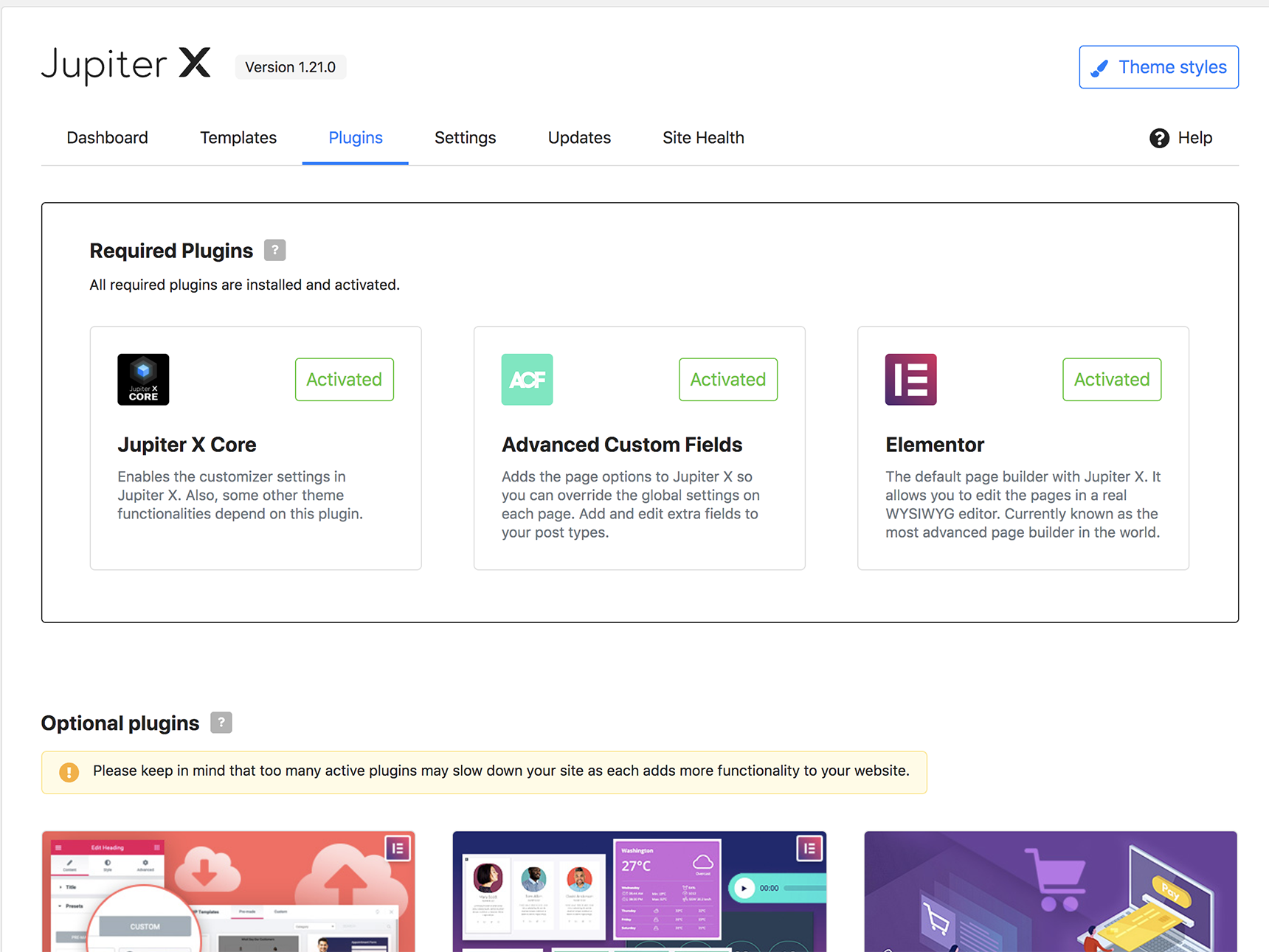
Elementor isn’t enough to build a review website Here is the list of the required plugins for the Jupiter X theme (they are already bundled with the theme):

  • Elementor 
  • ACF (Advanced Custom Fields) 
  • JetEngine 
  • Jupiter X Core
build a review website in WordPress - required plugins

To learn how to install the bundled plugins, you can read this Artbees Documentation.

Creating a custom post type

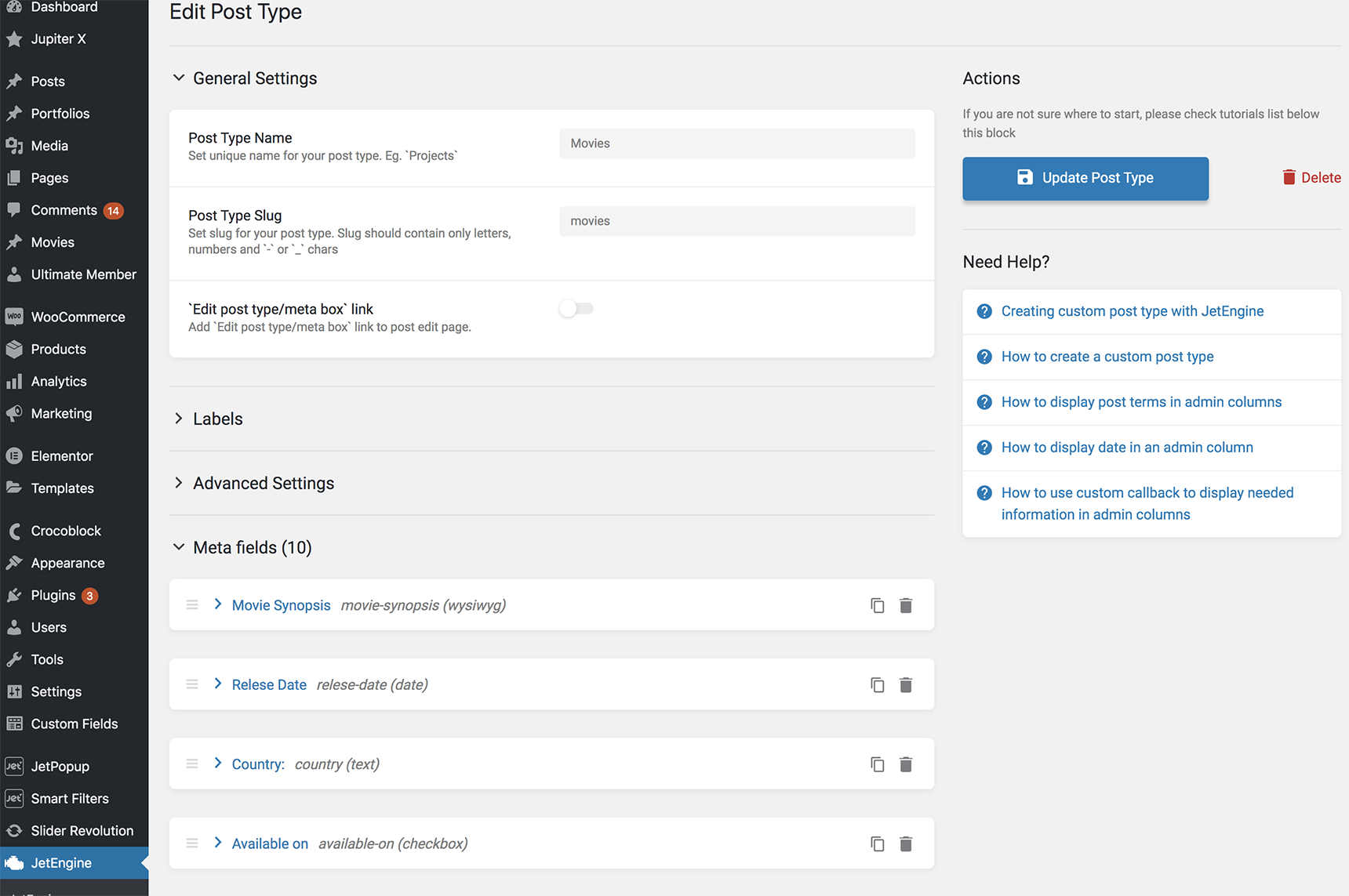
By default, Jupiter X provides posts and portfolios post types. You may need to create a custom post type for your reviews product. In our example, we’ll create a Movies post type to provide reviews for different films. The JetEngine plugin is excellent for this purpose.The detailed tutorial on how to create a custom post type can be found in the JetEngine knowledge base.

build a review website in WordPress - custom post type

Creating a custom taxonomy

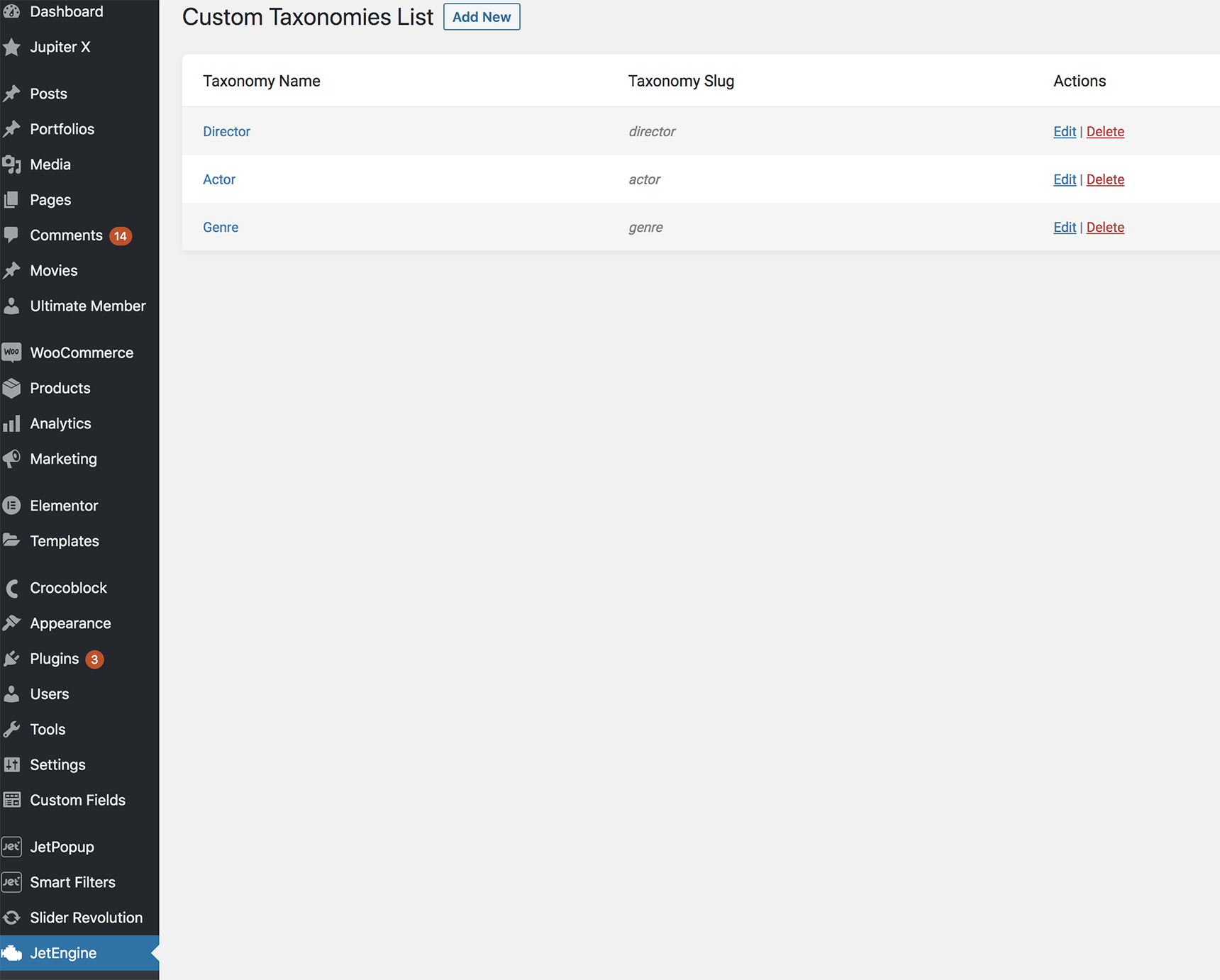
In our example, we’ll divide movies posts into custom taxonomies: director, actor, genre. They can be also created with the JetEngine plugin via JetEngine > Taxonomies.

build a review website in WordPress - custom taxonomy

You can read more detailed instructions on how to create taxonomies for custom post types with JetEngine in this article

Creating movie posts

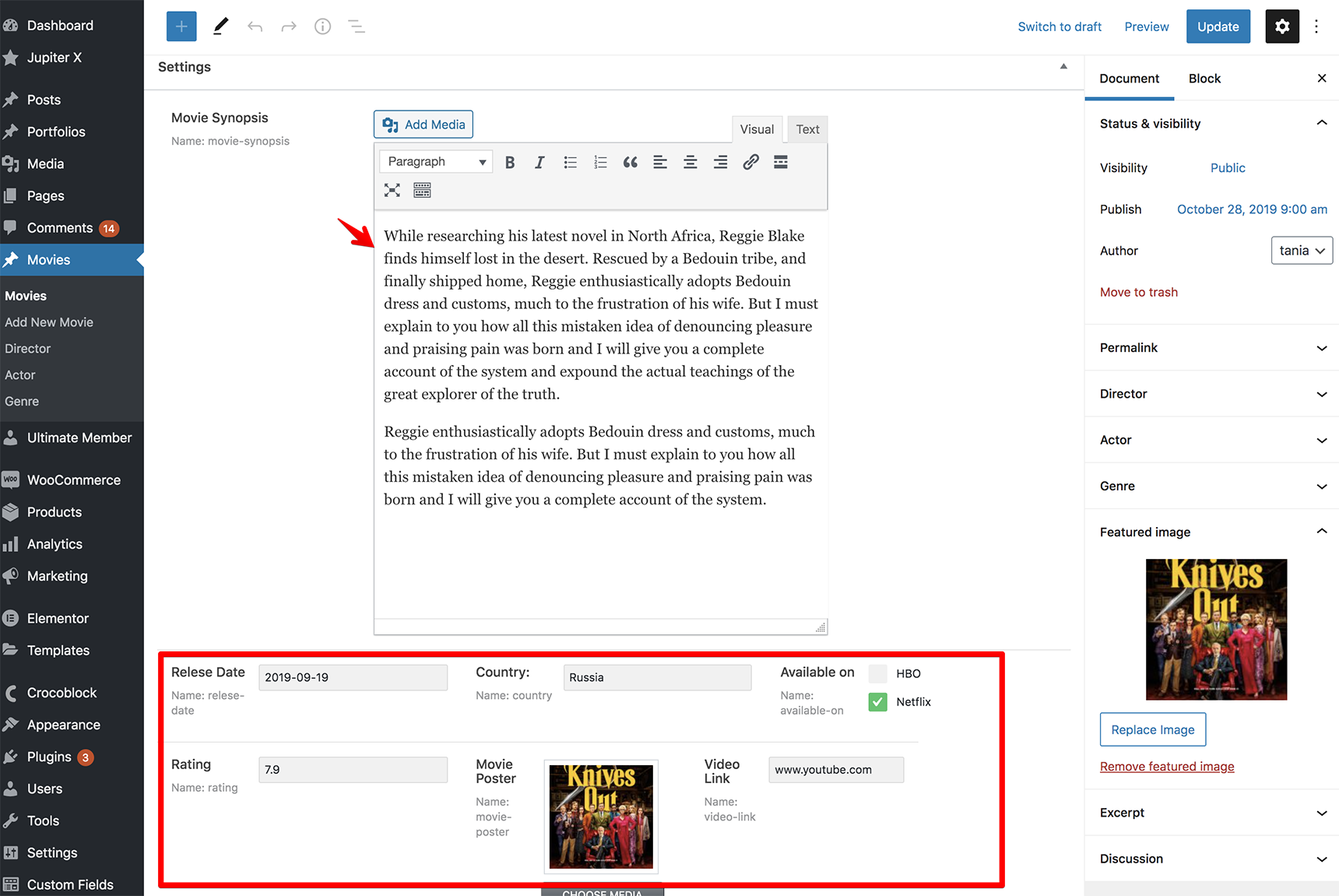
Now let’s start adding posts to our custom post type. Under the Movies menu, click on “Add New Movie,” write the title (for our purposes, we named it “Knives Out”) and add the rest of the fields that were added as meta fields when you created a custom post type in JetEngine.

build a review website in WordPress - movie posts

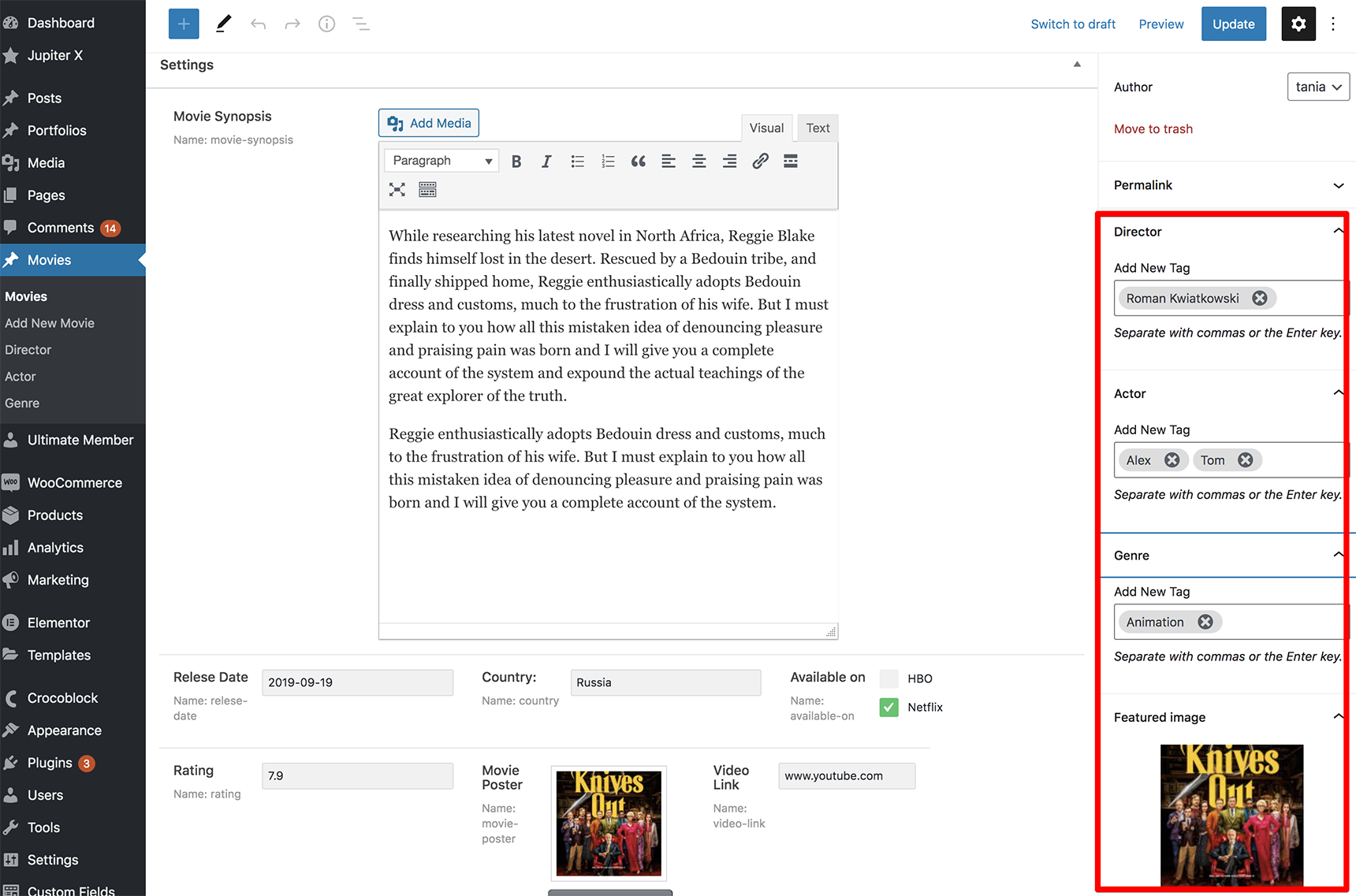
Don’t forget to select director, actor, genre and add a featured image. Then, click on Publish.

build a review website in WordPress - publish post

Now if you visit this movie post, you’ll see that the page was created but that the custom fields are not displayed. This is where Jupiter X Core and its single post template come into play, allowing us to create a template for single posts and to display custom fields.

Go ahead and create several other movie posts so you have something to work with.

Creating a single template for a custom post type

If you click on one of the movie posts, you’ll see a page with the default theme structure. You need to build a single template to display the content correctly.

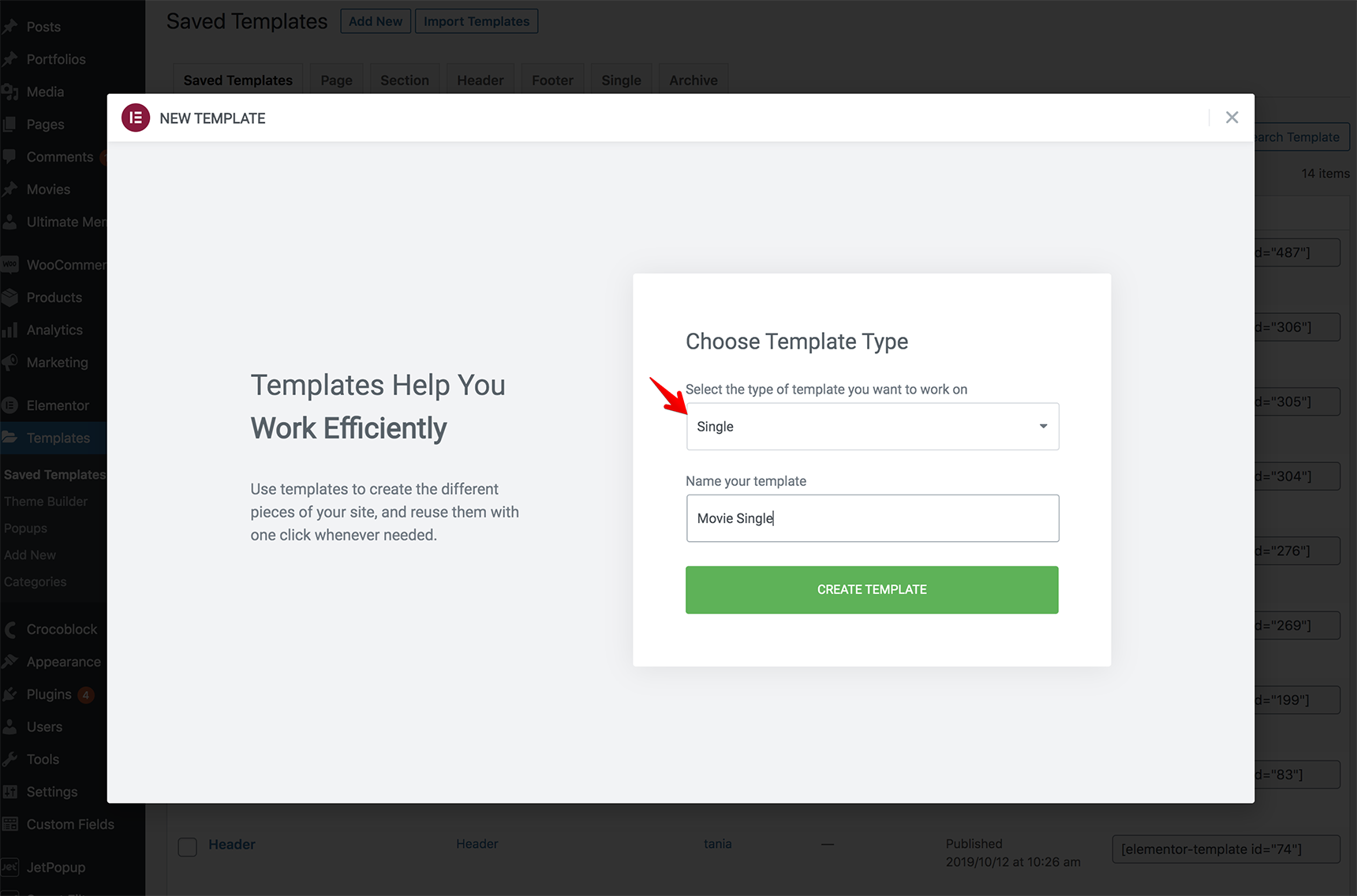
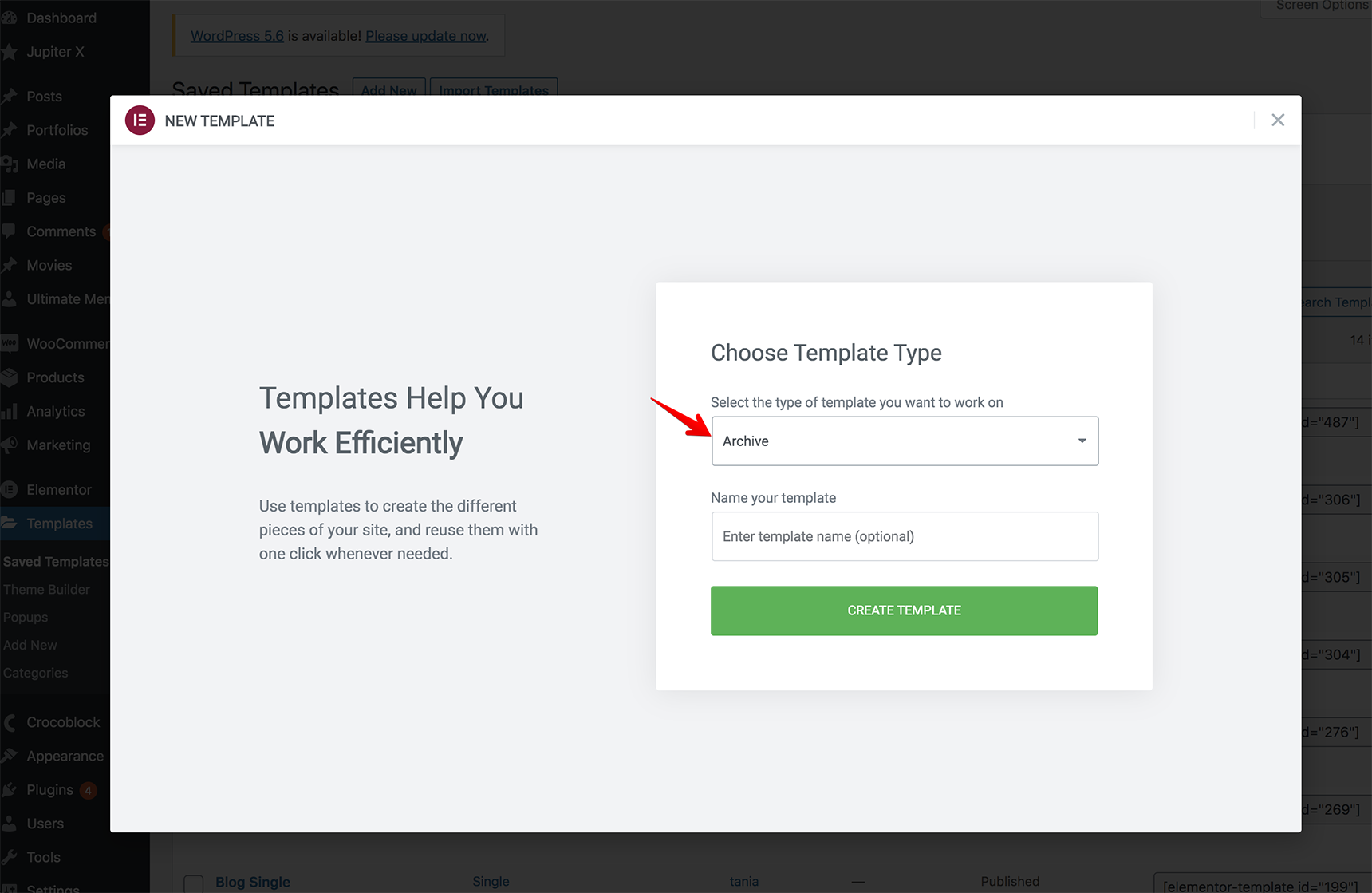
Under Templates > Saved Templates, click on “Add New”, select the single type and name your template (for example, “Movie Single Template” in our case).

build a review website in WordPress - single template

Now let’s add dynamic content to the template so that it loads the appropriate data for each movie post.

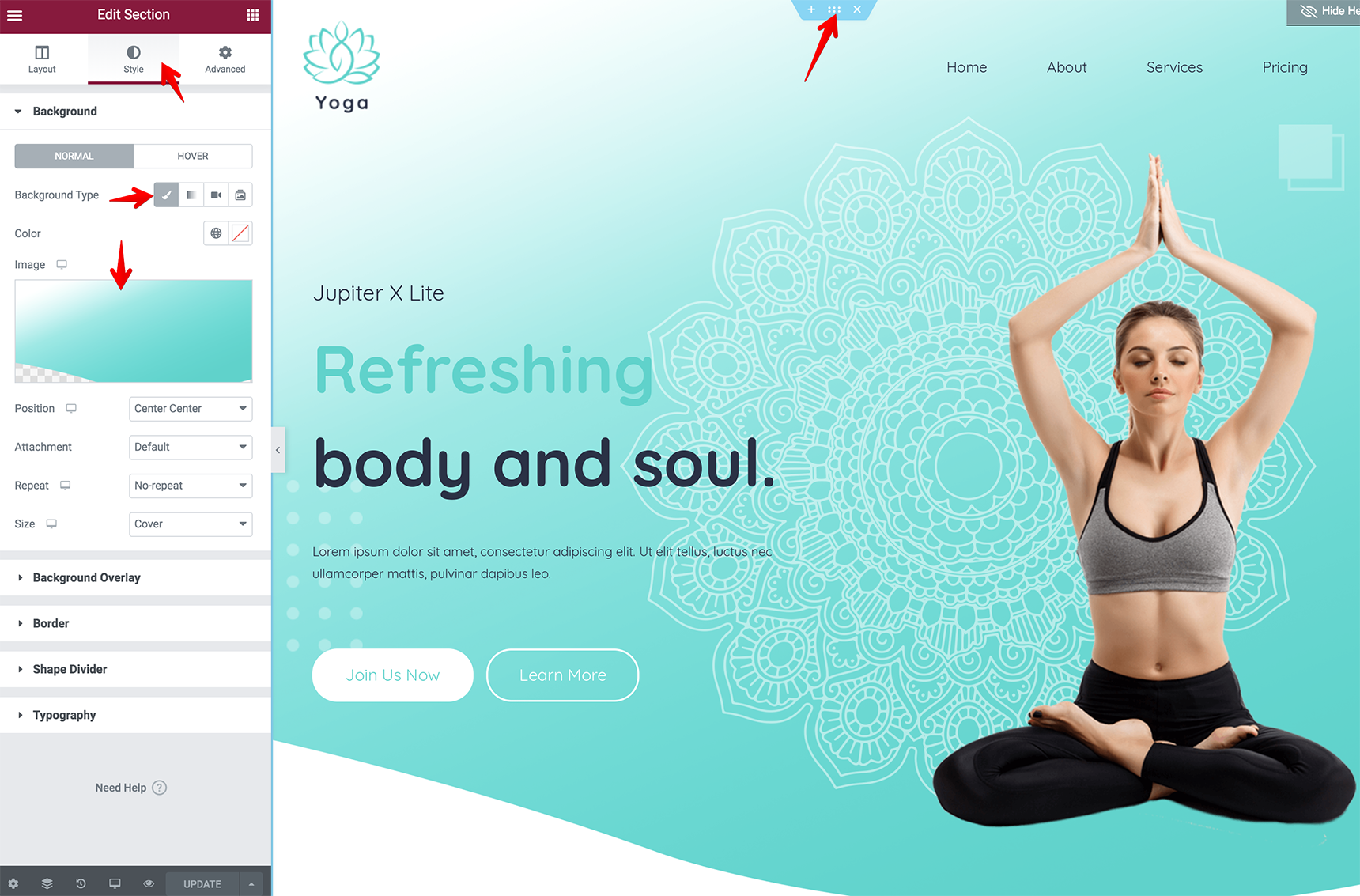
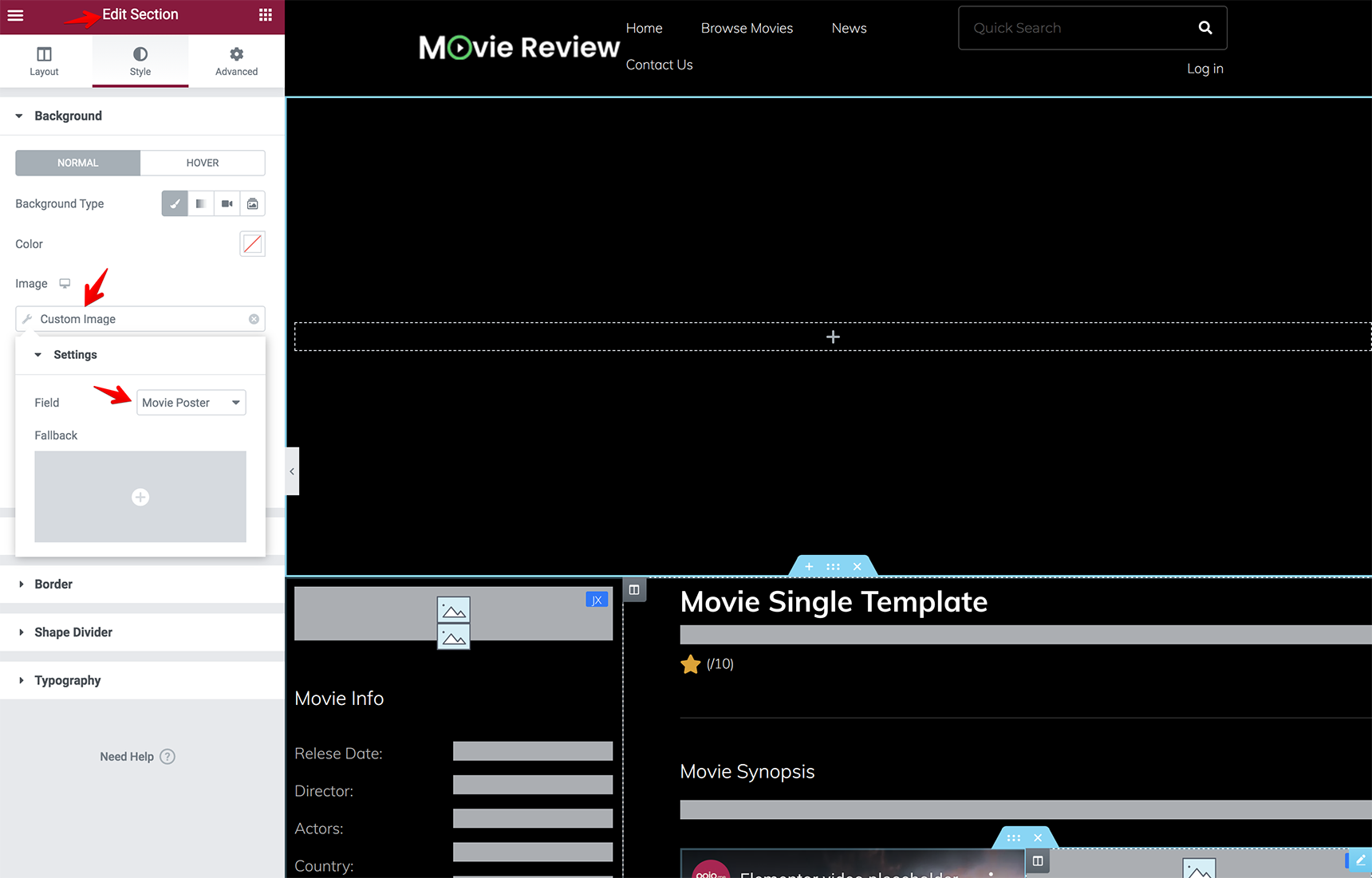
We created the meta fields in the JetEngine settings for the movie post type. To be able to show a “Movie Poster” field, you can add the section in the Elementor editor and select “Custom Image” in the background settings under Style tab and select the “Movie Poster” field.

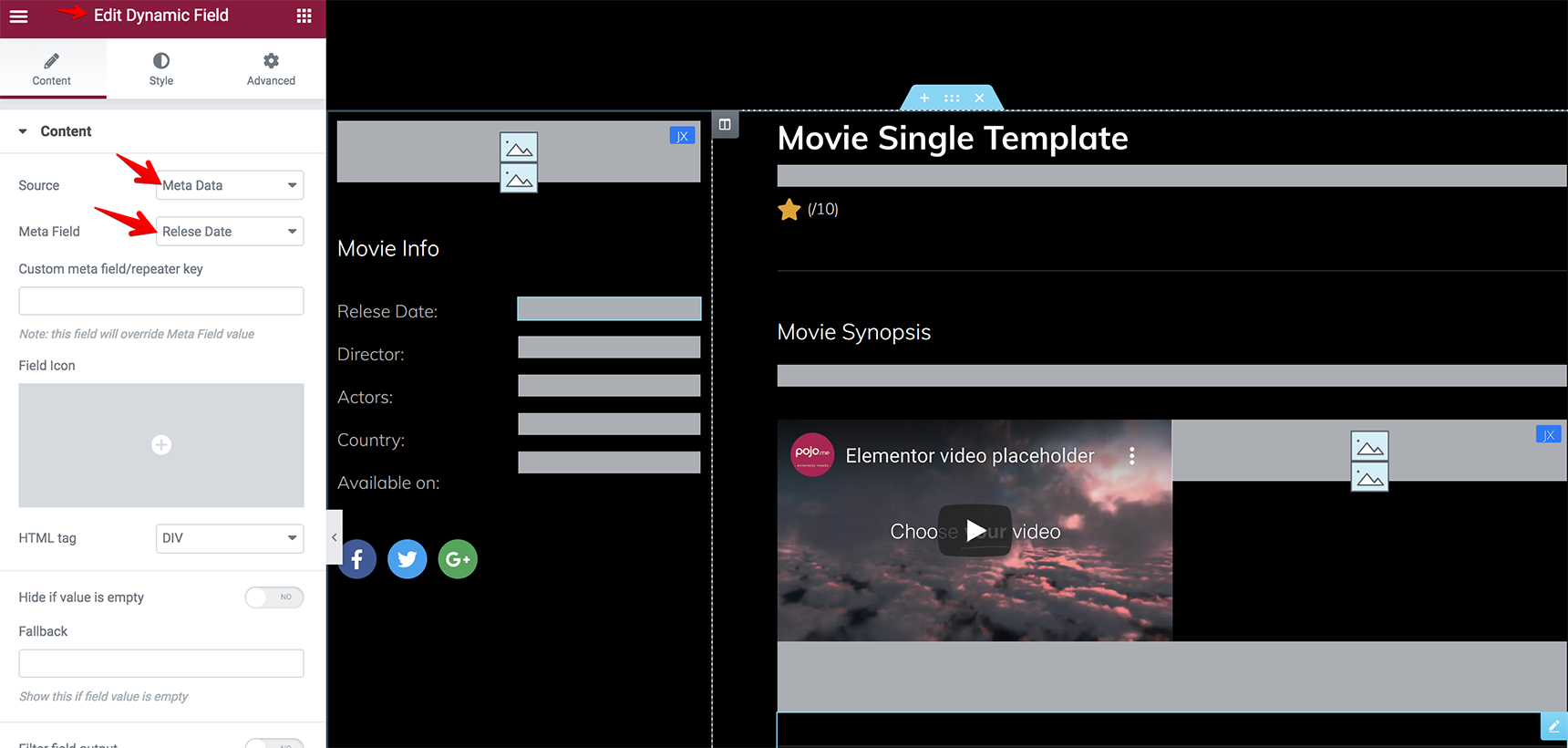
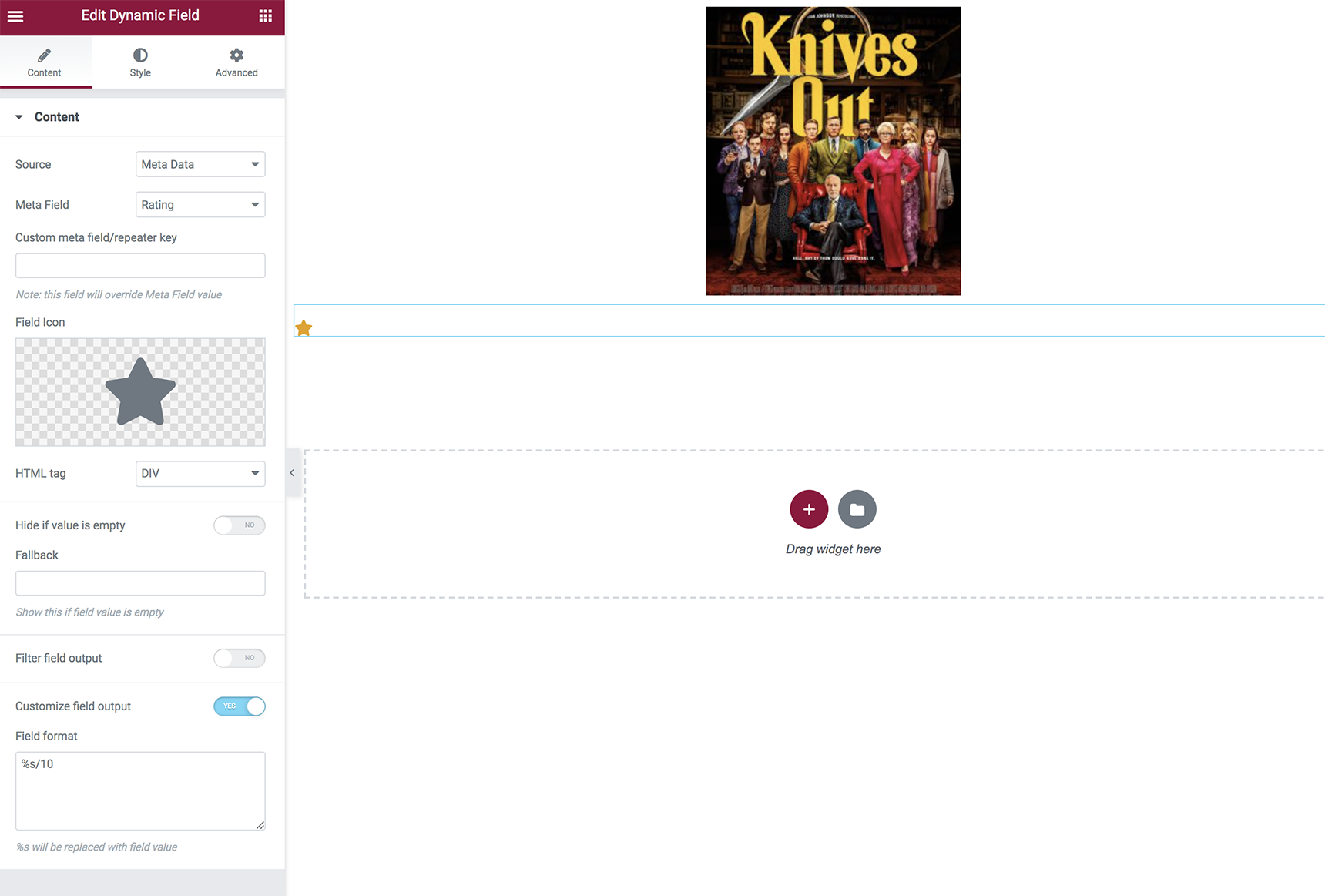
Other meta fields can be added with a Dynamic Field element, just select the “Source” as “Meta Data” and select the field you want to display.

You can find our more detailed information about the Dynamic Field element in this article.

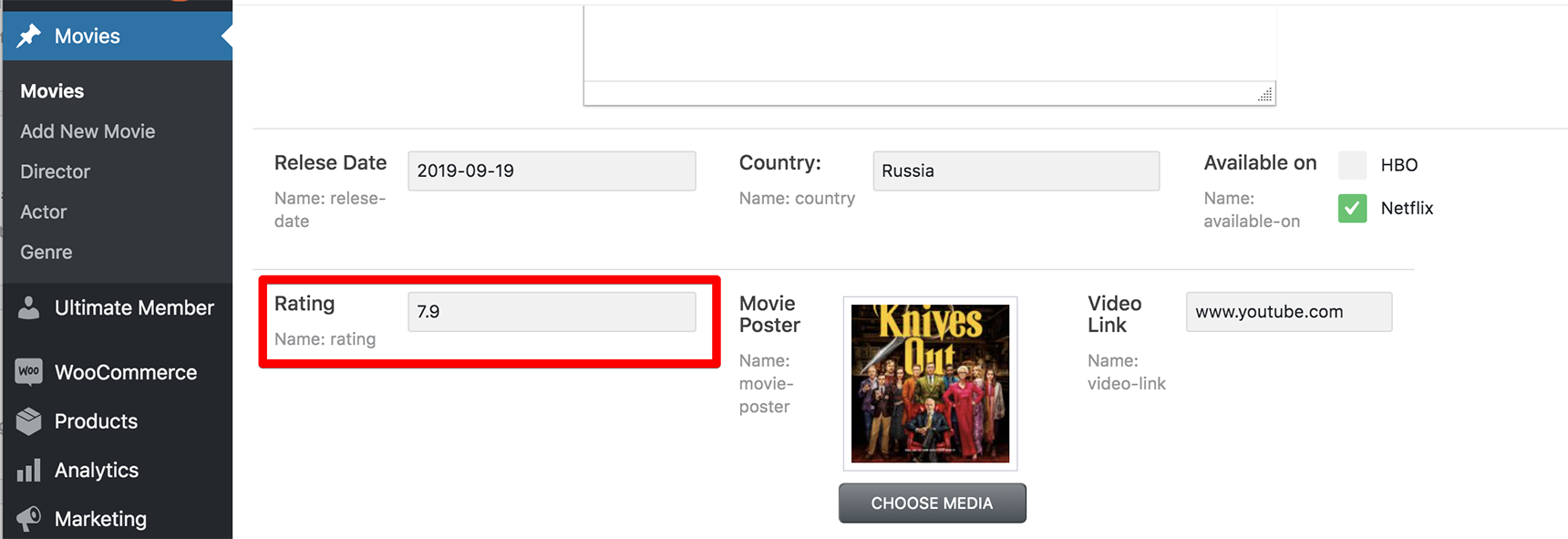
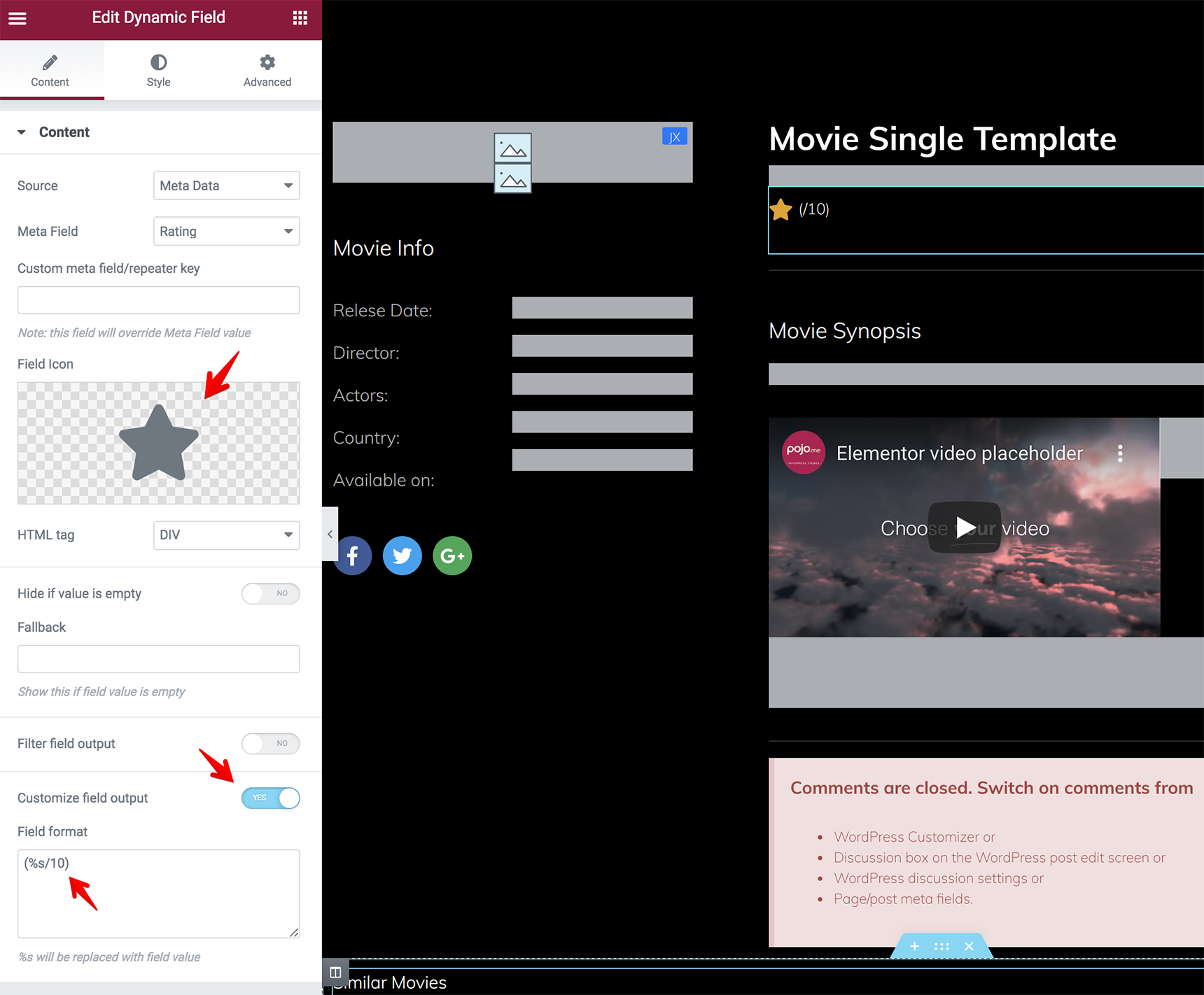
As for the ratings, it can be a meta field too that you created in the JetEngine settings for the movie post type, and you can show it in the post with Dynamic Field element as well as other meta fields.

You can add a star icon for the rating field and customize the output like this (%s/10), in which 10 is the highest rating.

You’ll see this on the frontend:

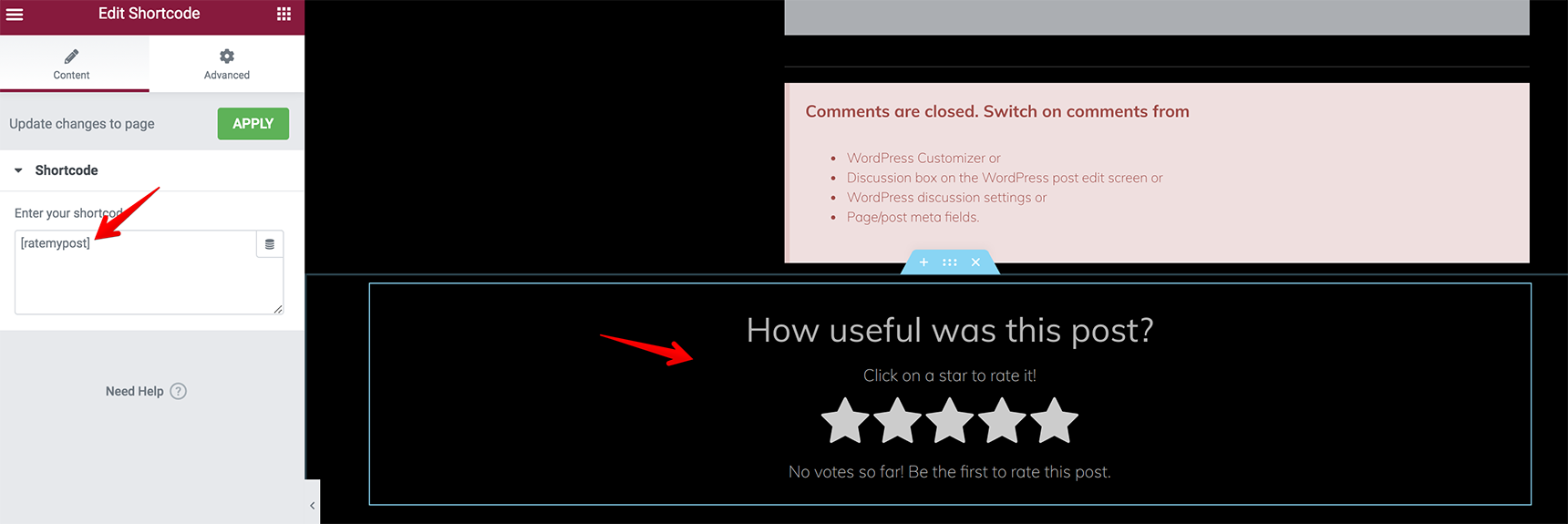
Another way to show ratings is by using the plugin Rate My Post. You can add a shortcode [ratemypost] into the Shortcode element on the single template so that the users are able to leave their ratings.

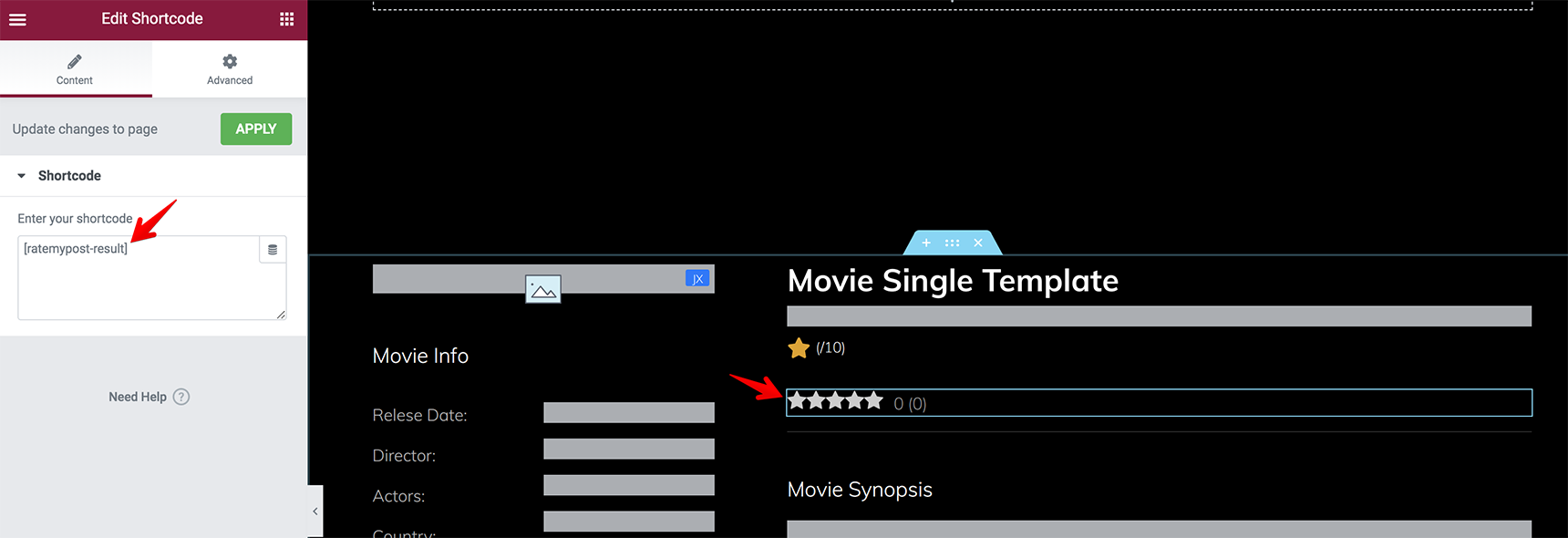
To show rating results, use the shortcode [ratemypost-result]

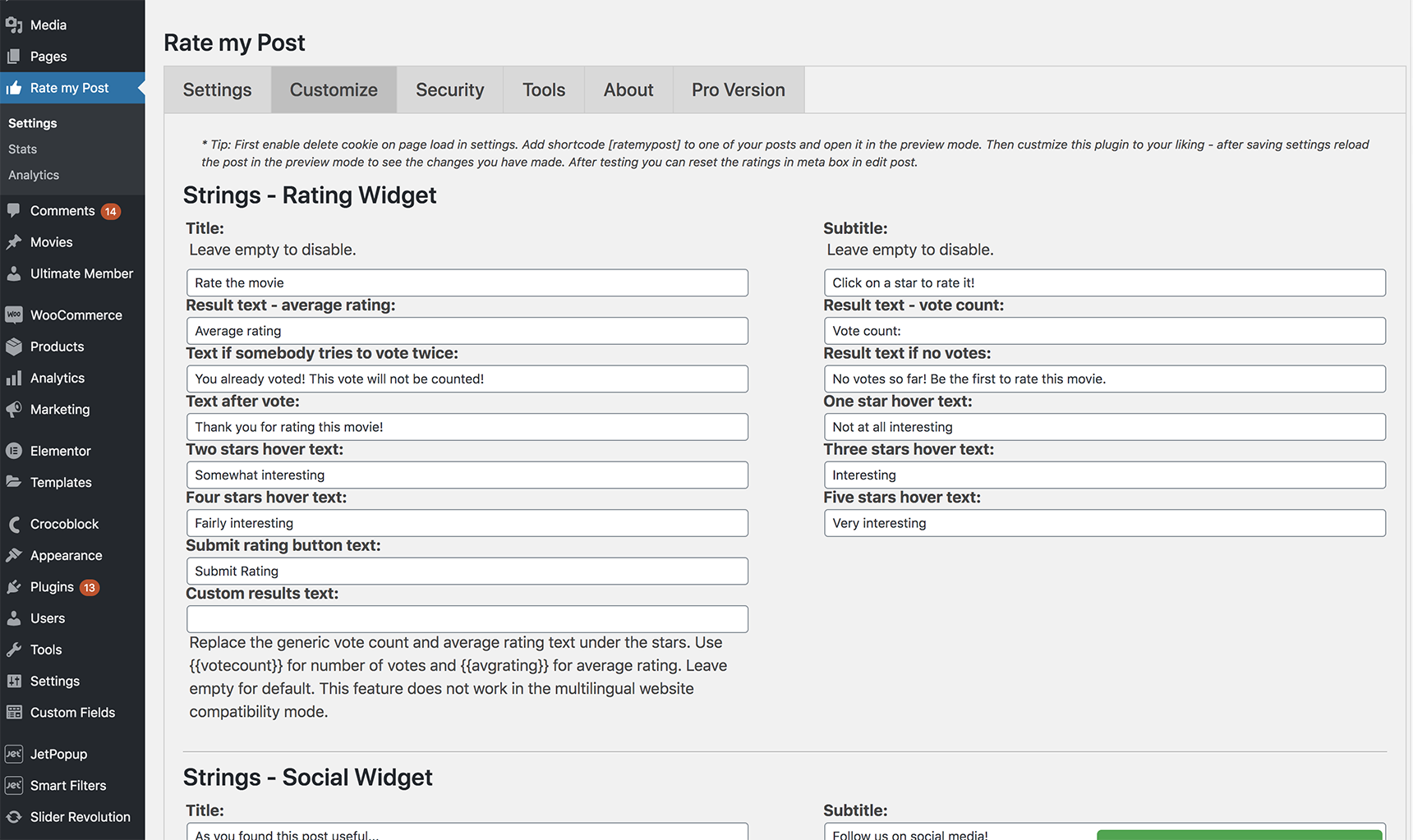
The texts can be changed to your needs in the plugin Settings.

Read the full documentation for the Rate My Post plugin to study it in more detail.

Once you’ve added all needed content, click on Publish and your template is live. 
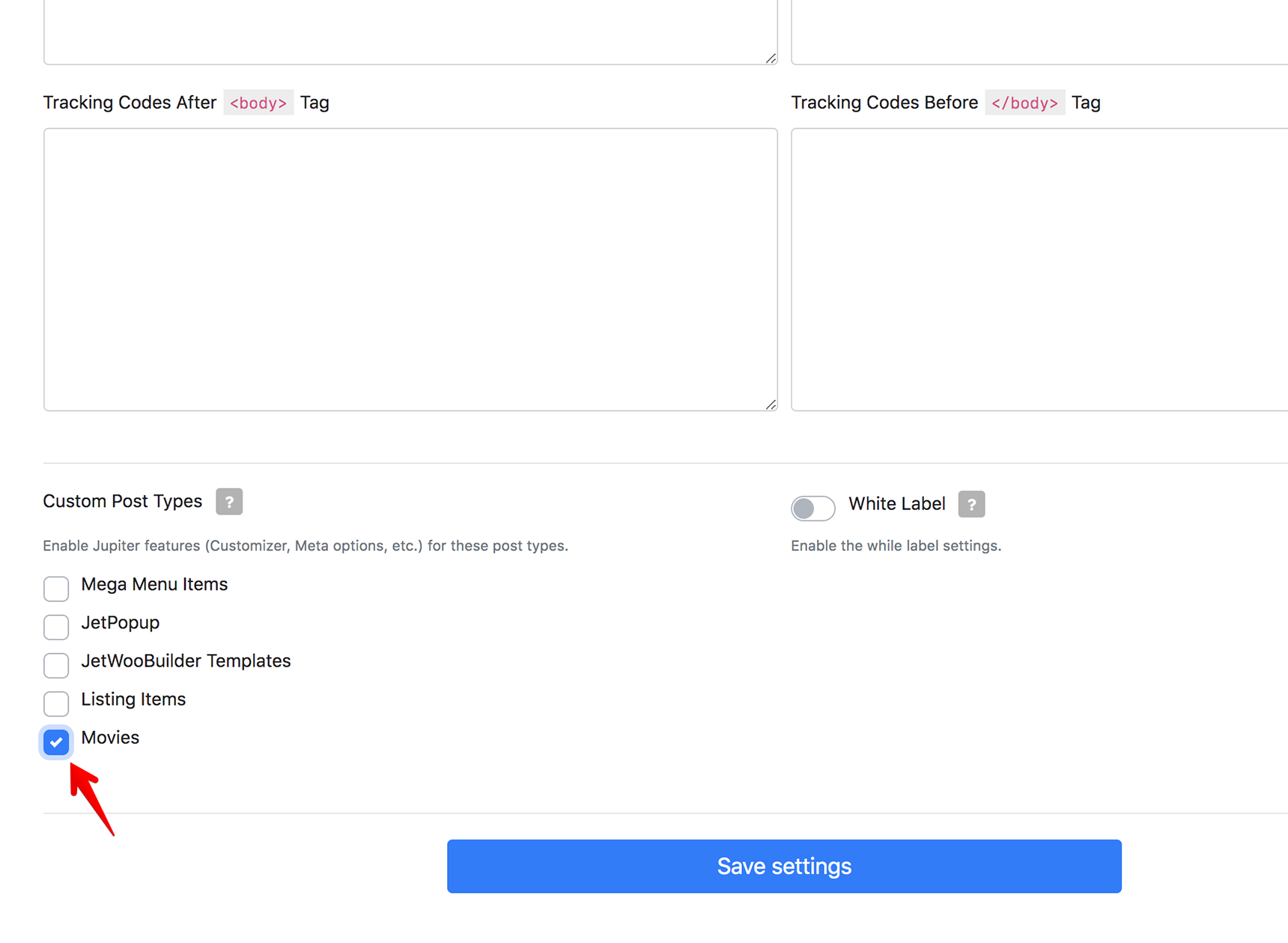
Now, it needs to be assigned to the movie post type. Go to Jupiter X > Control Panel > Settings and enable your custom post type (in our case “Movies”).

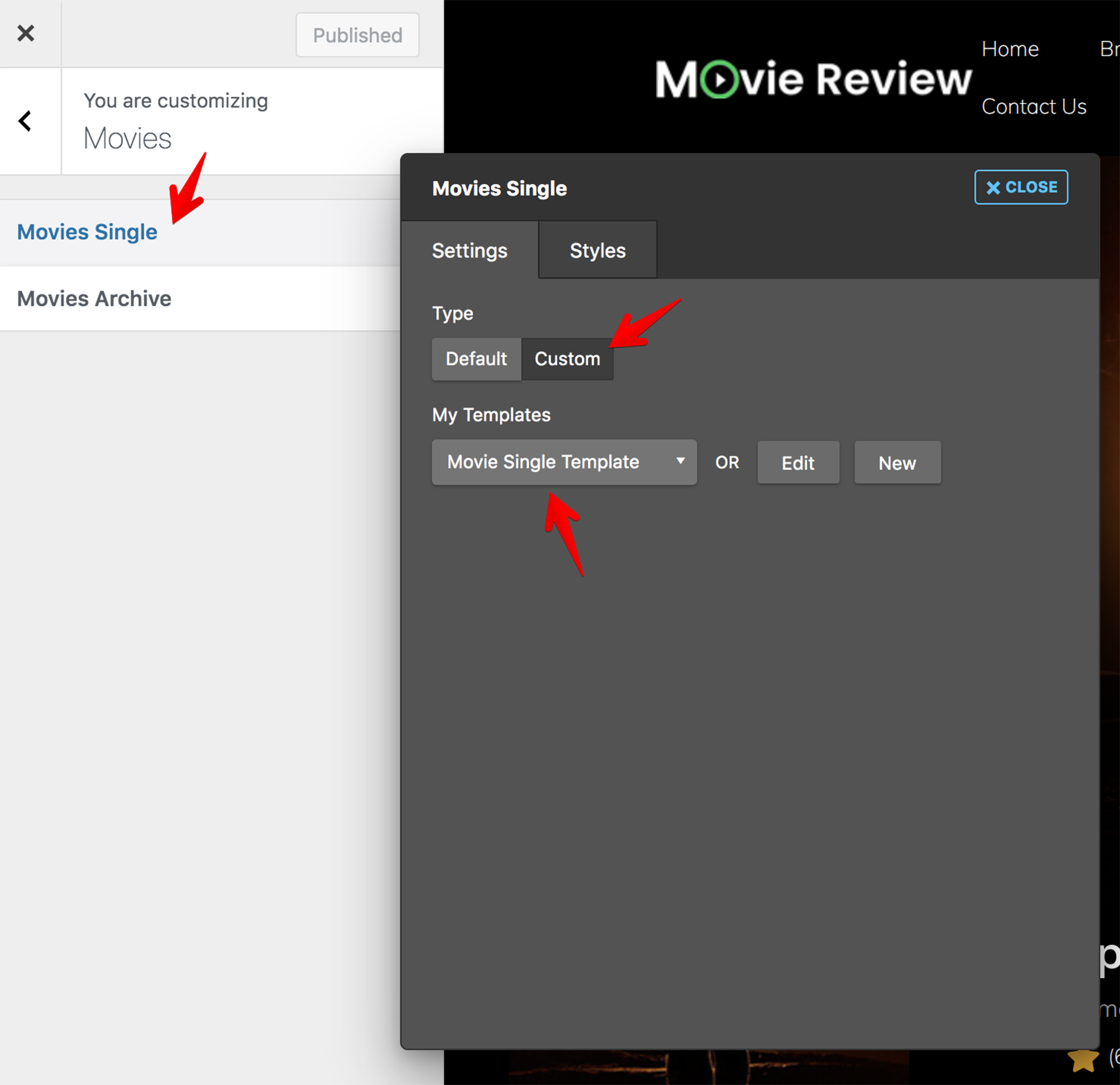
Then go to Jupiter X > Customize > Post Types > Movies > Movies Single and select the custom template.

When visiting one of the movie posts, you can see that your template will appear exactly as you designed it. 

Creating an archive template for a custom post type

Creating an archive template is a similar process to the single template – you just need to select the Archive type.

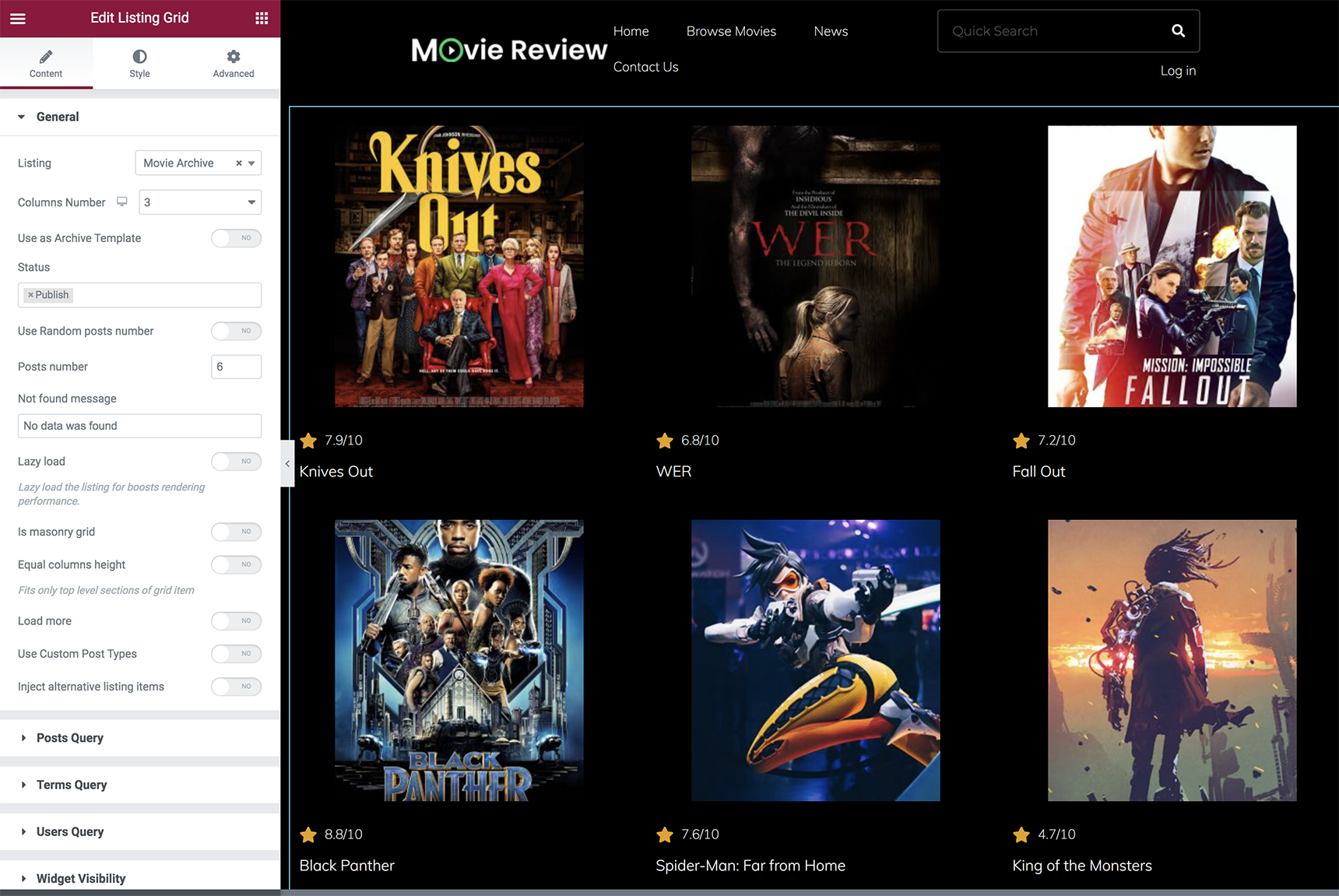
Before creating the archive template, we need to first create a Listing Grid to set up the content of the custom fields.
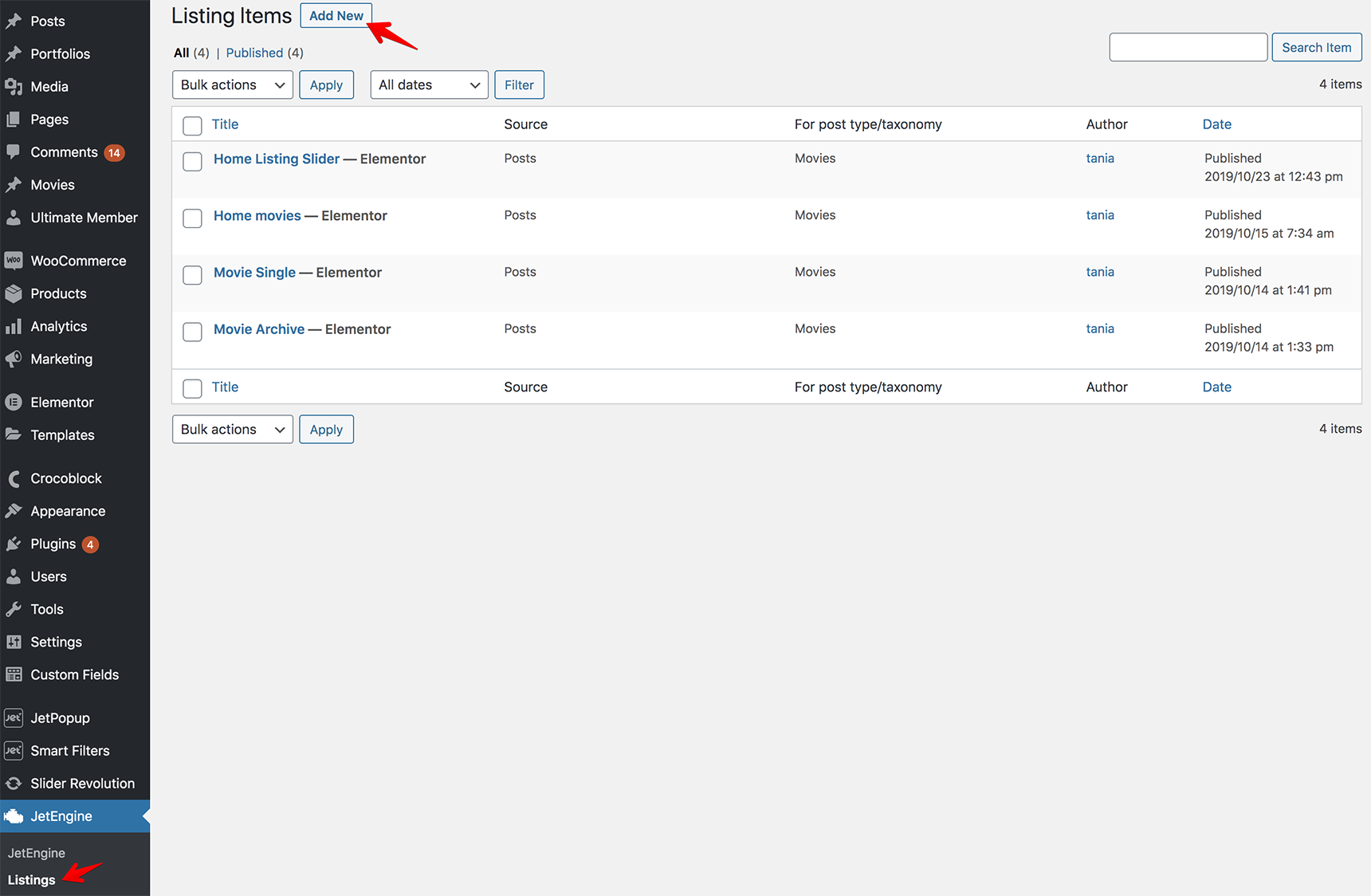
Go to JetEngine > Listings > Add New and create a new listing. Here, you can see that I’ve already created the “Movie Archive” listing.

The Elementor editor will open, and you can add dynamic fields to show the data of your meta fields, just like we did for the single template.

More details about Listings can be found in the JetEngine article.

When the listing is finalized, go back to the Archive template under the Templates menu and add the Listing Grid element to show your listing on Archive pages and customize the settings.

When it’s ready, you need to assign the template to the Movie post type. Go to Jupiter X > Customize > Post types > Movies > Movies Archive and select a custom template.

Your archive is live! You can visit any category page in the Movie post type and see the list of movies.

Wrapping Up

As you can see, building a review website in WordPress is easy with the Jupiter X theme and with its bundled plugins like Elementor and JetEngine. You can also import a demo to save more time and simply edit the content to fit your needs. 

And the great thing? You can view many other demos offered by Jupiter X in case there are others that align more closely with your goals.

If you have any questions, feel free to write to us in the comment section below.

5 Tips To Improve Customer Communication on Your WordPress Website

customer communication on your WordPress website featured

This is a guest post contributed to Artbees Themes Blog by Vishnu Goyal.

If you are here looking for ways to improve customer communication on your WordPress website, chances are you already own a website for your business or you are working on another’s website to make it communication friendly. In any case, you have landed on the right page. Welcome!

As of 2020, we have 4.5 billion internet users worldwide who stay online to live, work, play, shop and do everything in between. For a business to succeed in the internet-dominated world, a thoughtful online presence is not optional but a necessity, Today, if you want to connect with your prospects and customers, you can’t miss the opportunity to get your business online, start conversations with your target audience and build customer relationships on the internet.

Your business website is the centerpiece of your online presence and overall digital marketing and thankfully you already have one. Now, having a website up and running is just one aspect. Setting it up for success and growth requires a lot of effort in regular optimization and keeping the conversation going. The primary purpose of your business website is to generate leads who you can turn into your customers and keep the show going. 

With a communication friendly website, you can make sure that you are not letting your visitors leave without talking to you. And once they are in contact, you are the best person to let them explore more about you and convert into customers.  

So, once you’re done with the hard work of getting visitors on your website, the next focus should be to make it easy for them to start a conversation with you. And that’s the agenda of this article: to help make your WordPress powered website customer communication friendly and let you spark as many conversations as you possibly can on your online space. Without further ado, let’s get started.

5 ways to make your website “customer communication friendly”

customer communication on your WordPress website - 5 tips
5 tips to improve customer communication on your WordPress website. [Illustration by Agnesh Jha/MyOperator]

Here are 5 ways (plus a bonus one) to improve customer communication on your website and step up your lead generation game, as well as improve your overall sales cycle process: 

Have a dedicated Contact Us page 

No website is complete without a dedicated Contact Us page. If your visitors want to contact you, it’s likely that they are going to visit your contact page. So, make sure to have one. See, when it comes to communication, different people have different preferences. Some like to pick up the phone and call, some like to chat online, while others may find it comfortable to fill a contact form, email you or visit you at your location. 

In any case, it is best practice to include all available contact options. For best user experience, besides building a custom Contact Form, consider including the following communication options on your contact page:

  • Your business email address
  • Your business phone number
  • Your office or business address
  • A Google map of your location
customer communication on your WordPress website - peoplemetrics
Contact us page on PeopleMetrics website with contact form, business address, Google map, business email ID, and phone number.

In case you have multiple locations, you can add all those onto your page. Also, don’t forget to mention your preferable business hours. 

Install a chat widget on every page

We are living in the age of instant gratification. It’s an age where people don’t have time to wait, and they want everything in real-time. Your customers are no different. As per recent trends, 41% of customers expect live chat on your website. 

Can you let them down and lose business? Nope! That’s why live chat has moved from “nice-to-have” channel to a “must-have” communication channel.

customer communication on your WordPress website - myoperator
MyOperator uses a live chat widget on every page of their website to provide 24/7 connectivity for their customers. It also displays a 24/7 helpline number in its header section making it easy for customers to connect on call with the MyOperator support team.

To help you get started with live chat on your Jupiter WordPress website, we have curated a list of Best Live Chat WP Plugins. Feel free to check that out. 

Don’t bury your business phone number

While phone calls are one of the oldest modes of business communication, they are still one of the customer-preferred ways to connect with brands. This holds even more true for small businesses.

According to a recent study study, 60% of customers prefer to call small businesses on the phone. That number alone is sufficient to realize the importance of having a business phone number. If you already don’t have a dedicated business phone number, consider getting one. Thanks to their advanced calling features like toll-free calling and Interactive Voice Responses integration, those connect your customers with you in the most personalized way. 

And once you have your business number, display it proudly to enhance customer communication on your WordPress website. A few website sections where you should display your business contact number include:

  • Website menu bar
  • Website footer section
  • Your contact page 

By mentioning your phone number there, you are making it easy for customers to call you in a click and talk business. 

Ask visitors to contact you

You might be thinking about how can you ask each visitor on your website to call you, initiate a chat or fill out that contact form. Worry not. It’s quite easy. I’m sure you are aware of that thing called call-to-actionor CTA, right? While we all have heard of CTAs and how good ones can skyrocket online conversions, still they are often not used to their full potential. 

See, you must be working hard on building your brand, putting lots of effort into content marketing and SEO, or might be spending huge money on online ads to get visitors to your website. So, to do justice to your work, you must take measures to make the most of every page and every visit. 

On every page, you need to have a clear one call-to-action that you want users to click on. Every article on your blog is also an opportunity to include a relevant CTA and invite users to take action as they consume meaningful content on your website. For example, the team at gaming site Solitaired used a CTA to solicit feedback on their solitaire games. Through the user insights they received as a result, they ended up adding features like hints and redos, which drove their user engagement by over 10%.

Thanks to the simplicity of Jupiter WordPress, you can create attention-grabbing CTAs in one click, without writing a single line of code. 

Be eager to adopt modern means of communication

The ways businesses connect with their customers are always evolving. While channels like email and SMS marketing, phone calls, 1:1 personal chat have been helping businesses for years to stay in touch with their customers, there are new yet very helpful channels adding to this list. 
For example, Facebook messenger for business and WhatsApp Business chat widgets are two of the most popular customer communication options used by modern websites. Those can be integrated on your website with few lines of code and provide your visitors with the ability to contact you in one tap.

A website using Facebook Messenger Chat Plugin. [Source: Facebook]

Another trend is AI for websites and chatbots. With an AI chatbot, you can automate a big chunk of your customer communication by automatically replying to the frequently asked questions while connecting visitors to your support agents for complex questions. 

The point is to stay ahead in the communication game. You always need to make the best use of available channels plus also keep an eye on new channels along the way. After all, first-mover advantages do help a lot, and it also brings a distinct identity for your brand.

Last but not least: Pay attention to your website design and content

If you want visitors on your website to take action, you need to make your website design user friendly and appealing. As a perk of running your website on WordPress, you have a nice collection of WordPress themes and page builders at your disposal to instantly upgrade your website design.

To entice visitors into action, make your website copy actionable. Here are a few quick tips to make your website content action-worthy:

  • Use lingo that your audience understands: Avoid jargon or fancy words. The simpler, the better.
  • Speak to your leads: Shift the focus from you to them! Let them know how you can solve their problems.
  • Include CTAs: A copy without a clear call-to-action will not benefit you much. Make it clear what action you want visitors to take. 
  • Give opportunity to engage: Ask questions from your visitors and give them a way to respond. Meaningful engagement often ends up in long-term relationships.

What’s next?

By using all the above techniques or a combination of them, you can spark new conversations and engagements, which will help you enhance overall customer communication on your WordPress website. This will also enable your prospects and customers to speak to you and literally convert your website into a lead generation engine. What follows next is a growing customer base, thriving business and more success to you that you are working so hard for and so deserve.