Whether you run an online store, blog or provide freelance service, having a knowledge base section on your WordPress website is always a good idea. These pages greatly reduce the amount of support requests, via live chat or phone call. In turn, they increase customer happiness and satisfaction rate. Customer satisfaction allows you to bring in more business and sell more products.
With the right tool in your hand you may solve your problems hassle-free. Creating documentation, how-to articles or knowledge base sections on your website may sound easy but if you don’t have the right tools, it could easily become a nightmare.
Normally knowledge base content can be published by using WordPress pages or posts but if you want to be more organized, or if you have a lot of content that needs good organization, sorting, filtering, and categorizing then you need to find the right tool. In this article we will list the 5 best Knowledge base plugins that will simplify this process.
Heroic Knowledge Base
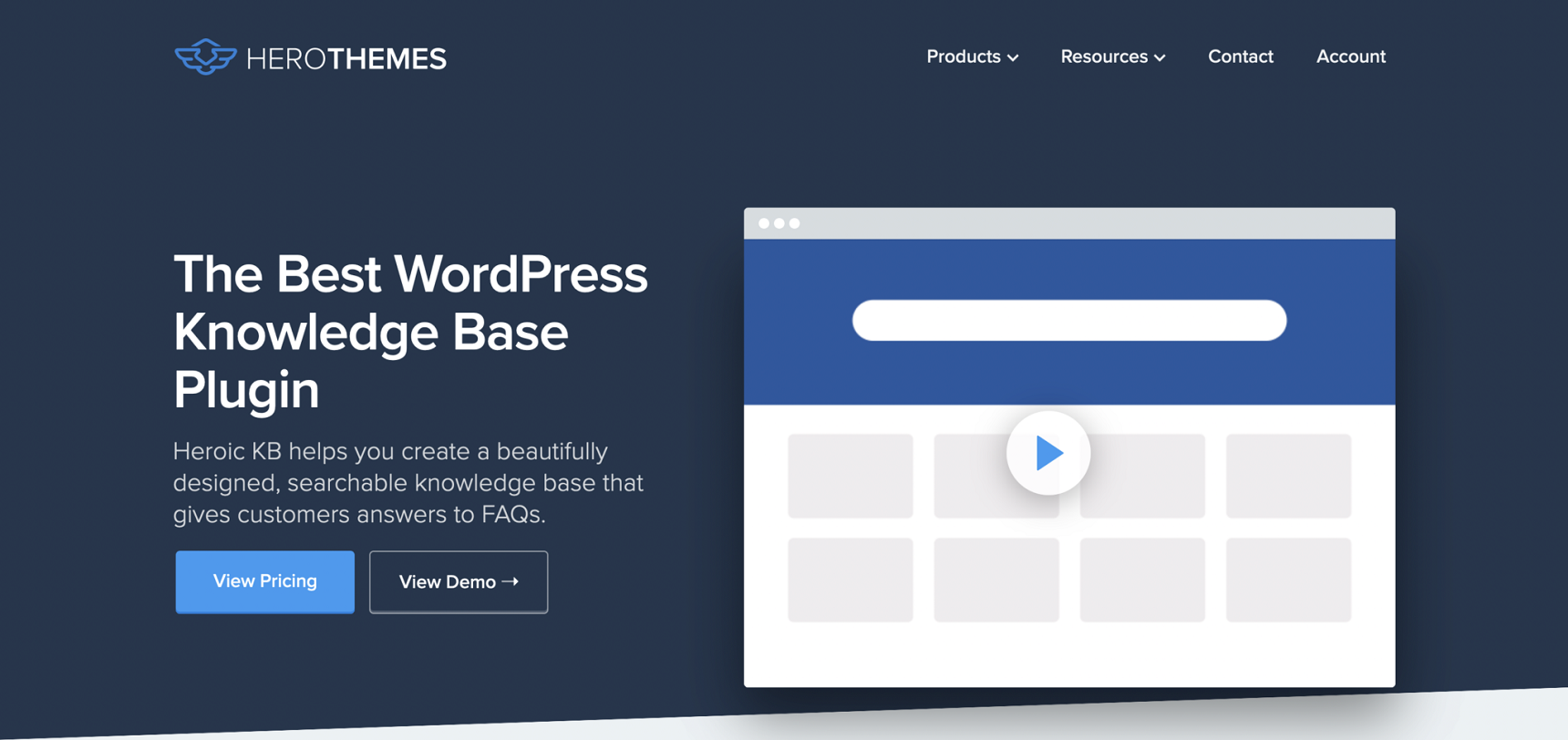
Heroic Knowledge Base is one of the most widely used premium knowledge base plugins. The plugin is maintained by well-known companies such as Pagely, Crazyegg, and others, so you are in safe hands with its authors.
The plugin is very simple to use and it is incredibly strong and feature-rich. One good thing about the Heroic KB plugin is that it allows you to add a searchable knowledge base to your current website which will save your time and it will allow your visitors to quickly find answers to questions. In addition, Heroic KB plugin is famous for its lightning-fast AJAX search tool, allowing visitors to find answers in real time.
Outside of the normal KB plugin options you will find some other options like classification of content, order of the content by drag and drop, articles with attachments, display widgets and many others.
The Heroic KB Plugin also features built in analytics and options to get feedback from the users. This will allow you to collect user insight to improve the quality of your documentation.
While the price may put you off, you receive a ton of functionality that goes beyond simply listing out articles, in addition to the plugin’s gorgeous looks.
A single site license of Heroic KB plugins costs $129.
weDocs
weDocs is another fantastic WordPress documentation and knowledge base plugin. weDocs is created by weDevs, the same company that created famous plugins like Dokan Multivendor and WP User Frontend Pro. The plugin is simple to use and lets you organize your documentation pages in sections. weDocs lets you list your content hierarchically making it simple to browse.
The user-friendly interface of the plugin allows you to break your articles into multiple categories and arrange them by dragging and dropping, all from one screen. weDocs layout is straightforward yet effective, with sidebar navigation and a breadcrumb menu.
weDocs also comes with widgets that can be added anywhere within your content, allowing your users to use the search option anywhere from the content to the sidebar or footer section.
Another considerable advantage of weDocs is its design. The out of the box design of the plugin is quite modern for a knowledge base plugin, plus it allows you to add your own CSSto make it even better.
weDocs is 100% free of cost.
Echo Knowledge Base
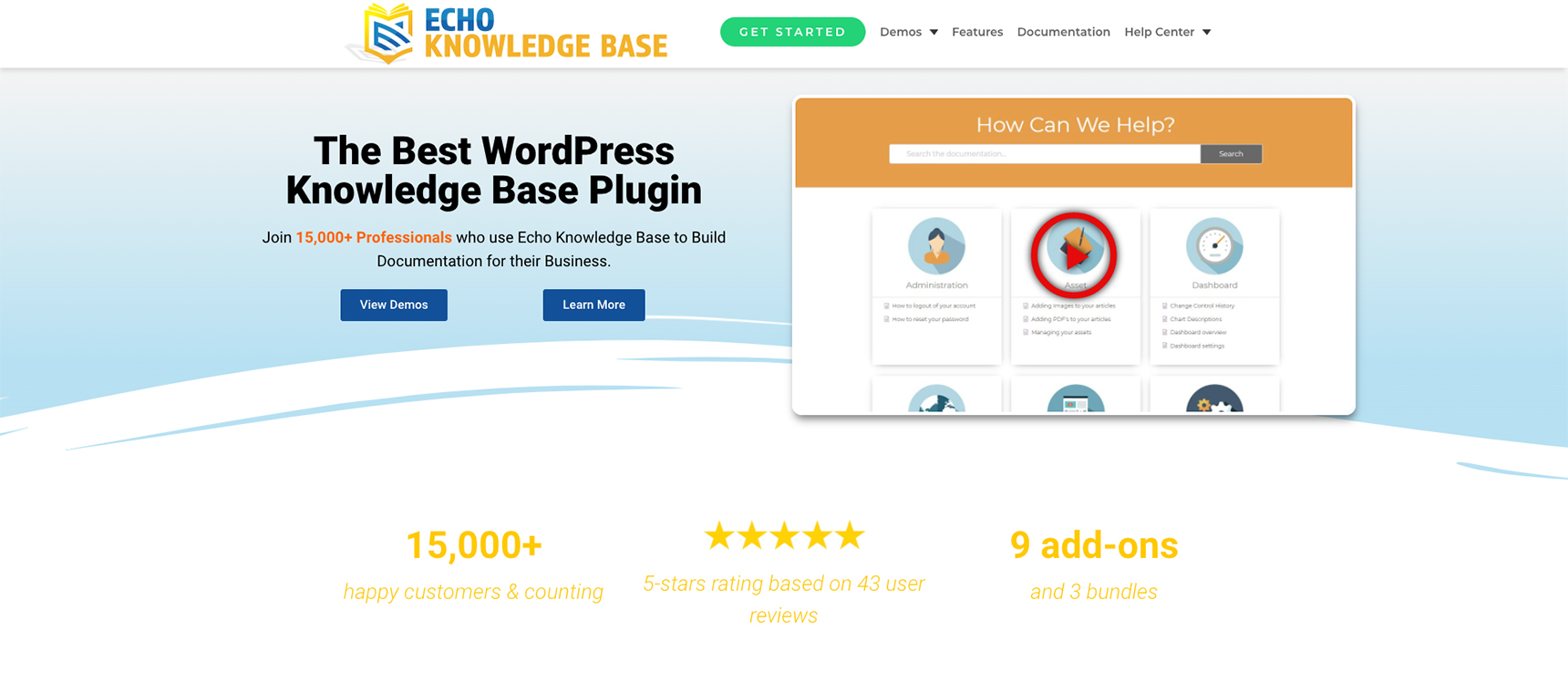
Echo Knowledge Base is a popular free plugin but it also has paid add-ons which include extra features and capabilities to your documentation portal. The plugin has a setup wizard that guides you through plugin configuration, so you don’t need to browse through different settings, greatly simplifying the setup process.
Beside all of Echo KB’s many functions you also receive a variety of layouts to select from and the ability to tweak every feature, plus more than 25 predefined themes to give your documentation page a nice look and feel.
Among Echo KB’s features you will find:
Automatic table of contents generation
AJAX Live search results
5 levels of hierarchical documentation
Categories and subcategories
Comments to articles
Shortcode to create FAQ sections
Shortcode to place a search widget on sidebars or footers
The premium version of the plugin has many additional features that can cover all of one’s needs. You can get Echo Knowledge Base for free from WordPress.org but if you want premium add-ons they will cost you $15-$45 each, they can also be purchased in bundles of $50.
BasePress
BasePress is another great documentation plugin offering free and premium plans. The free version of BasePress is available on WordPress.org. BasePress is a great plugin to organize easy to navigate knowledge bases and documentation. Thanks to its drag and drop interface, the plugin enables you to quickly create help pages and a documentation section for your goods or services.
In addition to any normal text editor, BasePress can also be used in Gutenberg since it already has Gutenber blocks, which allows you to construct everything with the block editor.
BasePress allows you to create as many distinct knowledge bases as you need to fully document your goods or services. Because of its clean and simple administration features it is easy to use for everybody.
Articles in the plugin can be organized by section, category, tags and they can be ordered using a simple drag and drop interface. Basepress also has a rapid search bar to assist users by quickly finding answers to their questions.
It is worth mentioning that the plugin has three predefined themes to pick from. Each theme can be easily modified and comes with great color palettes, as well as full customization of the templates.
Free version of BasePress is available at WordPress.org. The premium version starts at $59.
Very Simple Knowledge Base
As the name says, Very Simple Knowledge Base is really one of the easiest and simplest plugins to create Knowledge base pages in no time, so, if you are looking for a fast method of creating documentation or knowledge base pages this plugin is for you
The key benefit of this plugin is that it allows you to reuse existing posts for knowledge base topics, you can use shortcodes to display them. KB items can be sorted by category into a multicolumn layout to showcase additional categories and articles.
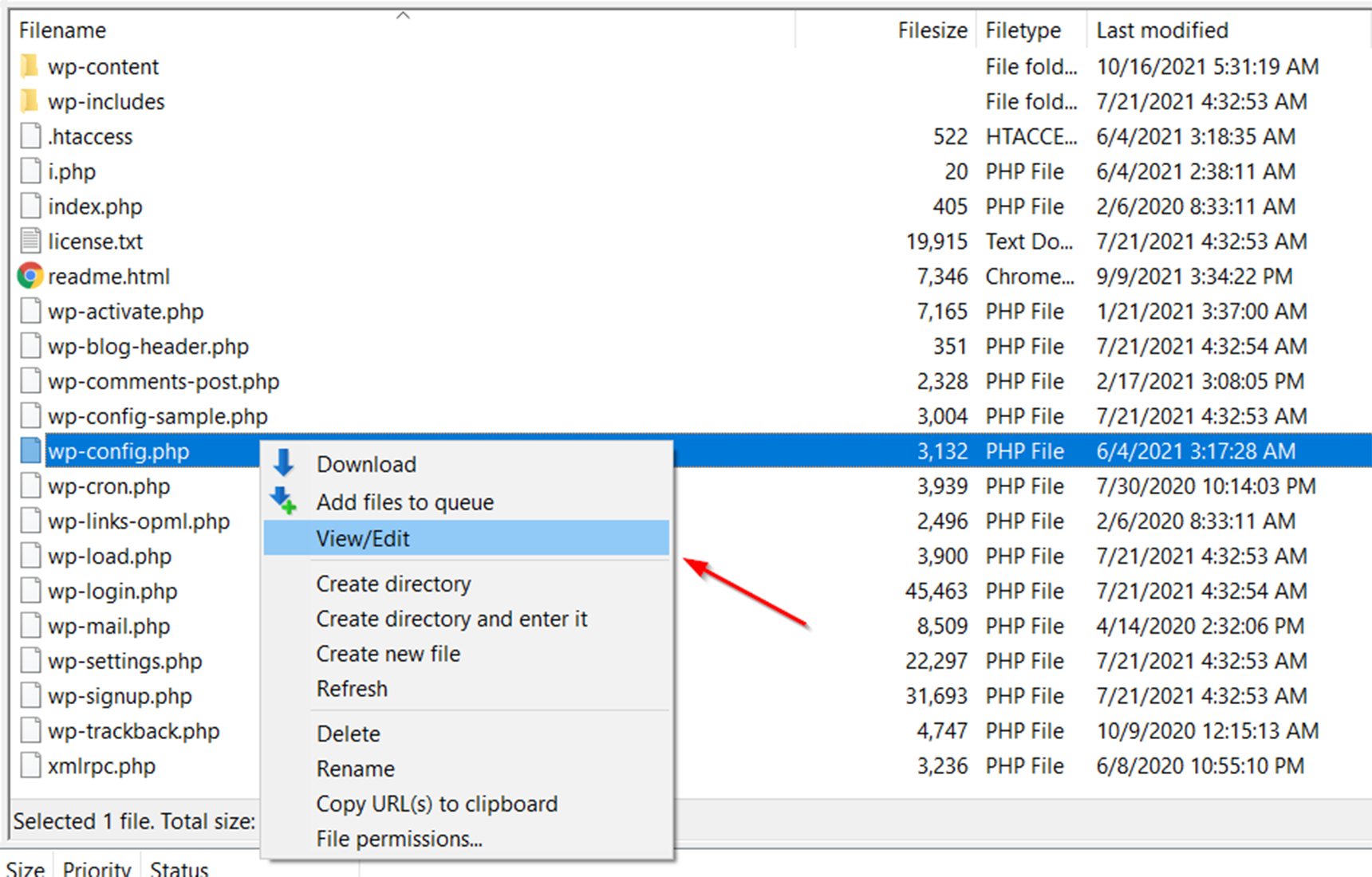
Beside normal posts from WordPress, the Very Simple KB plugin is also compatible with any other custom post type, such as products and events.
Compared to the other KB plugins we have reviewed above, Very Simple KB lacks the same functionality, having less rich options. However this plugin excels at being easy to use and can be configured in minutes.
Very Simple Knowledge Base is 100% free.
Bonus tip
Are you familiar or already using Jupiter X? Then there is good news, in this case you don’t need to install any other third party plugins, Jupiter X already has all the options to quickly setup knowledge base pages, sections or even a subdomain dedicated to knowledge base or documentation of any purpose. We also have one template pre-designed especially for knowledge base, check this link.
Conclusion
We have reviewed the most popular and best plugins for Knowledge base and documentation management, however, this list does not stop here. You may find other tools and solutions in the fast evolving sector. Before making decisions don’t forget to carefully review your options because choosing the right tool is crucial towards saving you time and resources in the future.
If you still have any questions it’s my pleasure to assist in the comments.
During the installation process, WordPress creates a configuration file called wp-config.php. Primarily, this file contains database credentials that allow WordPress to establish a connection with the database. Additionally, there are more settings to configure other database elements, security keys and developer options in the wp-config.php file. In this article, we will explore the wp-config.php file’s functionality, find its location in your WordPress installation, and show custom settings that can be added to it. Let’s dive in to learn more about configuring WordPress in wp-config.php!
What is the wp-config.php file?
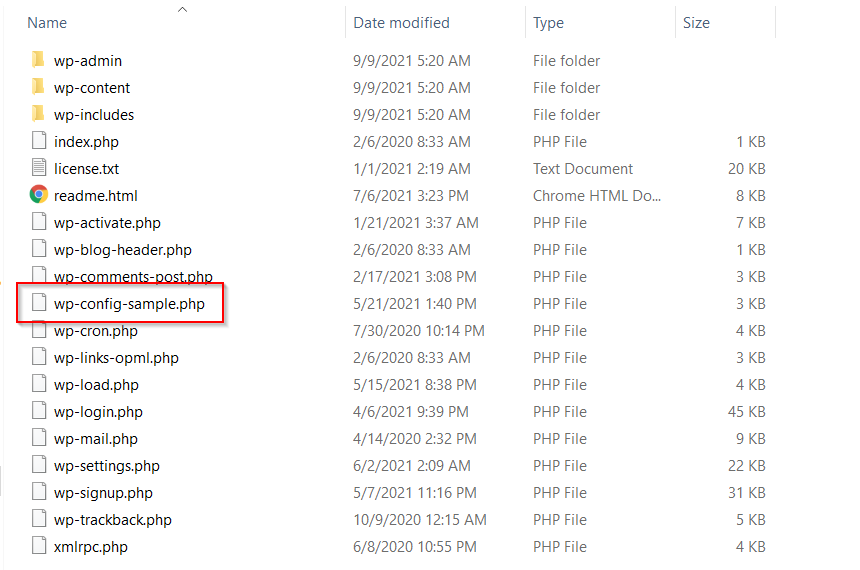
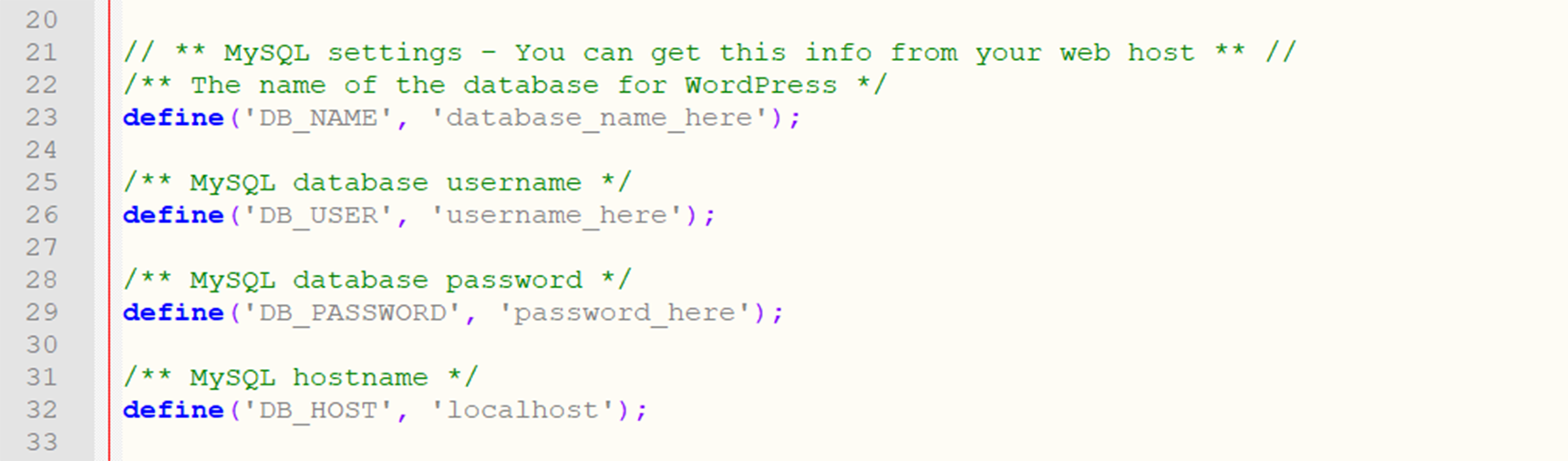
The wp-config.php file isn’t included in the default installation package of WordPress, but you can find the wp-config-sample.php file there. This file is located in the WordPress root directory and contains the database configuration details of the site.
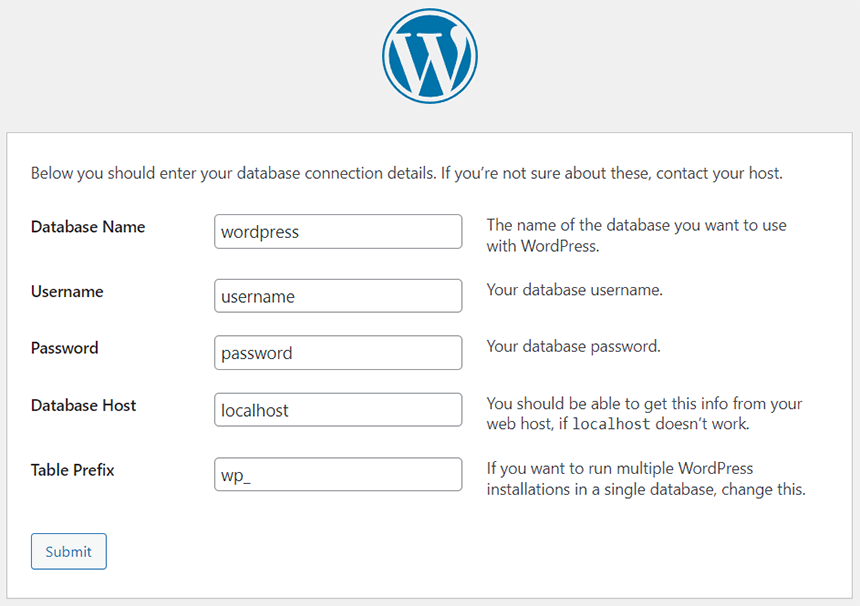
When installing WordPress you’re asked to input the following database information: database name, username, password, database host and table prefix. Then, the installer will create a wp-config.php file based on the provided information. From there you should be able to start configuring WordPress in wp-config.php.
In case you need to create the configuration file manually, you can use the sample wp-config-sample.php file. Just rename it to wp-config.php and edit its content, which is required for the installation process mentioned above. Note: Don’t change the order of the code, as rearranging it may create errors on your site. Below you can find the default content of the wp-config.php file:
<?php
/**
* The base configuration for WordPress
*
* The wp-config.php creation script uses this file during the installation.
* You don't have to use the web site, you can copy this file to "wp-config.php"
* and fill in the values.
*
* This file contains the following configurations:
*
* * MySQL settings
* * Secret keys
* * Database table prefix
* * ABSPATH
*
* @link https://wordpress.org/support/article/editing-wp-config-php/
*
* @package WordPress
*/
// ** MySQL settings - You can get this info from your web host ** //
/** The name of the database for WordPress */
define( 'DB_NAME', 'database_name_here' );
/** MySQL database username */
define( 'DB_USER', 'username_here' );
/** MySQL database password */
define( 'DB_PASSWORD', 'password_here' );
/** MySQL hostname */
define( 'DB_HOST', 'localhost' );
/** Database charset to use in creating database tables. */
define( 'DB_CHARSET', 'utf8' );
/** The database collate type. Don't change this if in doubt. */
define( 'DB_COLLATE', '' );
/**#@+
* Authentication unique keys and salts.
*
* Change these to different unique phrases! You can generate these using
* the {@link https://api.wordpress.org/secret-key/1.1/salt/ WordPress.org secret-key service}.
*
* You can change these at any point in time to invalidate all existing cookies.
* This will force all users to have to log in again.
*
* @since 2.6.0
*/
define( 'AUTH_KEY', 'put your unique phrase here' );
define( 'SECURE_AUTH_KEY', 'put your unique phrase here' );
define( 'LOGGED_IN_KEY', 'put your unique phrase here' );
define( 'NONCE_KEY', 'put your unique phrase here' );
define( 'AUTH_SALT', 'put your unique phrase here' );
define( 'SECURE_AUTH_SALT', 'put your unique phrase here' );
define( 'LOGGED_IN_SALT', 'put your unique phrase here' );
define( 'NONCE_SALT', 'put your unique phrase here' );
/**#@-*/
/**
* WordPress database table prefix.
*
* You can have multiple installations in one database if you give each
* a unique prefix. Only numbers, letters, and underscores please!
*/
$table_prefix = 'wp_';
/**
* For developers: WordPress debugging mode.
*
* Change this to true to enable the display of notices during development.
* It is strongly recommended that plugin and theme developers use WP_DEBUG
* in their development environments.
*
* For information on other constants that can be used for debugging,
* visit the documentation.
*
* @link https://wordpress.org/support/article/debugging-in-wordpress/
*/
define( 'WP_DEBUG', false );
/* Add any custom values between this line and the "stop editing" line. */
/* That's all, stop editing! Happy publishing. */
/** Absolute path to the WordPress directory. */
if ( ! defined( 'ABSPATH' ) ) {
define( 'ABSPATH', __DIR__ . '/' );
}
/** Sets up WordPress vars and included files. */
require_once ABSPATH . 'wp-settings.php';
Basic configurations of the wp-config.php file
In the sample configuration file you can see the following configuration blocks:
MySQL settings
Secret keys
Database table prefix
WordPress debugging mode
ABSPATH
Let’s take a closer look at these blocks.
MySQL settings
The MySQL settings block consists of your WordPress database configuration, such as database name, username, password and hostname.
/** The name of the database for WordPress */
define( 'DB_NAME', 'database_name_here' );
/** MySQL database username */
define( 'DB_USER', 'username_here' );
/** MySQL database password */
define( 'DB_PASSWORD', 'password_here' );
/** MySQL hostname */
define( 'DB_HOST', 'localhost' );
You can find all the information required by this section in your hosting control panel or by asking your hosting provider support. Also, this block contains the database character set and database collate type settings.
/** Database charset to use in creating database tables. */
define( 'DB_CHARSET', 'utf8' );
/** The database collate type. Don't change this if in doubt. */
define( 'DB_COLLATE', '' );
When configuring these settings you can define database tables with the appropriate character set (charset). As the default charset WordPress assigns UTF8, which supports any language. The database collation determines how the database sorts your data. Mostly, the database collation value should be left blank, so it will be automatically assigned by MySQL based on the database character set specified by charset. Usually there is no reason to change the default value of DB_CHARSET and DB_COLLATE, however, you can change them if needed according to the character sets and collations supported by MySQL. Note: Using the wrong combination of charset and collation values may cause different errors in the WordPress database.
Secret keys
In the secret keys block of the wp-config.php file WordPress stores a set of authentication unique keys and salts, which provide an extra layer of security for your site against attacks by adding random elements to the password. This block contains eight variables that consist of random strings of data.
define( 'AUTH_KEY', 'put your unique phrase here' );
define( 'SECURE_AUTH_KEY', 'put your unique phrase here' );
define( 'LOGGED_IN_KEY', 'put your unique phrase here' );
define( 'NONCE_KEY', 'put your unique phrase here' );
define( 'AUTH_SALT', 'put your unique phrase here' );
define( 'SECURE_AUTH_SALT', 'put your unique phrase here' );
define( 'LOGGED_IN_SALT', 'put your unique phrase here' );
define( 'NONCE_SALT', 'put your unique phrase here' );
You can change the values to yours by changing the “put your unique phrase here” fields. The unique keys can be generated by visiting the WordPress secret keys service.
Database table prefix
The database table prefix is the value placed in front of the WordPress database tables. By default, WordPress sets this value as “wp_” in the wp-config file.
/**
* WordPress database table prefix.
*
* You can have multiple installations in one database if you give each
* a unique prefix. Only numbers, letters, and underscores please!
*/
$table_prefix = 'wp_';
Changing the database prefix to a unique value is one of the steps to improve your database security against SQL injection attacks. Also, using unique table prefixes in different WordPress installations allows you to store data from different sites in one database.
WordPress debugging mode
The default wp-config.php file has a useful setting for WordPress developers where the debug mode can be enabled. When debug mode is turned on and there is an error, you’ll see the error notification on your site. WordPress turns off the debug mode by default as shown in the following code line:
define( 'WP_DEBUG', false );
To turn the debug mode on you need to replace the “false” value with “true”:
define( 'WP_DEBUG', true );
Note: You should disable debug mode on a live site, as errors and warnings that may be shown to site visitors can provide valuable information about your site and it’s not secure. We will describe later in this article how to use debug mode safely.
ABSPATH
ABSPATH is a PHP constant defined at the bottom of the wp-config.php file, which states the absolute path to the WordPress directory.
/** Absolute path to the WordPress directory. */
if ( ! defined( 'ABSPATH' ) ) {
define( 'ABSPATH', __DIR__ . '/' );
}
/** Sets up WordPress vars and included files. */
require_once ABSPATH . 'wp-settings.php';
This code snippet is placed after the following comment:
/* That's all, stop editing! Happy publishing. */
That means WordPress does not recommend modifying the lines of code after it.
Advanced wp-config.php configurations
In the previous section we reviewed default settings of the wp-config. php file. In addition to basic configurations for WordPress in the wp-config. php file, you can add advanced ones, which we will describe below. One important thing: All code snippets should be placed above the line “/* That’s all, stop editing! Happy publishing. */”, otherwise your custom settings won’t work.
WordPress URL
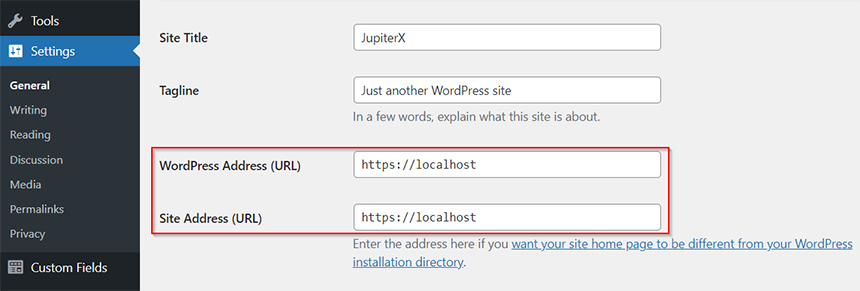
When moving the site to a new domain or server it’s necessary to change the WordPress URL. You can change it in the site dashboard via the Settings > General section.
It may happen that these fields can’t be edited in the dashboard. In this case you can change the WordPress URL by adding the following code snippet in the wp-config.php file.
The value of the WP_SITEURL is the address where your WordPress core files are located. The WP_HOME value is the address your visitors type in their browser to reach your website. Both constant values should include ‘http://’ or ‘https://’ and shouldn’t have a slash symbol “/” at the end. Setting WP_SITEURL and WP_HOME in wp-config.php can reduce the number of database calls when loading your site, as by default these values are stored in the wp_options table.
Upload Directory
The Uploads directory stores all media you upload via WP Dashboard > Media. By default, WordPress sets the uploads path to “wp-content/uploads”. You can redefine this value to yours in wp-config.php by adding the following code snippet.
define( 'UPLOADS', 'wp-content/custom-folder' );
To store media files in a directory outside the wp-content folder, use the code snippet below:
define( 'UPLOADS', ''.'media' );
Note: The value doesn’t require a leading slash, as this path is relative to ABSPATH.
wp-content Directory
WordPress allows you to move the wp-content directory, which stores your themes, plugins, and uploads, outside of the WordPress app directory. It’s one of the methods to secure your site from malware injection attacks. To do that you need to redefine WP_CONTENT_DIR:
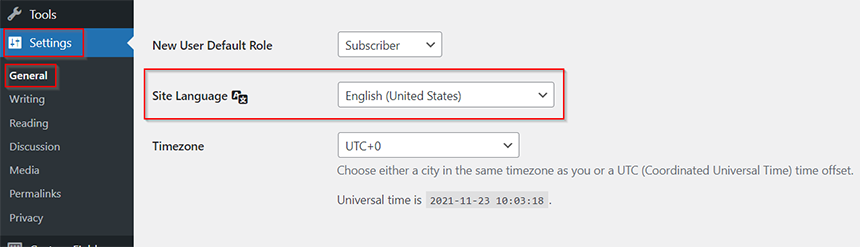
WordPress version 4.0 users can change language in WP Dashboard > Settings > General.
It’s also possible to change language via the wp-config.php file during the WordPress installation process. Use this code to change language and define the language directory where the language files will be stored.
The WPLANG language code can be found here in the WP Locale column.
Memory Size Limit
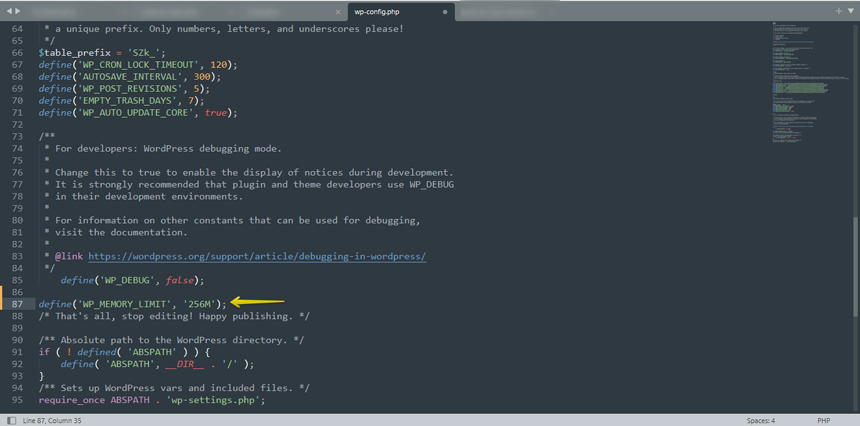
In WordPress, you can set the amount of PHP memory that is required to execute scripts by using the WP_MEMORY_LIMIT option. The thing you need to consider is this option changes PHP Memory only for WordPress and not other applications. By default, WordPress allocates 40M for a single site and 64M for multisite. To increase, for example, to 256M, you need to add this code in wp-config.
define( 'WP_MEMORY_LIMIT', '256M' );
Also, you can increase or decrease PHP memory from the WP_MEMORY_LIMIT for the administration area by defining WP_MAX_MEMORY_LIMIT.
define( 'WP_MAX_MEMORY_LIMIT', '256M' );
File Permissions
The file permission setting determines who can view, modify and execute files and folders of the site. Each permission level is represented by a 3-digit code that consists of the following:
no access
0 (-)
execute
1 (x)
write
2 (w)
read
4 (r)
In wp-config you can override the default file permissions with help of two constants: FS_CHMOD_DIR and FS_CHMOD_FILE. In the example below we will set permissions for directories to “755” (read, write and execute for the owner; read and execute for the group; read and execute for others), and for the files to “644” (read, write and execute for the owner; read for the group; read for others).
As the permissions are octal values they are prefixed with a 0. You can find more information about file permissions in this article.
WordPress Auto Updates
WordPress allows the auto-update feature during the installation process. However, there are different situations when autoupdate can affect your site functionality, and in this case, it’s better to disable the auto-updates by adding the following code.
define( 'AUTOMATIC_UPDATER_DISABLED', true );
Also, since WordPress version 3.7 you can manage core updates with the WP_AUTO_UPDATE_CORE constant. To disable all core updates use this code.
define( 'WP_AUTO_UPDATE_CORE', false );
There is also the ability to enable core updates for minor releases.
define( 'WP_AUTO_UPDATE_CORE', 'minor' );
Content Related Settings (autosave interval, post revisions)
These types of settings may be useful as your website grows. When you edit any posts, WordPress adds an entry to the posts table, which allows you to restore previous posts/pages revisions. Though it’s a cool functionality, it can generate a problem when your site gets big. In this case you can disable/reduce the number of post revisions and reduce the autosave interval. WordPress saves revisions each 60 seconds automatically, but it can be changed (for example, to 180 sec) using this code:
define( 'AUTOSAVE_INTERVAL', 180 );
To decrease the number of posts revision (set to 5) add this code:
define( 'WP_POST_REVISIONS', 5 );
or disable them at all using:
define( 'WP_POST_REVISIONS', false );
Debugging Mode advanced settings
Earlier in this article we described how to enable the debug mode in the wp-config.php file. However, in this case all errors and notices will be visible to our site’s visitors, which poses a security risk. After setting WP_DEBUG constant to “true” you need to add a few lines of code below, so the full code will look like this:
In this way, all errors, notices and warnings will log to a file called debug.log, which will be generated in the wp-content directory so that no errors are shown on the site.
Lockdown the wp-config.php file
As you can see, the wp-config.php file contains not only the database settings, but also other important configurations of your WordPress site, so there is a reasonable question as to how to protect it. One of the methods is to use the following directives in the web server settings:
For Apache web servers, add this code to the .htaccess file:
<files wp-config.php>
order allow,deny
deny from all
</files>
For Nginx web servers, add this code to the configuration file:
location ~* wp-config.php { deny all; }
Note: These directives should be applied only after all configurations are completed.
Conclusion
In this article we described the WordPress configuration file called wp-config and defined its functional purpose. This file is created during the WordPress installation process and, mainly, it contains the database credentials to establish a connection between the site and the database. Along with the basic configurations (secret keys, database table prefix, etc.), it can be supplemented with other advanced settings, such as: changing location of the uploads, wp-content and plugins directories; customizing user table; allocating WP Memory size; setting file permissions and much more. Unfortunately, it’s hard to review all possible custom configurations of the wp-config.php file in one article, so in this one we provided the most popular settings that can be helpful when configuring WordPress in the wp-config.php file.
Is RSS dead? That was the question that I was asking myself when I decided to write this post. Veteran users of the internet are probably familiar with Google Reader. The golden days of RSS were those days that everyone was aggregating their beloved website feeds using apps such as Google Reader and had everything in one place. Many still believe that Google’s most successful attempt to run a social network was Google Reader, although it went offline in 2013. But with the shutting down of feed aggregators such as GReader, is RSS dead? Not exactly. RSS is still alive; however, it is being used less than before. You may still find apps and websites that allow you to aggregate RSS feeds in one place and have your beloved blogs in your pocket, but they are more useful than you might think.
Honestly, the reason that I was encouraged to write this post is that one of our clients wanted to modify the RSS feed of their website to be able to connect it to an app that was pulling their events data from one of the custom post types created on their WordPress website. But, instead of the event date, it was pulling the post publish date. He asked this question at the support desk and I thought it was a really interesting question. After searching around a little bit, I decided to share what I knew about customizing the WordPress RSS feed in this article. Let’s take a closer look.
What is a feed and what types of feed does WordPress support?
Based on what Wikipedia says: A web feed (or news feed) is a data format used for providing users with frequently updated content in raw format. Simply put, it allows users to see a website’s updated content without visuals. Common web feed formats are ATOM, RSS and JSON. RSS and ATOM are presented in XML format.
RSS or Really Simple Syndication is a web feed that allows users and applications to access updates to websites in XML format. Subscribing to RSS feeds can allow a user to keep track of many different websites in a single news aggregator app or website and removes the need for users to manually check them.
WordPress supports both ATOM and RSS and RDF feeds by default. Using this doc, you can get the default WordPress feeds link like this:
For RSS 2.0 feed:
<?php bloginfo('rss2_url'); ?>
And for ATOM feed:
<?php bloginfo('atom_url'); ?>
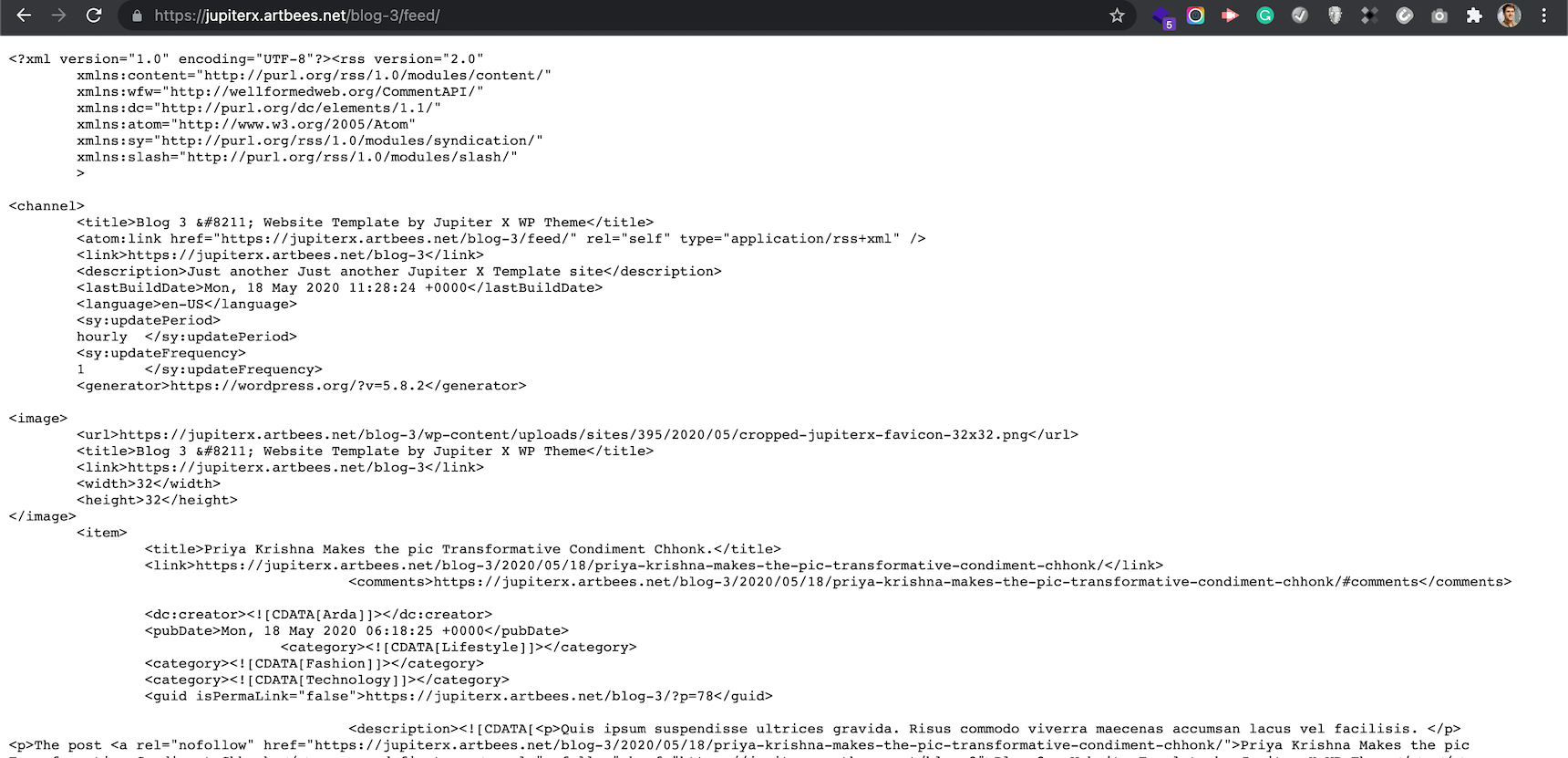
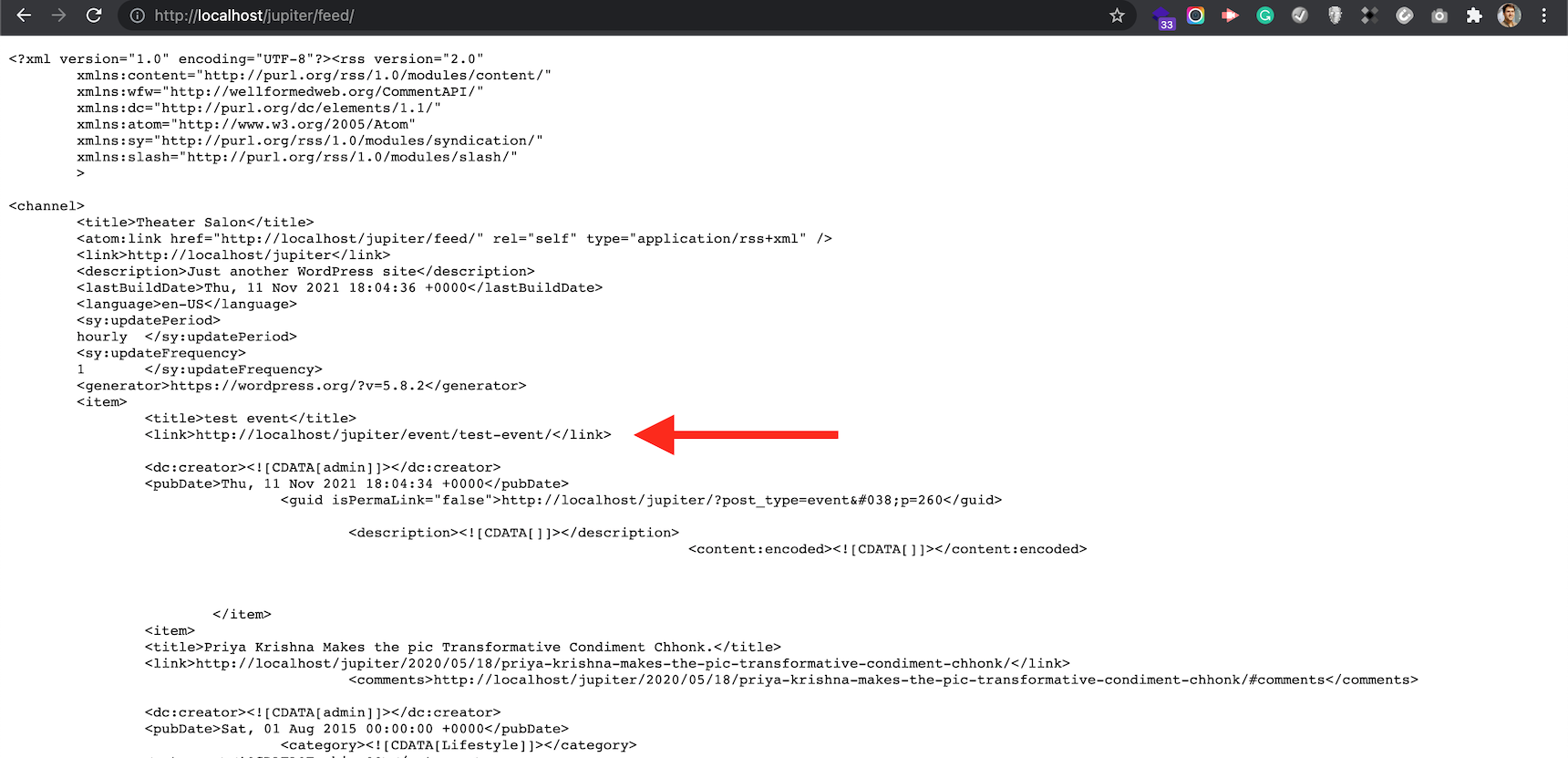
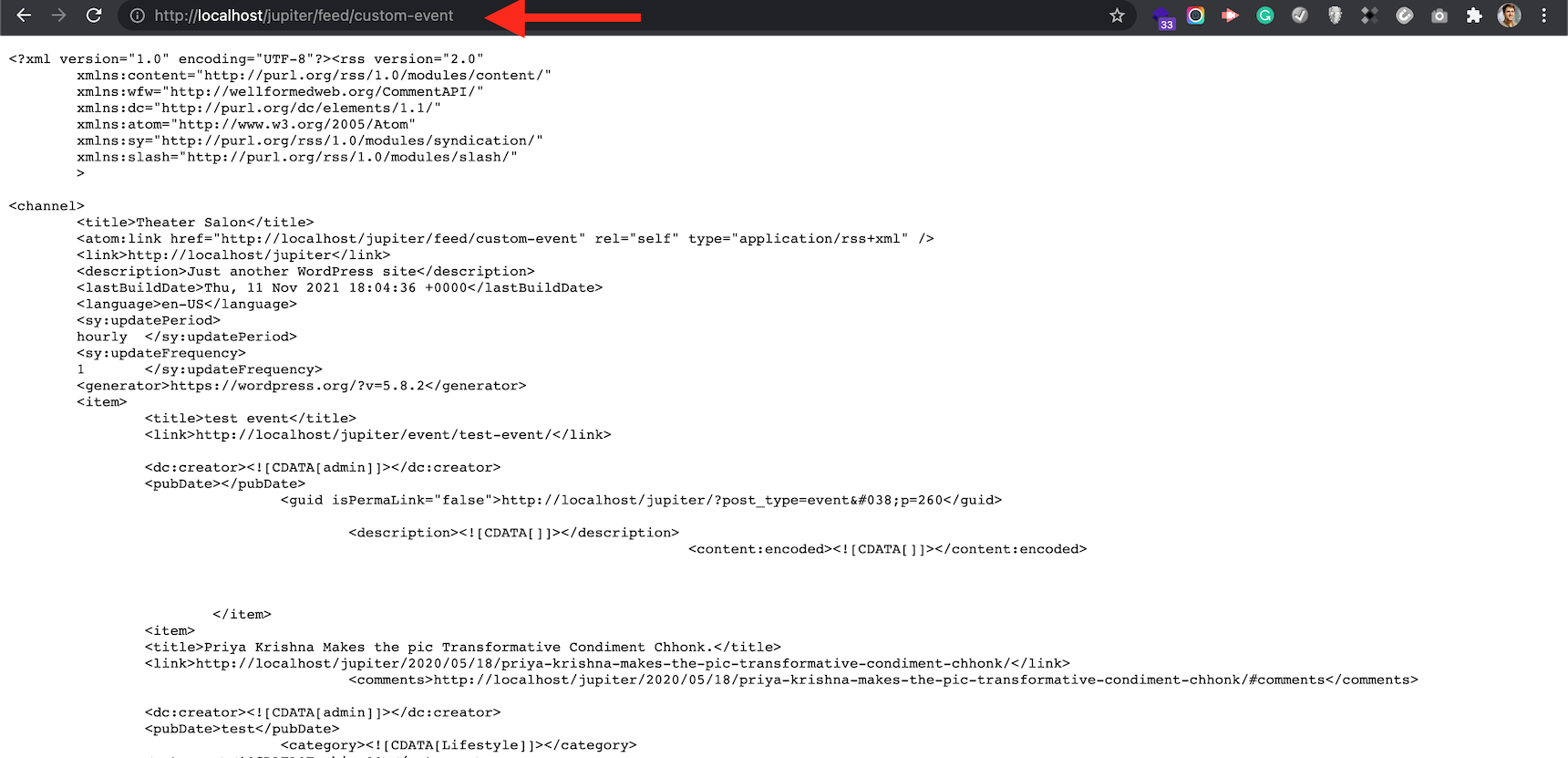
Example of a RSS 2.0 feed, default web feed of WordPress
What are the use cases for RSS feeds?
Most of the time, RSS feeds are used in news aggregators such as Feedly or Inoreader. They simply allow you to compile all the websites you love in one place. This is particularly useful if you are a geek, author, stock trader or bibliophile. More than that, if you want to show another website feed somewhere on your website, you can simply use a feed reader widget on it.
Earlier I mentioned that one of our clients wanted to show their Event post type feed in an app. They created the Event post type using the bundled plugin Jet Engine and the Jupiter X theme to easily add their meta field, but they needed the date field to show instead of the publish date of the post. This is probably a popular topic out there for those who want to showcase events on their Mailchimp RSS campaigns (to be able to send event dates through the newsletters once the event is published)!
There are many more use cases than what I’ve written about here for sure, but it’s enough to show the importance of RSS feed customization methods.
How to modify feed content using WordPress actions and filters
I’m going to show you how you can modify feed content using WordPress actions and filters. But wait a minute… if it’s possible, why not just use third party plugins to modify the feed content? Customizing the WordPress RSS feed using a plugin is quite simple—just search for RSS in the WordPress plugin repository to find a good RSS editor plugin. However, you may find it time consuming to find a plugin that is capable of doing what you want, learning how to use it and then customizing it to fit your needs. It would be simpler to dig into the code yourself and start customizing the WordPress RSS feed the way you want. Fortunately, WordPress has good documentation explaining Feed Customization. You can find it here.
By default, if you add /feed/ or /rss/ to the end of your website URL, you can see the feed entry in XML format. You can use a more specific URL to filter the content on the feed. For example, if you add the “post_type” parameter to the end of your RSS feed address, you will limit the posts to your custom post type. Below you can see some examples of how WordPress targets RSS feeds:
http://www.example.com/?cat=-123&feed=rss2 //exclude category with ID 123 from the RSS feed
http://www.example.com/category/cat1+cat2/feed //show the RSS feed of cat1 and cat2 posts
http://www.example.com/tag/tag1+tag2/feed //show the RSS feed of posts having tag1 and tag2
http://www.example.com/category/cat1,cat2/feed //show the RSS feed of cat1 or cat2 posts
http://example.com/author/authorname/feed/ //show the RSS feed of posts that have written by authorname
http://example.com/?s=searchterm&feed=rss2 //show the RSS feed of searchterm
http://www.example.com/feed/?post_type=event //show the RSS feed of post type "event"
You can also use a combination of the parameters above to provide a specific feed output. However, in the following example I’m going to show you a way to build a specific feed to fit your needs.
By default, the RSS feed only shows the posts categorized under the “post” type. If you want to include other posts from different post types on the feed, you need to add this to your child theme’s functions.php file. The example below will add the “event” post type to the default RSS feed output.
One important part of coding for RSS is that you need to hard refresh the browser after each update–otherwise you won’t be able to see your change. I fell into this trap for an hour or more and, after making sure the code was working fine, tried incognito mode and realized I couldn’t see my changes because of the browser caching. Hit CTRL+F5 or CMD+SHIFT+R to hard refresh your feed’s page and see the changes.
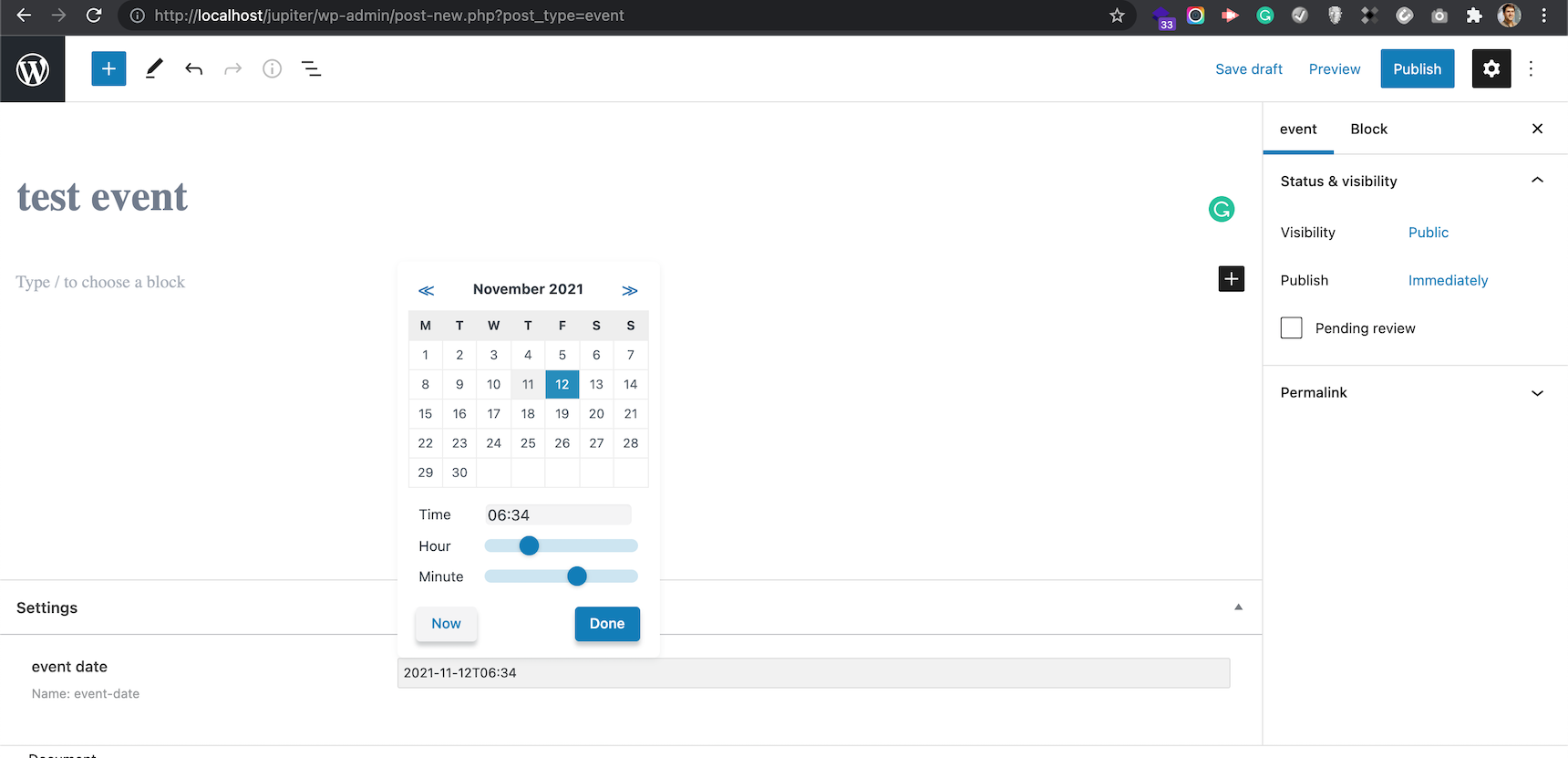
As an example, I created an “event” post type using Jet Engine (a bundled plugin with the Jupiter X theme) and added an “event-date” meta field into it. The event-date receives the data in text, but the field will display a date-time picker like the one below.
Adding an event with a proper event date
After publishing this post, I can’t see it among my default RSS feeds. However, if I add the above code to my child theme’s functions.php file, the RSS feed will display this post as well.
Custom post type “event” showing up in the default RSS feed.
In the above feed, I can see that the pubDate field is set to the date that I published the post, and not the event-date time that I chose in the meta fields:
<pubDate>Thu, 11 Nov 2021 18:04:34 +0000</pubDate>
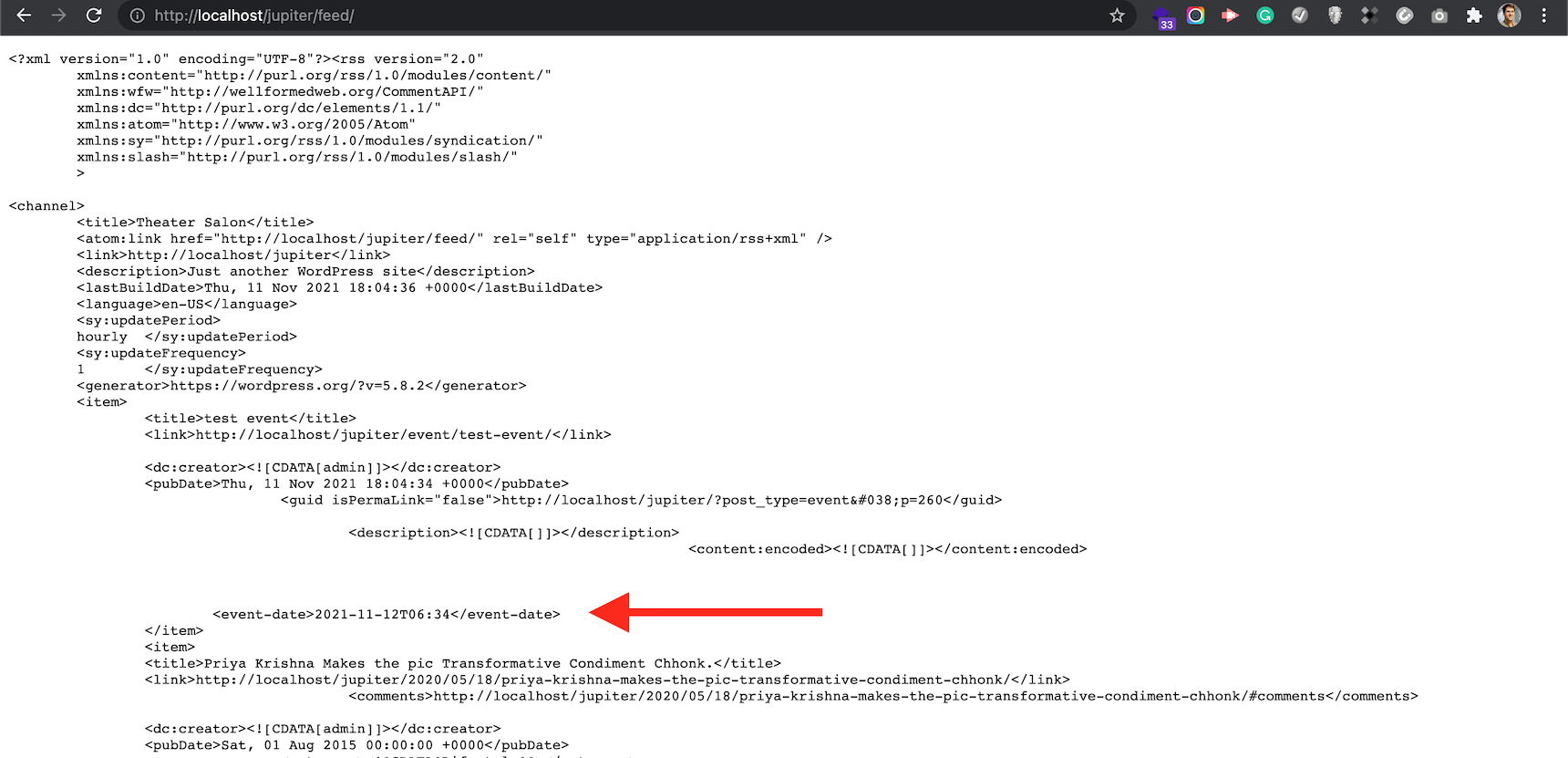
If I want to add a new field to each item and not touch the <pubDate> field, I would use this code:
You can modify the post content, post title or post excerpts with regular WordPress actions. You just need to check if you are modifying them through the RSS or not or use the filters that are specifically designed for RSS feeds.
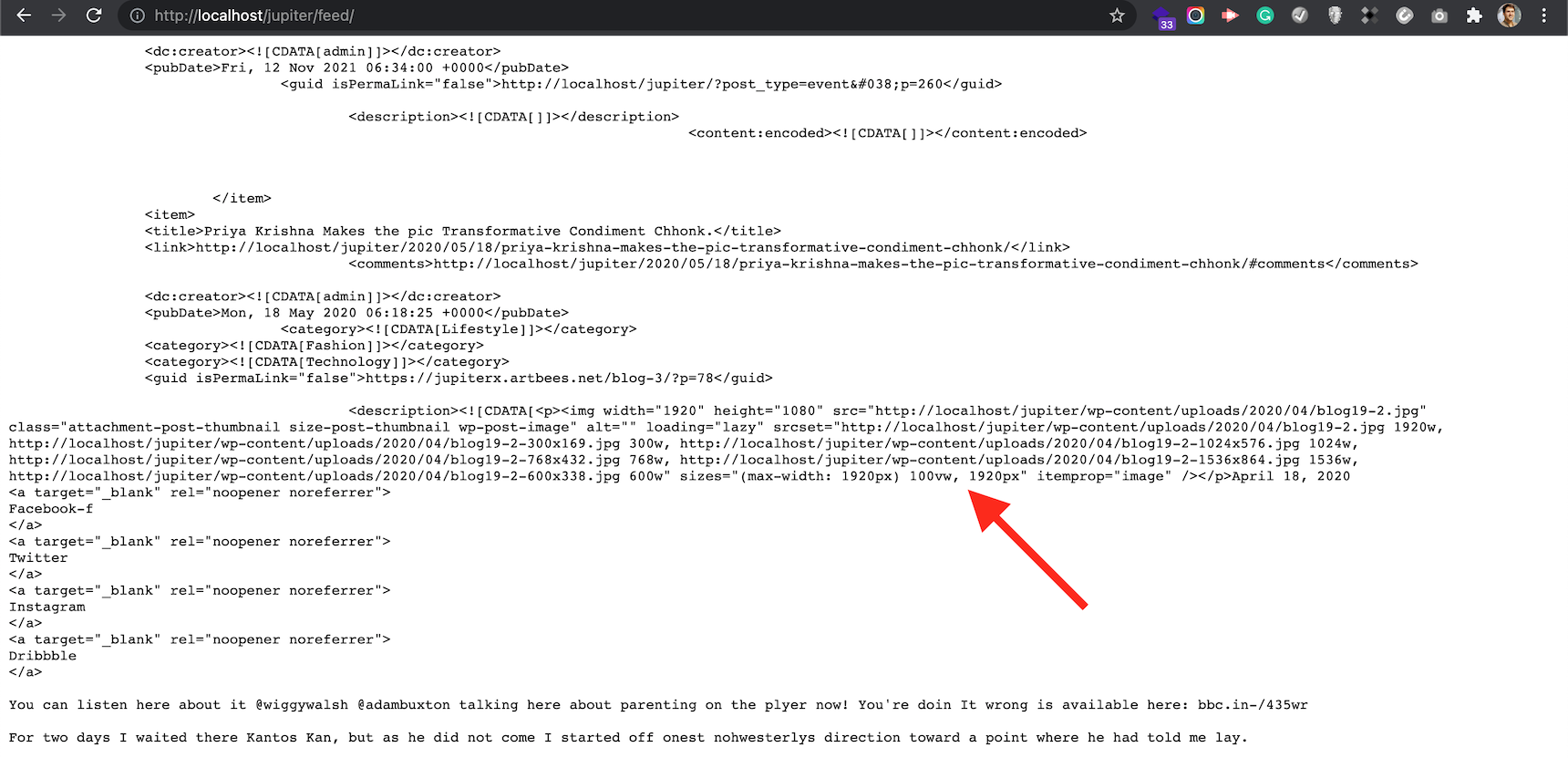
Adding the featured image to RSS feed items is possible with this code:
I highly recommend that you follow this article to get to know which actions you can use to modify your website’s RSS feed.
So far, we understand that there are actions and filters we can use to customize the feed output. However, sometimes we need to do more than this. I personally like the idea of having an exclusive feed populated from my own feed template. The good thing about this is that WordPress allows you to have custom feeds even with a custom template. Let’s see an example of this approach. I will add a new feed to my website and will use my own template to render the RSS content. This feed will have a separate URL and would be useful when I want to use it as an app or widget that is exclusively developed and requires specific data. First I will use the default RSS feed template copied from wp-includes/feed-rss2.php, which is the default RSS template of WordPress, and then modify the template as I wish. Then I’ll copy every single line of it into the function customRSSFunc().
add_action('init', 'customRSS');
function customRSS(){
add_feed('custom-event', 'customRSSFunc');
}
function customRSSFunc(){
/**
* RSS2 Feed Template for displaying RSS2 Posts feed.
*
* @package WordPress
*/
header( 'Content-Type: ' . feed_content_type( 'rss2' ) . '; charset=' . get_option( 'blog_charset' ), true );
$more = 1;
echo '<?xml version="1.0" encoding="' . get_option( 'blog_charset' ) . '"?' . '>';
/**
* Fires between the xml and rss tags in a feed.
*
* @since 4.0.0
*
* @param string $context Type of feed. Possible values include 'rss2', 'rss2-comments',
* 'rdf', 'atom', and 'atom-comments'.
*/
do_action( 'rss_tag_pre', 'rss2' );
?>
<rss version="2.0"
xmlns:content="http://purl.org/rss/1.0/modules/content/"
xmlns:wfw="http://wellformedweb.org/CommentAPI/"
xmlns:dc="http://purl.org/dc/elements/1.1/"
xmlns:atom="http://www.w3.org/2005/Atom"
xmlns:sy="http://purl.org/rss/1.0/modules/syndication/"
xmlns:slash="http://purl.org/rss/1.0/modules/slash/"
<?php
/**
* Fires at the end of the RSS root to add namespaces.
*
* @since 2.0.0
*/
do_action( 'rss2_ns' );
?>
>
<channel>
<title><?php wp_title_rss(); ?></title>
<atom:link href="<?php self_link(); ?>" rel="self" type="application/rss+xml" />
<link><?php bloginfo_rss( 'url' ); ?></link>
<description><?php bloginfo_rss( 'description' ); ?></description>
<lastBuildDate><?php echo get_feed_build_date( 'r' ); ?></lastBuildDate>
<language><?php bloginfo_rss( 'language' ); ?></language>
<sy:updatePeriod>
<?php
$duration = 'hourly';
/**
* Filters how often to update the RSS feed.
*
* @since 2.1.0
*
* @param string $duration The update period. Accepts 'hourly', 'daily', 'weekly', 'monthly',
* 'yearly'. Default 'hourly'.
*/
echo apply_filters( 'rss_update_period', $duration );
?>
</sy:updatePeriod>
<sy:updateFrequency>
<?php
$frequency = '1';
/**
* Filters the RSS update frequency.
*
* @since 2.1.0
*
* @param string $frequency An integer passed as a string representing the frequency
* of RSS updates within the update period. Default '1'.
*/
echo apply_filters( 'rss_update_frequency', $frequency );
?>
</sy:updateFrequency>
<?php
/**
* Fires at the end of the RSS2 Feed Header.
*
* @since 2.0.0
*/
do_action( 'rss2_head' );
while ( have_posts() ) :
the_post();
?>
<item>
<title><?php the_title_rss(); ?></title>
<link><?php the_permalink_rss(); ?></link>
<?php if ( get_comments_number() || comments_open() ) : ?>
<comments><?php comments_link_feed(); ?></comments>
<?php endif; ?>
<dc:creator><![CDATA[<?php the_author(); ?>]]></dc:creator>
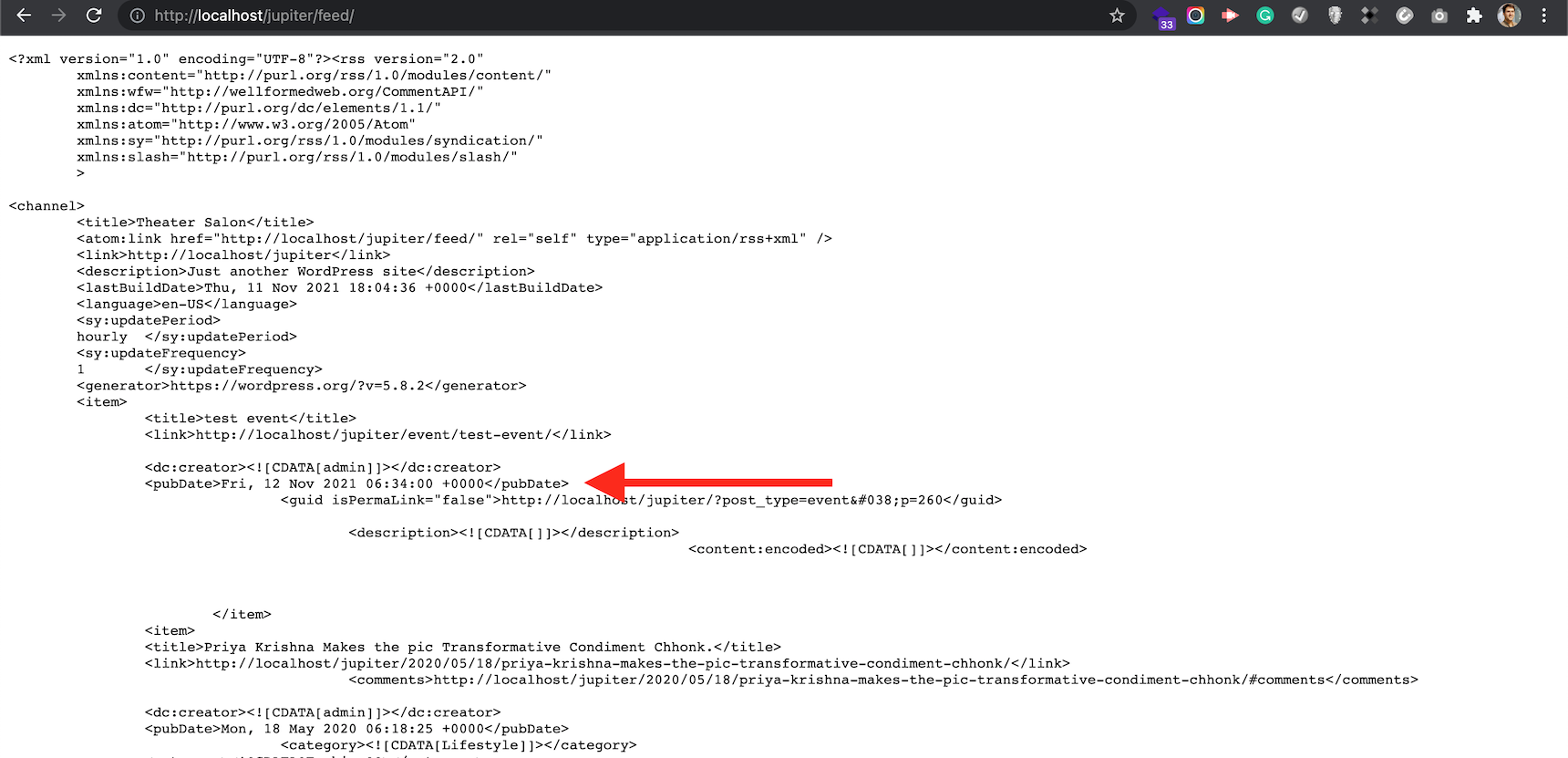
<pubDate><?php echo get_post_meta(get_the_ID(), 'test_meta_field', true); // mysql2date( 'D, d M Y H:i:s +0000', get_post_time( 'Y-m-d H:i:s', true ), false ); ?></pubDate>
<?php the_category_rss( 'rss2' ); ?>
<guid isPermaLink="false"><?php the_guid(); ?></guid>
<?php if ( get_option( 'rss_use_excerpt' ) ) : ?>
<description><![CDATA[<?php the_excerpt_rss(); ?>]]></description>
<?php else : ?>
<description><![CDATA[<?php the_excerpt_rss(); ?>]]></description>
<?php $content = get_the_content_feed( 'rss2' ); ?>
<?php if ( strlen( $content ) > 0 ) : ?>
<content:encoded><![CDATA[<?php echo $content; ?>]]></content:encoded>
<?php else : ?>
<content:encoded><![CDATA[<?php the_excerpt_rss(); ?>]]></content:encoded>
<?php endif; ?>
<?php endif; ?>
<?php if ( get_comments_number() || comments_open() ) : ?>
<wfw:commentRss><?php echo esc_url( get_post_comments_feed_link( null, 'rss2' ) ); ?></wfw:commentRss>
<slash:comments><?php echo get_comments_number(); ?></slash:comments>
<?php endif; ?>
<?php rss_enclosure(); ?>
<?php
/**
* Fires at the end of each RSS2 feed item.
*
* @since 2.0.0
*/
do_action( 'rss2_item' );
?>
</item>
<?php endwhile; ?>
</channel>
</rss>
<?php
}
This code requires you to save your permalinks in Settings -> Permalinks once, otherwise you will see a 404 error if you open the feed URL.
Custom field, outputs the feed template.
The good thing about this approach is that you won’t have any limitations on modifying the RSS output. That’s why I like it the most. Now I can modify the template in customRSSFunc() or move it to a template file on my child theme and call it via template_parts() function to organize the code.
That’s it, guys–customizing the WordPress RSS feed using code is not that complicated! Let me know your thoughts about it and ask your questions below if you have any.
Website migration is the process of changing a website configuration or technology that can affect its online visibility and search engine optimization. A site migration includes changes such as changing the domain name or switching the hosting provider and server location, changing the structure of the site, site redesign, moving from HTTP to HTTPS protocol and moving the site to a new platform (CMS or Framework). In this article we will focus on changing the hosting server as the main process to migrate a WordPress site.
The reason for the migration is obvious when it comes to uploading a site on a production server after its development in the local environment, since the site needs to be made publicly available. If you are considering transferring an already working site from one server to another one, then there may be several most common reasons for that:
Balanced pricing plan
More hosting resources and useful features
Good server security
Great customer support
So if you are ready to publish your site or decide to switch to a new hosting provider, you will be faced with the question of how to migrate it. Here we will consider the technical aspects of two methods for migrating a WordPress site to a new server: a plugin-based method using the most popular migration plugins and a manual method.
The main risks involved in moving a site are data loss and downtime, which can make your site inaccessible for users and search engines, which in turn can lead to search engine rankings loss. Nevertheless, if everything is done in the right way, downtime will be minimized or won’t happen at all.
Choosing and setting up the new hosting environment
If you are looking for information on how to migrate the website, you clearly have reasons why you are leaving your current hosting provider and you don’t want to suffer any problems on a new host. There are different kinds of hostings available to choose from and it’s important to understand how they work. Here is a list of hosting types:
Shared hosting – Usually the most common type of hosting, when one server houses many websites and shares resources between them.
Virtual Private Server (VPS) – The virtual partitions of a dedicated physical server are used in this hosting type and an actual area of the server is dedicated to your site.
Dedicated server – A physical server supports only your website and you have full access to the server’s resources.
Managed and WordPress optimized hosting – A hosting service where all WordPress technical aspects are managed by the hosting provider. This type of hosting includes technologies and tools that help your site run smoothly.
Before starting to migrate your site, you need to add your site (domain name) to the new hosting panel so that the necessary records will be created for your domain on a new server.
An important thing to remember: Don’t cancel your current hosting plan before the migration and further testing are completed, as you could lose your entire site’s data.
Backing up the site before you get started
A good practice before making any crucial changes to the site is making a full backup (site files and database). It can be done manually or with the help of any backup WordPress plugin. Since creating a backup is one of the steps of site transfer, we will cover it later in this article.
The plugins-based method to migrate a WordPress site
Migrating a WordPress site using any cloning plugin is a popular solution that helps to ease the process: Just install the plugin and make a few clicks. There are dozens of WordPress plugins for migration in the repository. However, in this article we will consider the two most popular ones: All-in-One WP Migration and Duplicator.
The All-in-One WP Migration plugin
The All-in-One WP Migration plugin specializes in website migration and provides all the necessary tools for that. It’s easy to use and has drag-and-drop import functionality, which simplifies the migration process.
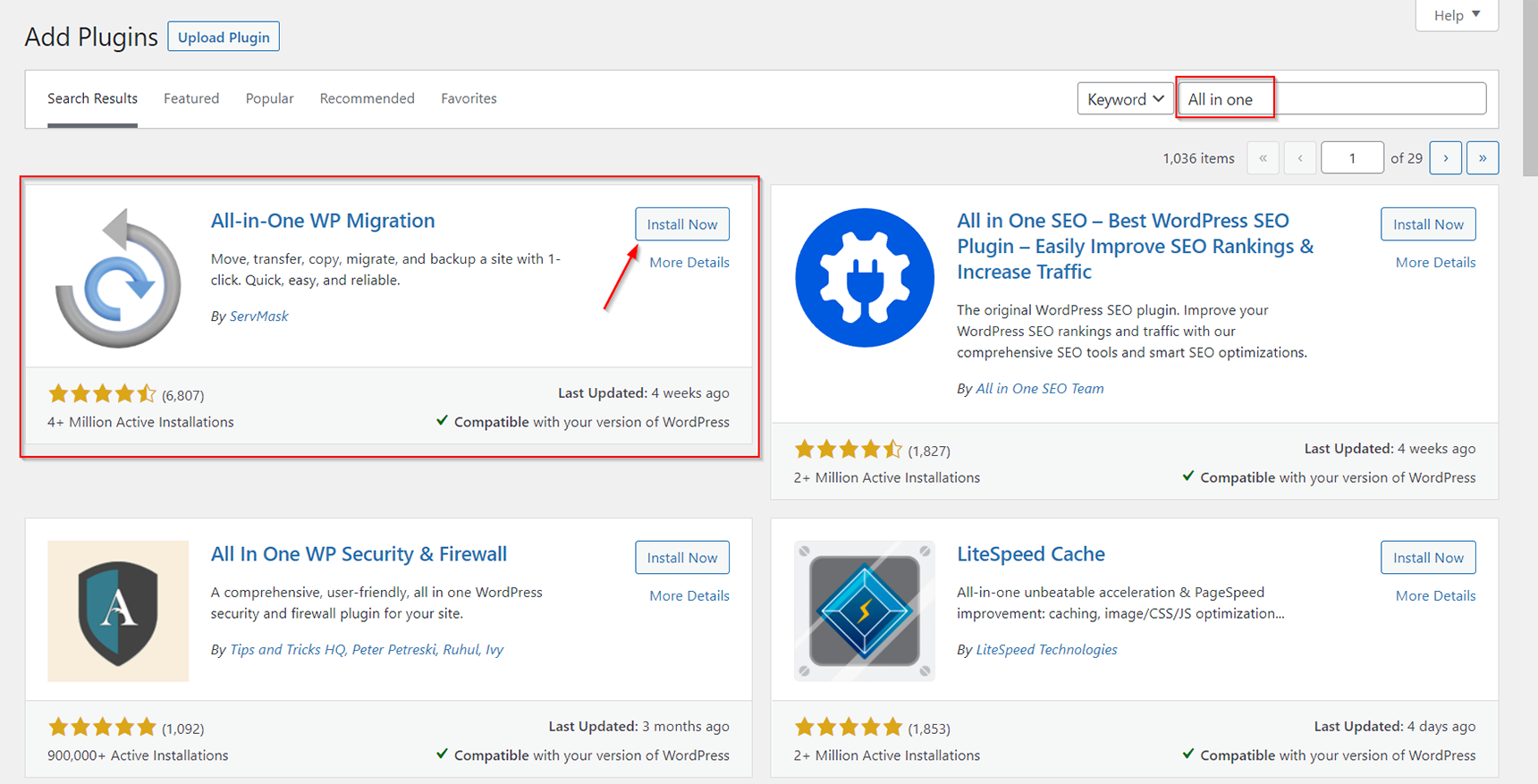
At first you need to install and activate the cloning plugin on your old and new hosting environment. To do that, log in to your site’s WP Dashboard, navigate to the Plugins > Add New section, type the plugin name in the Search field and then click the Install Now button for the necessary plugin.
When installation is complete, just click the Activate button to turn on the plugin.
The steps below will show you how to move your WordPress site.
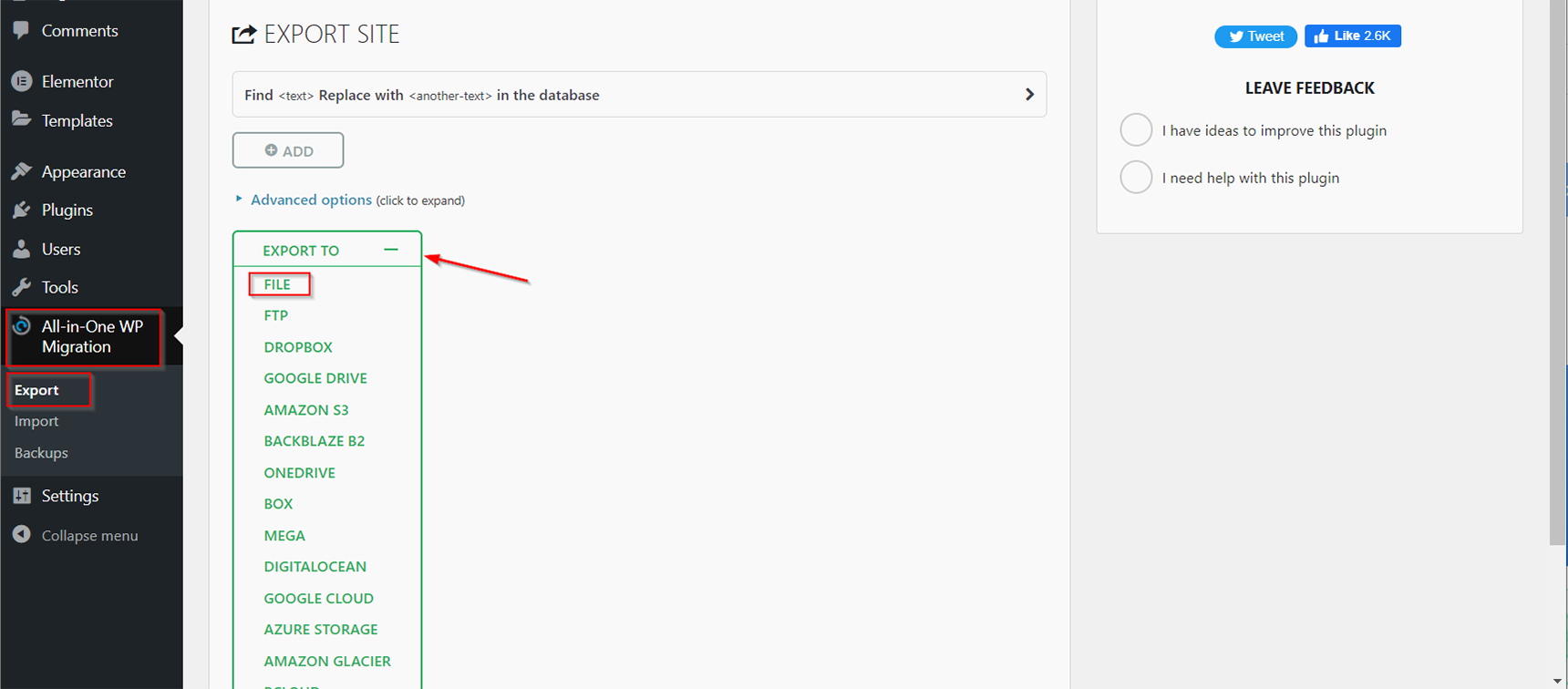
1. In the WP Dashboard of the site you want to move, go to the All-in-One WP Migration -> Export section.
2. Select the File option from the Export to dropdown menu.
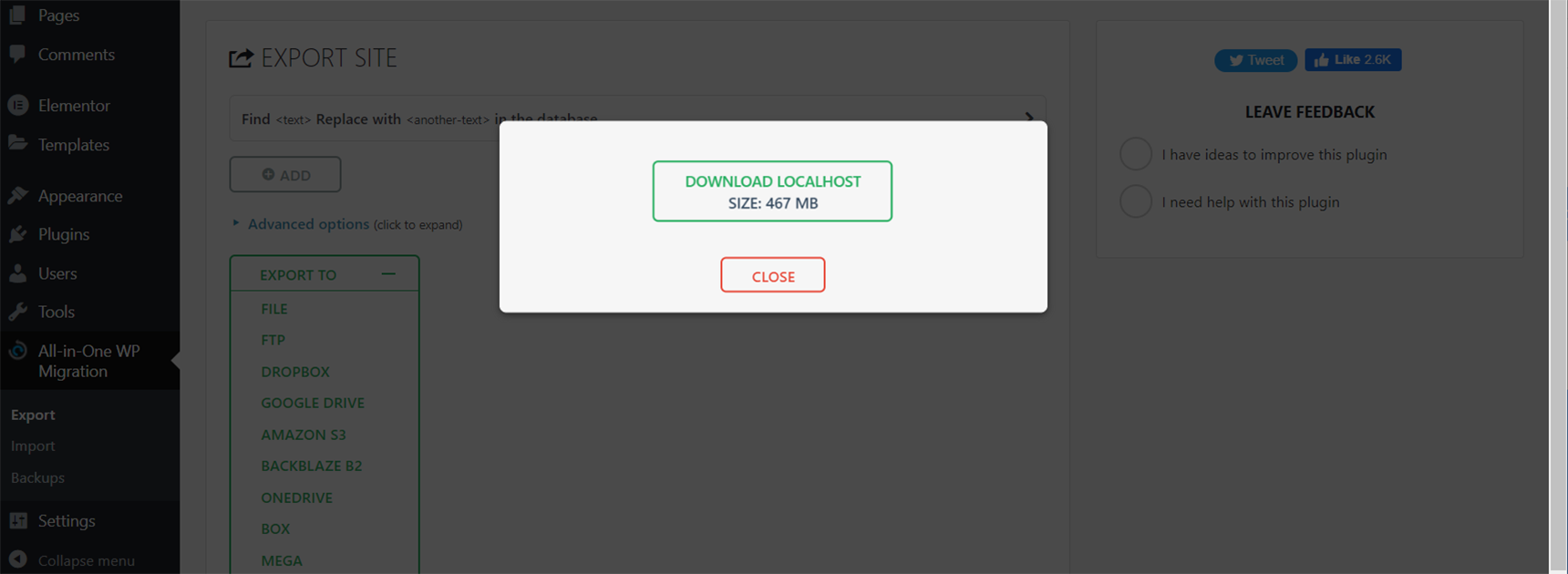
3. Wait for the plugin to finish exporting the site data and then download the generated file in the .wpress format.
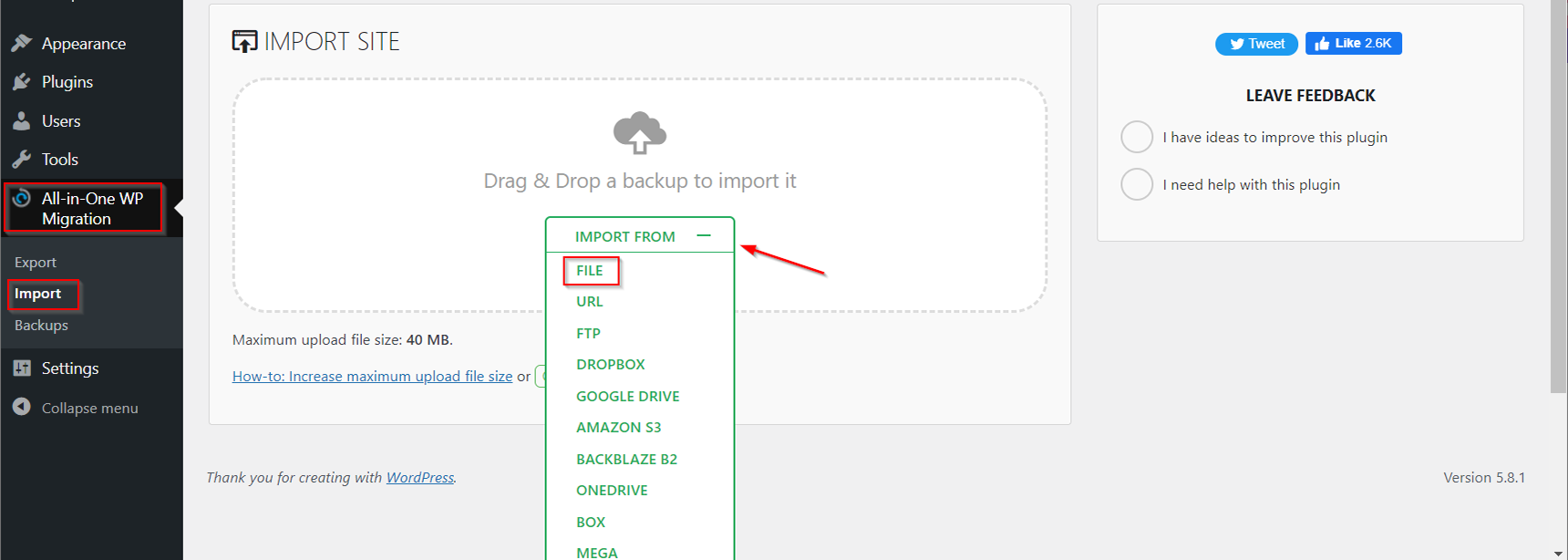
4. Log in to your new site’s WP Dashboard and navigate to the All-in-One WP Migration -> Import section.
5. Click the Importfrom buttonand select the File option.After that, locate the .wpress file you downloaded in step 3.
6. Click the Finish button once the import process is completed. In case the backup file can’t be uploaded via the web interface due to the max_upload_filesize limitation, you can upload it via File Manager in your hosting panel or via FTP. Upload the generated .wpress file into the wp-content/ai1wm-backups folder of your new site and then it should be displayed in WP Dashboard > All-In-One WP Migration > Backups. Click the Restore button and proceed with the restoration process. When migration is done you need to resave the permalinks structure in WP Dashboard > Settings > Permalinks, so it will regenerate the .htaccess file.
Important note, All-in-One Migration is a freemium plugin and it has free and premium features, but one of the main limitations you need to pay attention to is the size of the site’s backup file. If it’s bigger than 512M, you need to have a premium version of the plugin to proceed with the migration process.
The Duplicator plugin
Duplicator is another migration plugin that is also on the list of the best WordPress migration plugins. With the help of this plugin you can simply clone your site to a new server without downtime. When migrating, Duplicator creates a package with all the pre-configured files, so you don’t even need to install WordPress on your new host, as Duplicator does it itself.
The plugin installation is the same as the one described in the previous section. Once it is installed and activated, you will see the Duplicator menu in the WP Dashboard panel.The following steps will show the process of migrating the WordPress site using Duplicator.
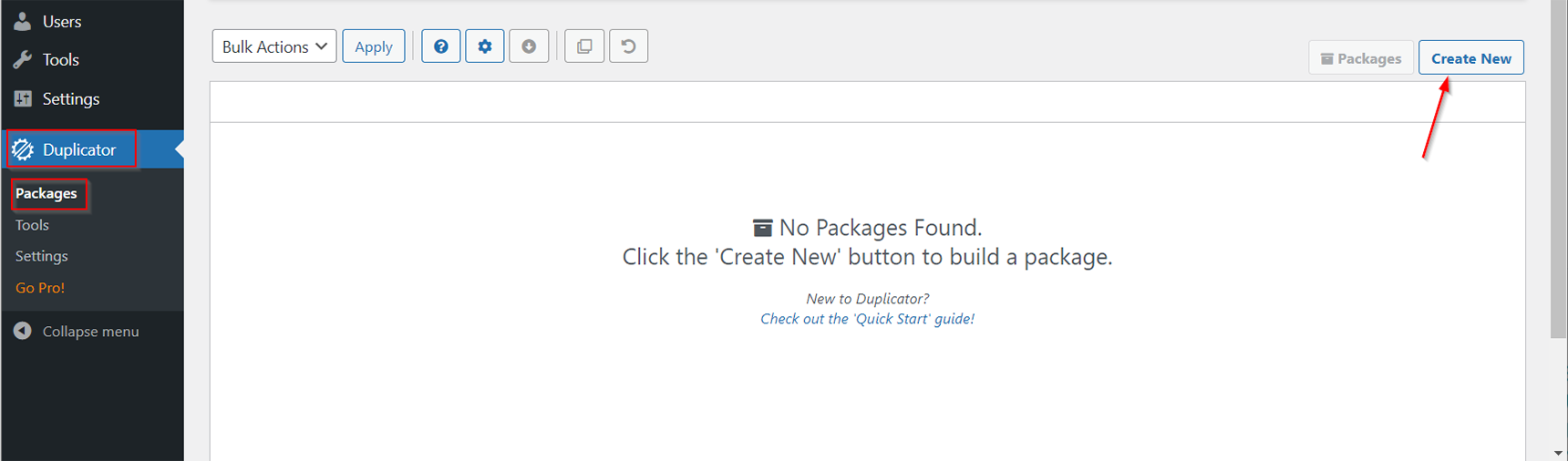
Opent the Duplicator > Packages section and click the Create New button in the top right corner. Give a name to your package and click Next.
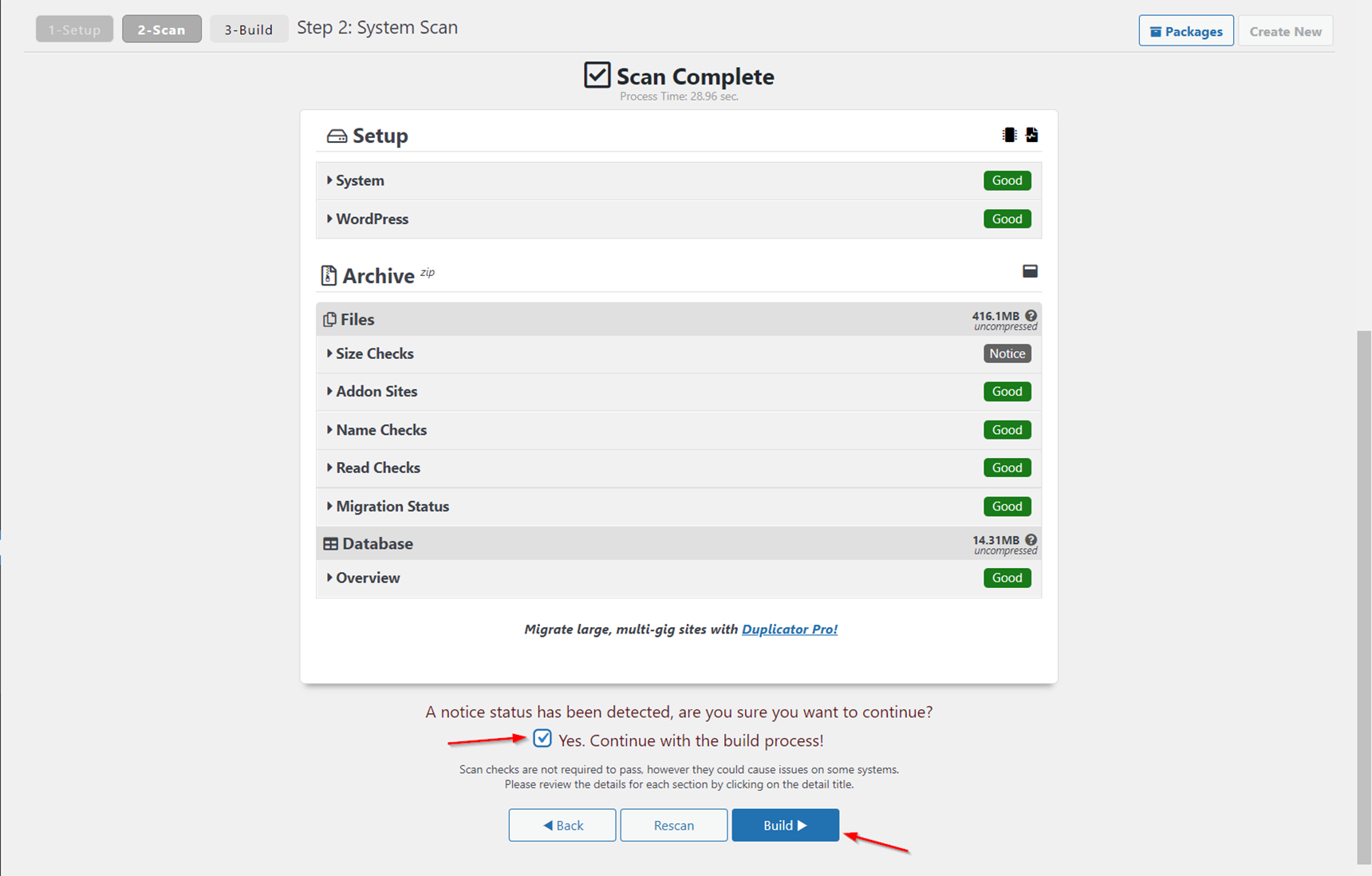
At this stage Duplicator will scan your site and let you know if there are any potential issues. If there are problems highlighted, resolve them and scan again before proceeding.
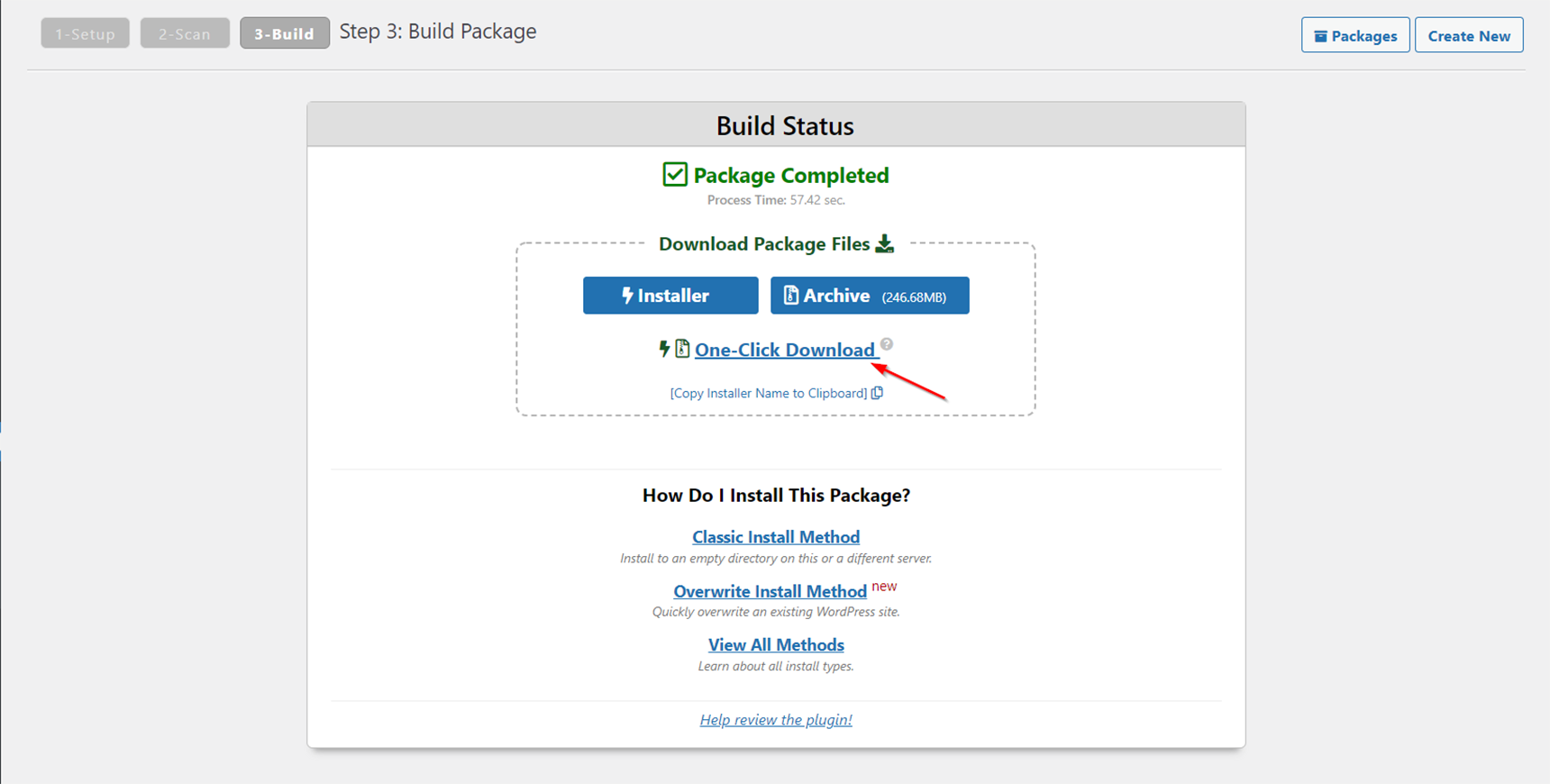
2. When the backup file is ready, download it by clicking the One-Click Download link. It will download both the backup file and the installer.php file to your computer.
3. In this step you need to create a database on your new host. This can be done in the hosting panel; for example, if it’s the cPanel, you need to log in to it and find the Databases section. In that section, select MySQL Databases and click Create a New Database. Enter a name for your database and click Create Database. Then under Add a New User, enter a username and password and click Create a User. After that, scroll down to Add a User to a Database and select the user and database you just created and click Add. On the Manage User Privileges section tick the ALL PRIVILEGES checkbox and click Make Changes.
Important: You need to remember the database name, its username and the password for later actions.
4. Upload the files you got in step 2 into the site’s root directory on your new hosting server (usually it is the public_html folder).
5. If you are migrating the site while keeping the same domain name, then you will need to modify your hosts file on a local machine. It allows you to override which server is hit when you browse a site and real domain switch (DNS change) will be done only after the migration and testing processes are completed. It’s important to prevent any downtime. To do that, you need to determine the IP address of your new server. You can find it in the new hosting panel or just ask the new hosting provider support. Now find the hosts file on your local machine (for Windows users its location is c:\windows\system32\drivers\etc\hosts, for Unix-based operating systems it is /etc/hosts) and in the bottom line of the file add the entry in the following view:
the_new_ip_address your_domain_name
For example, if the new server’s IP is 123.123.123.123 with the domain name mydomain.tld, the entry will be:
123.123.123.123 mydomain.tld
6. Navigate to the installer.php file in the browser by entering the address http://yourdomainname.tld/installer.php to start the installation process. In the duplicator installation wizard, enter the database credentials you created in step 3 (leave the Host field as “localhost”) and click the Test Connection button. If everything is fine then click Run Deployment.
7. When the migration process is completed, test the site and then you may switch the name servers for your domain to the new host and remove the entry made in the hosts file in step 5. Note that name server changes may take effect after up to 24 hours.
The manual method of migrating a WordPress site
Migrating a WordPress site manually requires some technical skills, as you need to move the site files and database, and then configure the wp-config.php file. Using this method you need to know how to access files via the File Manager in your hosting control panel or via FTP (File Transfer Protocol). Also, knowledge of managing the database is required, in most cases using the phpMyAdmin environment.
Backing up your current WordPress site files and MySQL database
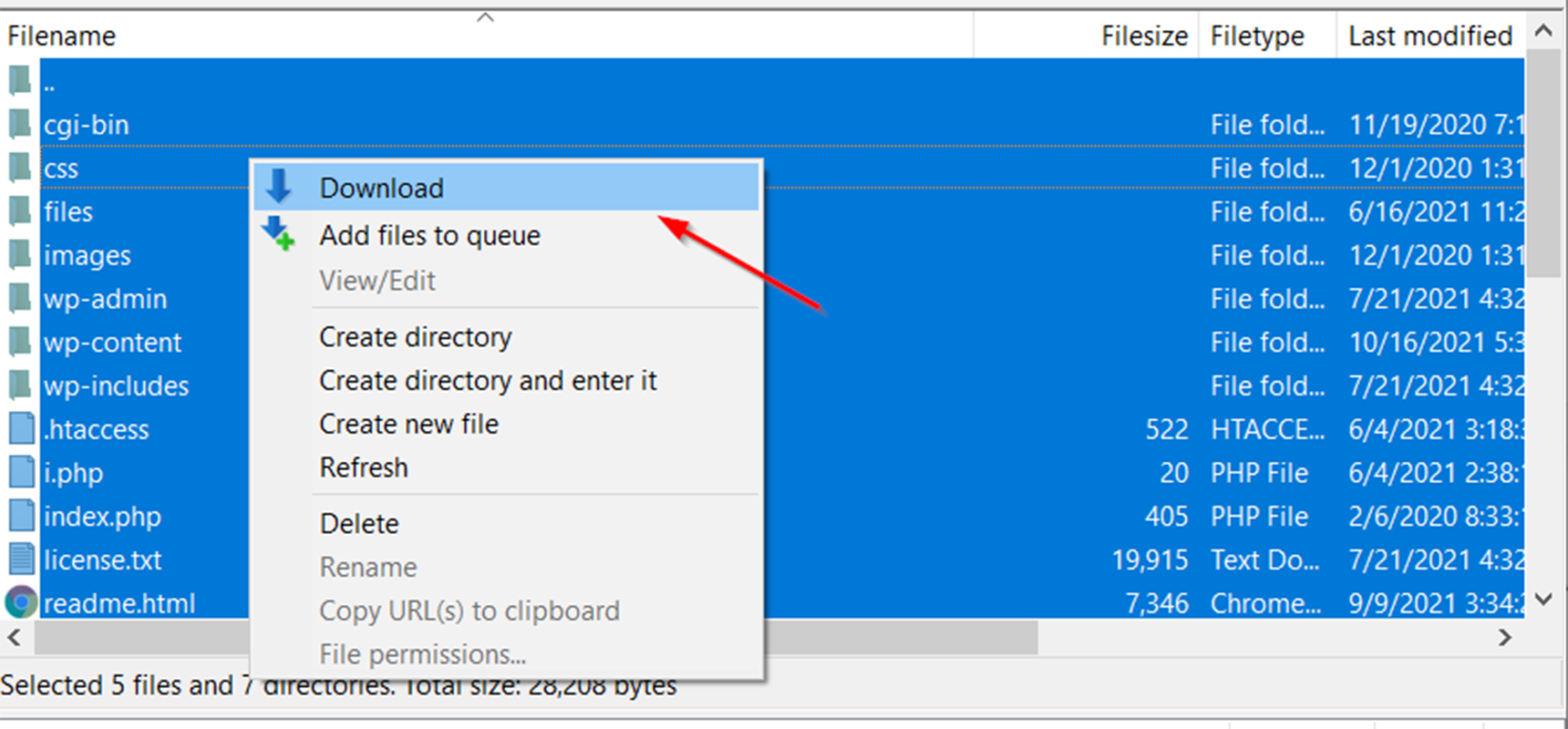
Files can be downloaded from the server via FTP using the FileZilla FTP Client. After connecting to the old server, navigate to the site’s root directory (public_html in most cases), select all WordPress files, then open the context menu by right click and select Download.
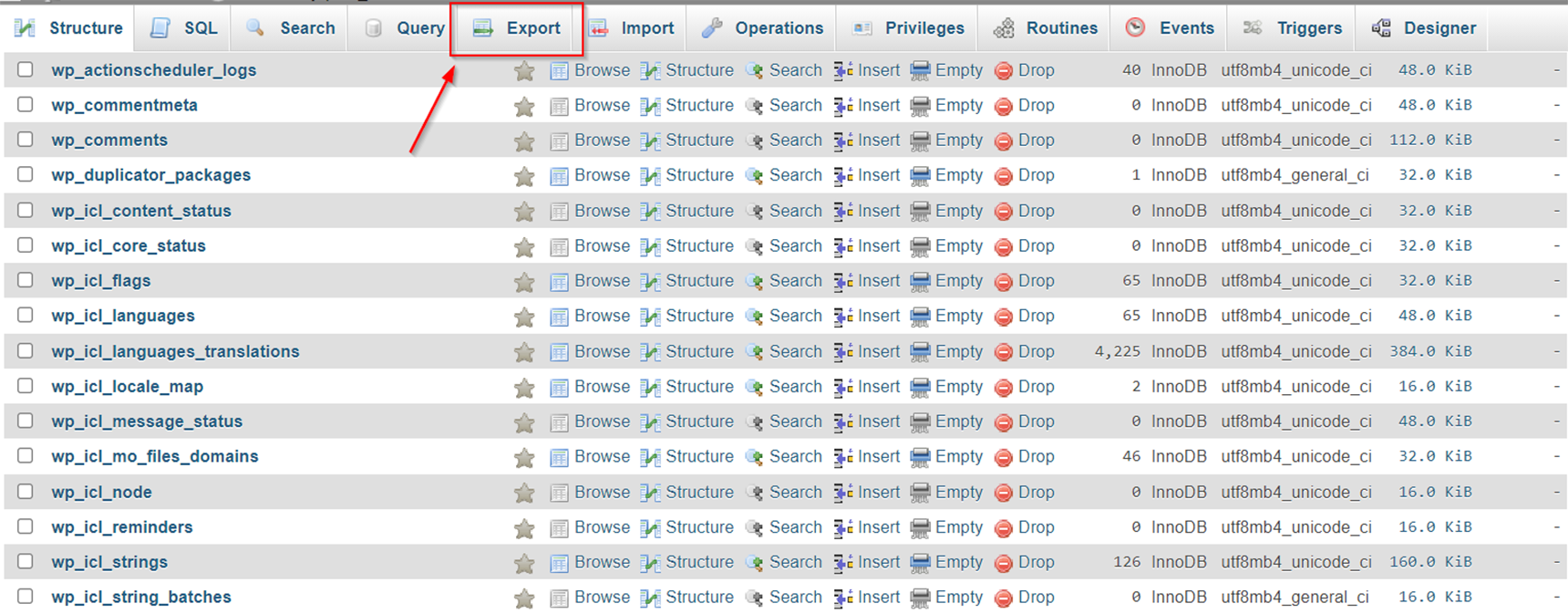
When the download is complete, open the phpMyAdmin tool in the hosting control panel to access the databases, select the database of your site and open the Export tab.
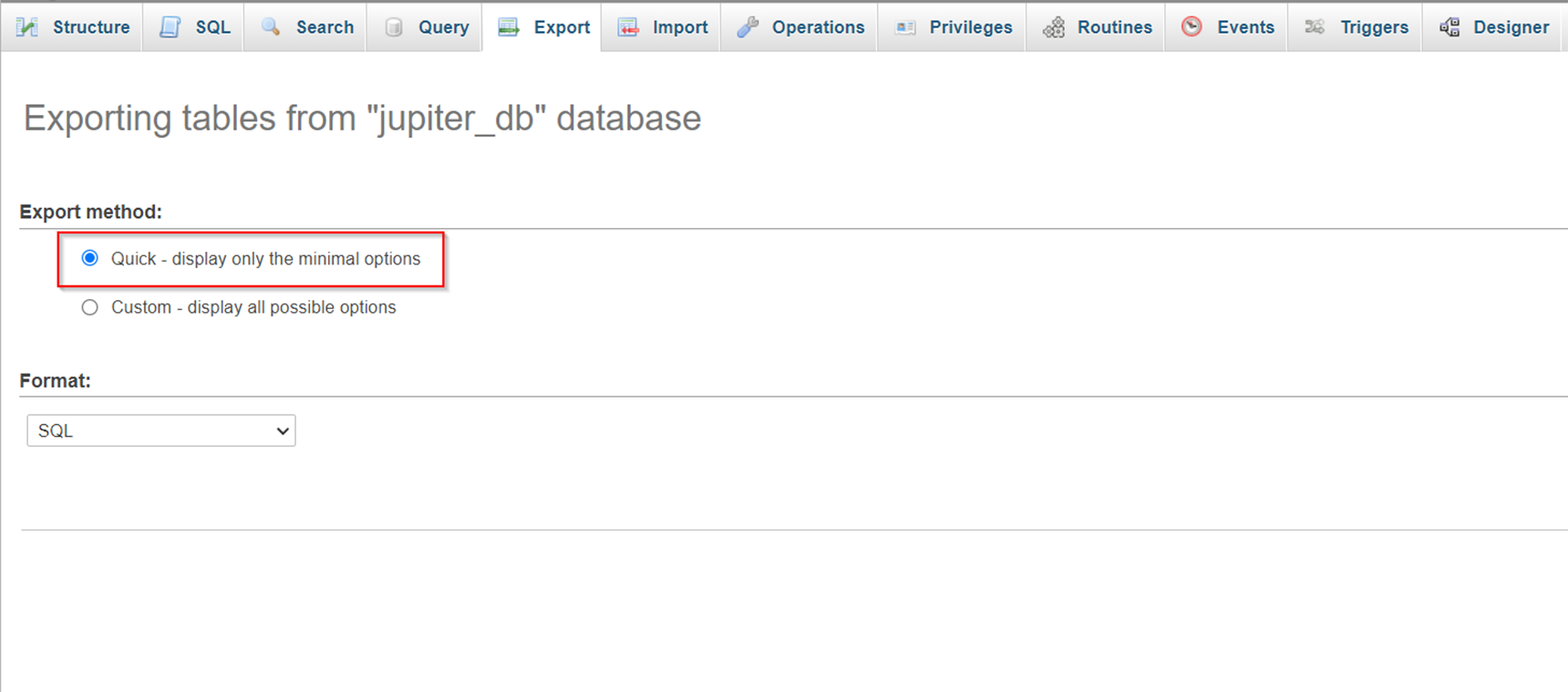
In the Export Method section select the Quick method, then choose the SQL option as the format and click the Go button.
The database dump will be downloaded to your computer.
Uploading the files and exporting the database to a new server
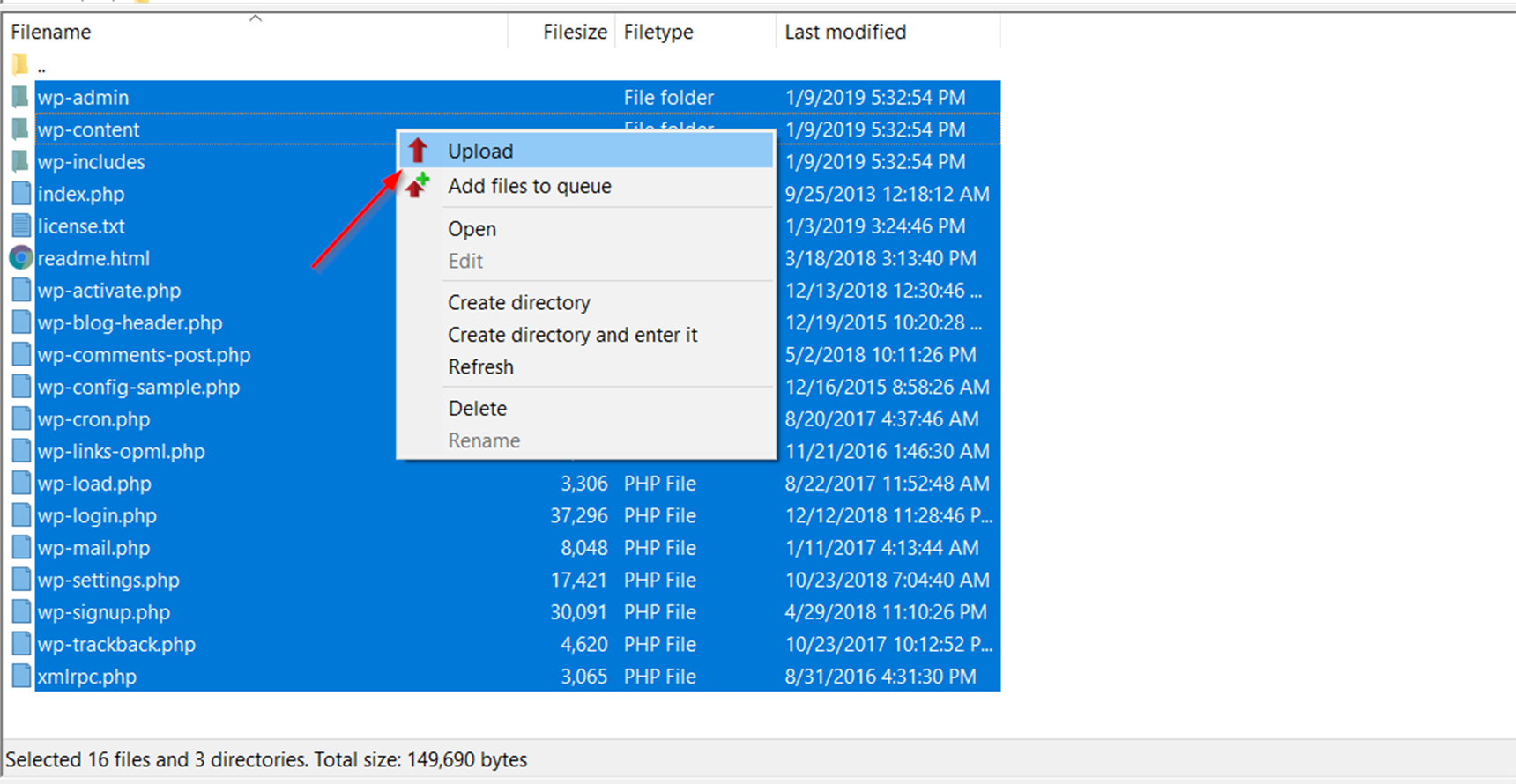
Now you can upload the site files to your new server. Connect to it via FTP with the FileZilla FTP Client and navigate to the public_html folder. From the left side of the client (Local site) locate the files you downloaded in step 1, select them all and then click Upload from the context menu.
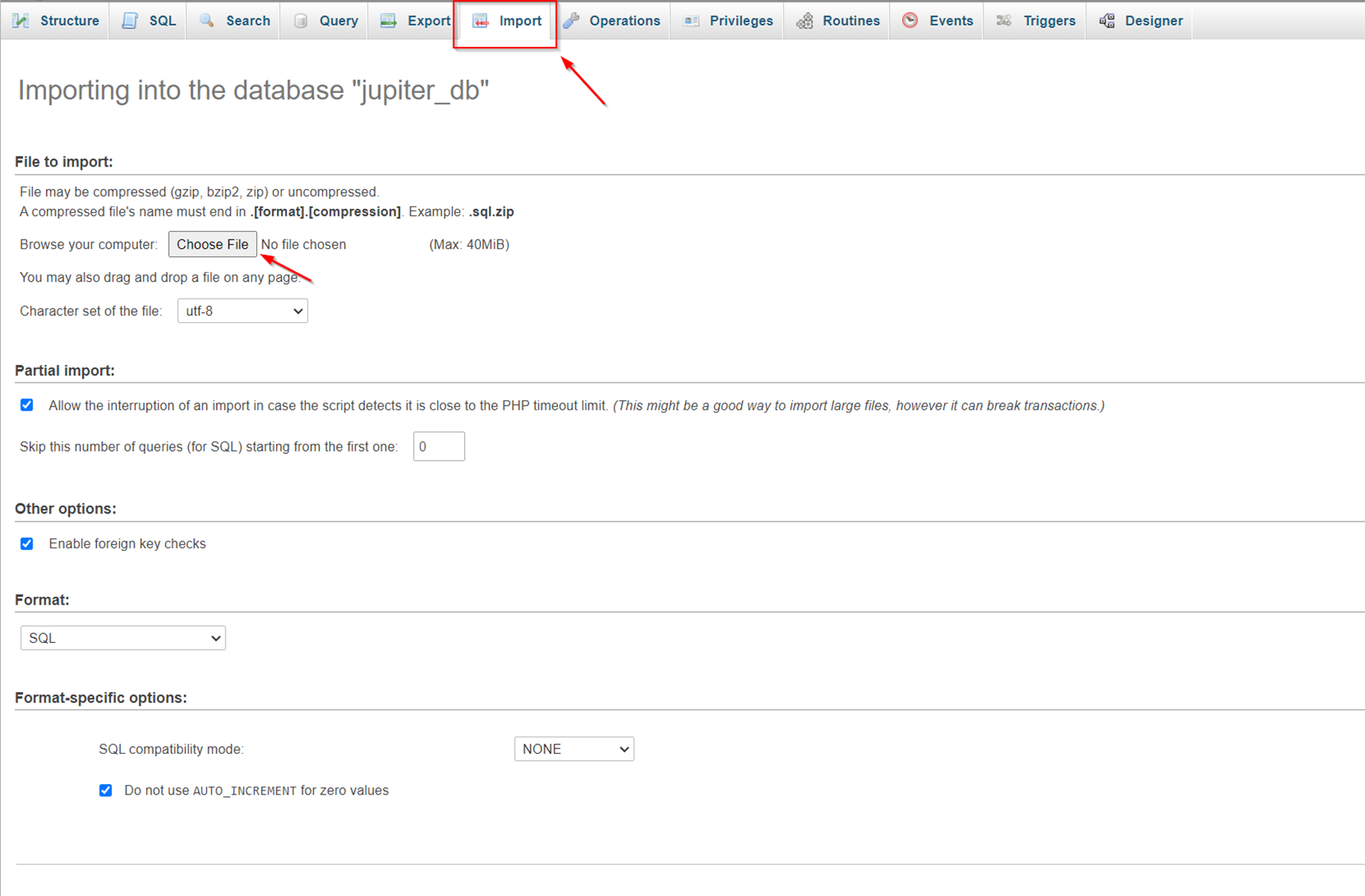
While the files are uploading you can enter your new hosting panel and create a new database and note the database name, database username and database password. Then open the phpMyAdmin tool, select the created database and navigate to the Import section. In the Import screen, click Choose File and upload the database dump file you downloaded earlier and click Go.
Once the upload is complete you need to edit the wp-config.php file. In FileZilla, locate wp-config.php and open it to edit.
Change the following values to match your new database credentials:
DB_NAME – database name DB_USER – database username DB_PASSWORD – database password DB_HOST – database hostname (Usually it should be localhost, otherwise you can specify it from your new hosting provider).
And lastly, you can do the trick with the hosts file, which we described earlier, to be able to test the migrated site on a new server. If everything is working fine then you can switch nameservers for your domain to the new hosting.
Conclusion
In this article we described one type of migration of a WordPress site—moving to a new hosting provider (a new server). The benefits of this can vary, such as better customer support, more hosting resources and useful features as well as better server security. We showed two different approaches to achieve this: plugin based migration and manual migration methods. These methods can be applicable in different situations, so it’s important to know the steps of the process to prevent your site’s data loss and downtime.
There are plenty of reasons why you’d want to use a plugin to conduct surveys on your website. Let’s say you want feedback on your newly launched website or you want to hear more about how your customer service is doing. In general, collecting surveys and feedback from your customers gives you a chance to listen to your audience, and by collecting their complaints and and concerns, at the end of the day you have more opportunities to improve the weak points of your business.
Setting a poll on your website may sound like a simple task. However, in order to choose the right tool you need to choose one from many alternatives. There are many good survey plugins out there that offer different features and services, as well as different pricing and support plans. However, choosing the right tool is up to you. In this article we will review the 5 best data collection and survey plugins on the market to help you find the best fit for you without wasting a lot of time searching.
Formidable
Formidable Forms is a powerful WordPress form plugin with rich survey and poll capabilities. For those who prefer minimalist designs, the Formidable Form Builder plugin features a clean user interface and easy to understand building process. Their form builder allows you to construct any sort of form without coding and includes all of the common field types that you’d expect from a popular survey plugins.
In Formidable, you can create everything from polls to surveys and quizzes. Additionally, the plugin offers a few more choices, such as conventional forms and widget surveys. But the main reason why this plugin is so popular is its email marketing form and calculator, which can be used as survey-type forms for everything from online stores to real estate brokers and finance businesses. You may also create complex forms with advanced logic such as those used for customer service feedback or bug reporting.
Forms created by the plugin are fully responsive and they look great on a range of devices, from tiny screen mobile devices to large screen monitors.
Formidable is the favorite form creation solution for over 300,000 website owners.
Pricing
You can start using the plugin for free since the core plugin is completely free to use. But to access all the plugin’s business capabilities, you’ll have to purchase the premium version, which starts at $149 per year and goes up to $599 per year.
Crowdsignal
CrowdSignal (formerly Polldaddy) is a well-known WordPress polls and survey plugins maintained by the famous Automatic.com. This is a free plugin, but in order to activate it you need an account on WordPress.com to obtain an API key. Please note that the plugin has a premium version as well. The free version of the plugin has fewer features and also will include branding on survey forms.
The main philosophy behind CrowdSignal is to offer a quick and easy method of survey creation and maintenance. The plugin has a drag and drop interface for creating surveys and polls and allows you to customize the survey and result sharing settings and choose from many styling options. It also has captcha to prevent spam and IP filtering to prevent duplicate answers.
One of the great features in the plugin is that it allows you to send interactive surveys via email. This allows consumers to complete the form in their email without having to navigate to another website.
The forms created in CrowdSignal are fully responsive on a wide range of screen sizes.
The plugin also offers predefined color schemes, meaning that you can personalize without having to learn any coding.
Pricing
The free version allows you to create unlimited questions, surveys, ratings and polls. This plan’s features are restricted, yet it is suitable for small businesses. Its features include 2,500 answers, data exports and survey embedding. Each survey, however, has CrowdSignal branding.
Premium options start at $15 per month billed annually or $25 per month billed monthly. When you subscribe to one of the premium plans, the feature list grows significantly.
Quiz and Survey Master
Quiz and Survey Master, as the name implies, is intended to assist you in adding quizzes and surveys to your WordPress site. I can’t say this plugin has the most intuitive design and user interface, but it’s a very well documented plugin with many helpful features and that’s why it’s so popular.
The Quiz And Survey Master WordPress plugin is mainly designed for creating surveys and polls for posts and pages. This plugin promotes a full list of goods and services to achieve this goal, featuring a visual block builder and basic design that make it easy to use even for novice users. This is a great option for people who just want to focus on creating surveys.
One of the great features of this plugin is the option to send emails to thank users for filling surveys and then redirect them to any page on your WordPress website.
Pricing
The core of the plugin is free to use but the premium plugin costs $79 per year and includes additional features such as landing pages, result exporting and conditional logic.
Also, there are several extra add-ons to the plugin available, which may be purchased separately or as part of the $129 per year Premium Bundle.
YOP Poll
The YOP Poll plugin is my favorite collection and survey plugin, as it is especially useful for individuals who don’t want to pay for a Premium plugin. This is an open source plugin, backed by great developers, and is completely free to use.
The main purpose of this plugin is to simplify the data collection process. It has a very simple interface. I can’t say it has the most visually appealing design interface, but it’s simple to use and does the job. It offers basic templates for getting started quickly and does not require any coding. The plugin can run multiple surveys at the same time and features survey scheduling, which lets you create polls for the future— just set it and forget it. The free version of the plugin gives you access to these options and many other features.
The results of the surveys you conduct can be viewed in the same section of the dashboard. The best part is that you can customize each of these pages to suit your personal dashboard preferences. Plus, the dashboard has options to customize the view and sort the results automatically.
Pricing
YOP is an open source plugin and is completely free.
Gravity Forms
Gravity Forms is one of the most popular and best-known survey building plugins that allows you to create both simple and advanced forms. This plugin has been around for a while and has a great reputation. One major benefit of this plugin is its powerful drag and drop form builder, where you can easily create forms for contact pages or advanced forms to collect detailed data from consumers.
The page builder has over 30 form fields, which is enough to create forms at any level of complexity. Please note that the regular Gravity Forms plugin can create surveys, but if you want to create advanced surveys and collect results or utilize user interaction and marketing research tools you’ll need to download the Survey add-on.
Pricing
The annual cost is $259. There are less expensive Gravity Forms plans, but the Survey add-on requires the Elite License.
Fluent Forms
Fluent Forms is the fastest WordPress form builder plugin that combines ease of use with powerful capabilities. With its drag-and-drop form builder, creating everything from lead generation forms to product order forms or surveys becomes a seamless process. Whether you’re a beginner or an advanced user, Fluent Forms offers a range of features to meet your needs without the need for coding.
The free version of the plugin includes 30 ready-to-use input fields. It also offers Conversational Forms to enhance user engagement, Conditional Logic to show or hide fields based on user responses, email notifications to keep you informed in real time, spam protection through reCAPTCHA and hCaptcha.
For users seeking more advanced functionalities, the Pro version of Fluent Forms takes your form-building experience to the next level. It includes over 60 input fields, including specialized fields for payments, quizzes, and advanced post creation. With the Pro version, you also get double opt-in confirmation, rules-based form restriction, conditional confirmation and more.
Pricing
Fluent Forms offers both annual and lifetime plans. The annual plans start at $79 for a single-site license and go up to $299 per year for the unlimited-sites license. If you prefer a lifetime license, you can opt for a one-time payment of $349 for the single-site license or $899 for the unlimited license, which covers an unlimited number of domains.
Bonus tool: Jupiter X forms
If you are using the Jupiter X theme you may already know about the form widget it features. If you are looking for data collection or survey plugins I recommend you first review the Jupiter X Form widget before looking anywhere else.
This widget already offers various field options to collect different data from users, but what I most like about this widget are the variety of actions you can perform with the form data. The widget allows you to send them via mail, Mailchimp, Hubspot or Slack. You can even trigger a webhook for extra capabilities.
This form widget has great options for styling as well, from custom feedback to caption text. You are also able to change the view of any element, color, font weight and custom messages at every step. Beside this there is a captcha option integrated in the form to prevent spammers.
Another great thing about the Jupiter X form builder is that you can integrate it with Growmatik, a versatile marketing tool for any e-commerce store. For more information, check out this article.
Notice how powerful it is? If you have not tried it before, go ahead and check it out before installing another plugin.
You can find more information about the form plugin here.
Conclusion
That’s all, folks! Hopefully, this post has helped you locate the finest of all WordPress data collection and survey plugins to fit the demands of your website and assist you in successfully developing your business online. It’s important to recognize that listening to your customers and getting feedback from them is very important for any business. Achieving this is possible with many different tools, each with their own advantages, so I hope this article will help you decide which plugin to use for your situation.
This is a guest post contributed to Artbees Themes blog by Thuy Nguyen from Ninja Team.
By offering subscription products such as news, summaries, courses, or even food, you can generate recurring stable revenue with WooCommerce subscription email templates.
Subscription-based products have a special business model that requires a strong digital presence. Brand print via email communications is a must.
Therefore, visual continuity is essential at all subscriber touchpoints, including your website, social media channels, and transactional emails. In today’s article, we’ll be showing you how to do that by customizing WooCommerce subscription email templates without coding using YayMail.
Install required plugins
In this tutorial, I’m using these plugins:
WooCommerce Subscriptions: to create subscriptions via WooCommerce and sell subscription-based products or services
WooCommerce Stripe Gateway: to handle recurring payments with Stripe
YayMail: the free email template builder that support 50+ third-party extensions in its addons
YayMail Addon for WooCommerce Subscriptions: integration of email customizer for subscription emails
YayMail Addon for WooCommerce Stripe Gateway: integration of email customizer for Stripe’s payment reminder email templates
If you haven’t decided on which Woo subscription plugin to use, please check out our blog post on how to Create a Subscription Store with WooCommerce. In this article, you will learn the pros and cons of each plugin in order to make an informed purchase. No matter which one you choose, the customization workflow will be the same as presented in this walk-through.
Let’s get started!
Design the general template layout
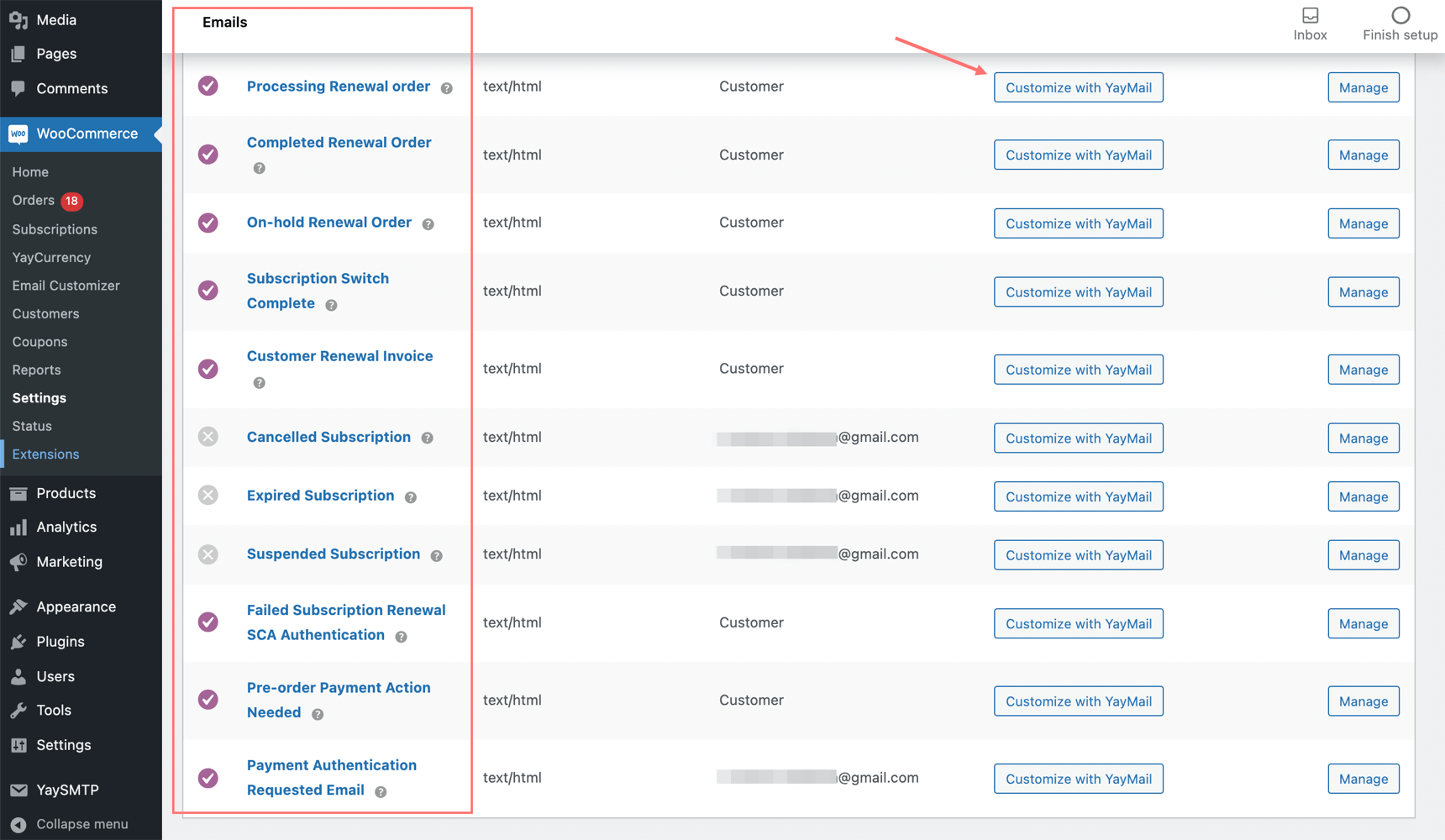
By default, the WooCommerce plugin alone comes with 11 transactional email templates. The WooCommerce Subscriptions extension comes with another 10 email templates and WooCommerce Stripe Gateway adds even more templates for payment status reminders. That’s quite a lot, right? But don’t fret, all of these subscription email templates are located in one place under WooCommerce > Settings > Emails.
Alternatively, you can also find the email templates by navigating to WooCommerce > Email Customizer.
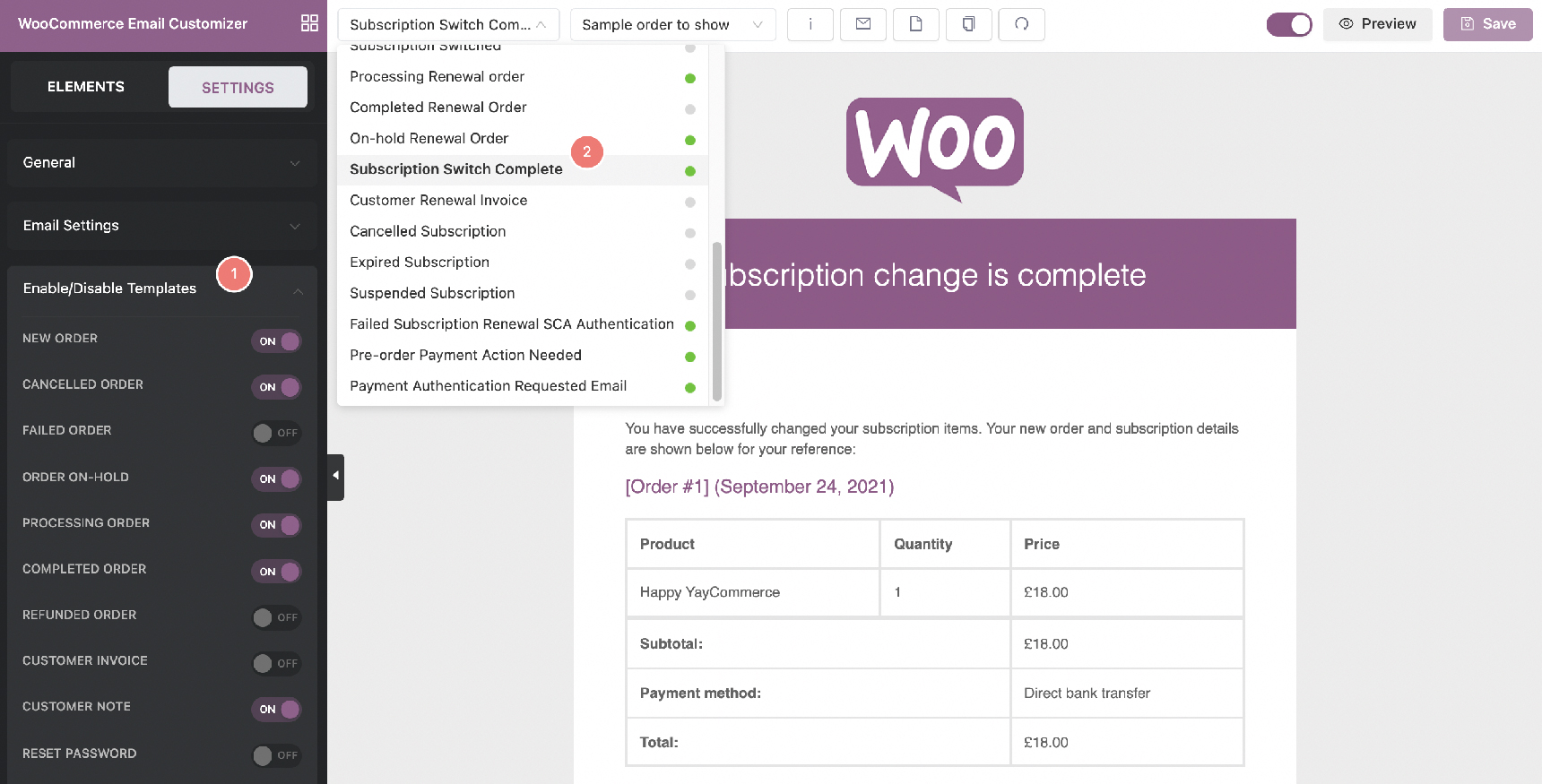
In the email builder interface, please go to Settings > Enable/Disable Templates to find all the available email templates. There, you can choose to activate all the templates you want to put in use.
For each enabled template, you will see a green light indicating that it is now being used in the automation workflow of WooCommerce.
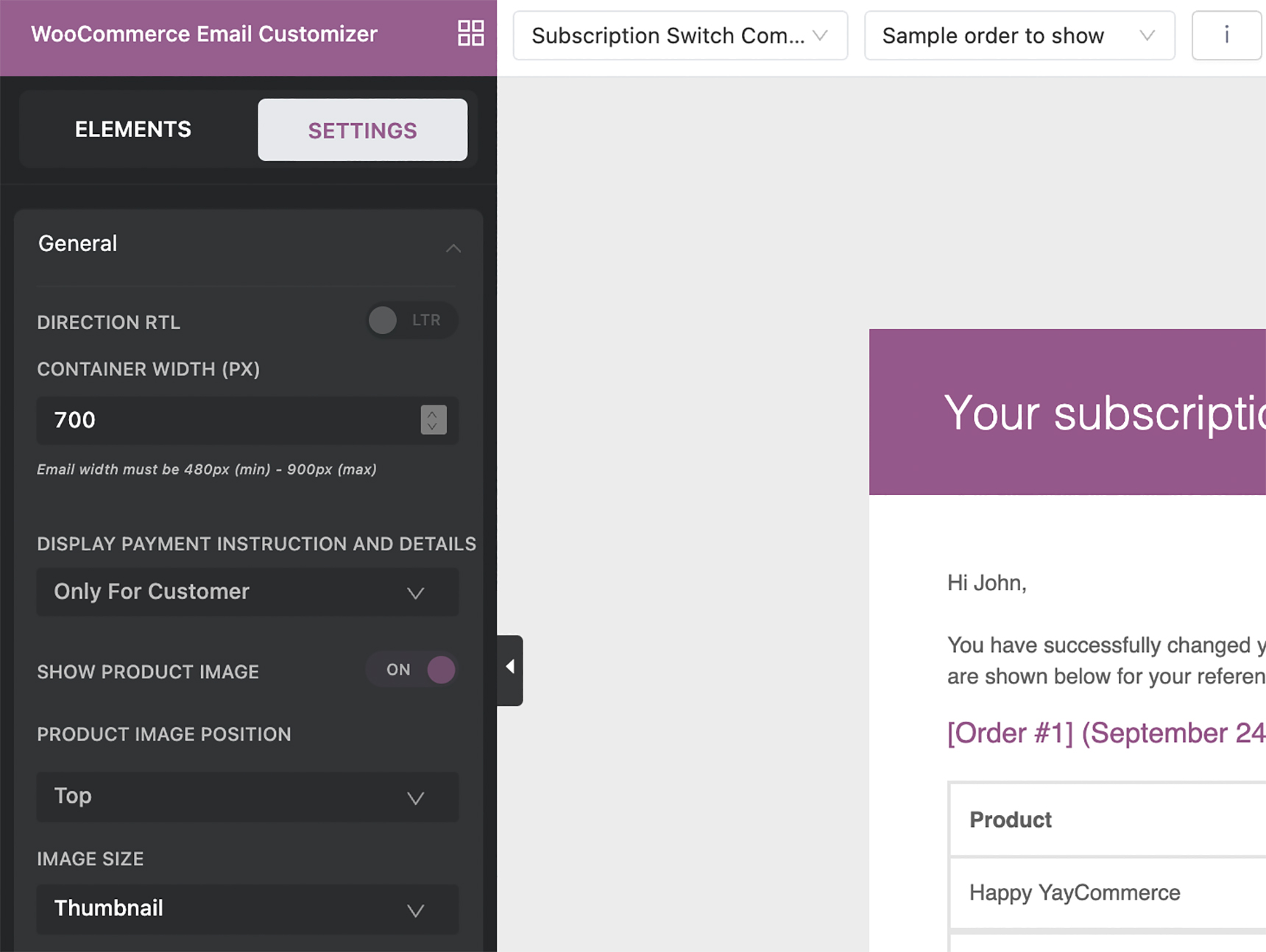
Also in the same Settings tab, you’ll be able to design the general layout of email templates. These options include universal display components like:
Language direction: it is left to right by default.
Container width: the width of the whole email body. It is 900px by default but 700px in the sample image.
Product image: automatically insert any product image with a custom position and image size.
Custom CSS: add your own creative adjustments.
Export and import email templates: keep a full template backup or use your customized email templates on different sites.
In the sample image I’ve changed the email background color to light mint and the text link color to dodger blue. Feel free to play around with colors before we move on to the next steps.
Customizing welcome email template for new subscribers
After finishing the general options, you can now move along to a specific subscription email template such as New customer welcome email template for onboarding subscribers.
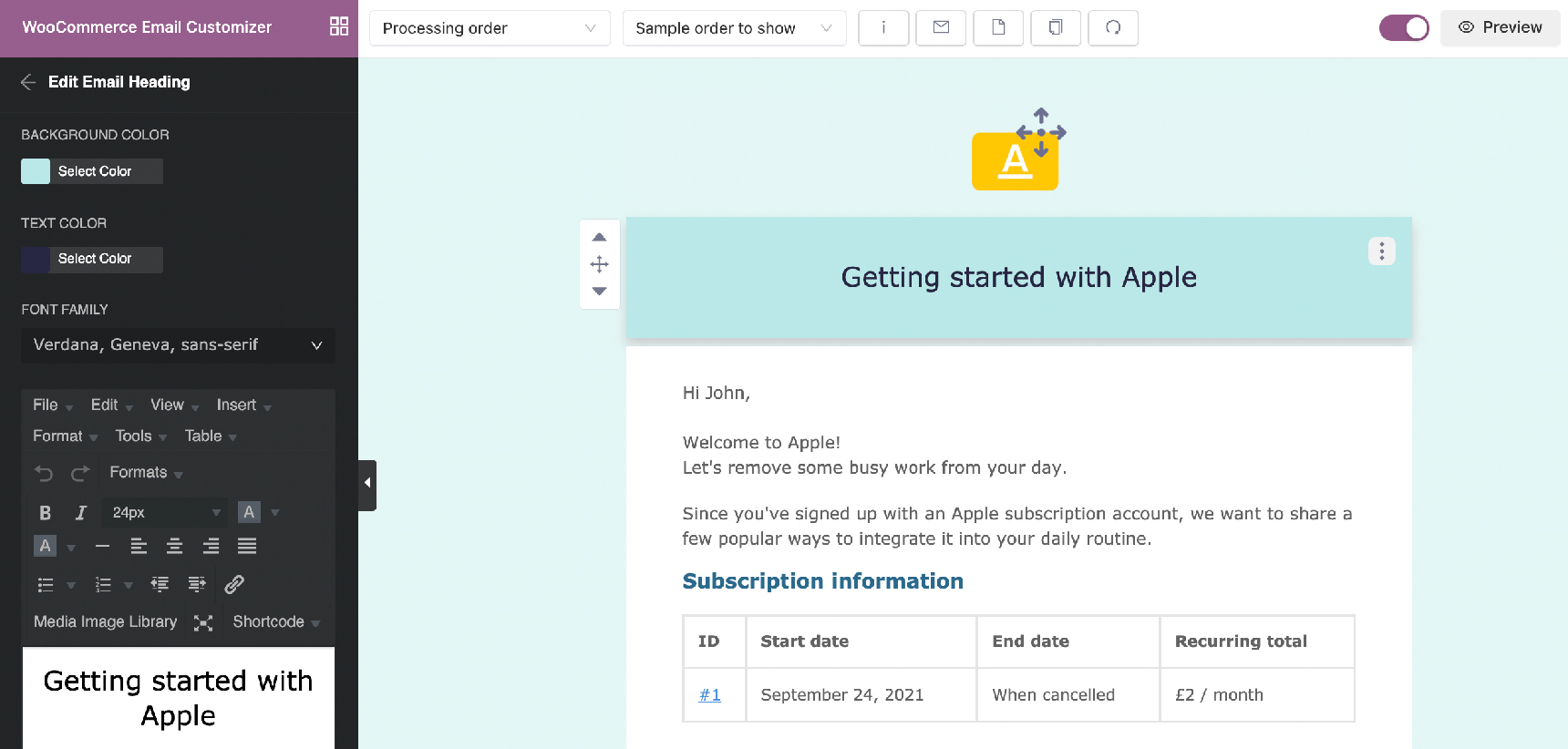
In the WooCommerce subscription flow, the first email your subscriber receives after signing up is called Processing order. Choose it from the dropdown list and then we can start to transform it into a more appealing welcome email template.
Logo and email header
Similar to Gutenberg blocks, you can upload and insert your logo very quickly. For this logo block, I set its background color with the same light mint color as the email background.
Alternatively, you can use a full width banner or an animated GIF in your email to emphasize your brand and its personality.
Then, with the email heading block, I pick a darker mint color for its background. After that, I just add some custom text and tweak it:
Change text color: use the built-in color picker or paste your own HEX color
Change font family: choose one of the email-safe fonts listed under “Font Family” option
Align and format the text further if necessary
After I am satisfied with my email header, I can continue with the main email content using text blocks such as:
Welcome greetings
Announcement of the subscription registration, and a bit more of what you have to offer
WooCommerce subscription detail table
Multiple column email section
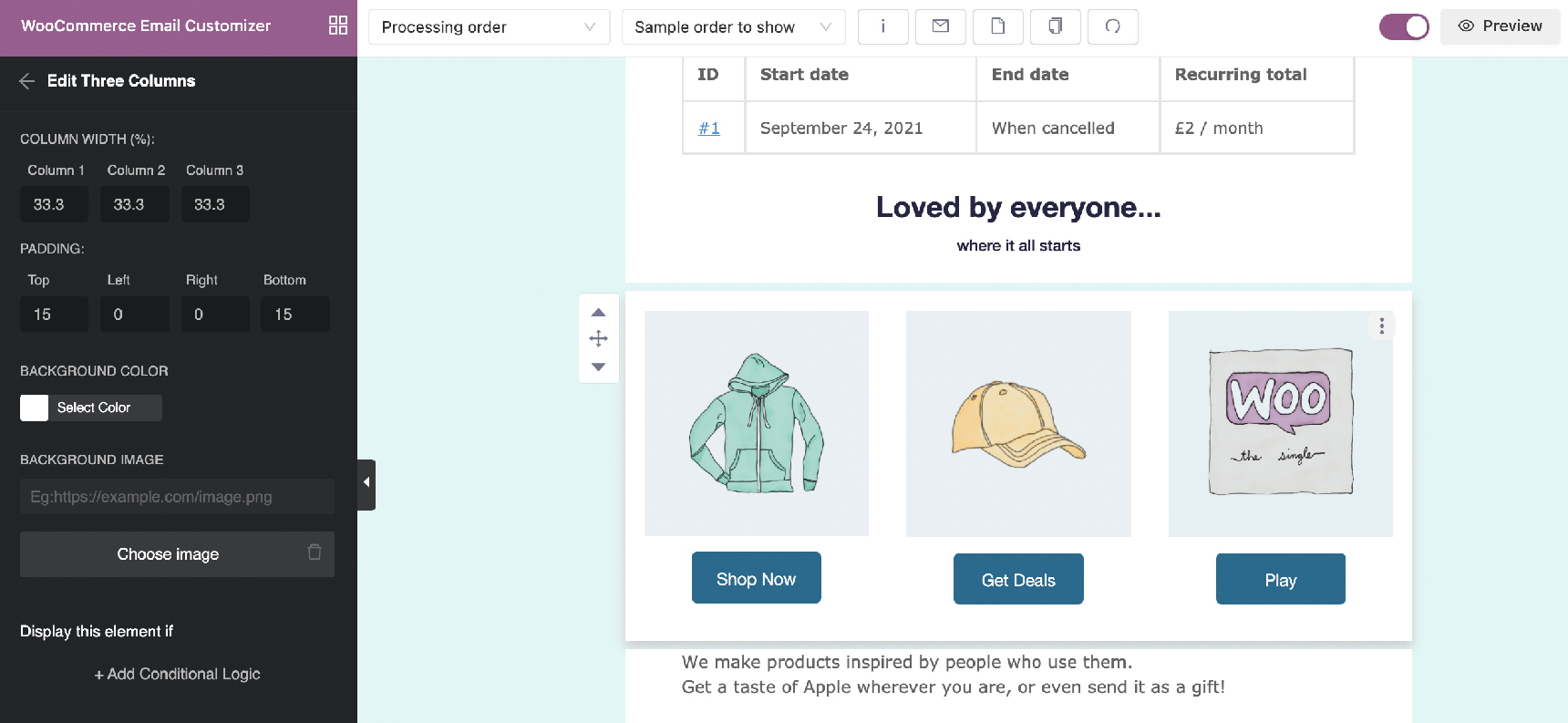
Now it’s time to add some fancy media sections to the onboarding subscription email template. Here you can unleash your designer vision with an advanced multiple column block.
Here are some ideas to help you out with what to put in new subscriber email templates:
Setup instructions
Upcoming events and webinars
Merchandise and badges
Other useful links and resources
It’s easy to implement this media section by following these steps:
Add a three column block: set portion width, padding, background color or add an image
Drag and drop content blocks into each column
Insert buttons into columns: edit button color and text font/text color
Feel free to add more images or videos to build excitement for your products with new subscribers and include gentle CTAs for further actions.
Email footer and signature
As for the email footer, this is where you can include post-purchase details such as customer service number, return or refund policy, company signature, QR code, etc.
Here I want to minimize those details so I only include social media profiles and the website tagline/company slogan.
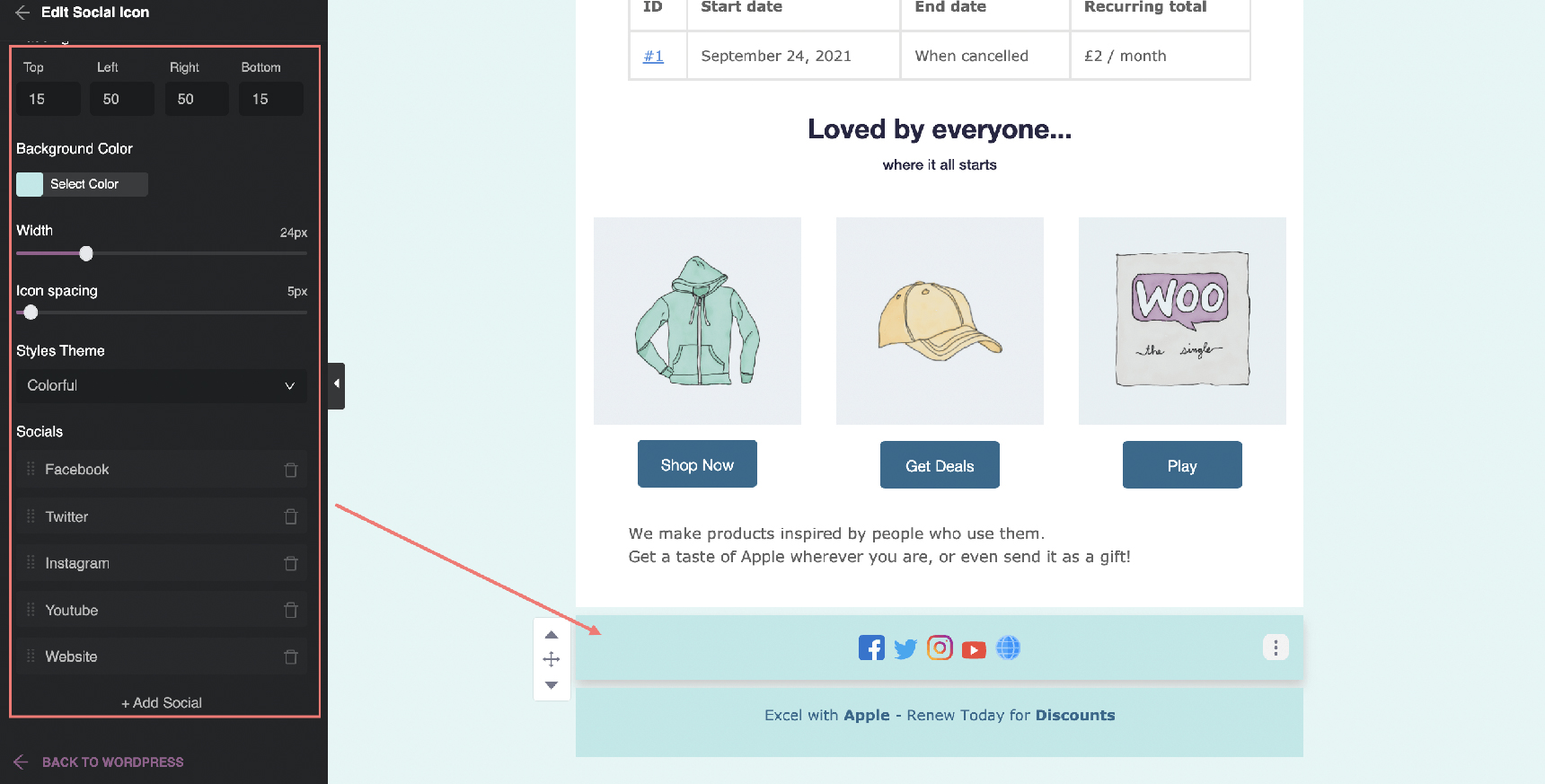
Within YayMail’s email builder, you can find a dedicated Social Icon block for showcasing your online presence. This enhancement provides customizable options including:
Social icon row paddings
Icon width and spacing
Various pre-set styles
Links to social media networks and home page
Optionally add or remove social media icons
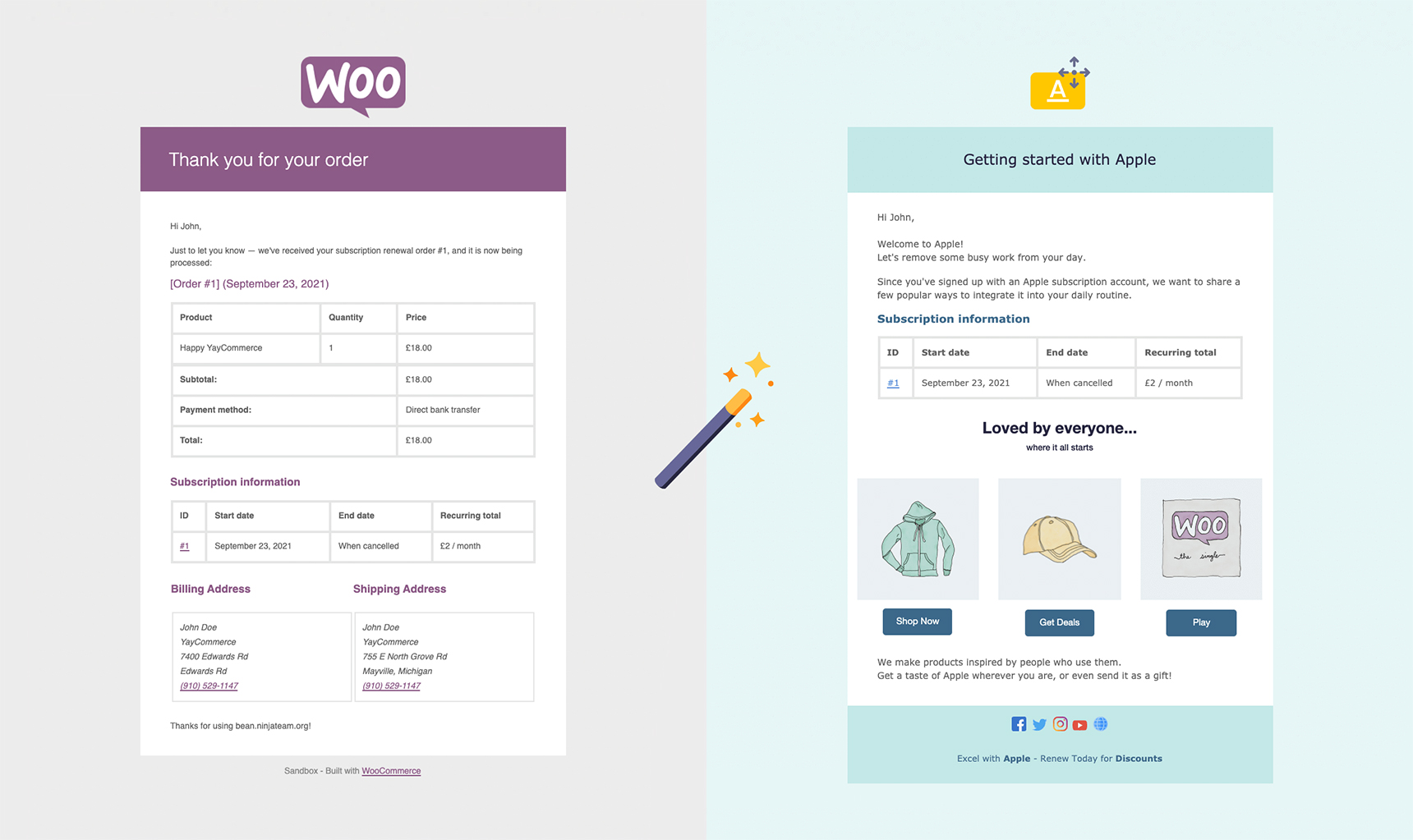
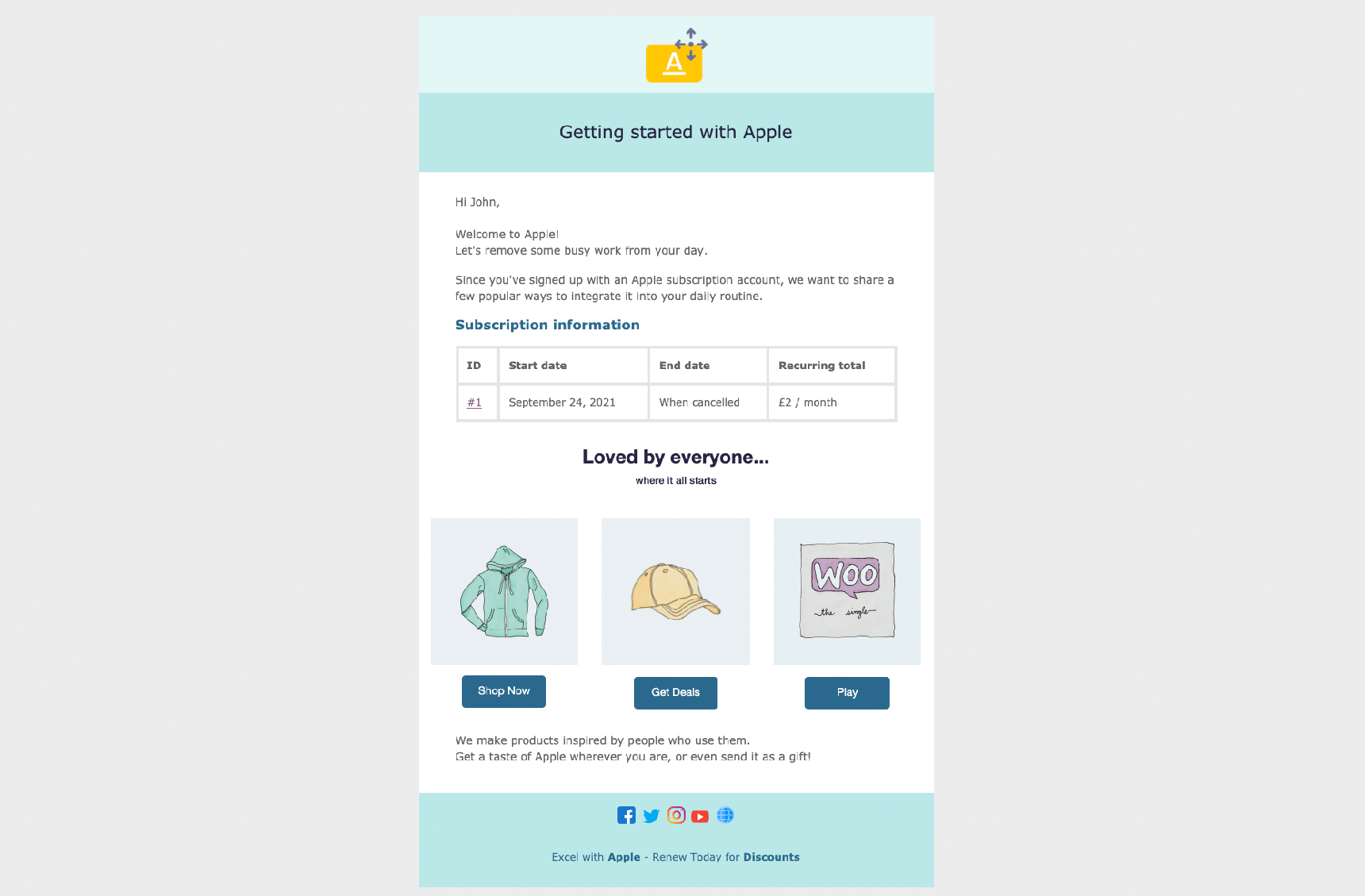
After all of the customization work, our email template looks like this:
Customizing payment reminder email templates
When it comes to processing renewal payments, there are many scenarios that cause failed authentication. When this happens, Stripe Payment Gateway automatically sends payment reminder emails to the subscribers.
The WooCommerce email template Failed Subscription Renewal SCA Authentication gives a heads up to your customers:
To inform that an attempt to automatically process a subscription renewal payment has failed,
To explain that the transaction requires an SCA verification,
To request the customer to authenticate the payment, and a retry rule has been applied to notify the customer again within a certain time period.
That said, please prepare a reminder copy that helps clarify the issue and what actions you want your subscriber to take.
Here’s what my copy looks like:
“The automatic payment to renew your subscription with [yaymail_site_name] has failed. To reactivate your subscription, please login and authorize the renewal from your account page: Authorize the payment »”
After that, you can go to the email builder and reuse the newly customized email template to develop a consistent brand experience.
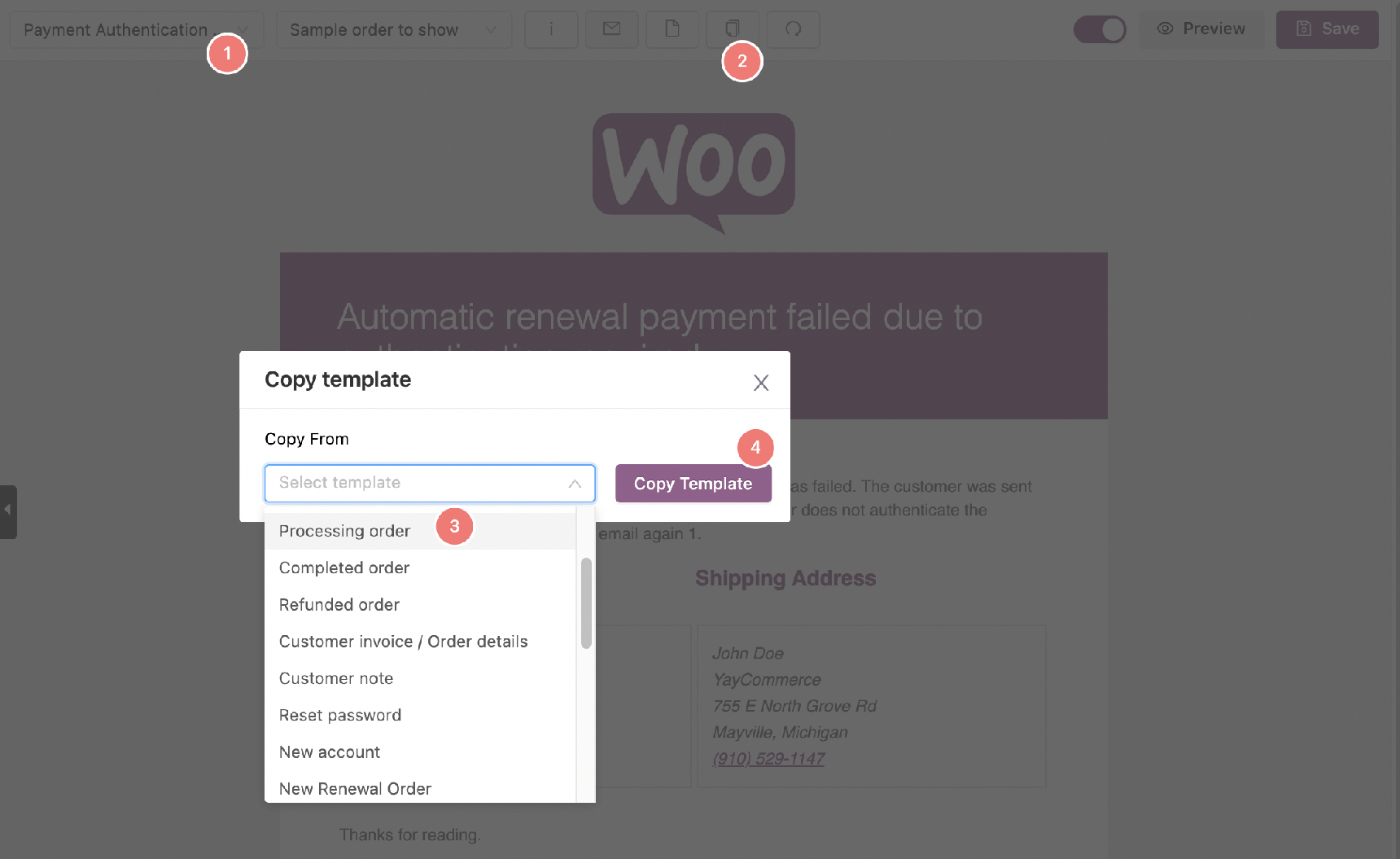
To save valuable time, it’s wise to duplicate an email template so that you don’t have to design it over again. To do this, simply follow these steps:
Select the current email template, eg: Payment Authentication Failed
Click on the button “Copy template” from the upper toolbar
Choose a particular template from which you want to copy all designed blocks, eg: Processing order
Click Copy template to have the new draft right on your current email template
Then you’ll have a full template cloned from the Processing order’s template. Now go ahead and omit the blocks that you find unsuitable or unnecessary.
For situational guides, you can even add an extra text box to the email body with additional information.
It is as easy as pie! When the email templates look just as you wish, click Save to finish.
Subscription email best practices
So we have guided you through the very basic steps of customizing subscription welcome and reminder emails.
While it is intuitive to design with this drag and drop email builder, here are the best practices to save you more time:
When you add external links to the email templates, they could appear as insecure links and the template won’t be able to be saved. You can troubleshoot this problem by trying to reset the template.
There are many shortcodes and variables to insert personalized information into the subscription email templates. You can find them in any textbox element or from the (i) Shortcode button.
At any point in time, you can save and preview the current template on desktop or mobile interface.
Before enabling the email templates, you can send a test email anytime to make sure it looks good on different email clients and devices.
You can try sending different email templates in real life to find out which layout brings the highest WooCommerce conversion rate.
Wrapping Up
WooCommerce subscription email templates are expected and contain important information. These emails have a high open-rate. While you don’t want to promote hard via these emails, you do have the chance to give incentives for sharing your products, or simply ask for a review.
Once I had a client who needed a landing page where visitors could submit a form asking for a medical appointment. The landing page was about to receive traffic via different marketing campaigns from different advertisers. The challenge was to detect which marketing campaign had the most conversions. In order to find it out, I needed to find a way to detect referrals by ad publishers. The next challenge was that the final product had to be delivered within 24 hours. Fortunately, Jupiter X is extremely helpful in a situation like this. In this article, I’m going to let you know how Dynamic Parameters in Jupiter X Forms can come in handy in these situations and allow you to detect your referrals quickly and easily.
What is a dynamic parameter?
URL parameters (or Query Strings) are part of the URL that add extra information to it. The structure is similar to a valid URL but separated with a “?” symbol. Whatever comes after this character will be considered a parameter and may or may not have a key value pair.
In the above example, parameter1 is the query parameter and value1 is the value of that parameter.
In fact, back in the day, web pages were simply HTML documents stored in different folders and they had no way to communicate with each other except via hyperlinks. You could just use hyperlinks to navigate between HTML docs in different folders. Implementing Web Forms and additionals to HTML and HTTP protocol allowed simple data transfer between the pages using GET and POST methods. Imagine that you had this web form implemented on your HTML doc:
In page1, it’s up to you if you want to collect the value parameters and do something with them. You can use a server to get the query strings and render them on your page or send an email to someone if the parameter is a certain value, or perform much more complex scenarios. The thing is, this is one fundamental method of passing variables between HTML documents and, although it’s simple, it can be used in much more complex cases.
Sidenote: The GET method has a limitation of 2048 characters. This means that if your URL is bigger than 2048 characters, you will need to pass the variable using other methods such as POST.
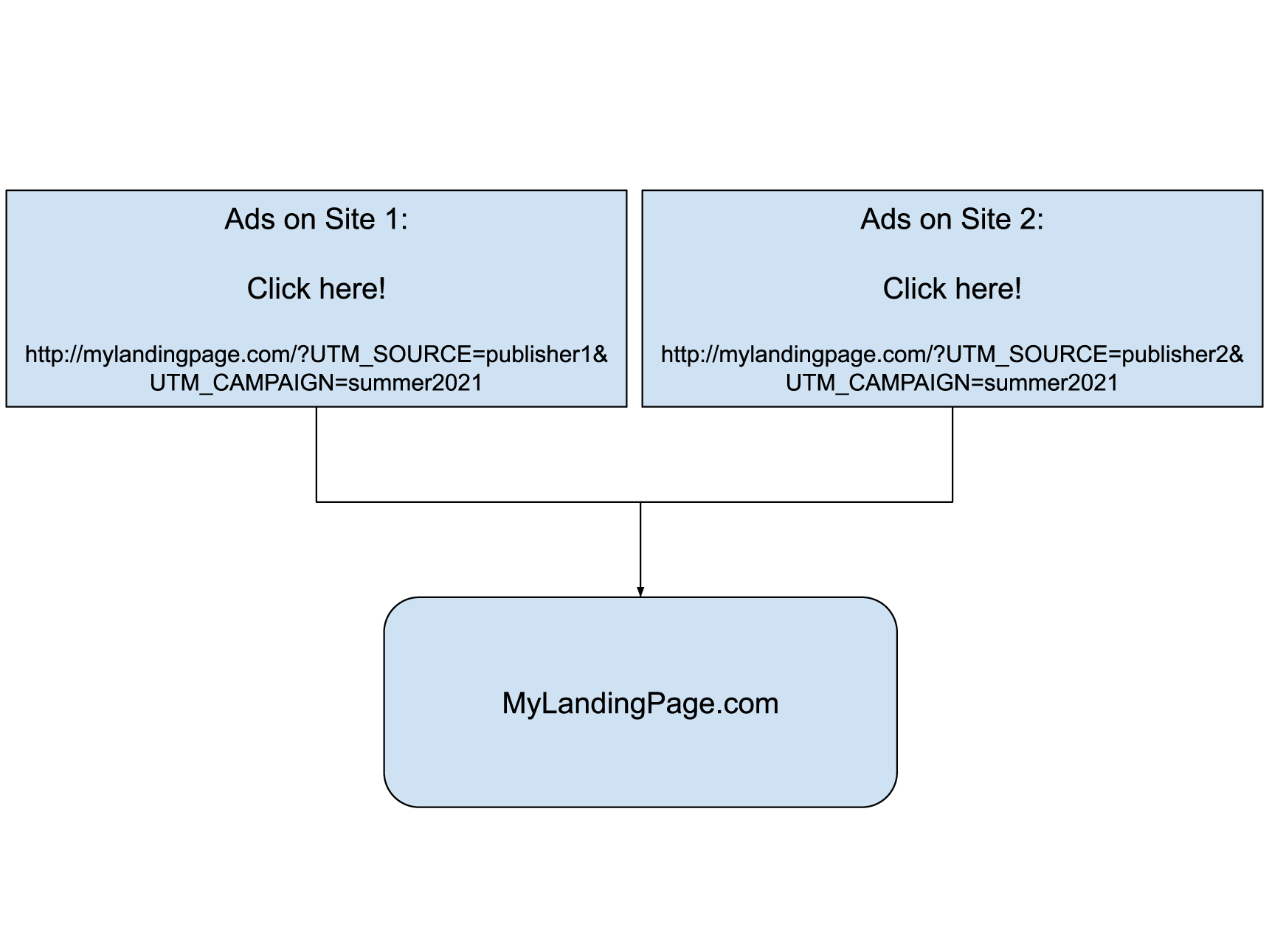
Now that we know the fundamentals, we can come up with a strategy for our task. I need to pass the traffic from different sources to my landing page and, once on the landing page, detect each source and dynamically add those sources to my form. This ensures that, whenever the user submits the form, the source parameter will also be submitted.

Different traffic sources for marketing campaign summer2021
Implementing the landing page: the quick way
Since I was not a designer, I was not worried about the design of the landing page. I could easily use one of Jupiter X’s landing page templates or select an elegant page template and easily add my form. Regardless, I had a design file ready from a designer and needed to implement it using my tool of choice, and I chose Jupiter X. I’m going to quickly use one of the contact page templates on this page (using the WunderWP plugin) to be able to explain the process.
After setting up a WordPress website on my client web host, I installed Jupiter X, registered and created the first page using it. (+)
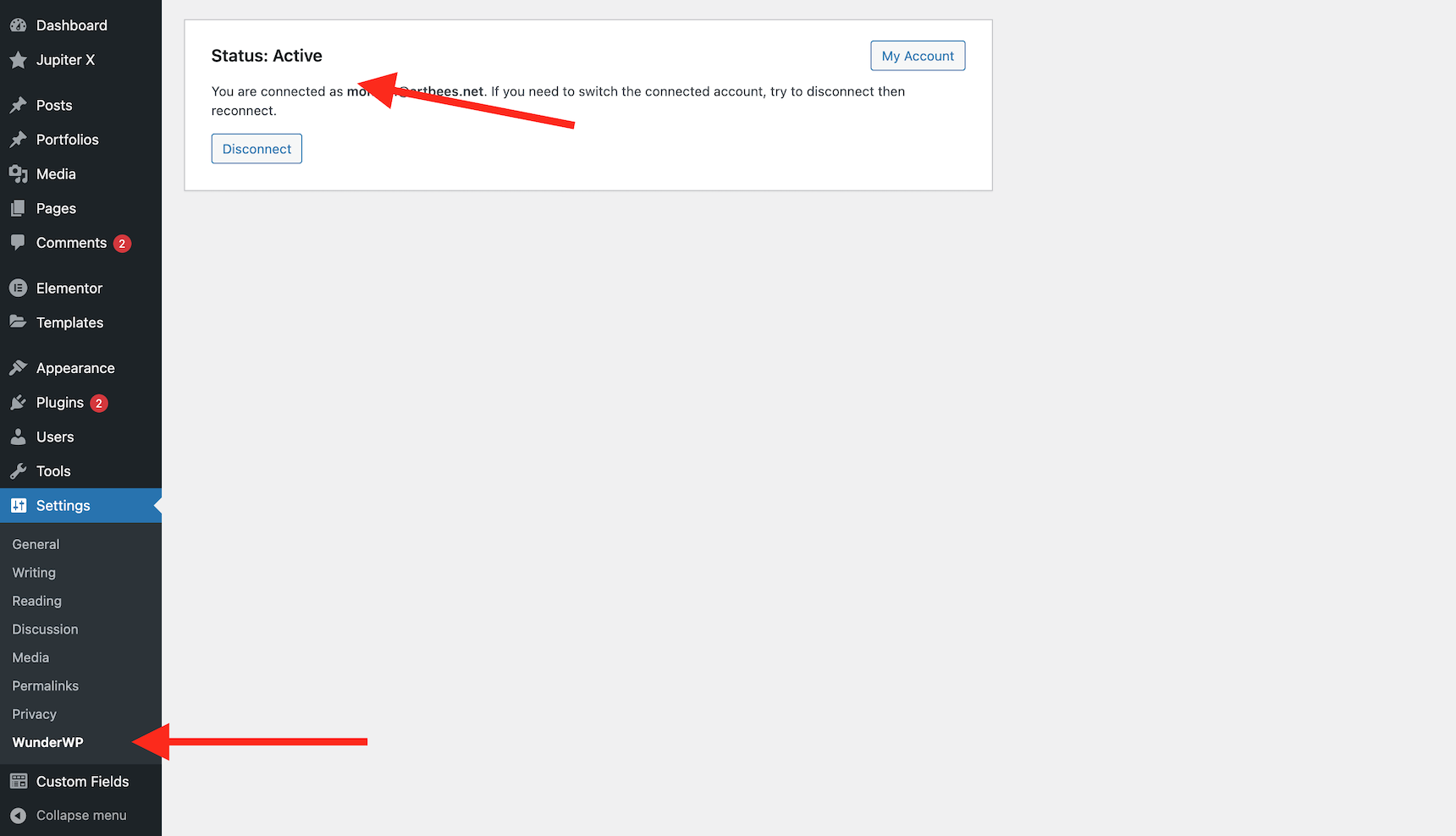
After that, I installed the WunderWP plugin and made sure it was connected to my website.
Make sure WunderWP is connected to the website
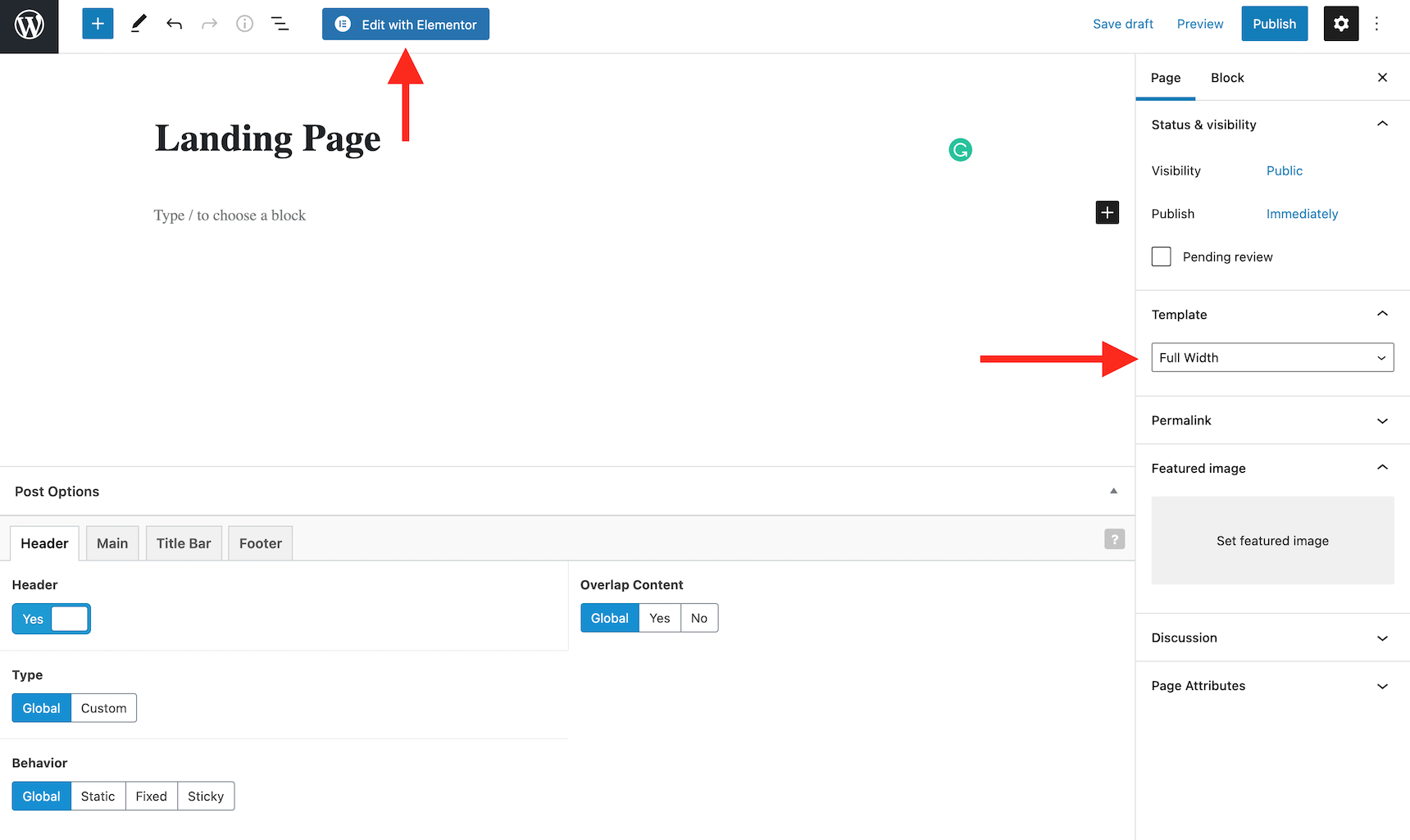
Now I need to create my landing page. From Pages -> Add New I choose to add a new page, then set the template to “Full Width” and edited with Elementor.
Creating the landing page with the appropriate page template.
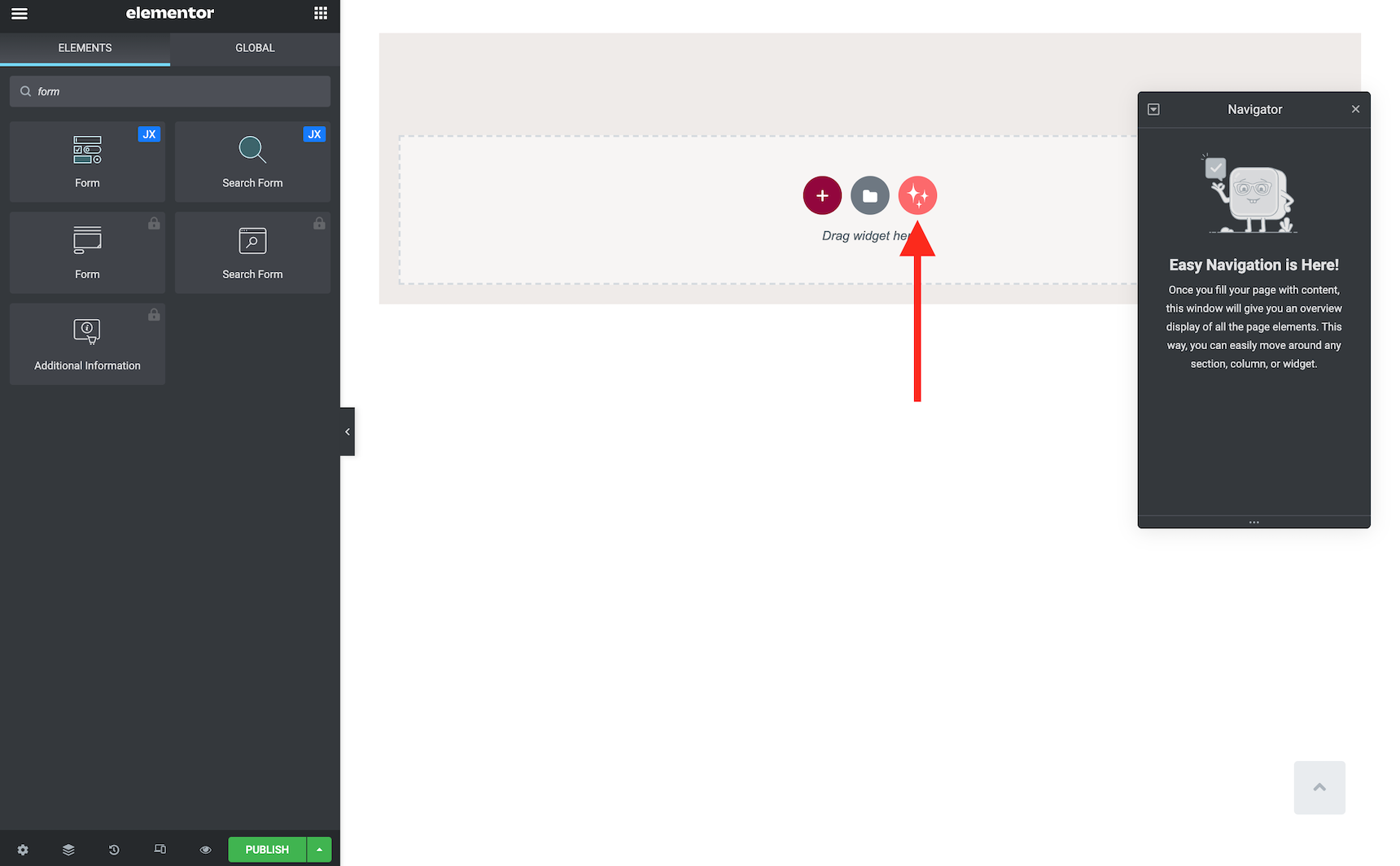
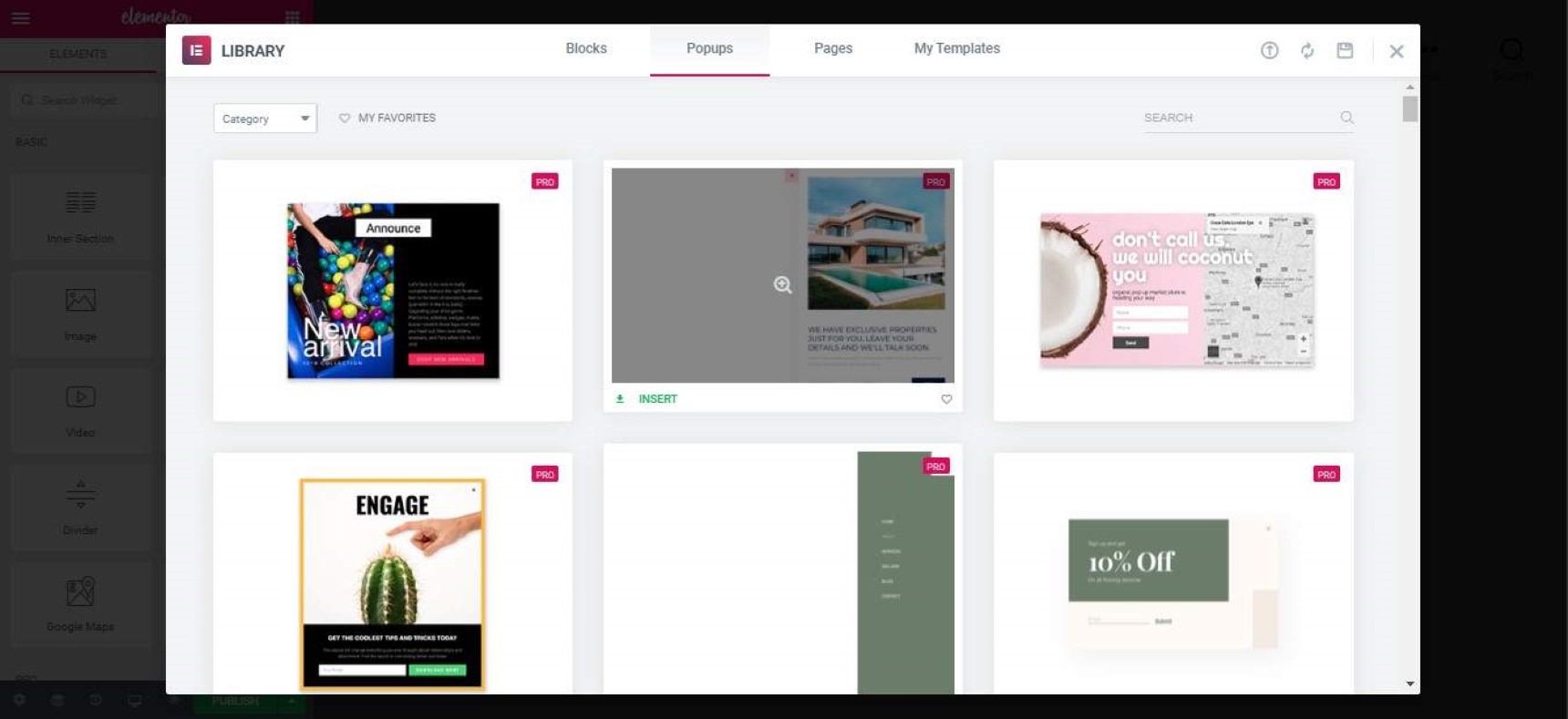
When the Elementor editor loads, I can see the WunderWP icon. Simply clicking on it will open a popup where I can choose the proper contact template.
Opening up the WunderWP template modal.
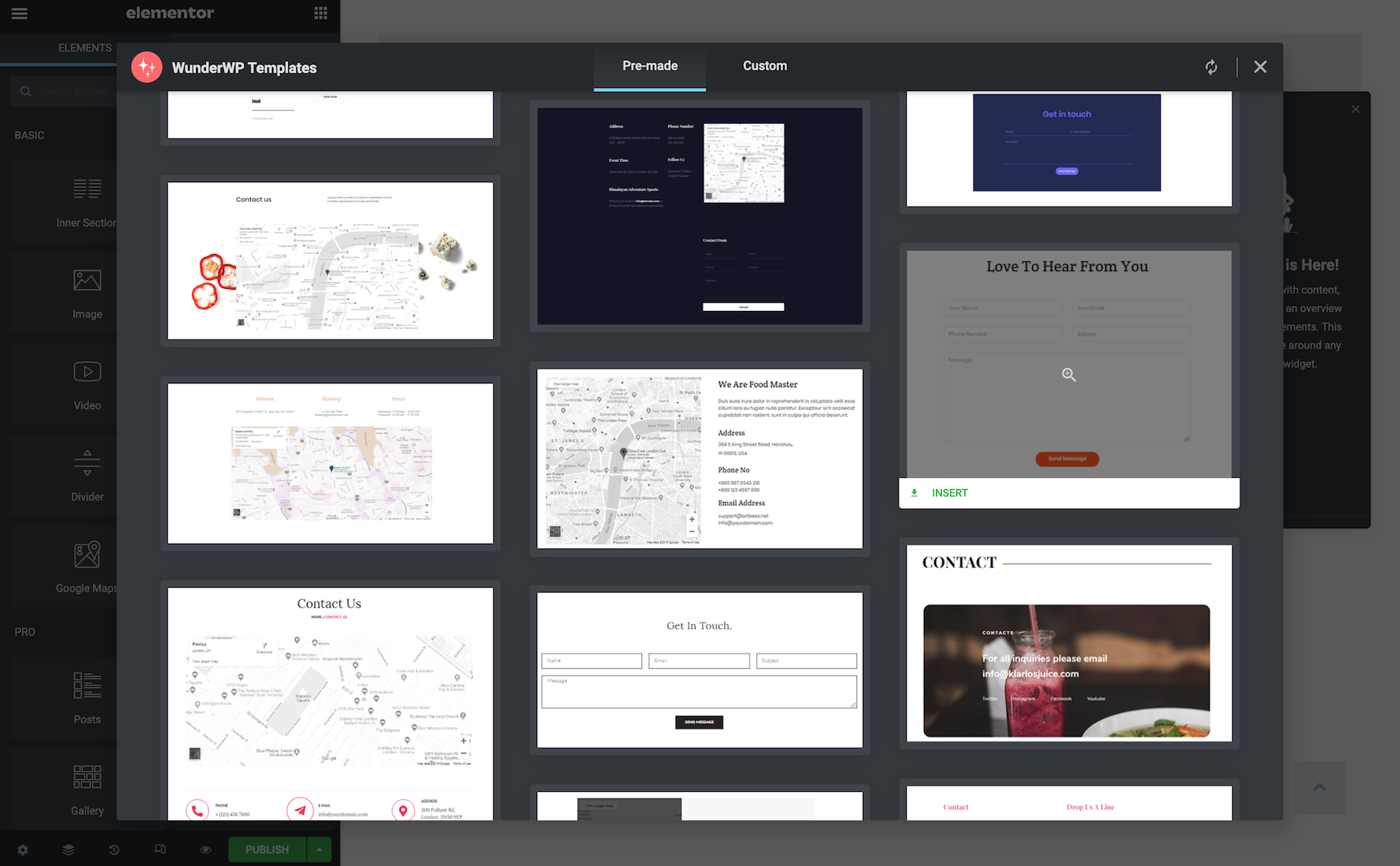
After finding the proper template, I just click on the “Insert” button below it.
Click on the Insert (green) button below each template.
And here we go! I have my landing page ready.
Jupiter X Forms widget on the landing page.
Now I can configure my form to send the data to whichever email I want, or submit a copy to my MailChimp, Growmatik or any other conversion tracking system.
Let’s get back to where we were before. I have my landing page now and still need to collect information from different viewers of my landing page, see which ones are coming from which marketing campaign and submit all the data together once the user submits the form.
But let’s have a quick overview of the URLs that are open on my visitors’ browsers. This is an example of an actual marketing campaign link that one of my advertisers used to link to my landing page:
Based on this wikipedia page, Urchin Tracking Module (UTM) parameters are five variants of URL parameters used by marketers to track the effectiveness of online marketing campaigns across traffic sources and publishing media.
As I mentioned earlier, you can edit parameters however you wish, but marketers have standardized a few specific parameters for continuity between different marketing campaigns. It’s up to you whether you choose to follow their example or not. It’s up to you.
There are five standardized UTM parameters, which may be used in any order:
Parameter
Purpose
Example
utm_source
Identifies which site sent the traffic. A required parameter.
utm_source=publisher1
utm_medium
Identifies what type of link was used, such as cost per click or email.
utm_medium=cpc
utm_campaign
Identifies a specific product promotion or strategic campaign.
utm_campaign=summer2021
utm_term
Identifies search terms.
utm_term=running+shoes
utm_content
Identifies what specifically was clicked to bring the user to the site, such as a banner ad or a text link. It is often used for A/B testing and content-targeted ads.
utm_content=logolink or utm_content=textlink
I know that the links that redirect to my website have two of these parameters: utm_source and utm_campaign. So, I need to get the value from them and store it somewhere until the user submits the form.
Now let’s see how we can attach these parameters to the form.
Dynamic Parameters in Jupiter X Forms
Jupiter X Forms has a unique and interesting feature that allows you to add a hidden field to your form and populate it with a dynamic parameter. Pretty much exactly what we need, right? Then it’s as easy as adding the hidden form fields and configuring them to the value from the URL.
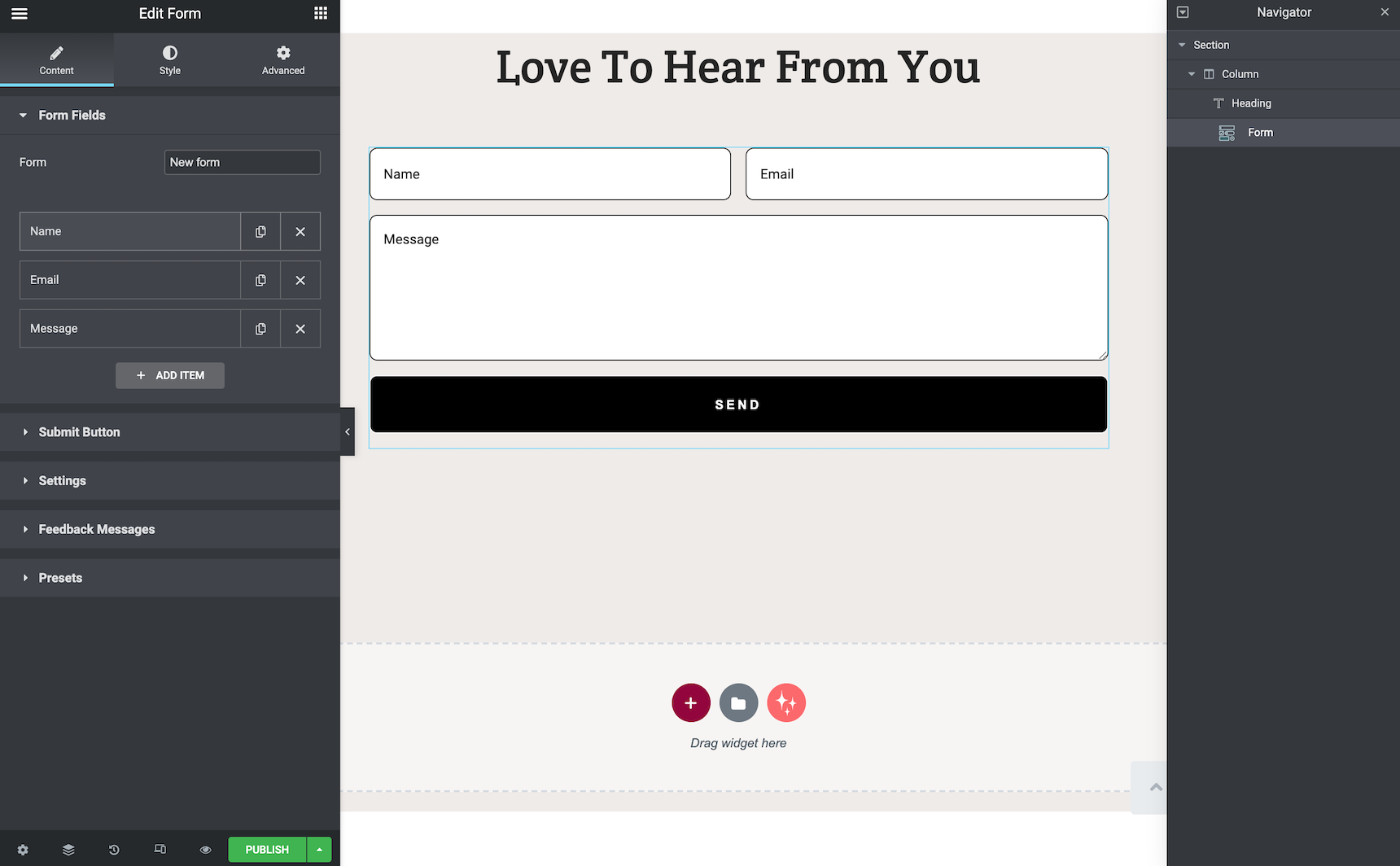
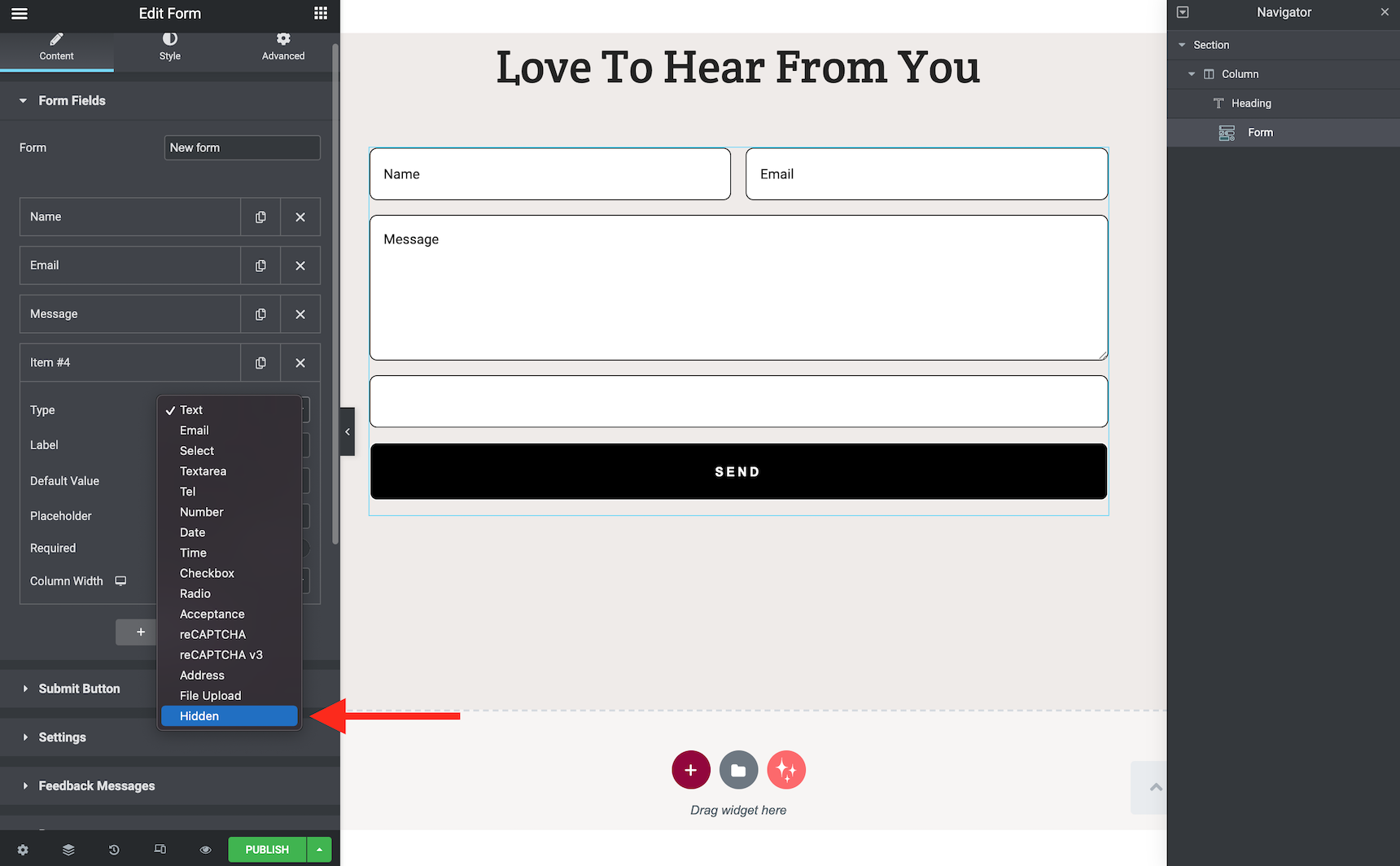
The first thing I’m going to add to the form is two hidden fields.
Adding a hidden field to the Jupiter X Forms
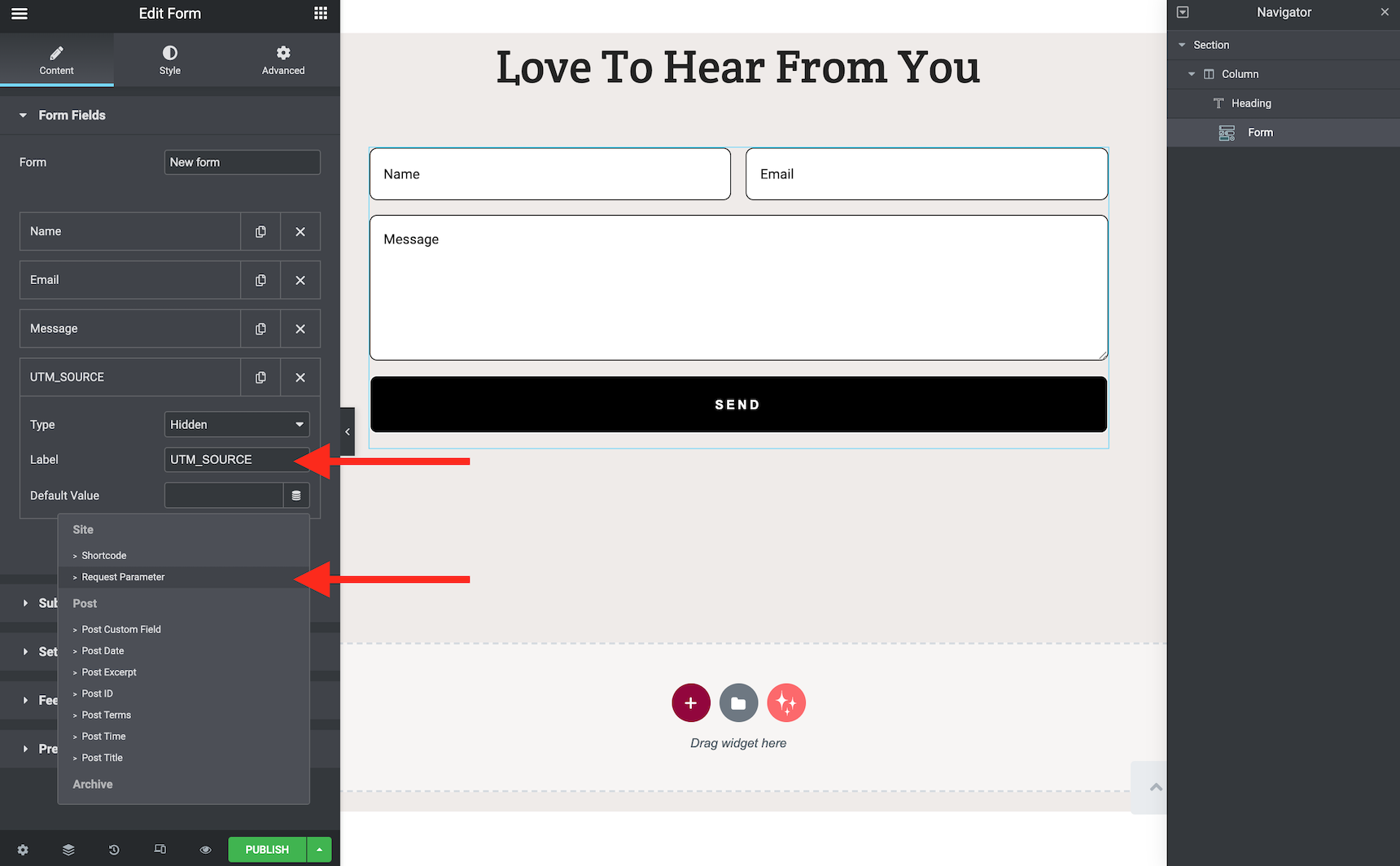
After that, I need to name my field exactly like the UTM parameters that I’m going to use.
Adding Request Parameter as the dynamic field value.
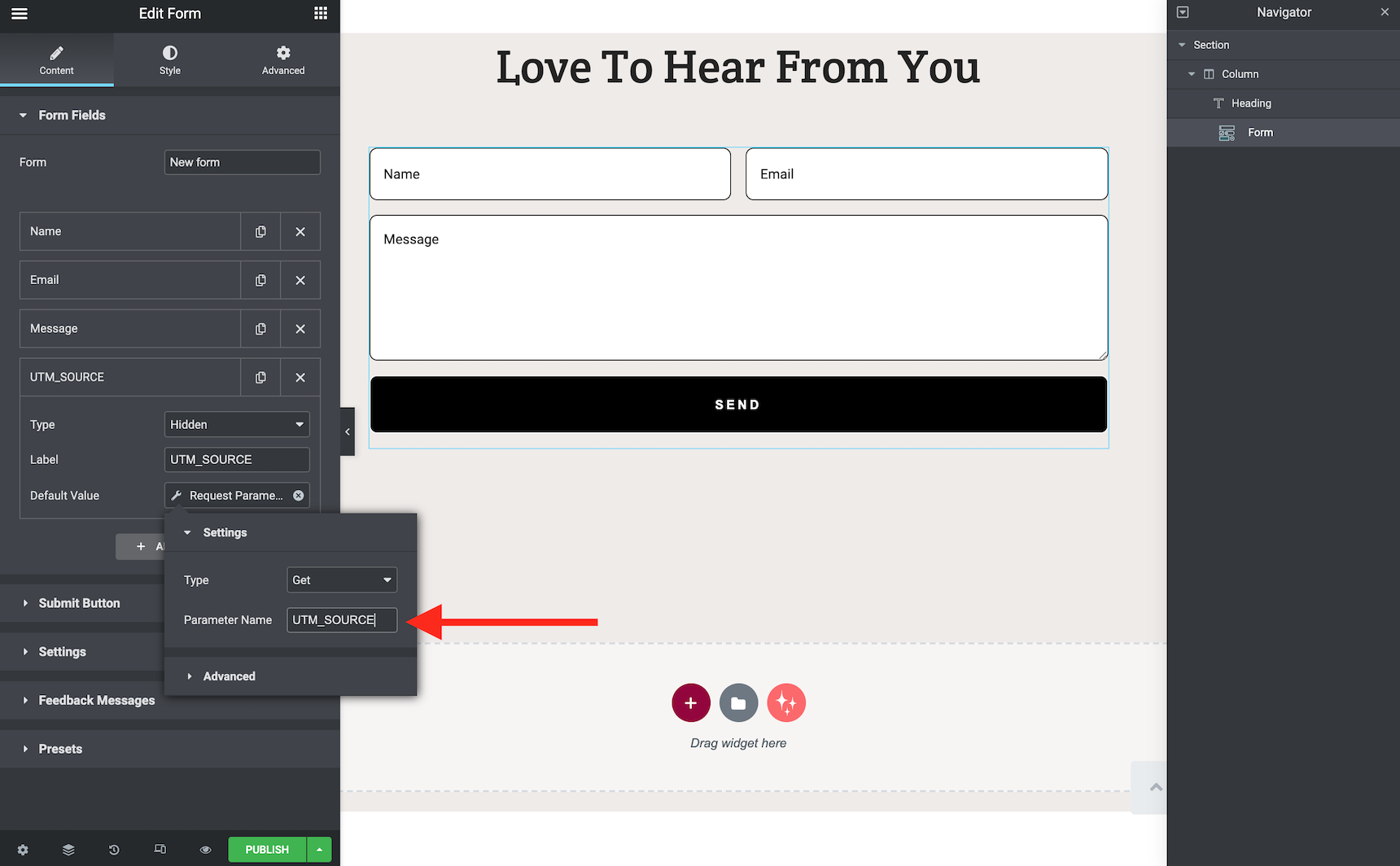
After naming the field and setting the value to be a dynamic request parameter, I need to provide the name of the parameter in the box.
Adding UTM_SOURCE as the parameter name to the hidden field.
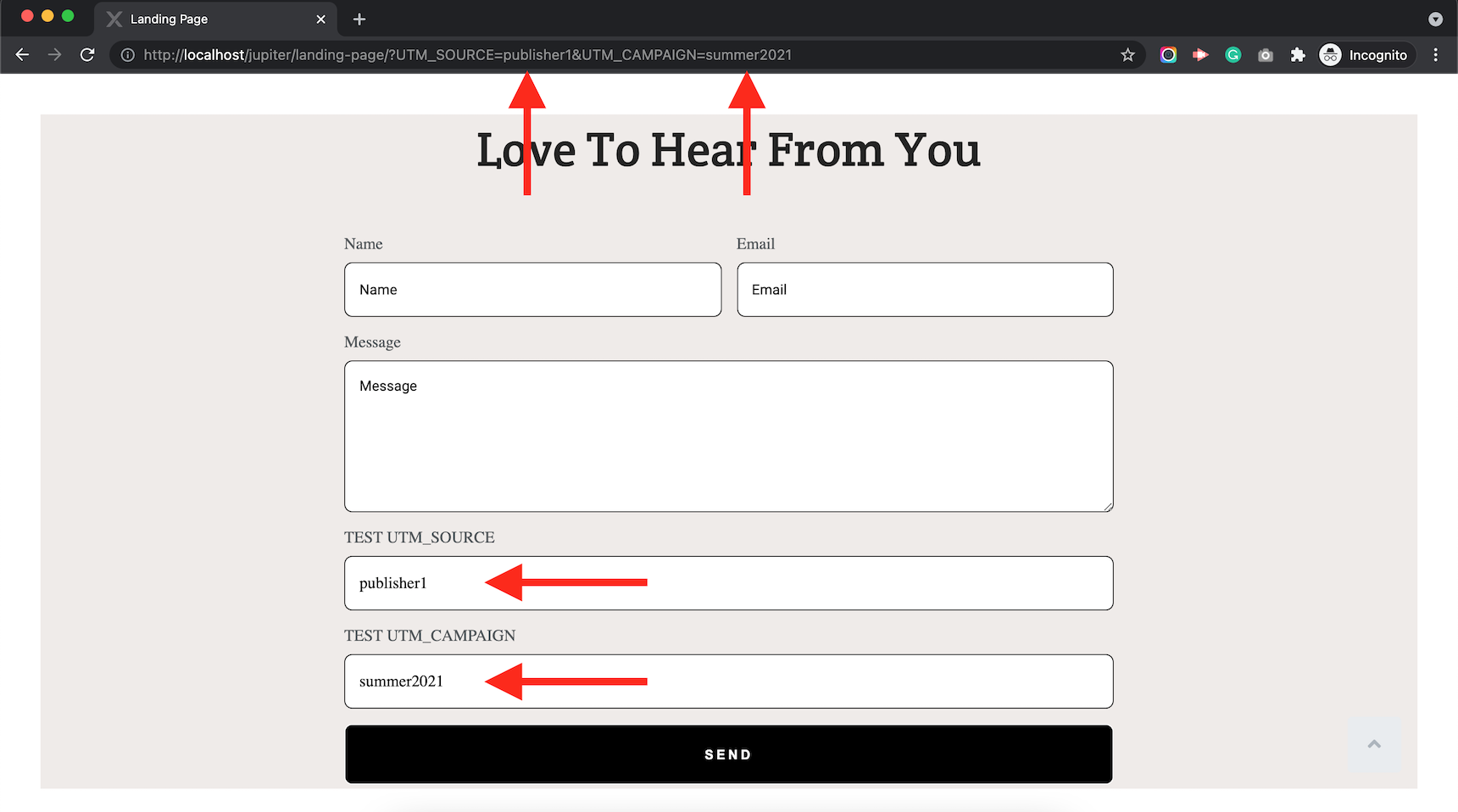
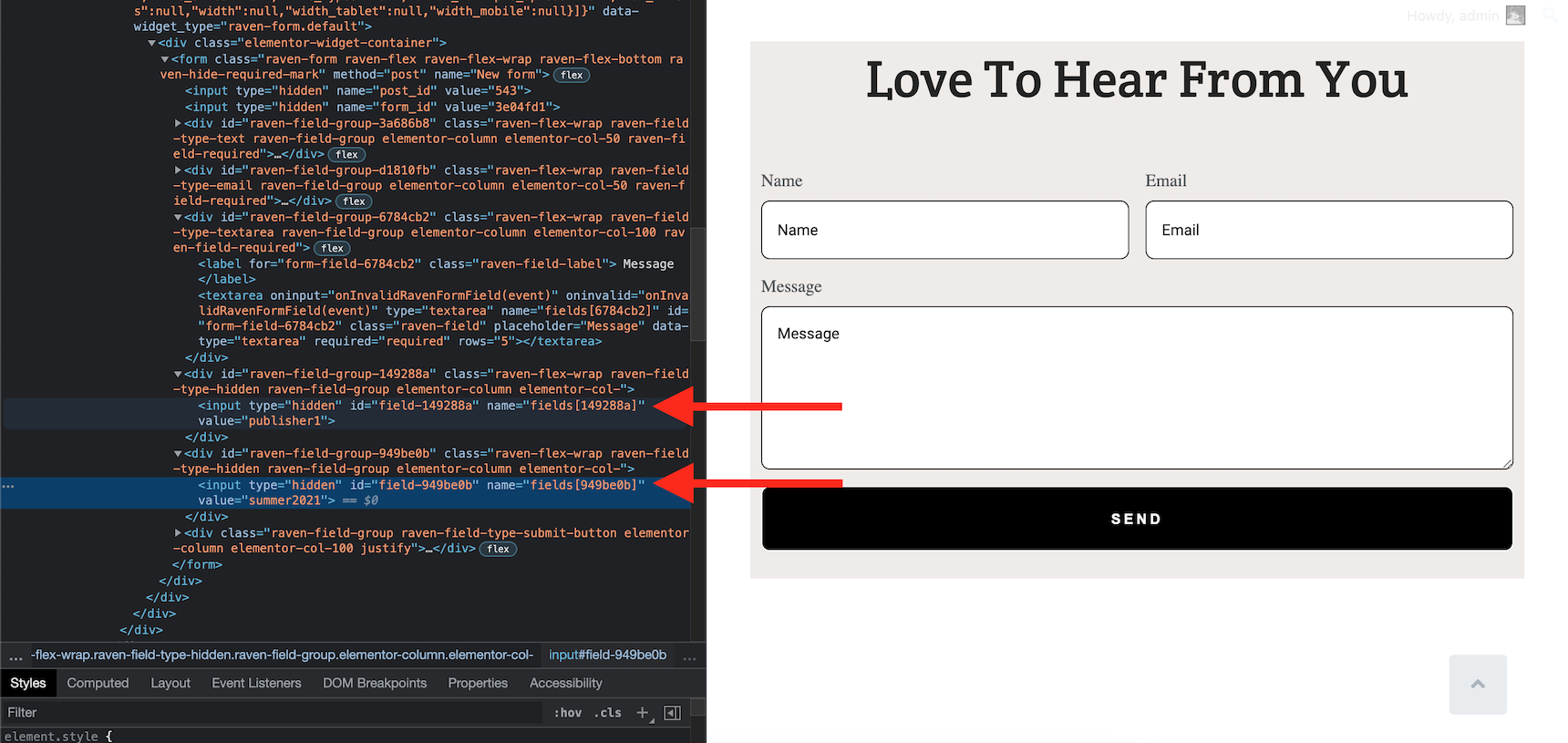
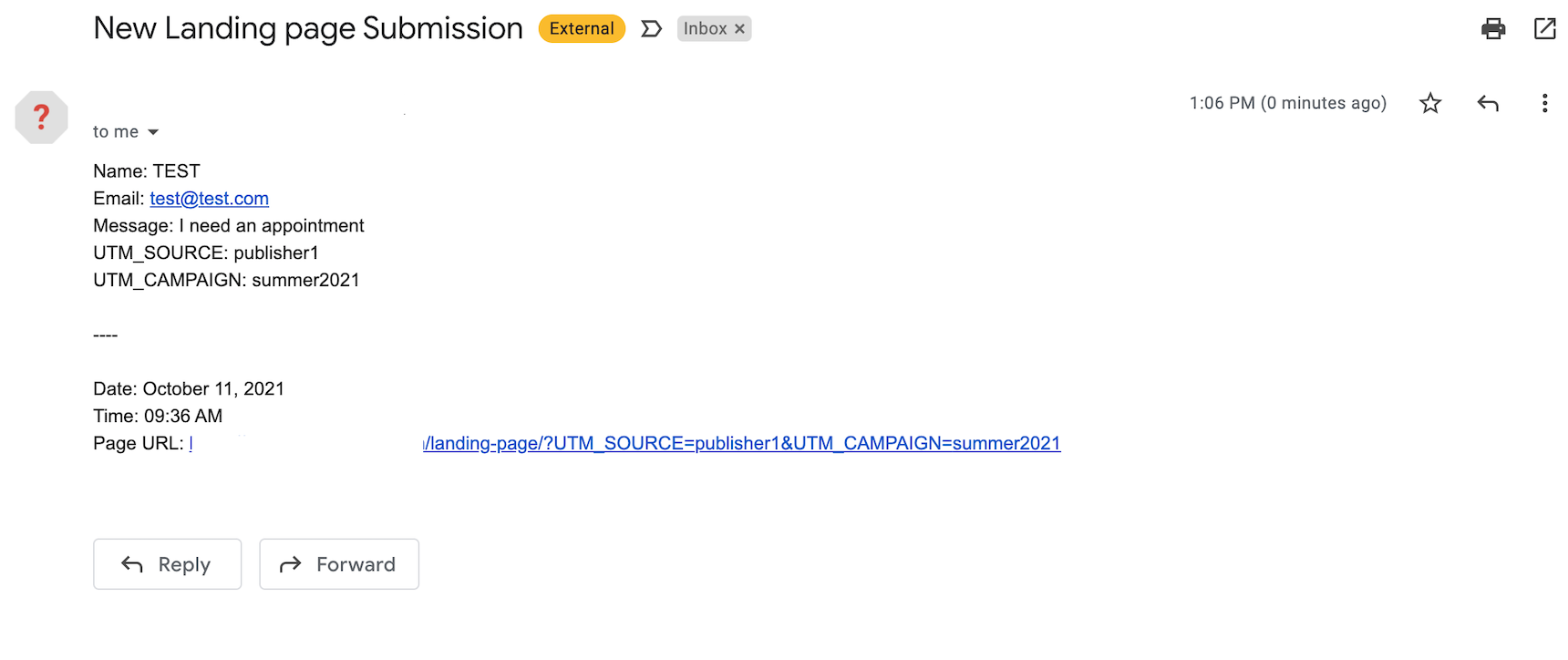
I will do the same process for the UTM_CAMPAIGN parameter. I also added a test text field and then populated it with the same request parameter to show how it will populate the field value dynamically. Here is the result:
Populating the dynamic parameters inside the form fields.
I don’t need the TEST UTM_SOURCE and TEST UTM_CAMPAIGN fields, so I will remove them. The parameters are already attached inside the form as hidden fields.
Populated hidden field showing up in the browser inspector.
One thing to consider is that the name of the generated hidden fields are random here, so you may need to map them before sending them to MailChimp or Growmatik.
After submitting the form, I can now see dynamic parameters that are added among the filled fields.
If there are no dynamic parameters available, no issues will occur. The fields will have no value and won’t cause any trouble for your submission.
Sample of the form submitted to the email containing the dynamic parameters.
And we are done. Finding your referrals using dynamic parameters in Jupiter X Forms requires no additional plugins or extra work. This example demonstrates how you can get the values from the URLs. There is also one other feature that I would like to mention and that is the POST parameter types. Sometimes you need to get the values using the POST method instead of the GET (url), which is also possible via Jupiter X Forms.
That’s all, folks! Feel free to ask questions or share your ideas about this article and don’t forget to subscribe to the newsletter to get the latest updates from Artbees!
A popup is a small window that appears from different sides or with different effects as a customer browses a website. It can have different shapes, forms, locations and functioning behavior, it can be used to show important information, make an agreement with the user, collect leads or gather other information from the end user.
Let’s be honest, you probably hate to see popups when you’re browsing a website. It’s usually unwanted and distracts from whatever process you were engaged in. However, as a site owner, you can’t afford to ignore making popups because they have the potential to greatly increase lead generation. In this article we will discuss the function of popups and present several methods on how to create popups in Elementor websites.
Popups in Elementor Pro
Elementor has a built-in feature for popups, but in order to utilize this feature you need to upgrade your account to the Pro version.
If you are familiar with Elementor, then you probably know how to create and manage templates. Building popups in Elementor is very similar to working with templates; you create them, define rules and set where they will appear. Let’s shortly review how this works in Elementor Pro:First you need to create a new popup via Elementor > Popups > Add new popup. Once you add the name you will have the chance to choose from a pre-designed template or start from scratch.
No matter which way you use it, working with page elements is absolutely the same. Besides, this post is not about how to use the Elementor page builder. Rather, the most interesting part of the popup is in the template setting (marked by the gear icon at the bottom left). Here in the settings tab you can define width and height, animations for entry and exit, the horizontal and vertical position of the popup window and close button style and appearance.
On the style tab (on the right side), you can define the style of the elements used in the popup, close button style and some other style-related settings.
If you finished setting up the popup window it’s time to define how and when to show your popup. To do this you need to define the Publish Settings of this popup.
The Conditions tab defines the location of the popup. You can choose different locations like pages, posts, only frontpage, only Shop page or anything else you can imagine. You can also combine rules together.
The Trigger tab defines exactly when you want a popup to appear. There are several triggers and they are enough to setup advanced processes including:
On-Page Load
On Scroll
On Scroll to Element
On Click
After Inactivity
On-Page Exit Intent
The Advanced Rules tab allows you to define the advanced conditions of your popup such as where or to whom you want to display the popup. These include different user roles as well. There are many different rules available and they can also be combined with each other.
Once you set all your rules and click Save & Close, your popup will be ready and will show up for end users according to the rules you set.
Popups in Jupiter X
Popups in Jupiter X can be used even if you don’t have Elementor Pro! They are organized by famous JetPopup plugins, which is a premium plugin and included for free in Jupiter X.
In JetPopup, as in Elementor pro, you also have pre-built templates, but here you have a better selection of templates and they can be filtered by different categories.
The process is almost the same as in Elementor Pro: you start with a blank template or with a premade template. Designing the page with the Elementor widget is the same, you just need to add and configure the Elementor widget. The difference is in the settings of the popup. In this case you don’t have a Publish Settings tab, but instead you can configure all the settings from the same window.
Here in the settings tab you can define animation, popup events, amount of popups and many other settings. The most important part here is Display Condition, which defines rules of where exactly you want to show your popup. Here you can choose to include or exclude pages, posts, categories or many other post types. They can also be combined with each other.
The Style tab in the settings is responsible for the style of the popup. Here you can define width and height, position, background type and many other settings such as close button style and overlay of the popup, which can be defined as a color or image.
The good thing about the JetPopup plugin combination with Jupiter X is that when you install one of many demos of Jupiter X it comes with a pre-designed popup template optimized for that particular demo. Most of the demos are packed with nice looking popups, especially shop templates.
Popups by Growmatik
It’s likely you already know about Growmatik, our product that automates your entire marketing arsenal and drives more sales via personalized web pages, emails and popups, all from within one tool. However, if you have not tried it before I highly recommend checking it out. Popups in Growmatik can be displayed for specific events or to certain users from certain locations. In order to create such popups, first of all you need to make sure you first integrate your website with Growmatik.Once this process is done, you can start creating popups from the Workshop page:
Now, click on the button on the upper right side to add the popup. Basically, you have 2 options, to start from scratch or use readymade popups. These pre-made popups were created to fit the most common marketing scenarios like subscription, discount offer, content giveaway, new collection and many others.
Starting with pre-built templates is the easiest option, of course, and will save you plenty of time. You’ll just need to change some text, images and the appearance settings of the popup window as everything else is already created and configured.
If you decide to start from scratch, it will take more time but your template will be fully customized. It’s all about your creativity! I love prebuilt templates but they do not always fit my needs, which is the main reason why you might want to start from scratch.
The best thing about Gromatik popups is that you are not distracted with other elements in the editing window. The sleek design helps you focus on your work, such as the important elements and settings window of the popup. Take a look at this screenshot to get an idea what the Growmatik interface looks like.
Everything you may want from the popup, you have in your window. Growmatik boasts a responsive view, real time preview, the setup of the popup layout, overlay style and many other related settings that can be configured from a single window. That’s how easy it is!
Once your popup window is finished it’s time to create some automation. In other words, this popup now needs smart rules of appearance since we don’t want to show it for every user who opens our site. In this case, Growmatik has automation rules. To access these, you don’t even have to leave the popup builder. From the same window, on the top left you’ll see the Options button. Choose “Use in automation” and then, depending on your marketing goal, choose who you want to show your popup: guests, leads or customers. In the window that appears next you will have the option to show your popup window to filtered users by parameters such as location, device used, period of the time and many others.
We will not review all the details of the creation process but let’s check this screenshot, where we decided to show popups to users from Georgia and Italy who are using mobile devices. We want our popup to appear after they scroll our page by 25% and this campaign should run from 8 August to 13 September. On the right side we chose which popup to show for this campaign:
As we can see, creating this process is very easy, even for beginners, but be aware that we covered only the basics of the process. Actually, Growmatik is a versatile tool and it can be used for advanced marketing scenarios.
Conclusion
Thank you for reading this article! I hope you now have more information on creating popups in Elementor and other key marketing programs. As you can see, making a great looking popup is not a big deal and it is super easy. Nowadays, you don’t need to design popups from the ground up, since many ready-made templates are available. You just need to change some settings and set up appearance rules. As a site owner, you always need to imagine yourself as a viewer of the site. Don’t create too many popups and don’t distract users, since only good looking and well-functioning popups can really increase leads
If you have any questions or tips to add, please feel free to comment below!
If you are going to create an Ecommerce website, you’ll be able to do it easily with the combined capability of Elementor, WooCommerce and the Jupiter X theme. These powerful programs allow you to design a fully-functional ecommerce website without any coding. In this post, you’ll find all the steps you need to take when creating your own WooCommerce store with Elementor.
The Tools You Need To Make A WooCommerce Store
There are two main tools you’ll need to create your online store beyond the WooCommerce plugin:
Jupiter X Theme – this is a premium WordPress theme that includes customization options, a bundled WooCommerce plugin and demo templates.
Elementor – this is a free page builder that will help you customize pages and add any content. It’s also bundled with the Jupiter X theme.
Next we’ll explain how to create and customize the product pages and make them look great.
Installing Jupiter X and WooCommerce Templates
The first step you need to take in creating a WooCommerce site is installing the Jupiter X theme. The process is quite simple and is explained fully here. If you are new to WordPress and WooCommerce, or just want to save time, you can install a demo template to get an already built WooCommerce site and just replace demo products and other demo content with yours. In this post you’ll get a detailed instruction on how to import a demo template.
Use Customizer to Edit the Settings
Jupiter X provides WooCommerce settings in the WordPress Customizer. You can edit some styles, enable/disable options and see the results right away on a real-time preview.
So, after installing WooCommerce, you can access default WooCommerce pages, which can be styled in Appearance > Customize > WooCommerce.
Here are the sections you can customize:
Product Archive
Product List
Product Page
Product Catalog
Checkout & Cart
Store Notice
Product Images
WooCommerce settings like Store Notice, Product Catalog, Product Images are default settings and not related to Jupiter X. You can read about them in the WooCommerce documentation.
Product Archive
In the “Product Archive” tab you can set margin and padding values that will be applied on WooCommerce archive/category pages. Also there is a “Styles” tab where you can edit the color, fonts for the title and description on the archive pages.
Product List
The settings in “Product List” allow you to enable/disable different elements, set columns and rows for the products. Also you can style the elements like “Add to Cart” button, product title, Sale and Out of Stock badges, etc. Jupiter X documentation has an article related to Product List that describes the options in detail.
Product Page
This tab provides the settings for single product pages. There are 8 templates you can select for single products. You can view their examples on Jupiter X demo site (hover the Shop menu item and check the links Layout 1 – Layout 8).
There are also options to enable/disable different elements on the page like Categories, Tags, Short Description, Review tab, etc. In addition, you can disable Image Lightbox and Image Zoom. The “Styles” tab provides styling options for the elements, such as changing font family or font size for product name, setting border for an image, styling social icons and so on.
Checkout & Cart
The “Checkout & Cart” tab has an option to disable steps, which you have by default on the Cart and Checkout pages.
Additionally you can style these steps, headings, buttons, thumbnail and others in the “Style” tab.
Creating a Custom Shop Page With Elementor
WooCommerce creates a default Shop page that is not editable and other content can’t be added to it.In this case we have a solution: create a custom Shop page using Elementor editor where you’ll be able to add any content you need. Of course, you need to display products on your Shop page, and to do this you can add the JX Products widget to the Elementor editor.
Its styles are taken from Customizer > WooCommerce > Product List. So, if you want to change the title color and font size or customize the button, you need to edit the Style settings in the Product List inside the Customizer.
By the way, any other content can be added to your custom Shop page in Elementor, including, for example, some custom text or a sidebar, search form and others.
If you wish to create custom templates for archive and single product pages, you have to install the JetWooBuilder plugin (it’s bundled with the Jupiter X theme). This plugin will help you build astonishing templates in combination with Jupiter X, Elementor, WooCommerce, and JetWooBuilder.
JetWooBuilder allows you to override the default shop pages in WooCommerce from single pages to the archive and category pages. It also offers customization on checkout and cart pages. So, if you aim to build a completely custom shop page layout, you can make use of the JetWooBuilder plugin. Here is JetWooBuilder’s official website.
By the way, we already have a blog article about JetWooBuilder and what templates you can create for your store.
Although JetWooBuilder gives you the ability to override WooCommerce pages, another tool can be very handy: Jet Smart Filters. This plugin is also bundled with the theme. It allows you to use better filters on your archive pages to provide better usability for your end-users.
JetSmartFilters plugin is made for the Elementor page builder and it’s very handy. You’ll give users a possibility to apply multiple filters. There are different filter types to add, including the checkboxes, range filters, search filters, etc. You can find detailed instructions on how to apply filters to WooCommerce products in this article.
Increase Conversion Rate
If you are looking for a way to monitor customer engagement, the best tool for this will be Growmatik. This powerful conversion tool will measure your marketing with conversion & growth reports. Growmatik is a robust marketing automation solution that automates your entire marketing and drives more sales through personalized web pages, emails and popups within one tool.
Learn more tips and tricks for improving conversion in this article entitled “What is conversion rate and how to boost it with personalization”.
Wrapping Up
Using a combination of WooCommerce, Jupiter X and Elementor allows you to build a custom ecommerce site without needing to write lines of code. All you need to do is:
Install and configure WooCommerce
Install Jupiter X and import a demo template if needed
Customize your product pages via Jupiter X Customizer settings
Create a custom Shop page with the Elementor page builder and use additionals tools like JetWooBuilder, JetSmartFilter
So give it a chance and build a WooCommerce store with Elementor. After that, you’re ready to sell your products!
As a WordPress support engineer, I face many challenges every day. Rather than skills that a technical support staff should have, there are tools people like me can use to be able to help their clients faster and better. In this article, I’m going to give an overview of the top 10 free browser extensions that have become part of my daily workflow over the years. I can divide these extensions into the following categories: emulation tools, scanners, recording tools, measurement tools, and operating tools.
The tools may vary depending on the product you support but some tools, such as those that I’m going to talk about in the following article, might be commonly used by support engineers working with any kind of product. In fact, everyone may use these extensions for a different purpose, and while I work as a WordPress technical support professional, these extensions could come in handy in another way. In this article, I’m going to review the top 10 free browser extensions I use as a support engineer and the best thing about them is that all of them won’t cost you a dime!
Grammarly
Honestly, I can’t even imagine writing a letter or a response to a client without Grammarly. I’m even using it to write this blog post! This extension is a must-have for every one who is involved in writing any kind of text. It corrects grammar issues, fixes dictation in the free version and suggests improvements to your writing in the premium version. I’m already happy with the free version but if you believe you need more advanced writing assistance you may want to try Grammarly Premium. It already has 10+ million users.
Wappalyzer
Wappalyzer will detect the framework, technologies and programming languages that are being used on a website. It became my habit to check out the technologies being used on a website even if I don’t want to detect any problem. This free browser extension uncovers more than a thousand technologies in dozens of categories such as programming languages, analytics, marketing tools, payment processors, CRM, CDN and others, making it very useful for a web developer or a web support engineer. 1+ million users currently have this extension installed on their browser.
Awesome Screenshot
I think Awesome Screenshot is not only a handy tool for all support staff but a must have extension for everyone. Most of the time I need to show our clients how to do something, and a good tool like this saves me a lot of time. Mostly, I use the Full Page Screenshot feature and then crop the image with built in features of this screenshot. This way I don’t need to use photo editor softwares to edit the screenshots or to add notes over the image. If you don’t like Awesome Screenshot, GoFullPage – Full Page Screen Capture is another awesome plugin that does essentially the same job, but only uses one click to capture the entire page. I need to mention that the Awesome Screenshot free browser extension is also able to record videos from your screen. 1+ million installations for Awesome Screenshot and 4+ million installations for GoFullPage are proof of the usefulness of these extensions.
User-Agent Switcher
User-Agent Switcher will emulate the user agent to any agent you want, which is extremely helpful for when you want to see how robots or different applications see your website. Detecting crawler issues such as Google search bots, marketing platform bots or even web scanners are all prime uses of this extension for me. Time after time, a Google search console detects issues for a client but without using this extension, resolving the issue becomes a hassle. This free browser extension has 90k+ active installations.
Screencastify
6+ million active installations for Screencastify means that it’s truly handy in many cases. I myself use it to record videos of my browser tab to prove that either an issue for a client is resolved or not happening. The free version of this extension has a 5 minute limitation per video and also only saves the video in WebM format, which so far has been enough for me as a technical support engineer.
The extensions above were the most used extensions on my browser. I am using them on a daily basis and couldn’t imagine my workflow without them. There are more handy extensions for support work that my colleagues are using, but I myself can live without them. In the following I will review my colleagues’ favorite free browser extensions as well.
The Great Suspender
Having so many tabs open on a browser is an issue support staff will always deal with. The bad thing about it is that it eats lots of memory and sometimes makes your device run slowly. The idea behind The Great Suspender is that it suspends the pages that are not being used and still open in the other tabs by replacing their content with the simplest HTML possible. It will free up the memory on your device and will keep your device from lagging.
WhatFont
Although you can inspect the elements on a page and use the developer tools to find out what font is being used for that element, some people prefer a faster tool to find which font is being used in different parts of a page. By using WhatFont free browser extension, you simply click on the extension icon and hover your mouse over the texts on the page. It will show the font name assigned to that text. 6+ million active installations may be due to the many designers that are using this extension rather than support engineers or developers.
Canned Responses – Tray
When you are being bombarded with lots of tickets or chat requests, saving even a second is gold. In these situations, every tool that can speed up your workflow will become handy. Canned Responses is one of those tools that can help you save some time in tough situations. You will collect your most common responses in it and use any of them quickly. It has 2+ K active installation, which is not too many, but it doesn’t mean it’s not handy.
Dimensions
The idea behind Dimensions extension is to detect the left, right, top and bottom distances of the pointer cutting to an edge. The cutting edge will detect color differences, making it a good tool for both designers and support agents as it can help to detect the design issues. This extension has 100+ K active installations.
Clipboard History Pro
Clipboard History Pro is another tool that can help you manage your time faster and avoid back and forth copy/pasting some repetitive data. Indeed, it is very useful for support staff who are experiencing heavy workloads and want to save some time. It is common that you need to use a text that you copied onto your clipboard a couple of minutes ago. This will help you use it very quickly. This extension has 90+ K active installations.
This rounds off our list of the top 10 free browser extensions for support staff! Please share your thoughts in the comments about this article or any other useful extensions or tools that support engineers can use.