
How to Add Custom Product Tabs in WooCommerce (Without Editing Every Product)
Add size guides, shipping info and FAQs as product tabs in WooCommerce. Write each tab once, choose which products show it, and set the order.

Every WooCommerce product page comes with the same three tabs: Description, Additional information and Reviews. They cover the basics, but shoppers usually want more before they buy: which size to order, when the parcel will arrive, how to wash the thing, what the warranty covers.
Most stores end up pasting that information into every product description. It works until the returns policy changes and you have 200 descriptions to update.
A better way is a custom product tab: write the information once, choose which products show it, and update it in one place. This guide shows how to do that with a free plugin, step by step, and gives the code version at the end if you’d rather not use a plugin.
What you need
- WooCommerce 7.2 or newer.
- Artbees Product Tabs for WooCommerce, free on WordPress.org.
We tested every step below on WordPress 7.1, WooCommerce 11.0 and the Storefront theme, with Product Tabs 1.0.0. The plugin uses your theme’s own WooCommerce tab styling, so your tabs will look like the ones your theme already has.
Step 1: Install the plugin
In your WordPress admin, go to Plugins → Add New, search for “Artbees Product Tabs”, then install and activate it. You’ll find it under Artbees → Product Tabs in the admin menu.
The first time you open it, you can follow a short guided setup or go straight to your tabs. This guide goes straight to the tabs.
Step 2: Choose a layout for your tab
Click Add tab. The first thing you pick is a layout. You can write freely in the normal WordPress editor (Product Enquiry), or use a ready-made layout that builds the customer-facing design for you:
- Specifications: a label-and-value table
- Size Guide: a size chart with your own columns
- Shipping & Returns: two separate sections
- FAQ: an accessible question-and-answer accordion
- Downloads: a list of files and links, such as manuals
- Warranty: coverage, exclusions and how to claim
- Dynamic Content: an Elementor saved template or a WordPress shortcode
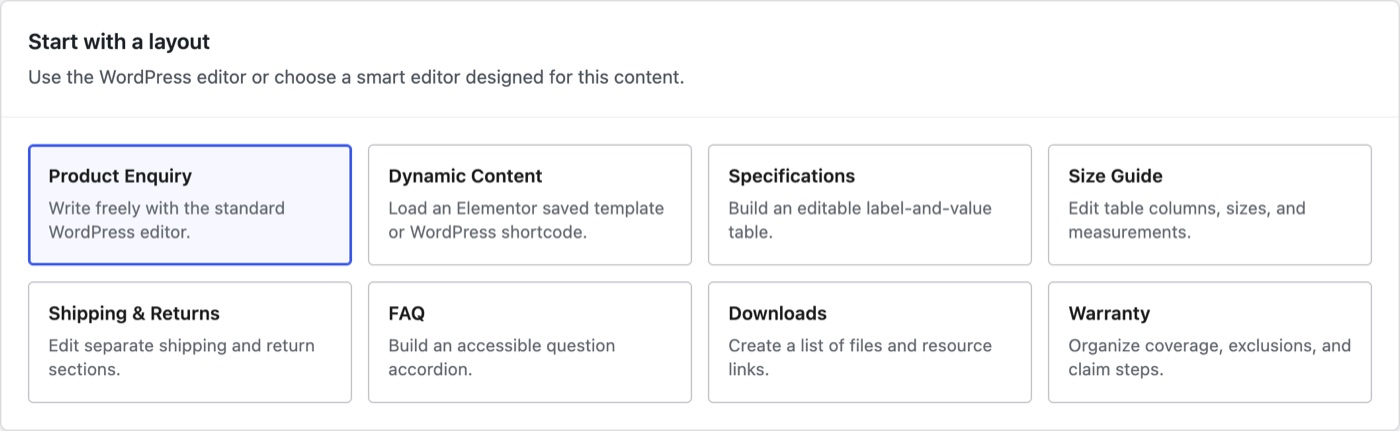
For this example, we’ll make a size guide for a clothing store, so choose Size Guide.
Step 3: Add your content
Give the tab a name. This is the label shoppers see on the product page, so keep it short: “Size guide” works better than “Our complete sizing information”.
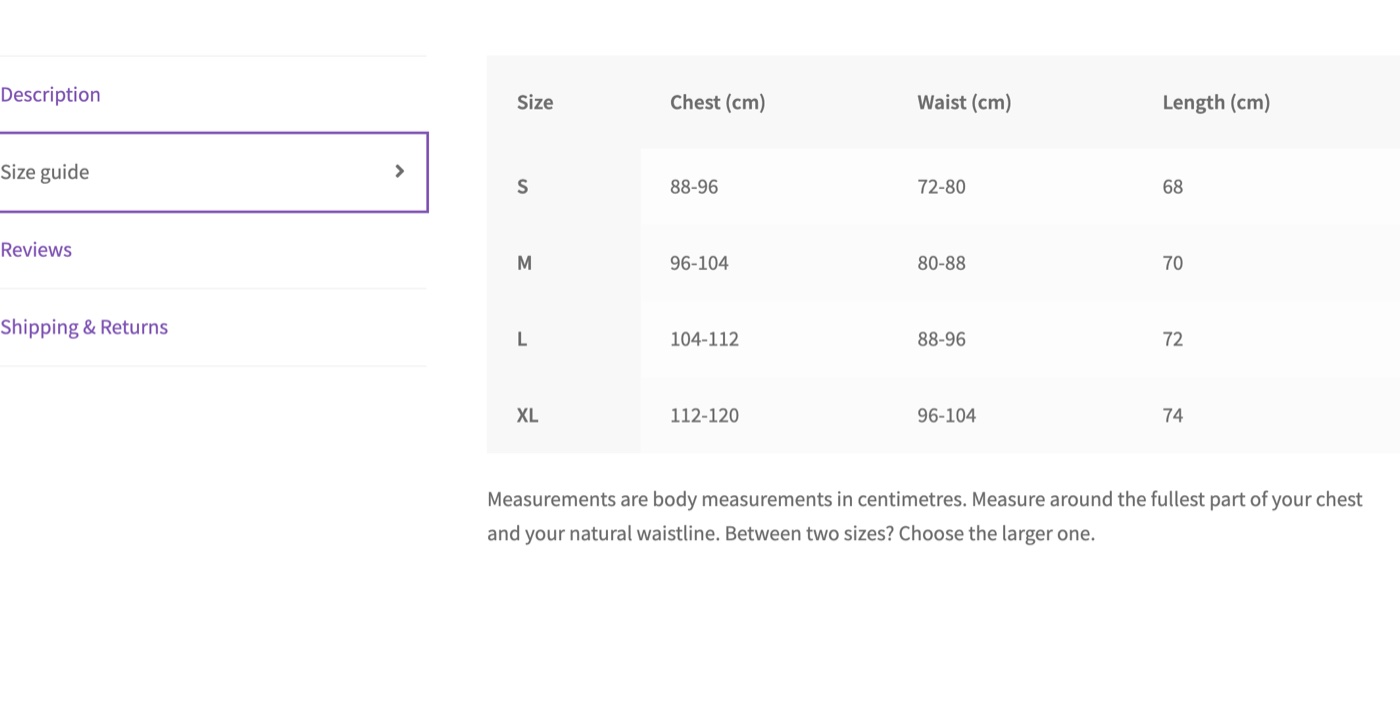
The size guide layout gives you a table to fill in. Rename the column headings, add or remove columns and sizes, and type in your measurements. There’s also a Measurement note box for units and how to measure.
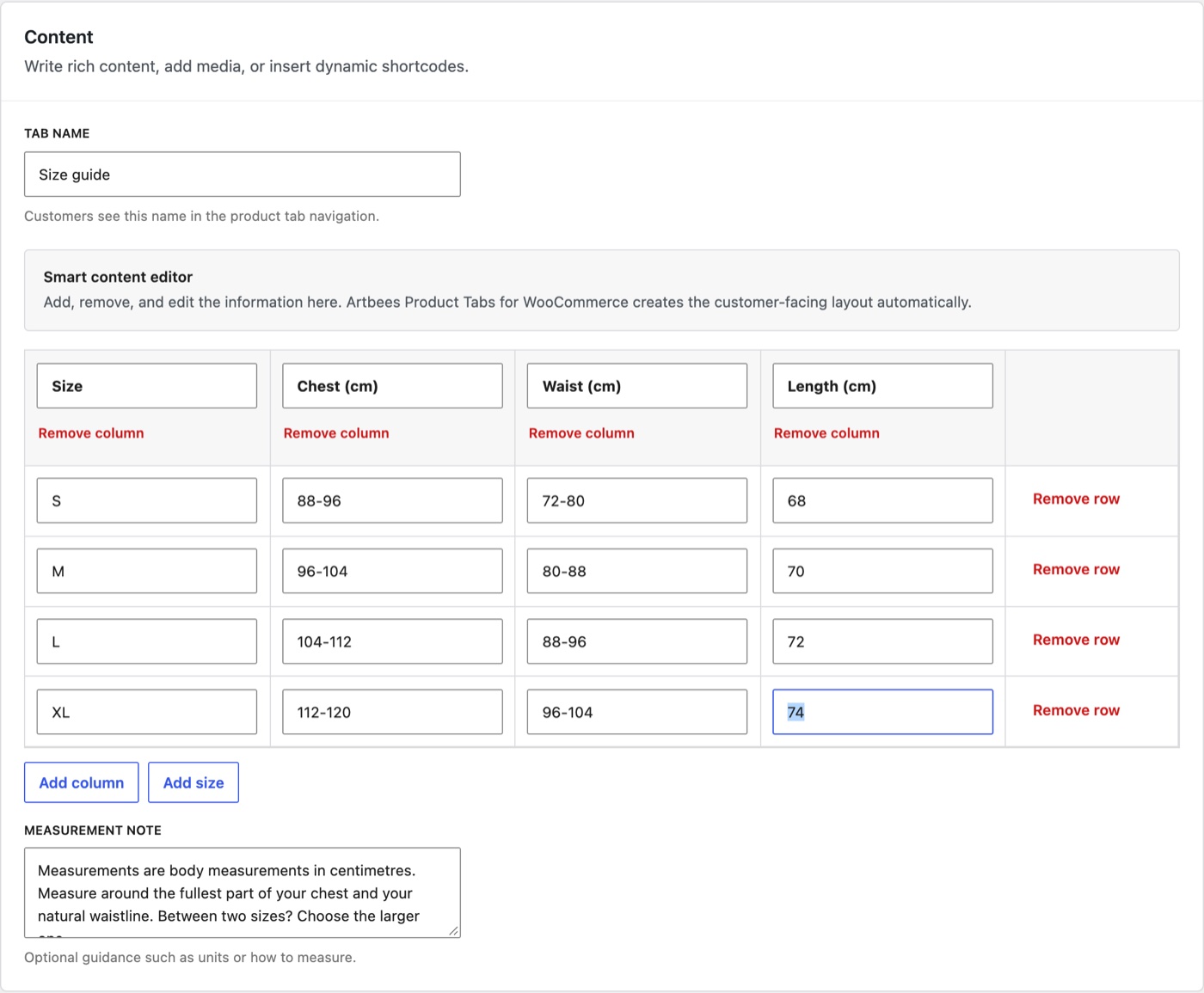
You don’t write any HTML or table code. The plugin turns the table into a properly marked-up table on the product page.
Step 4: Choose which products show the tab
Under Visibility, choose where the tab appears:
- All products puts it on every product. That’s right for store-wide information such as shipping and returns.
- Targeted products lets you pick individual products, categories and product tags. A product that matches any of your choices shows the tab.
A size guide only makes sense on clothing, so choose Targeted products. In our test store, shirts, the blouse, the sweater and the jacket share a product tag called “Tops”, so we picked that tag. Tags are the most precise option when the products that need a tab don’t sit neatly in one category.
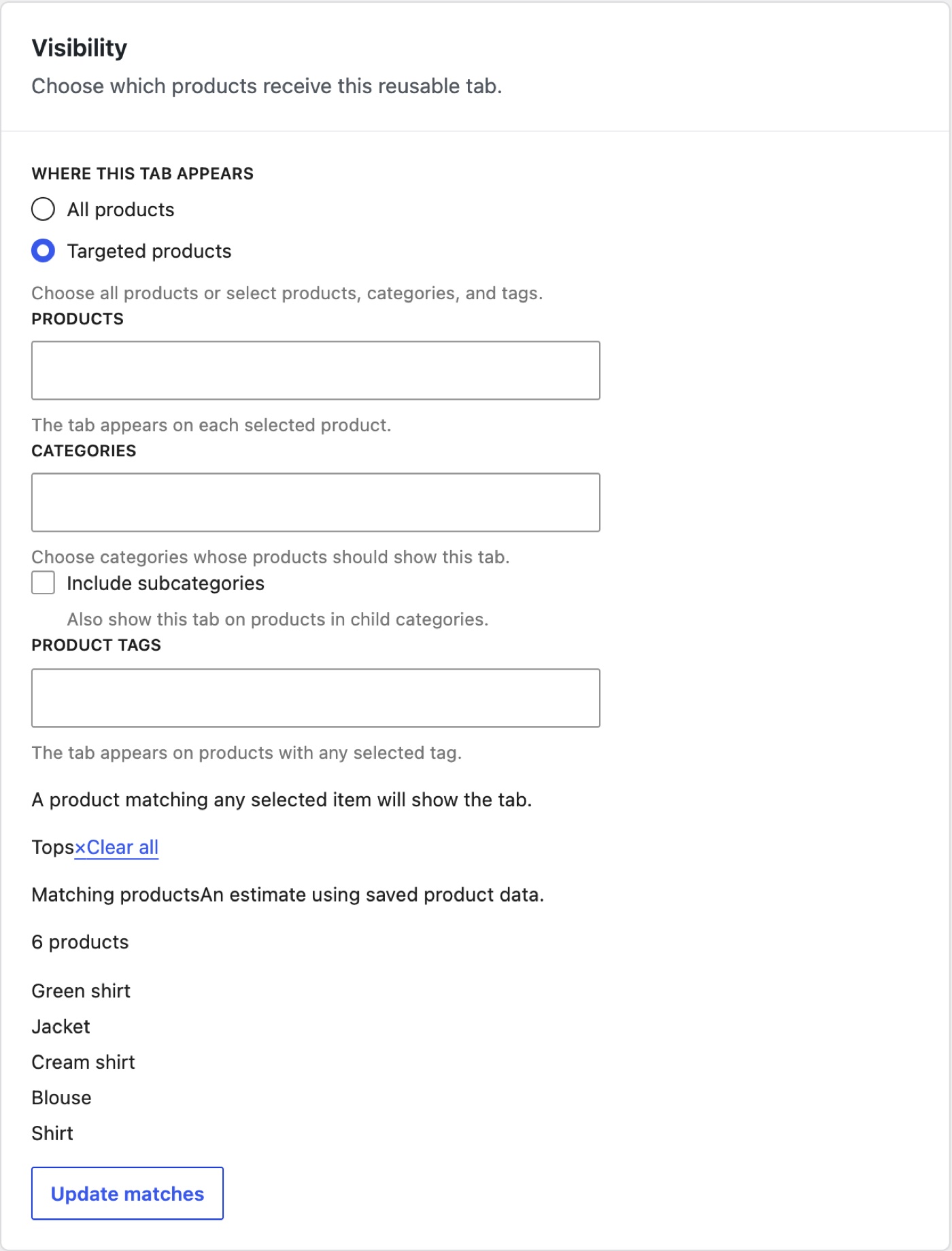
Click Update matches to see which products will get the tab before you publish. It’s a quick way to catch a wrong tag or category.
Step 5: Publish and set the order
Set the status to Published (or click Publish). Draft tabs never appear to customers, so you can prepare a tab and publish it later.
Back on the Tabs screen, your new tab sits in one list with WooCommerce’s built-in tabs. Use the arrows or drag the handle to change the order, then click Save order. We moved the size guide up to second place, right after the description, because that’s where shoppers look for it.
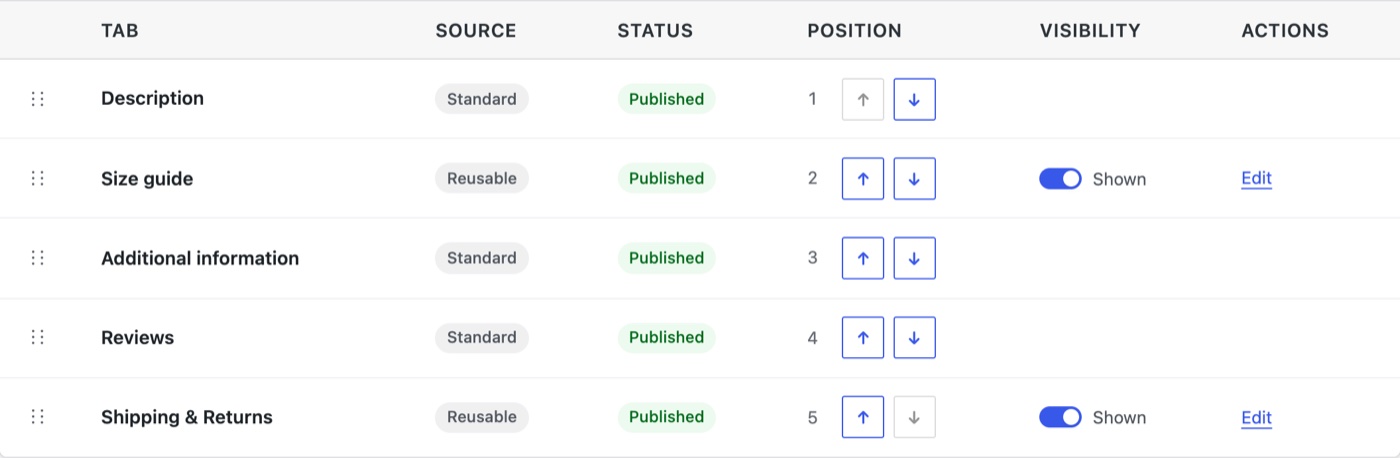
The Shown switch hides a tab from customers without deleting its content or its targeting, which is handy for seasonal information.
Step 6: Check a product page
Open one of the targeted products. The size guide appears next to the standard tabs, styled by your theme:
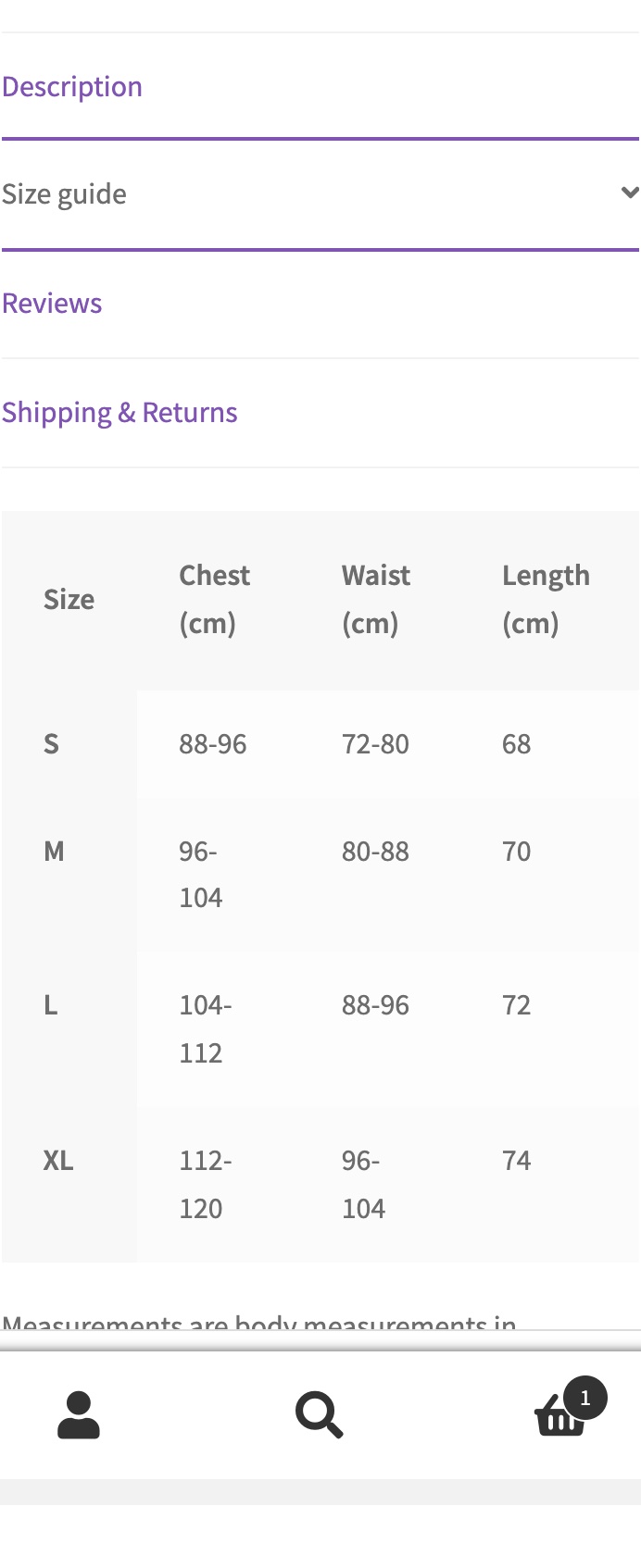
On a phone, Storefront shows the tabs one above the other, and the table still fits the screen:
Then open a product that isn’t tagged, such as a hat. It doesn’t get the size guide, which is exactly what you want.
A second example: shipping and returns on every product
Store-wide information is even quicker. Add a new tab, choose the Shipping & Returns layout, write one short paragraph for each section, leave Visibility on All products and publish.
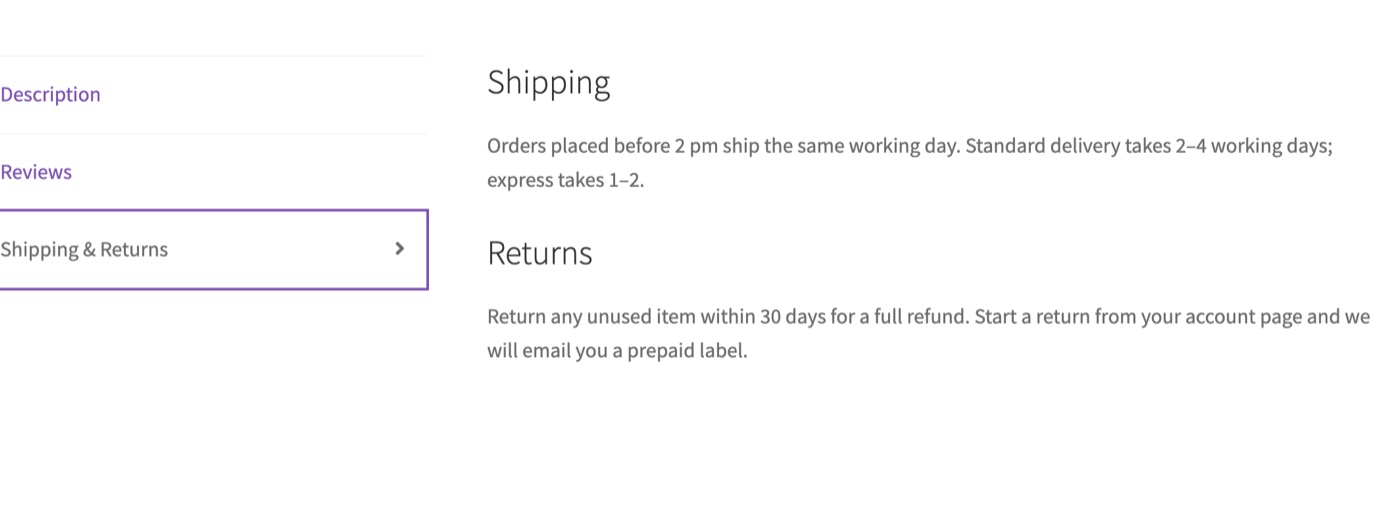
When your delivery times change, you edit this one tab and every product page is up to date.
Ideas for reusable tabs
Good candidates are things that are the same across many products and that shoppers check before buying:
- Size guides per type of product (tops, trousers, shoes)
- Shipping and returns, including holiday cut-off dates
- Care instructions for fabric, wood or leather goods
- Warranty terms by brand or product line
- Technical specifications shared by a product family
- Downloads such as manuals, assembly guides or safety sheets
- FAQs that keep coming up in your support inbox
Keep product-specific selling points in the description itself. Tabs work best for the supporting information.
If you’d rather add a tab with code
If you’re comfortable editing your child theme or a code snippets plugin, WooCommerce lets you add a tab through the woocommerce_product_tabs filter. This adds a “Size guide” tab after the description, but only on products tagged tops:
add_filter( 'woocommerce_product_tabs', function ( $tabs ) {
	if ( ! has_term( 'tops', 'product_tag', get_the_ID() ) ) {
		return $tabs;
	}

	$tabs['size_guide'] = array(
		'title'    => __( 'Size guide', 'your-textdomain' ),
		'priority' => 15, // Description is 10, Additional information 20, Reviews 30.
		'callback' => function () {
			echo '<p>Your size guide goes here.</p>';
		},
	);

	return $tabs;
} );
This is fine for one or two fixed tabs. It gets harder when someone without access to code needs to edit the content, or when different tabs belong on different groups of products. That’s where a plugin saves time.
What Product Tabs Pro adds
The free plugin covers shared tabs. Product Tabs Pro is a separate add-on for stores that need exceptions: tabs that exist on only one product, per-product changes to a shared tab’s title, content, icon or order, tab icons, vertical and accordion layouts for long product pages, and a diagnostics view that explains why a tab isn’t showing on a product.
Frequently asked questions
Does the free plugin send any data to Artbees?
No. According to its WordPress.org listing, the free plugin has no telemetry. Tab content and settings stay in your WordPress database.
Will it work with my theme?
It works with standard WooCommerce product templates and uses your theme’s own tab presentation. Version 1.0.0 isn’t certified for page-builder product templates or multisite network administration, so test it on a staging copy if you use either.
Can I import tabs from another product tabs plugin?
Not in version 1.0.0. You’ll need to recreate your tabs, which is usually quick because each shared tab only has to be written once.
What happens to my tabs if I uninstall the plugin?
By default, your tabs and settings are kept. If you want a clean removal, turn on cleanup in the plugin’s Settings before uninstalling.
Wrapping up
Custom product tabs give shoppers the answers they look for without making your product descriptions longer, and reusable tabs mean you update shared information once instead of product by product. Install Artbees Product Tabs for WooCommerce, start with one tab your customers ask about most, and check it on a product page before adding the next.
Running other WooCommerce plugins from Artbees? See our guides to showing lead times on products and setting up Request a Quote.