How to Set Up a Request a Quote Workflow in WooCommerce
Learn how to set up a WooCommerce request-a-quote workflow, from customer requests and manual offers to acceptance and payable orders.


When a product needs a conversation before someone can buy it, a standard Add to Cart button may not be enough. A customer might need a price for several items, want to discuss a custom order, or ask for terms before committing.
A request-a-quote workflow gives shoppers a way to send those details and gives your team a place to prepare an offer. In WooCommerce, the process can continue through customer acceptance and payment as a normal order.
This guide walks through that process with the free Artbees Request a Quote plugin. The Free edition handles the manual request-to-order workflow. Pro adds tools for more complex pricing and conversations.
When should a WooCommerce store use quote requests?
Quote requests are useful when the final price depends on quantity, configuration, project details, or a conversation with your team. They can also suit stores that sell some products directly and handle others through a sales process.
Keep ordinary purchasing available when shoppers already know what they want and the listed price is complete. A quote request adds steps, so use it where the extra review helps the customer or your team.
Before you begin, decide whether customers should be able to request a quote alongside Add to Cart, whether the product should be quote-only, or whether its price should be hidden. You can choose a different mode for selected products.
1. Install the Free plugin and open its settings
Install WooCommerce first. Then install Artbees Request a Quote for WooCommerce from the WordPress.org Plugin Directory and activate it. Open Artbees → Request a Quote to review the setup.
The Free workflow does not require a license, subscription, or quote-volume quota. Once the plugin is active, check the request button placement, sales mode, form fields, and email settings before inviting customers to use it.
2. Choose where customers can request a quote
Choose how the quote action should appear in your store:
- Alongside Add to Cart: customers can buy at the listed price or ask for an offer.
- Quote-only: customers send a request instead of placing an immediate purchase for the selected products.
- Selected products: enable quoting only where your pricing or sales process needs it.
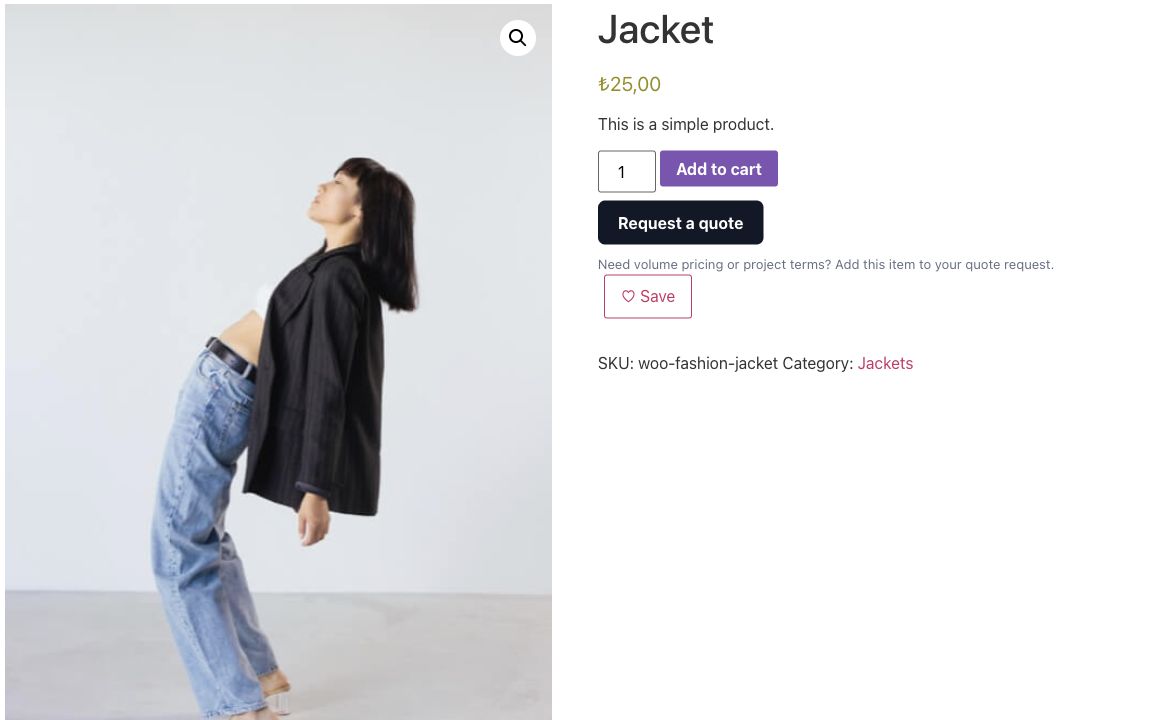
The plugin can show quote actions on product and shop pages. Customers can also move their cart to a quote request. If your store uses a custom product template, check whether it preserves the WooCommerce placement hooks or needs a block, Elementor widget, or shortcode.
3. Collect the details your team needs
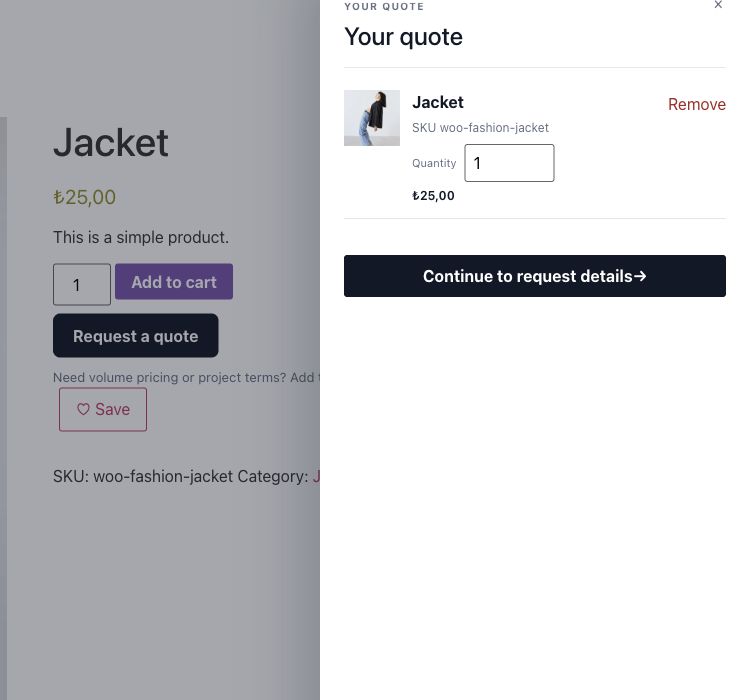
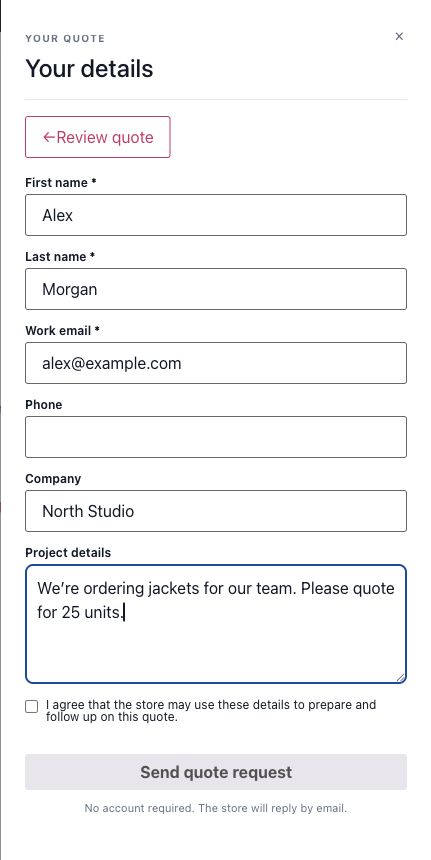
Add the information that helps you prepare a useful offer. The Free edition supports standard fields and basic custom fields. Keep the form focused: ask for enough context to understand the request without making a simple inquiry feel like a long application.
Customers can submit as guests or through their existing accounts. Guest customers receive private, expiring links to view and respond to an offer. Account customers can find quote activity in My Account.
Test the form as both a guest and a signed-in customer. Confirm that the request contains the selected products and quantities, that the customer sees a clear confirmation, and that your team receives the expected notification.
4. Review the request and prepare the offer
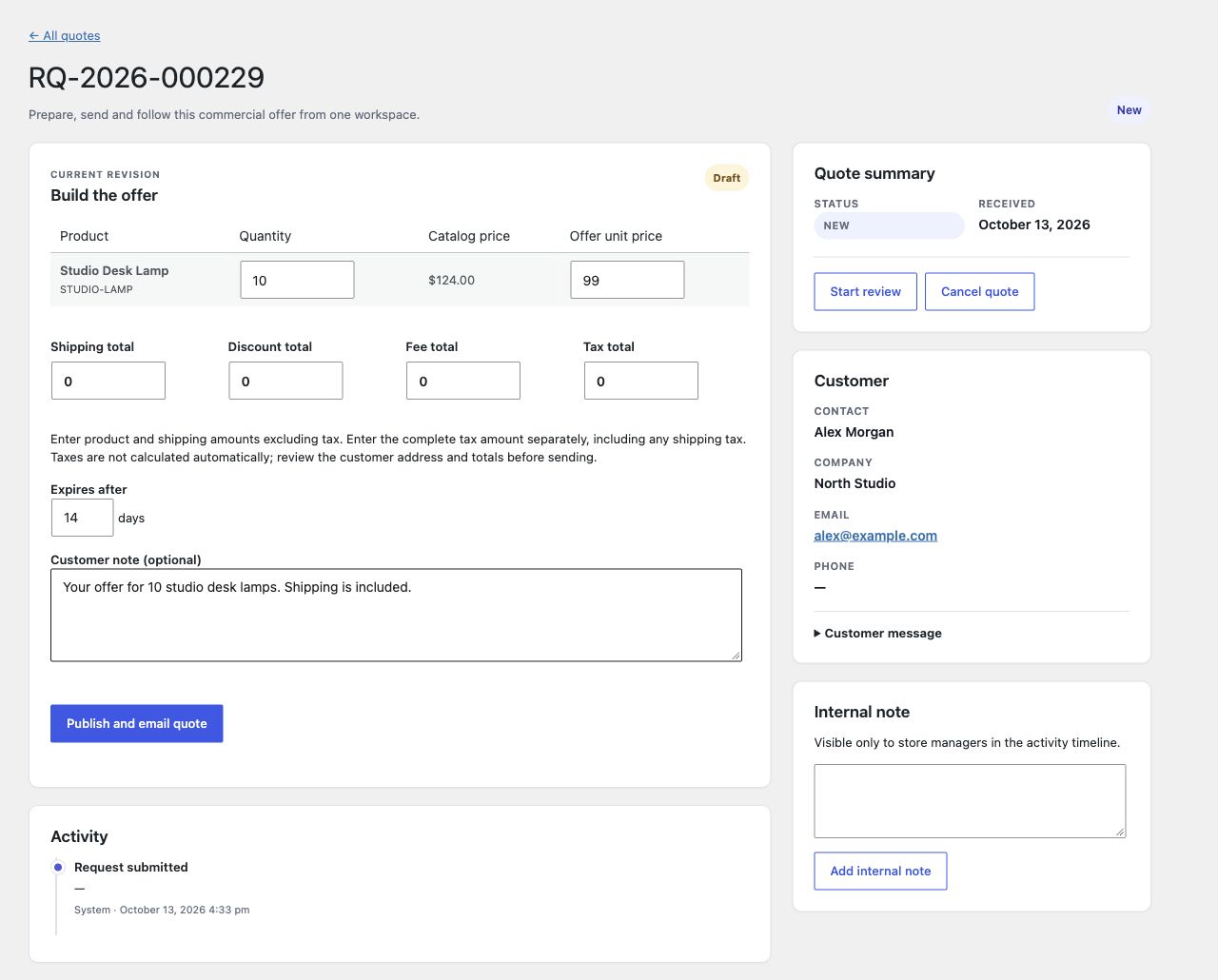
Your team reviews incoming requests in the WordPress admin and sets the offer terms manually. Check each product, quantity, price, shipping amount, expiry, and customer detail before sending.
Tax needs special attention. In Free, enter the product amounts excluding tax, then enter the complete tax amount separately, including any shipping tax. The plugin does not calculate quote taxes from WooCommerce tax rates or the customer’s location. Review the final totals before sending the offer.
An offer expiry helps make the next step clear. Set a validity period that matches your sales process and make sure the customer knows when the offer ends.
5. Let the customer accept and pay
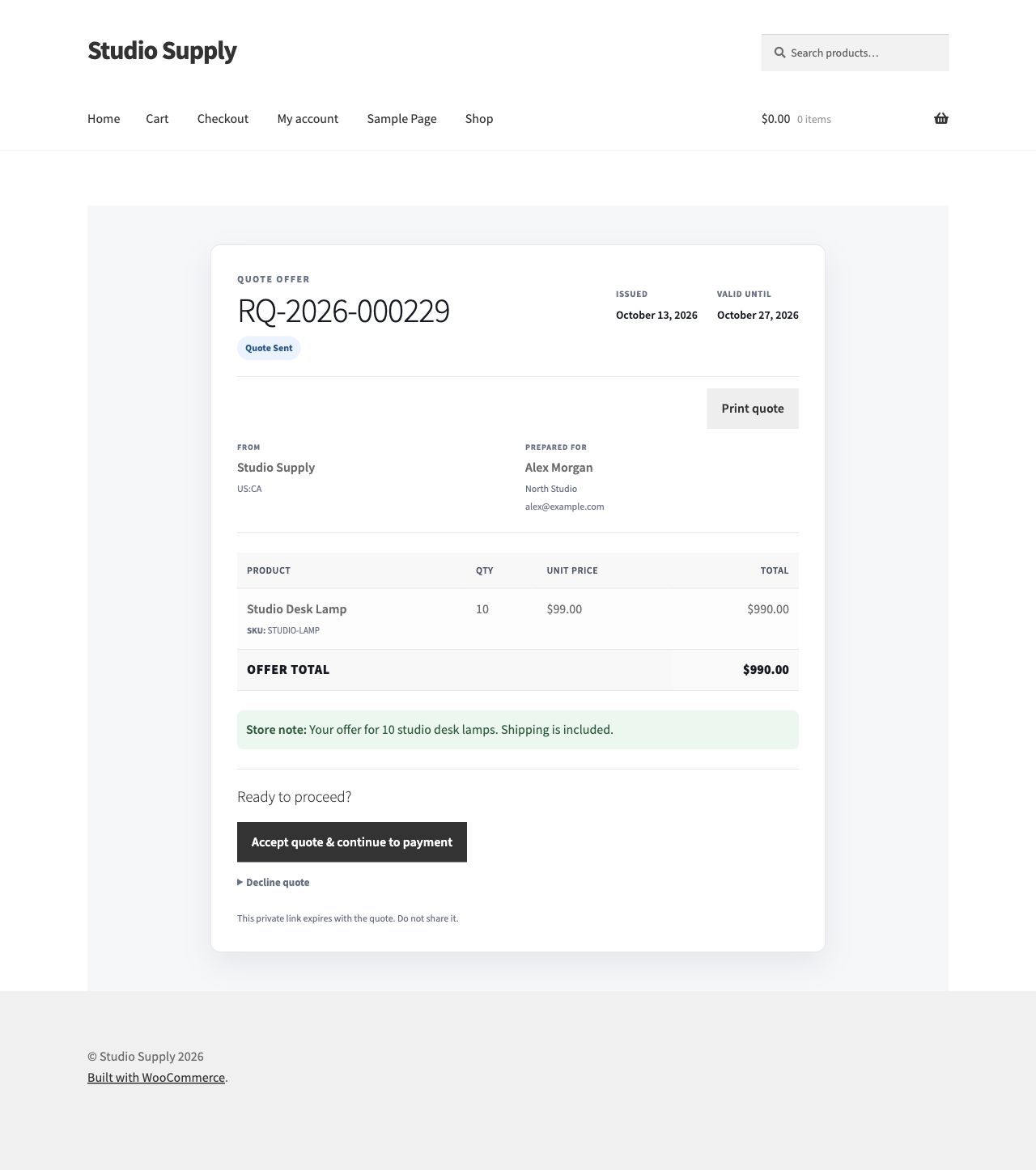
Customers can open an offer through their account or a secure guest link. When they accept a valid offer, the plugin creates a payable WooCommerce order using the agreed amounts. The customer can then continue through the store’s configured payment process.
Run a full test before launch. Submit a request, send an offer, open it as the customer, accept it, and inspect the resulting order. Confirm that the quantities and agreed prices carried through correctly and that payment works in your store.
6. Test the workflow on your store
Use a staging store for your first pass, especially if you already have product-template or quote extensions. Check at least:
- A simple product and a variable product.
- A guest request and an account request.
- The chosen sales mode and button placement on product and shop pages.
- Request and offer emails through your configured mail delivery.
- The guest offer link, account quote view, acceptance, and resulting order totals.
- Cart and Checkout Blocks, HPOS, and your active theme or builder where used.
- The form, drawer, and customer offer on desktop and a phone.
The plugin supports simple and variable products. Grouped products resolve to supported child products. Other product types are not automatically covered; verify any additional configuration before using it for live quotes.
When does Request a Quote Pro make sense?
The Free edition includes the manual request, review, offer, acceptance, and order workflow. Pro is a separate add-on for stores that need more involved quoting, including advanced eligibility and quantity-pricing rules, advanced forms and private uploads, customer messaging and counteroffers, offer revisions, PDF documents, reminders, reporting and CSV export, and adapters for the official WooCommerce Product Add-Ons and Product Bundles extensions.
Pro can send automatic offers only when WooCommerce taxes are disabled. Stores with taxes enabled use manual review and merchant-entered tax amounts. If your team can already handle requests with the Free workflow, you can keep using it without a quote-volume limit or time limit and add Pro only when those additional tools fit your process.
Start with the workflow you need
Set up the quote action only on products where review adds value. Then test the full path—from the first customer request to the paid WooCommerce order—before making it part of your live sales process.
If shoppers keep asking the same questions before they request a quote, put the answers in a product tab: see how to add custom product tabs in WooCommerce.
Start with the free plugin: Install Artbees Request a Quote for WooCommerce Free. For advanced pricing, negotiation, PDFs, reminders, and more, explore Artbees Request a Quote Pro.
More WooCommerce guides: WooCommerce guides.