How to Sell Gift Cards in WooCommerce with a Free Plugin

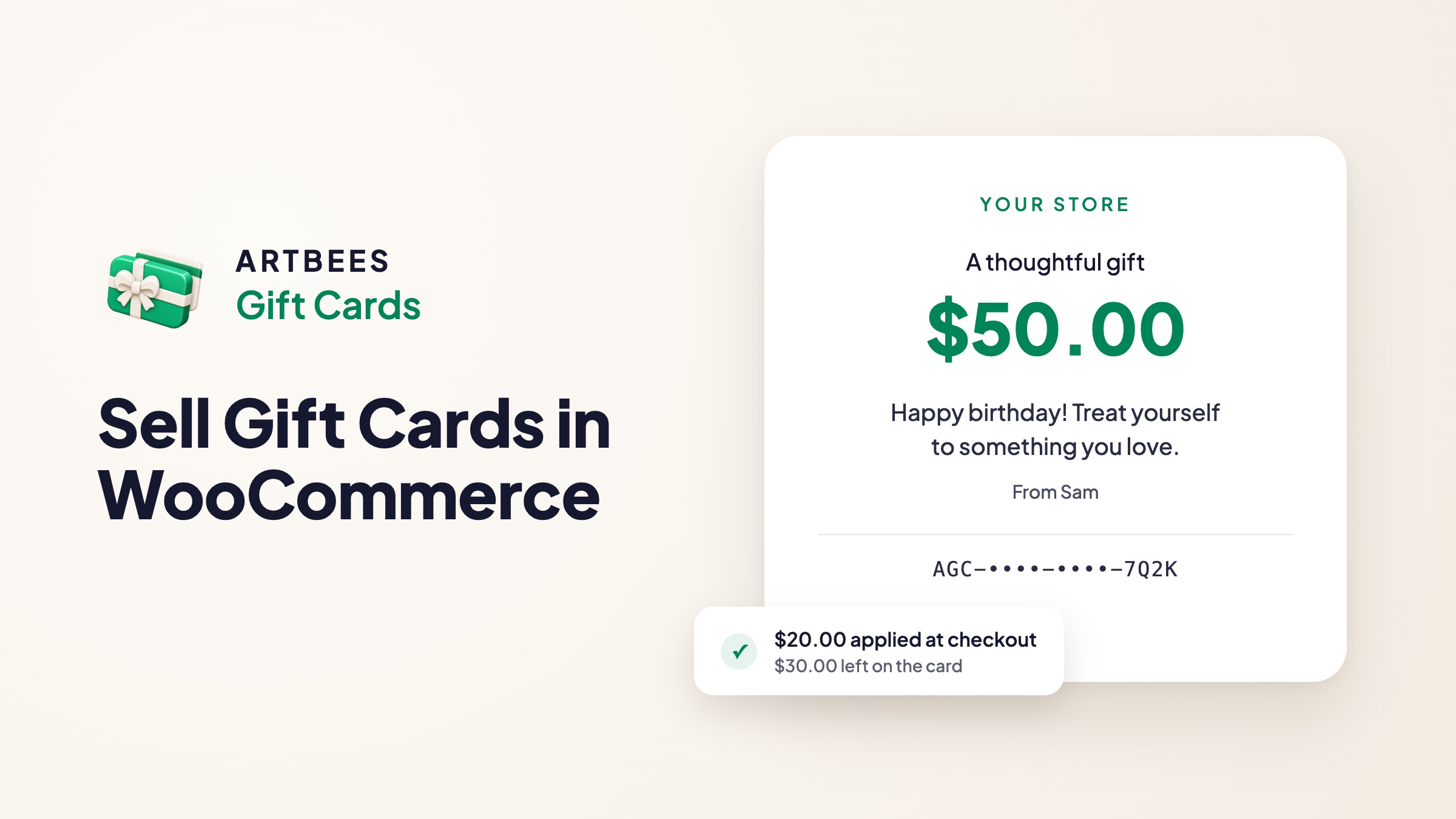
Artbees Gift Cards is now on WordPress.org: a free plugin that lets your customers buy a digital gift card, add a personal message and send it to someone, who then spends it at your checkout. This guide sets it up from scratch, step by step.
Gift cards solve a common problem for shoppers: they want to give something from your store but don’t know what to pick. For you, a gift card is a sale today and a visit from a new customer later. Because a digital card arrives by email, it also still works after your last shipping day before the holidays.
WooCommerce doesn’t include gift cards on its own. The closest built-in feature is coupons, and they aren’t the same thing.
Gift cards vs coupons in WooCommerce
A coupon is a discount: it lowers the price, and you decide who gets one. A gift card is money a customer has already paid you, so it should work like money at checkout.
With Artbees Gift Cards, gift funds pay toward the final order total, including tax and shipping, and whatever isn’t spent stays on the card for next time. Products, taxes and shipping stay on the order as usual, so your reports still show what was sold.
What you need
- WordPress 6.9 or newer and WooCommerce.
- PHP 7.4 or newer (64-bit) with the Sodium and mbstring extensions, a MySQL or MariaDB database with InnoDB tables, and a working WP-Cron or server cron. Most WooCommerce hosts meet these; your host can confirm.
- A way to pay the rest when a card doesn’t cover the whole order: the official WooCommerce Stripe Gateway, WooPayments, or a bank transfer that you confirm yourself.
- Artbees Gift Cards for WooCommerce, free on WordPress.org.
We tested every step below on WordPress 7.1, WooCommerce 11.0 and the Storefront theme, with the block-based cart and checkout and Gift Cards 1.0.1. Artbees has tested the plugin with the classic checkout and with WooCommerce order storage (HPOS) as well.
Step 1: Install Artbees Gift Cards
In your WordPress admin, go to Plugins → Add Plugin, search for “Artbees Gift Cards”, then install and activate it. You can also download Artbees Gift Cards from WordPress.org and upload the ZIP file under Plugins → Add Plugin → Upload Plugin. On a multisite network, activate it on each site rather than network-wide.
You’ll find the settings under Artbees → Gift Cards and, once cards are sold, the cards themselves under WooCommerce → Gift Cards.
Step 2: Make the card look like your store
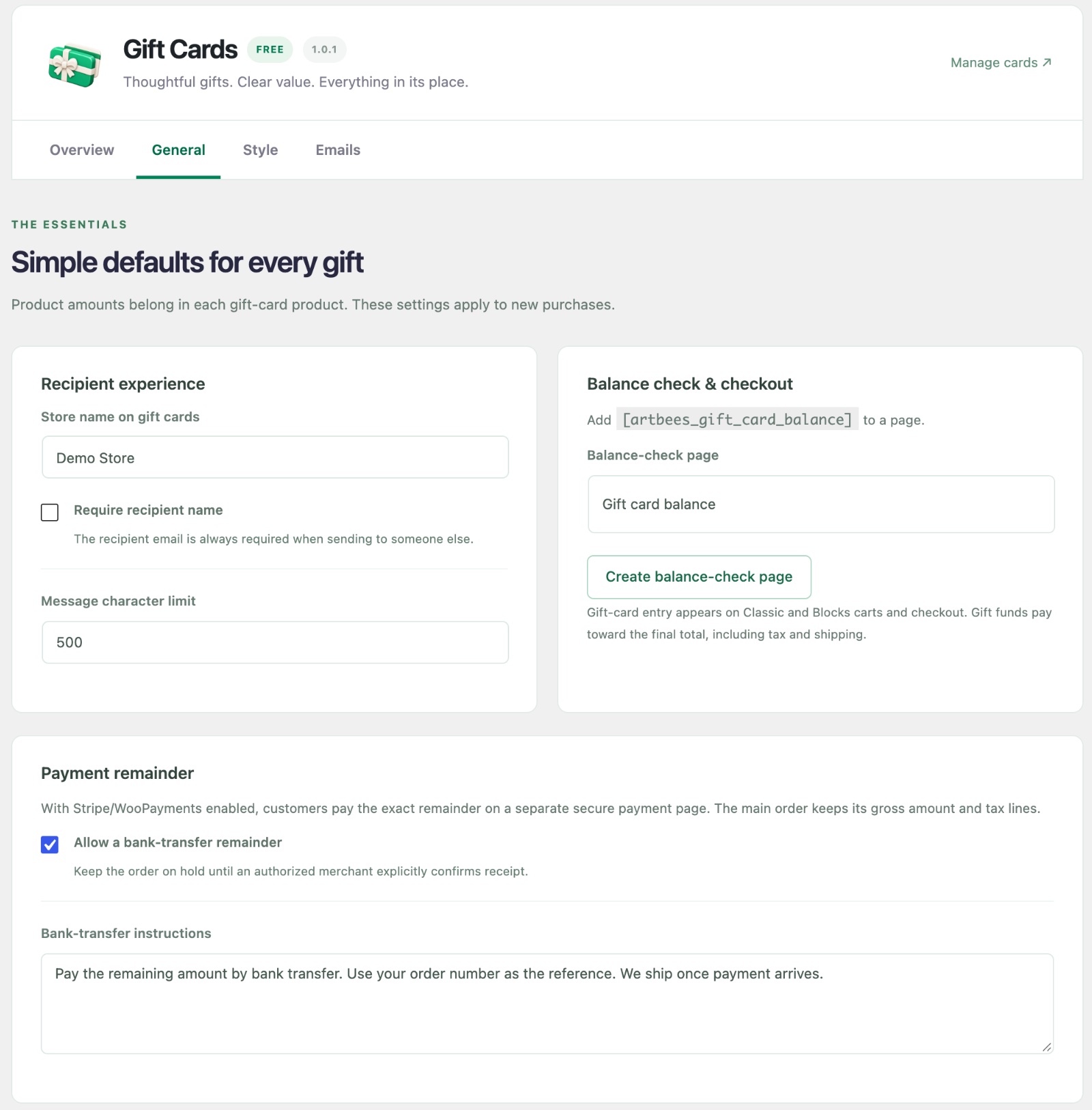
Open Artbees → Gift Cards. The settings are split into a few tabs:
- General: the store name printed on each card, whether the recipient’s name is required, and the length of the personal message.
- Style: your accent and text colours, the corner radius and your logo. A live preview on the right shows the result as you change it.
- Emails: the subject, heading and footer of the gift email. The subject can use
{store},{sender}and{amount}. You can also send yourself a test email with a sample card that can’t be redeemed.
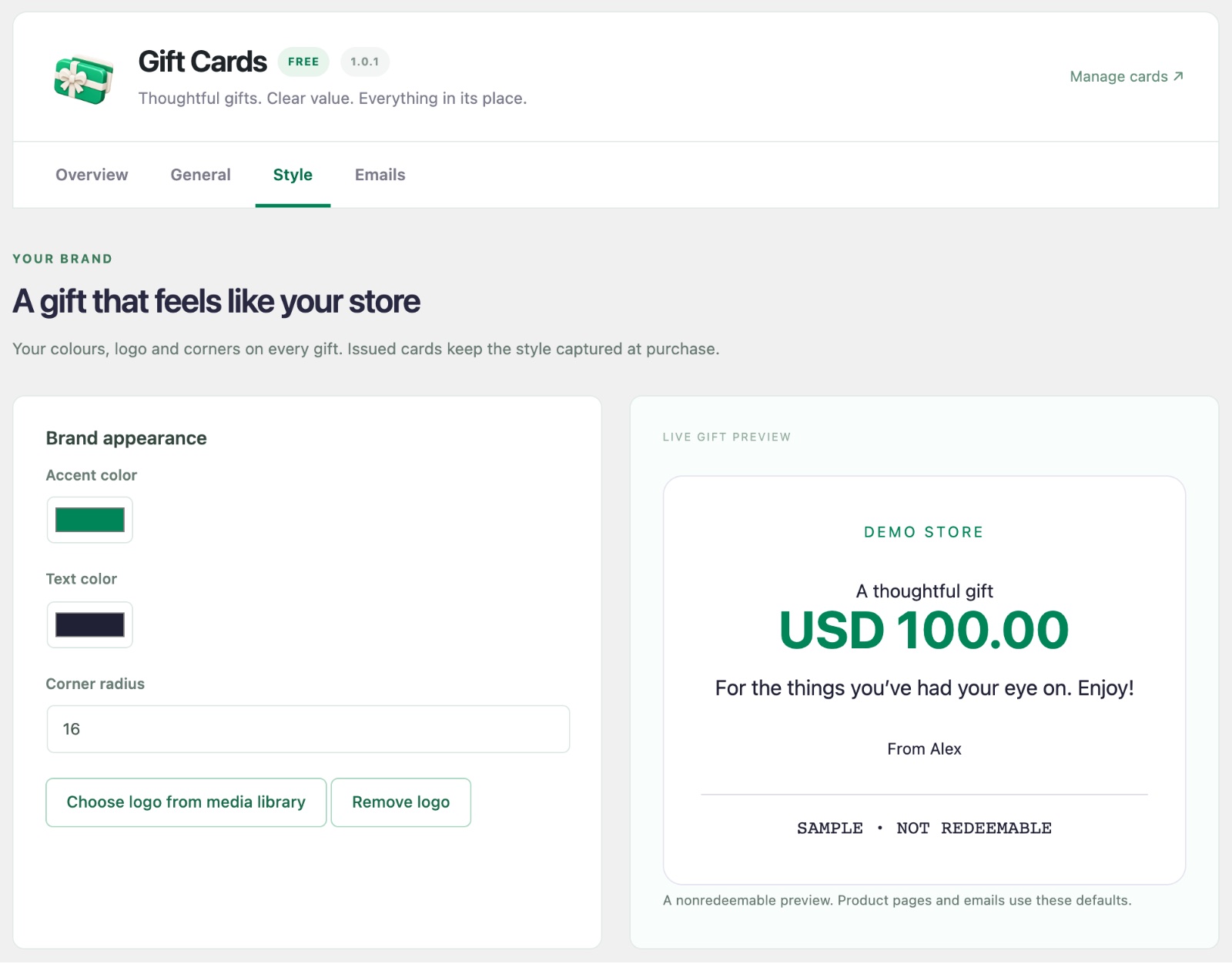
Cards that are already issued keep the style they had when they were bought, so you can change the design later without affecting gifts already sent.
Step 3: Create a gift card product
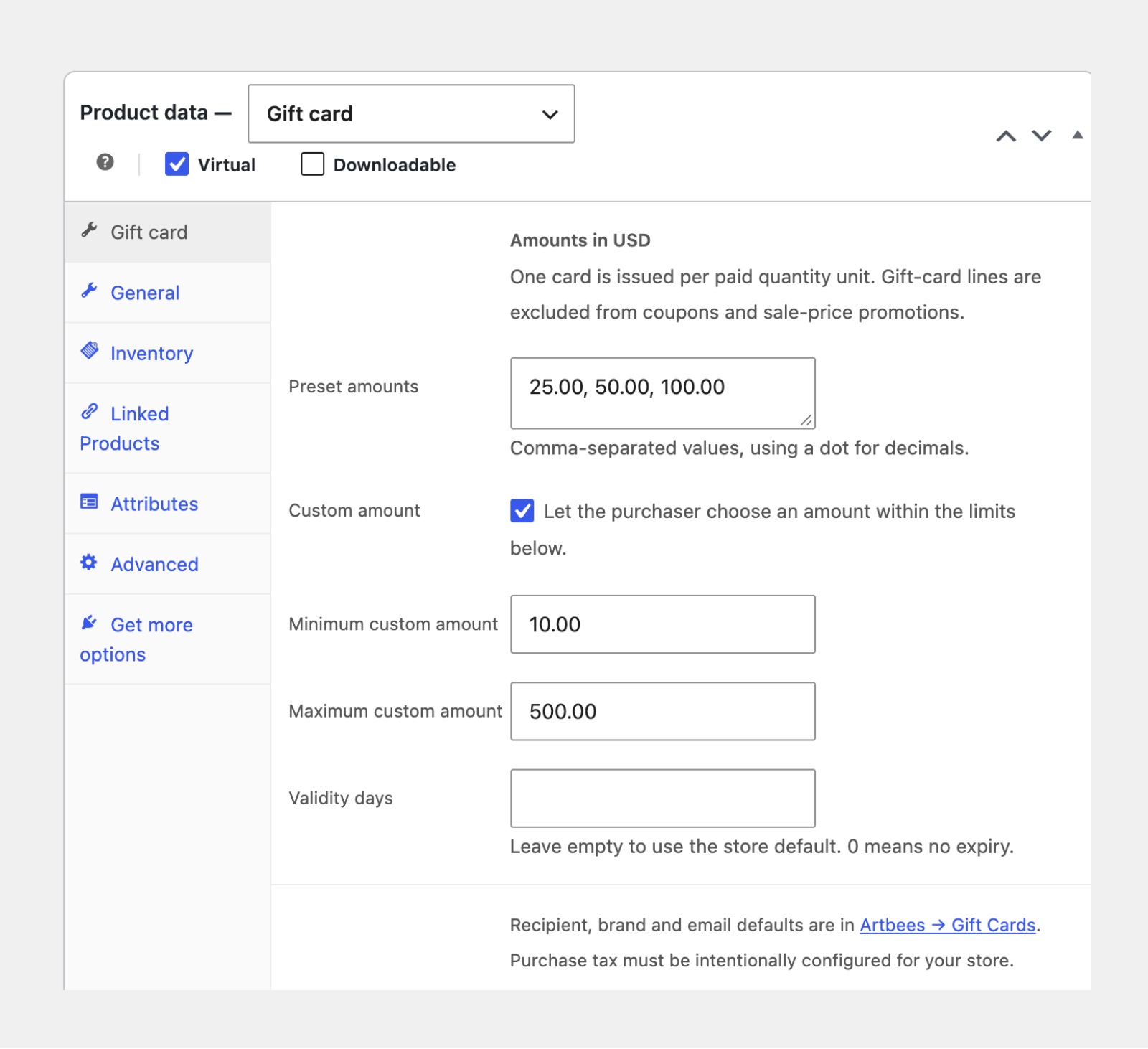
Go to Products → Add new product, give the product a name such as “Gift Card”, and in the Product data box choose Gift card as the product type. The product is virtual, so there’s nothing to ship.
Preset amounts, a custom range, or both
On the Gift card tab, enter your preset amounts separated by commas (for example 25.00, 50.00, 100.00). To let buyers type their own amount, tick Custom amount and set a minimum and maximum. You can offer presets, a custom range, or both. Each product can also have its own validity period, but cards don’t expire unless you set one (more on that below).
What the customer fills in
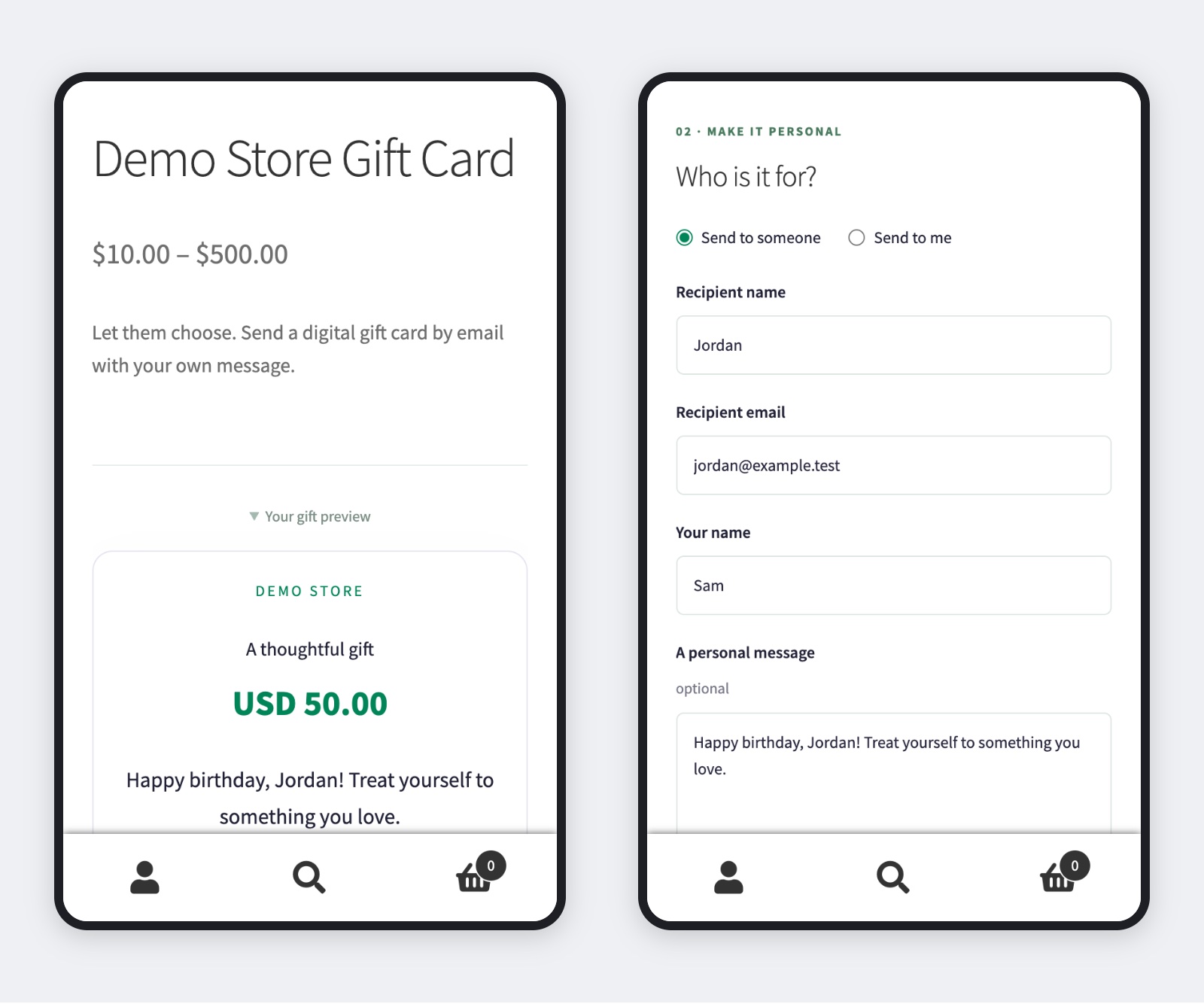
On the product page, the customer picks an amount, then chooses Send to someone or Send to me. For a gift, they enter the recipient’s name and email, their own name and an optional personal message. The card preview at the top updates as they type, so they see exactly what the recipient will get.
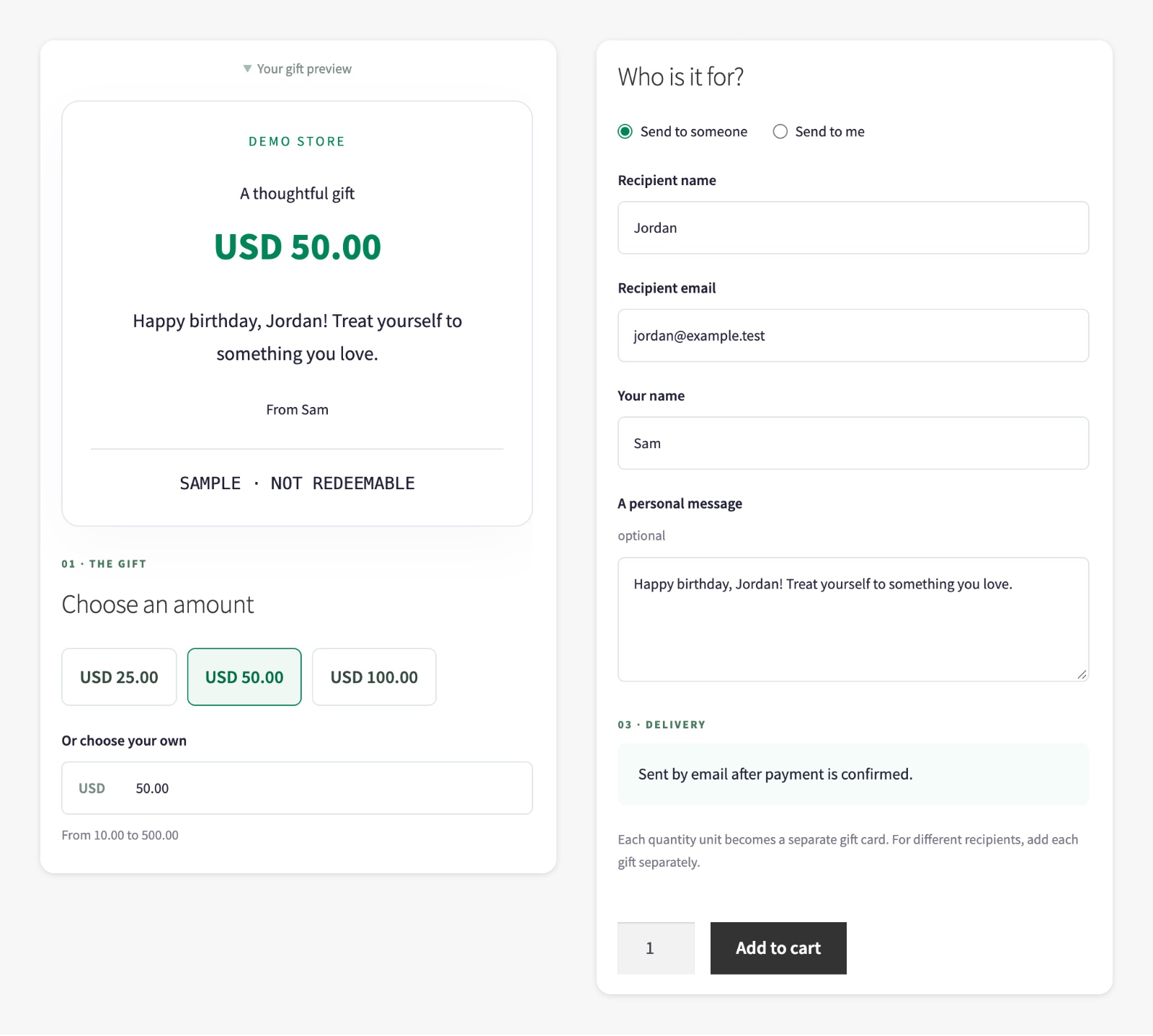
If someone buys more than one, each one becomes a separate card with its own code. To send gifts to different people, they add each gift to the cart separately.
Step 4: Add a balance check page
Recipients will want to know how much is left on a card. On the General tab, under Balance check & checkout, click Create balance-check page, or add the shortcode [artbees_gift_card_balance] to any page you already have.
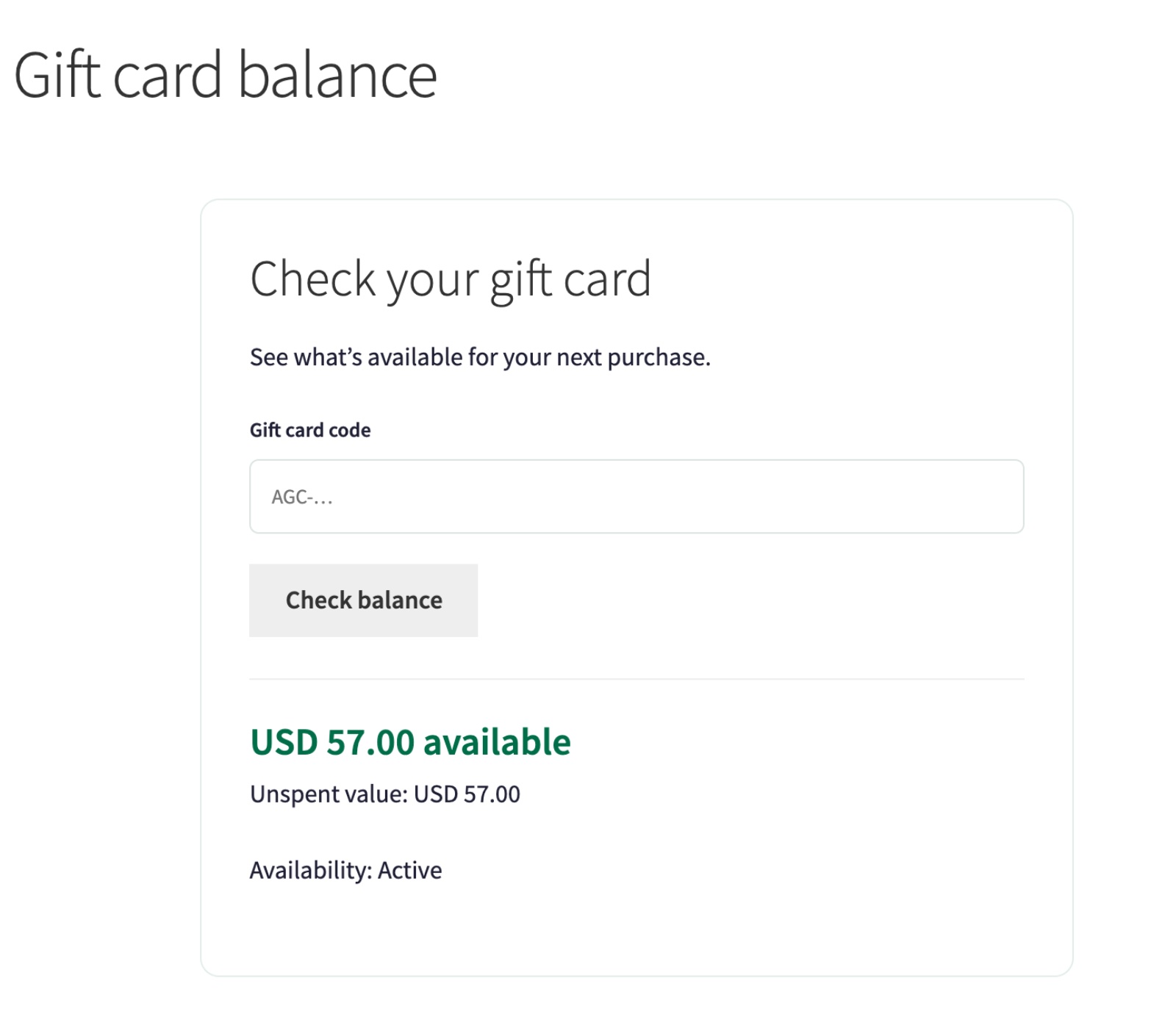
Anyone with a code can check it there. The page shows the amount available and whether the card is active. Checking is rate-limited.
Step 5: Place a test order
Buy a gift card on your own store, sending it to an address you can check. The plugin issues a card only after the payment is confirmed. Pending, failed, cash-on-delivery and on-hold orders don’t create a card that can be spent.
- With Stripe or WooPayments, the card is issued when the payment goes through.
- With a bank transfer, the order waits on hold. Once the money arrives, open the order and choose Payment verified — issue gift cards from the order actions (or mark the order Completed). The card is then issued and emailed.
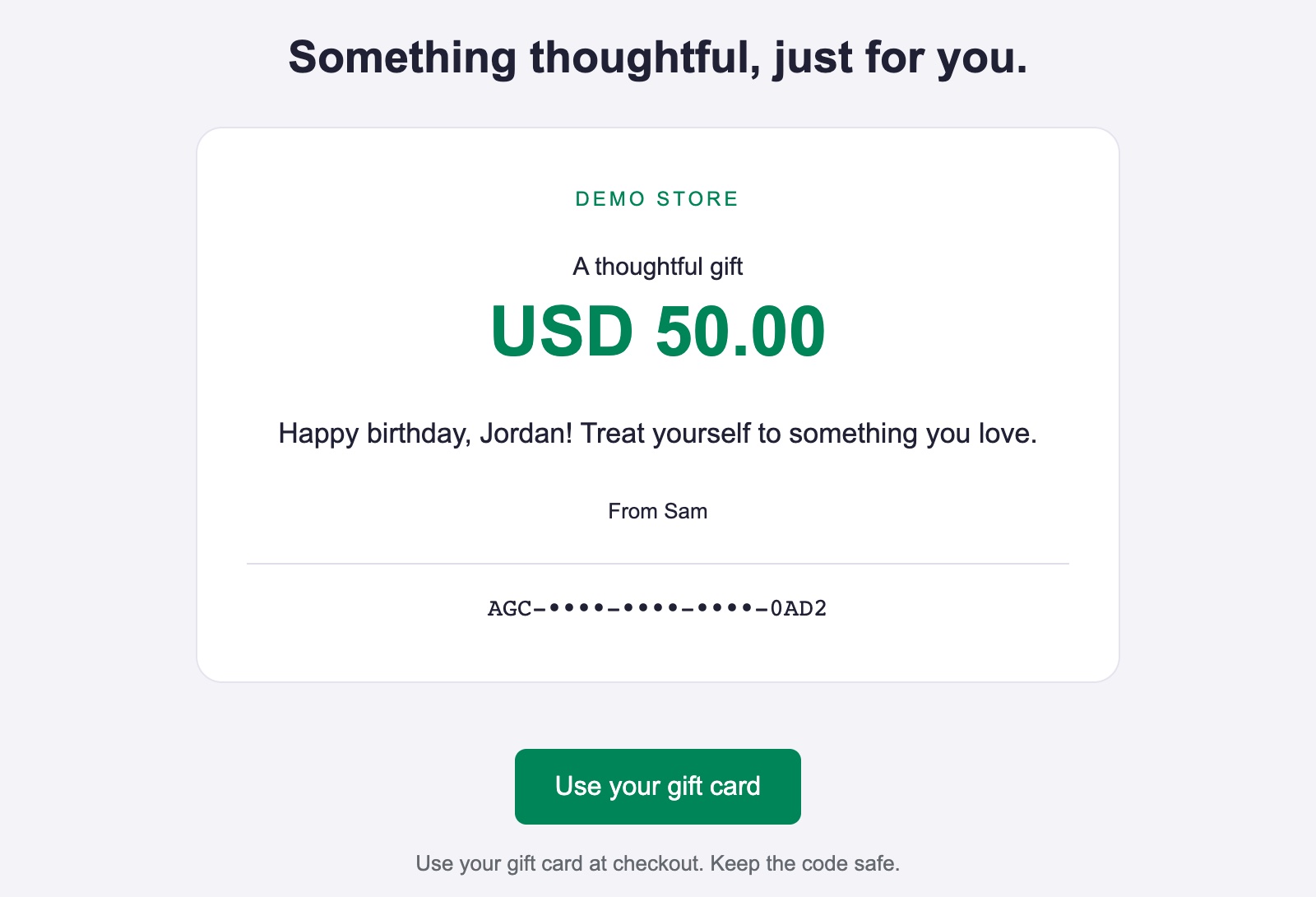
The recipient gets an email with the card, the amount, the sender’s message, the code and a link to a secure page for their card.
Step 6: Redeem a gift card at checkout
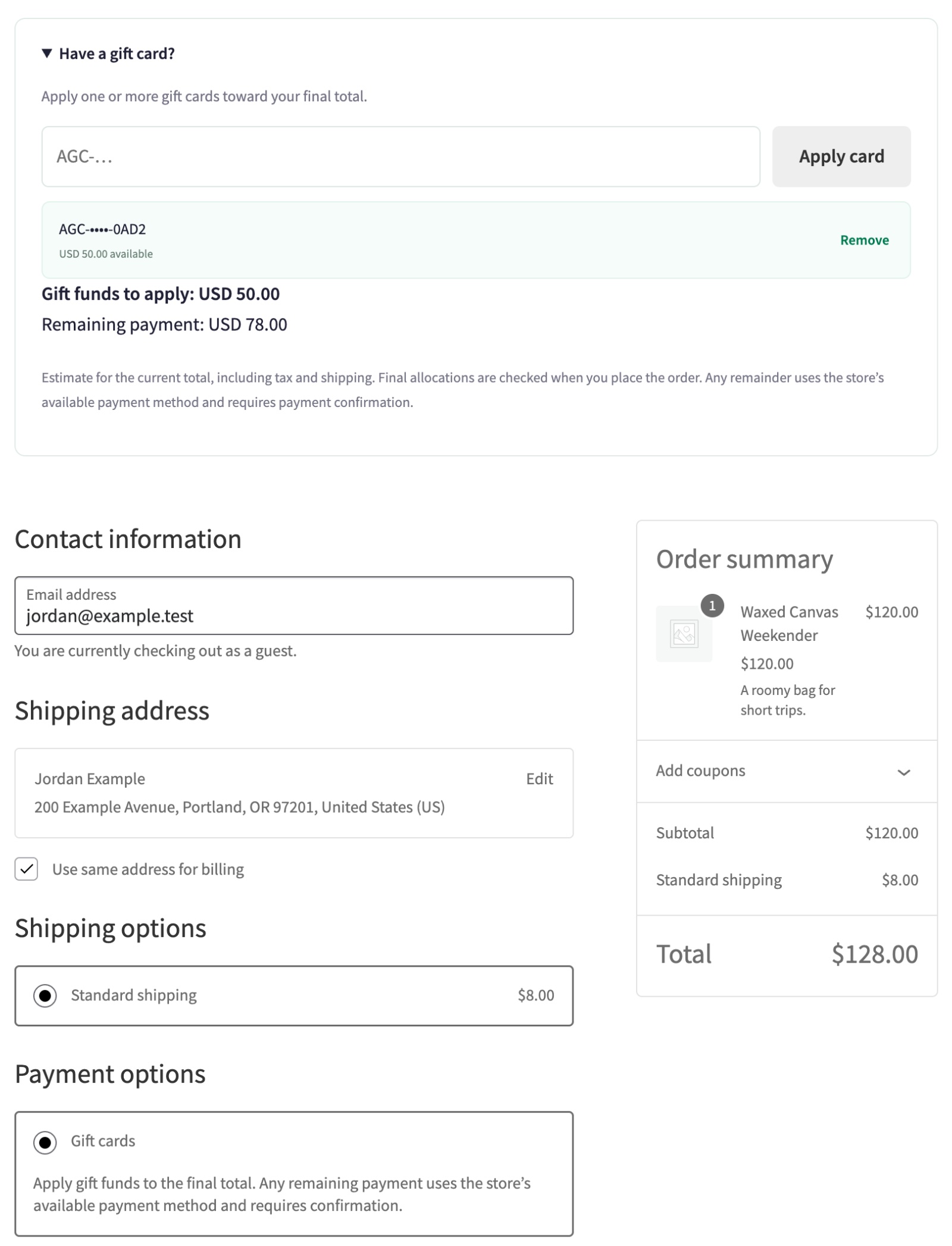
At checkout the customer opens Have a gift card?, enters the code and clicks Apply card. They don’t need an account. The panel shows how much of the card will be used and what’s left to pay.
Several cards, partial spending
A customer can apply more than one card to the same order. If the order costs less than the card, only the order total is taken and the rest stays on the card. In our test, a $100 card paid for a $43 order and kept $57 for later.
When the card doesn’t cover the whole order
If the cards don’t cover the total, the customer pays the rest with Stripe or WooPayments on a separate secure payment page. If you’d rather accept a bank transfer for the remainder, turn on Allow a bank-transfer remainder on the General tab and add your instructions. The order stays on hold, with the gift funds reserved, until you confirm that the money arrived. Other payment methods can’t pay a remainder in version 1. See WooCommerce’s guide to direct bank transfer if you haven’t set it up yet.
Manage cards after the sale
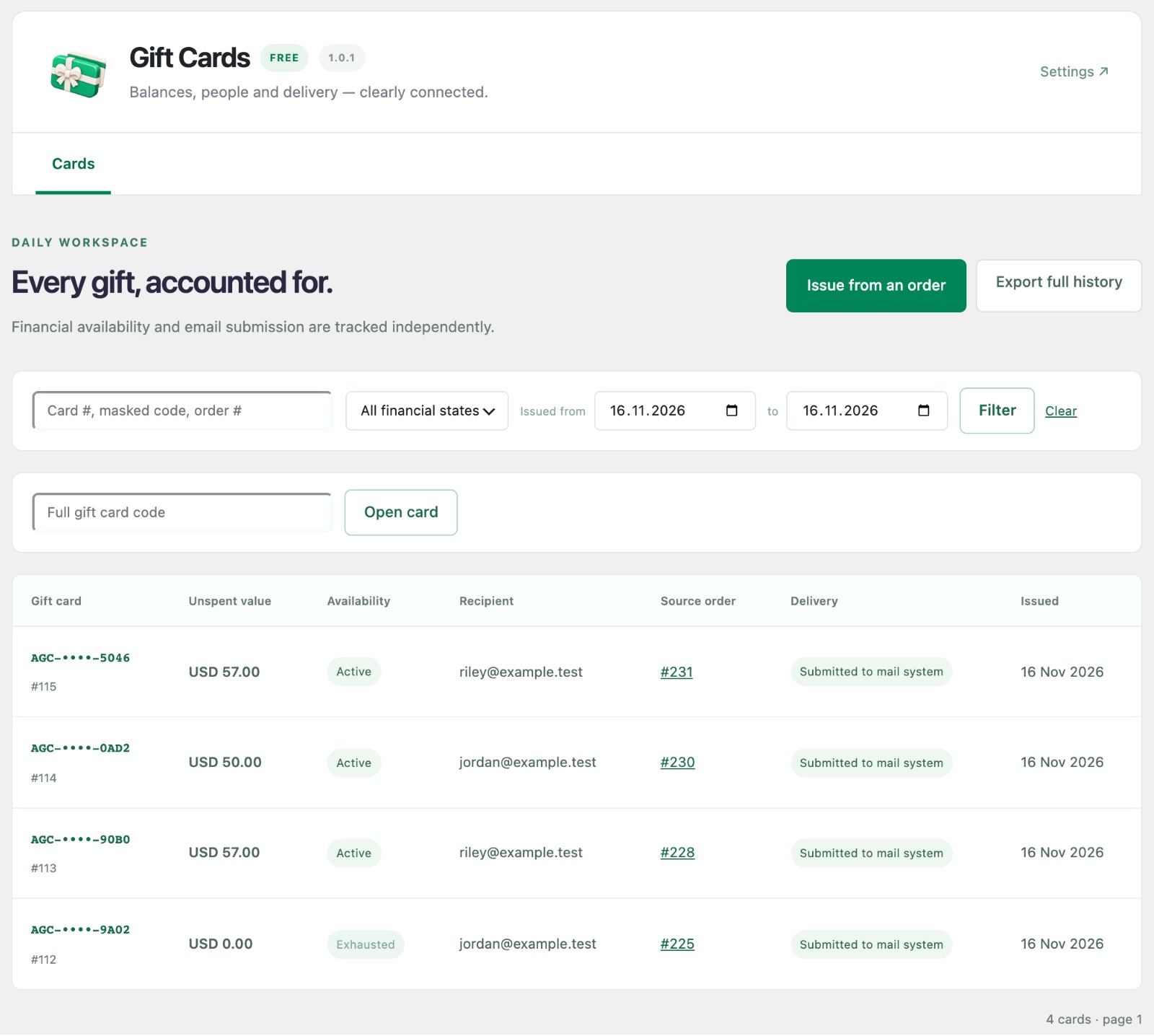
Every issued card is listed under WooCommerce → Gift Cards. You can search and filter by state, date, order or masked code, open a card directly from its full code, and export the complete history as CSV.
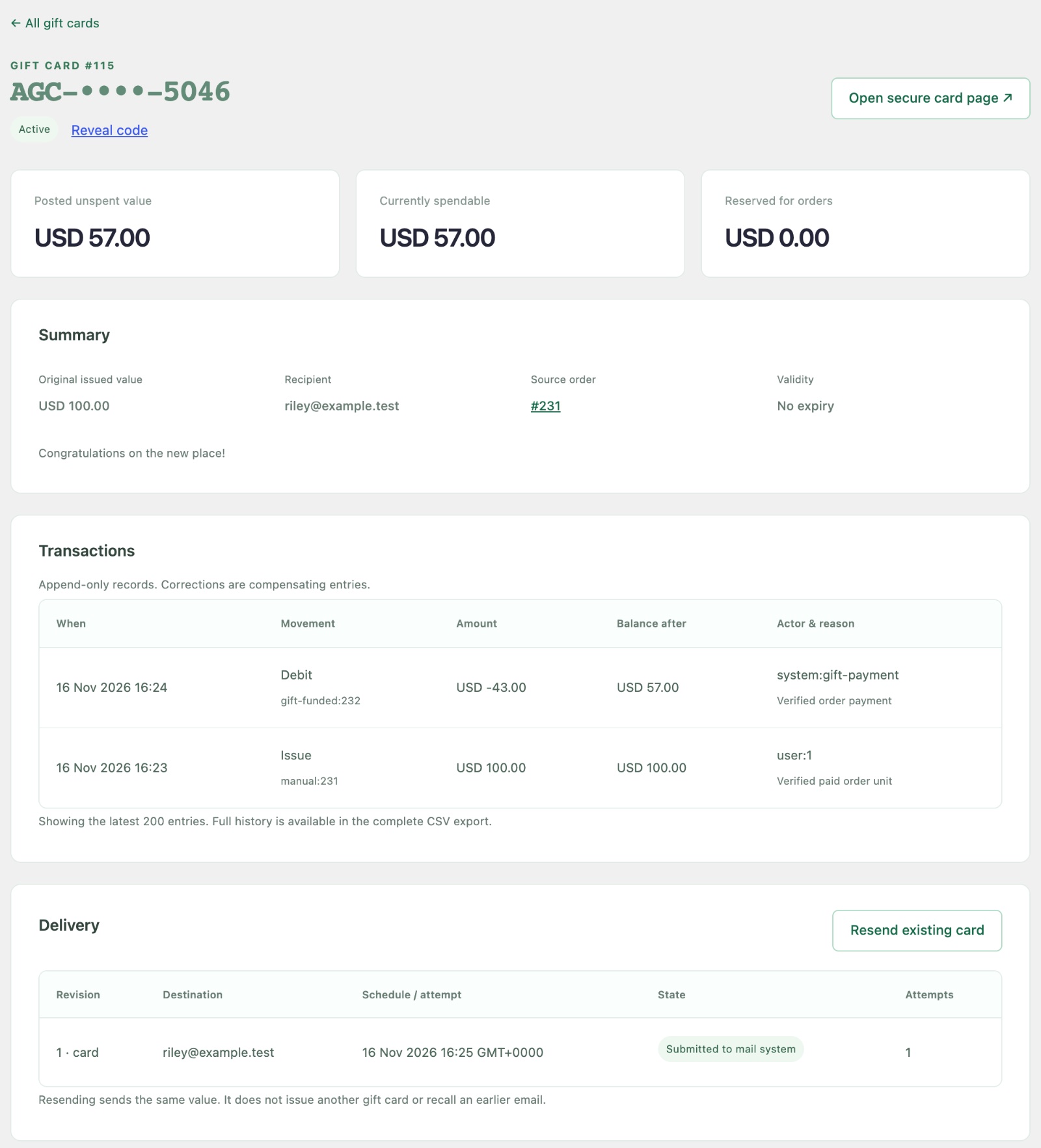
Open a card to see its full picture: the unspent, spendable and reserved amounts, the recipient and source order, every transaction and every delivery attempt.
From the same screen you can:
- Resend the card if the recipient can’t find the email. A resend sends the same card again and never creates new value.
- Correct a balance with an adjustment. Balances can’t be edited directly; every adjustment needs a reason and stays in the history.
- Suspend and restore spending, extend an expiry date, or fix the recipient’s email on a card that hasn’t been used.
- Apply a card to an order you create for a customer, with the same checks as checkout.
Refunds are handled too: the gift-card part of a refund goes back to the original cards first, and the rest goes back through the original payment method. If someone asks to refund the purchase of a card that has already been spent, the refund is held for your review.
Good to know before you launch
- “Sent” means your site’s mail system accepted the email, not that it reached the inbox. Gift emails go through your store’s normal email setup, so a reliable email service makes a difference. Failed sends are retried, and you can always resend.
- Express payment buttons are hidden when the cart has a gift card product or an applied card, so the recipient and amount can’t be skipped. Customers use the regular checkout.
- Cards don’t expire by default. You can set a validity period for the store or for each product and send a reminder email before a card expires. Check the gift-card rules that apply where you sell before you turn expiry on.
- One currency per store. You can’t change the store currency while cards still hold value.
- Gift cards can’t buy gift cards, and coupons don’t apply to gift card products.
- Deactivating or deleting the plugin keeps your records. Cards, balances and history stay in the database, and reactivating restores everything.
- Keep your backups. Codes are stored encrypted, and by default the encryption key is saved in your WordPress database, so a normal database backup includes it. If you set your own key in
wp-config.phpinstead, back that file up separately: codes can’t be recovered without the key.
What Gift Cards Pro adds
The free plugin is complete on its own: there’s no limit on gift products, cards, redemptions or customers, and no license to activate. Gift Cards Pro is a separate add-on for stores that want more: curated card designs and customer photos, scheduled delivery by date, time and timezone, printable PDF cards, purchaser corrections before a scheduled card is sent, bulk issuance for paid orders, and period reconciliation reports with a read-only REST API. If you ever remove Pro, issued cards, balances and saved cards keep working in the free plugin.
Frequently asked questions
Does the recipient need an account to use a card?
No. Anyone with the code can spend it as a guest, use part of it and keep the rest. Signed-in customers can also save a card to their account from its secure link and pick it at checkout.
Do gift cards expire?
Not by default. You can set a validity period in days for the whole store or for a single product, and send a reminder email before a card expires. Staff can extend an expiry.
Does Artbees take a cut of gift card sales?
No. Artbees adds no transaction fee. Your payment provider’s normal fees still apply.
Does the plugin send data anywhere?
No. The plugin makes no external requests and collects no usage data. Remaining payments are handled by your Stripe or WooPayments plugin.
Wrapping up
A gift card is one of the easiest things to add to a WooCommerce store before the holidays: no stock, no shipping, and the money arrives before the gift is even opened. Install Artbees Gift Cards for WooCommerce, create one gift card product, and place a test order to see the whole journey from the buyer’s side and the recipient’s side.
Want shoppers to keep a list of gift ideas too? See how to add a wishlist to WooCommerce, or browse all Artbees plugins.
More WooCommerce guides: WooCommerce guides.